Reading in Data
In order to summarize or analyze data that is stored in an external file, it needs to be read into the RStudio program.
Working Directory
The working directory in RStudio is the place on your computer where RStudio looks first for files. By using the function, getwd(), you can see where your working directory is currently set.
![A screenshot of the R console showing the command getwd() and its output: [1]](WorkingDirectory_getwd.png)
- Manually typed using the setwd() function
Using setwd(), you can type the entire file path of the intended folder. Notice that the file path is enclosed in quotations and there needs to be forward slashes, "/", rather than back slashes, "\" in the file path.
- Using the Files Pane in RStudio
Open the Files pane in RStudio (the default is the bottom right pane). The "Home" location is usually the Documents folder on your computer. Navigate through the folders until you find the folder that contains the file you want to read into R. Select the gear icon or "More" option at the top of the Files pane. Then select "Set As Working Directory".(This appears in the console window after setting my working directory to the folder "R Tutorials" in my Documents folder.)

- Choosing the Directory using the RStudio Menu
At the top of RStudio, click on the "Session" menu item, then "Set Working Directory", then "Choose Directory...". When the file explorer has opened, find the folder that contains the file you want to read into R. When the folder has been selected, click "Open".(This appears in the console window after setting my working directory to the folder "R Tutorials" in my Documents folder.)
Notice: The "~" in the file path is what RStudio uses to mean the "Home" directory rather than printing out the complete file path (see the Files pane option above).
Video Tutorial:
.txt Files
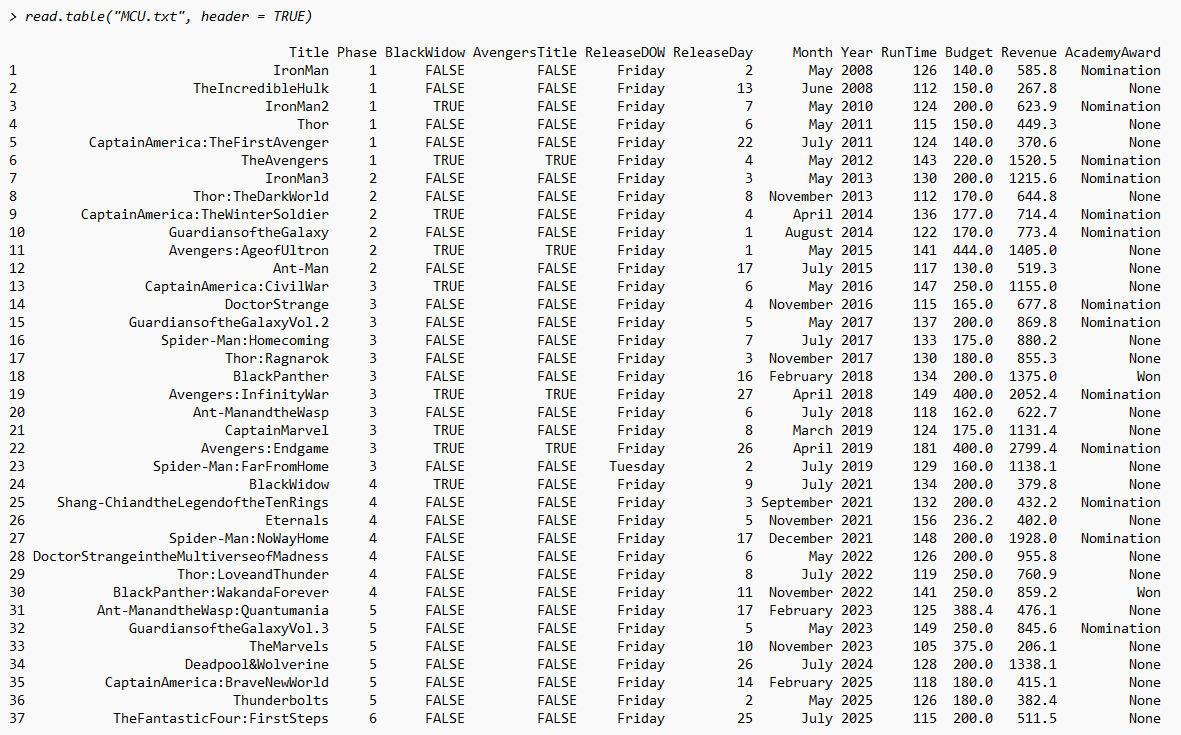
The function read.table() is used to read .txt files into RStudio. The two most important arguments needed are the file name and stating whether or not the file has a header. The file name needs to be enclosed in quotations and include the file type extension. The "header" argument indicates whether or not the first line in the data file consists of the variable names or column titles.

Notice that if I forget to include the header argument or say header = FALSE, it treats the variable names as an observation of data! This is incorrect and needs to be fixed. Since this dataset does have column titles, we should say header = TRUE.
Video Tutorial:
.csv Files
The function read.csv() is used to read .csv (comma-separated values) files into RStudio. The two most important arguments needed are the file name and stating whether or not the file has a header. The file name needs to be enclosed in quotations and include the file type extension. The "header" argument indicates whether or not the first line in the data file consists of the variable names or column titles.

Notice that if I say header = FALSE, it treats the variable names as an observation of data! This is incorrect and needs to be fixed. Since this dataset does have column titles, we should say header = TRUE.

Unlike the read.table() function above, if we forget the "header" argument in read.csv(), it assumes you do have column titles.
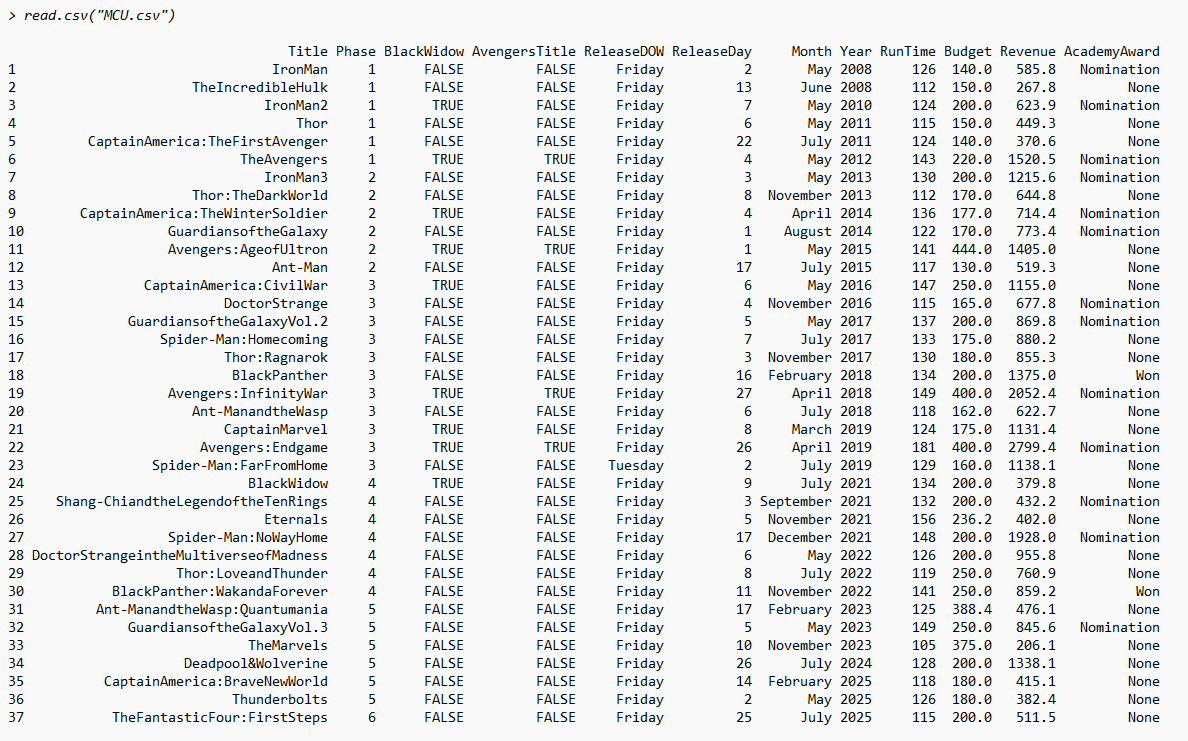
Best practice is to always include the header argument and specify TRUE or FALSE.
Video Tutorial:
Saving the Data in your RStudio Environment
Now that we know how to read data into RStudio, we need to save the data in our RStudio environment so we can perform analyses with it. Rather than just running the read.table() or read.csv() functions by themselves, precede them with a name for your dataset and the assignment operator, <-, to save them into your RStudio Global Environment.

Your data will not be shown in the Console window but will appear as data stored in your Global Environment in the Environment pane (default is the upper right pane).
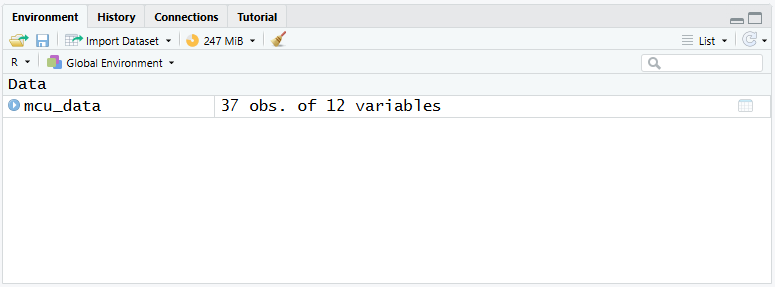
You can now access this dataset by calling it by the name you specified; in this case, mcu_data.