
AppEnhancer – How to Index a Batch
Here are the instructions on how to index a batch that was not finished. If you have any questions, please feel free to reach out to wendy.keller@usu.edu or FinanceSecurityRequest@usu.edu.
Instructions
- Login to AppEnhancer from your default browser
How to change your default browser in Windows 10- Select the Start button, and then type Default apps.
- In the search results, select Default apps.
- Under Web browser, select the browser currently listed, and then select Microsoft Edge or another browser.
- Go to banner.usu.edu
- Click on the AppEnhancer link (on the left hand side, about half way down)
- Open the csv attachment from the email. Double click on the link in the “Link to document” column and hit enter to make it a hyperlink. Click the link to be taken to the batch that needs indexed.
- If you get the “opentext” login window, go ahead and start over with step 1 in this web browser. The link is taking you to your default browser and you may have opened a different browser to initially login to AppEnhancer.

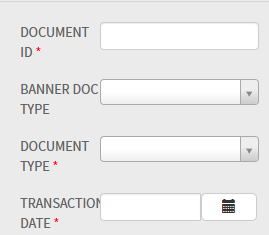
- The document image will be displayed on the left and the indexing fields on the right. Review the image to determine how it should be indexed. You are looking for the Finance Document Code for B-F-DOCS, the Grant Code for B-F-GRNT, or an A number for B-F-ID.
- Determine if you need to index the document or delete it.
Index the document (instructions are for B-F-DOCS)
- Enter the Document Code in the “DOCUMENT ID” field
- A lookup is done to verify it exists. The BANNER DOC TYPE and TRANSACTION DATE will auto populate
- Select “Journal Voucher” in the “DOCUMENT TYPE” field
- Click the SAVE button
- If you get a message that there are already documents, that’s ok, click APPEND

- If there are multiple pages, click the button to append all pages to this Journal Voucher as shown below

Instructions to DELETE the document
- Click on the delete icon as show below to delete the batch

- Click the confirmation DELETE button if you are sure
