
There are two ways to access a student's Canvas data: from a student's Achieve profile or in the check-in queue.
Student Profile
- Select the Student tab then search for and select the student whose data you wish to view.

- Select LMS Lookup then the semester you are interested in viewing.

- The student's Canvas data for that term will be displayed.

Check-in Queue
- Under the Check-in Queue tab, select Check-in Queue.

- Once a student has been checked into the queue, click their name/card.

- Select Options then LMS Lookup.

- Select the semester you are interested in viewing.
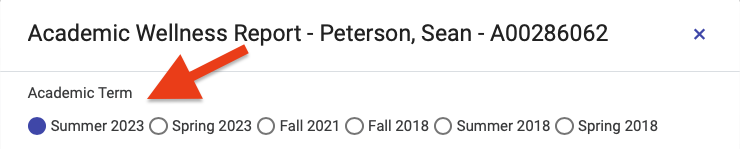
- The student's Canvas data for that term will be displayed.