
ArcGIS Pro Troubleshooting Tips
GIS is a powerful tool —until your map disappears, your layers refuse to load, or the software crashes for no apparent reason…
Here’s a guide to troubleshooting your way through the pitfalls - because we all know that problem solving is part of the fun.
Tip #1: Google it.
Why? Because it takes a village! And you aren’t the only person who gets errors using ArcGIS Pro.
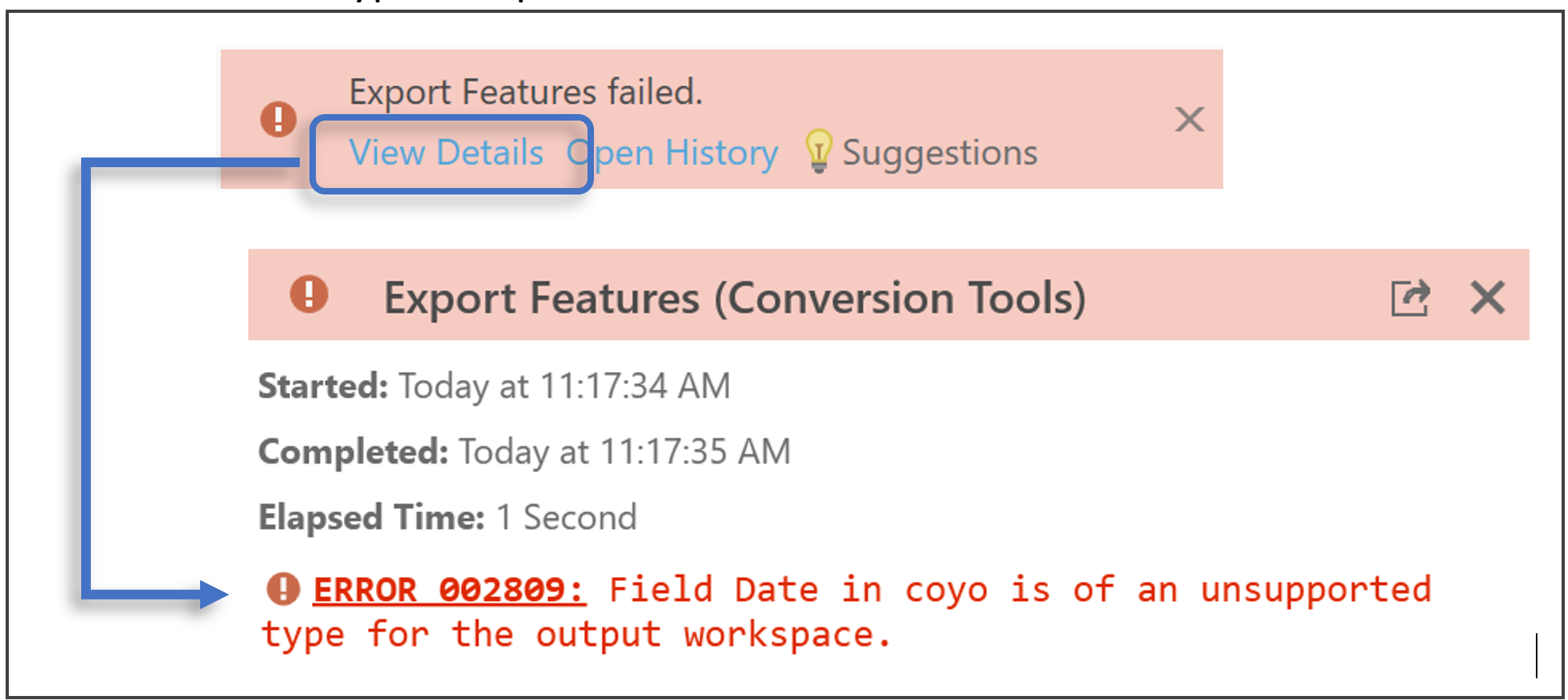
- Use the error hyperlink provided in the tool:
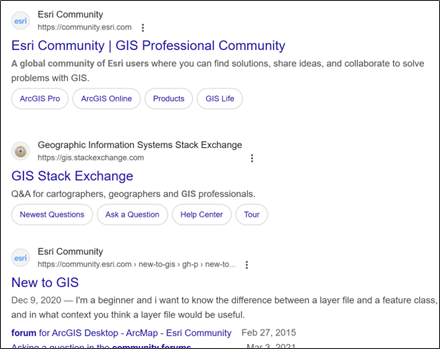
- Search the web for advice from community forums:
- Ask ChatGPT if your conscience allows:

Tip #2: Save Output to the Desktop.
Why? Because it instantly solves all path-related issues including:
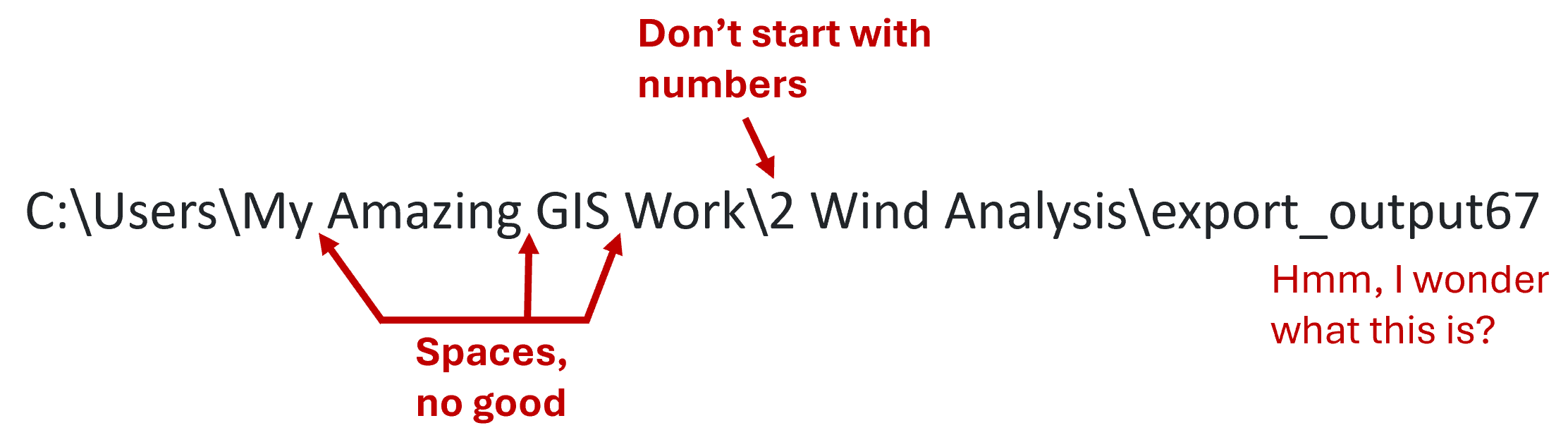
- Folders or files containing spaces in their names or start with a number,
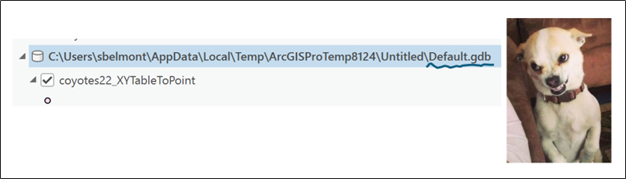
- Accidentally saving to a geodatabase when you don’t mean to,
- Trying to save to a nearly full external drive, and
- Working to and from remote connections like Box or OneDrive which can produce vague errors.
Related tips:
- Move your inputs to the desktop before running tools, and
- Save into a geodatabase if you are getting errors saving outputs to a folder.
Tip #3: Convert .csv files to .xlsx files
Why? Because they have different properties and behave differently.
If you are having issues with joins or displaying points from XY tables, change the input format.
Related tips:
- Check the field and column properties - how is the data formatted? This can prevent joins from recognizing fields.
- Working with rasters, sometimes changing the file extension from .tif to .img or removing the file extension all-together can work.
Tip #4: Start a New Project.
Why? Because it clears the slate.

Any invisible locks on the data that could be caused by pending edits, pending tool functions, or pending errors, are forced to resolve. Any errors or glitches hung up in the history of the project are forced to resolve.
By reopening the same project, you risk perpetuating old errors and unresolved issues, carrying them forward. Starting a new project and adding just what you need to run a tool keeps all the noise and chaos ArcGIS is wrestling with to a minimum.
Related tip:
When packaging your project, don't save the project History. (Uncheck the box next to History.)
Sometimes undefined errors can result from trying to package a project that has unresolved issues. You won't know there are unresolved issues. You will just get a project that won't package.
Tip #5: Check the Data Layer's Extent.
Why? Because so many errors stem from data being defined with an unexpected unit of measure.
Check the extent in the layer Properties -> Source -> Extent.
The values and unit of measure must agree:

If the values are less than |180| then the units must be degrees. If the values are in the hundreds of thousands or millions, the units must be feet or meters (most commonly meters).
Remember, the Values are intrinsic to the data. The Units are defined by the user (when the user defines the coordinate system for the data).
You can realign the values and units by running Define Projection (which wipes out any existing definition of a spatial reference and lets the user define the correct coordinate system (the one in which the coordinate values were measured)).
Knowing the correct units for your data's spatial reference can fix a lot of different problems like:
- Your U.S. data is displaying in the ocean,
- Only one point out of thousands is displaying (for example, the record with XY coordinate values of 0,0),
- Inability to resample because the user defined cell size is too large.
_______________________________________________________
What are your most effective ArcGIS Pro troubleshooting tips?
Share them with us on Instagram:
