
USU students and employees are eligible to use the ESRI Software called ArcGIS. At USU, we license ArcGIS Pro via an ArcGIS Named User License or Single Sign on. Below is information about installing and licensing ArcGIS Pro. ArcGIS pro only works with the Windows operating system.
Please read through these instructions before beginning.
Single Sign On (SSO) account
This is the preferred method to license ArcGIS Pro.
- Start by navigating to usuonline.maps.arcgis.comLinks to an external site. and click the Sign In button.
- You will see two sign-in options, a blue button that says "Sign in to Utah State University" (indicating single sign on) and a tab that says "ArcGIS Login" (indicating logging in with an existing ArcGIS login).
- If you don't have an ArcGIS login already created (i.e. from a previous USU course), please use the single sign on button. You will be redirected to USU's login page where you will be asked to enter your A# and strong password, along with your Multi-Factor Authentication (MFA).
- Once logged in, follow the directions below to download the ArcGIS software.
ArcGIS Login account (Named User license)
Use this option if you created an account before the SSO option was available. You would have been sent an invite to join USU's ArcGIS by creating an ArcGIS login.
Please use the username and password that you used to create this existing account to sign in by going to the tab that says ArcGIS Login (above). If you use the SSO option, you will be creating a new account and won't have any of your previous maps or data that might be saved in your content.
Please see the notes below if you'd like to migrate your content to a SSO account.
Once logged in, please follow the directions below to download the ArcGIS software.
Do I log in with my ArcGIS Login account or SSO?
USU implemented single sign on accounts in July of 2024. New users are encouraged to sign up for new accounts using the SSO option. If you had an account before that time, you will have a named user license that might not correspond with your single sign on account. If you have an existing ArcGIS log in and use the single sign on option, it will create a NEW account using your A# and you won't be able to access your existing content.
Please see the notes below on how to migrate user data if you have a named user account and would like to switch to a SSO account.
Download and install the ArcGIS Software
Once you are logged into an account, use the following steps to download the ArcGIS software:
- Click on your profile in the top right and use the My Settings option.
- On the My Settings page, click the Licenses side tab.
- This will take you to a downloads page with multiple options. In the Licensed Products section, find ArcGIS Pro and the corresponding "Download" button on the right side.
- That will start the download to your browser.
- When it's finished run the program you downloaded from your download folder.
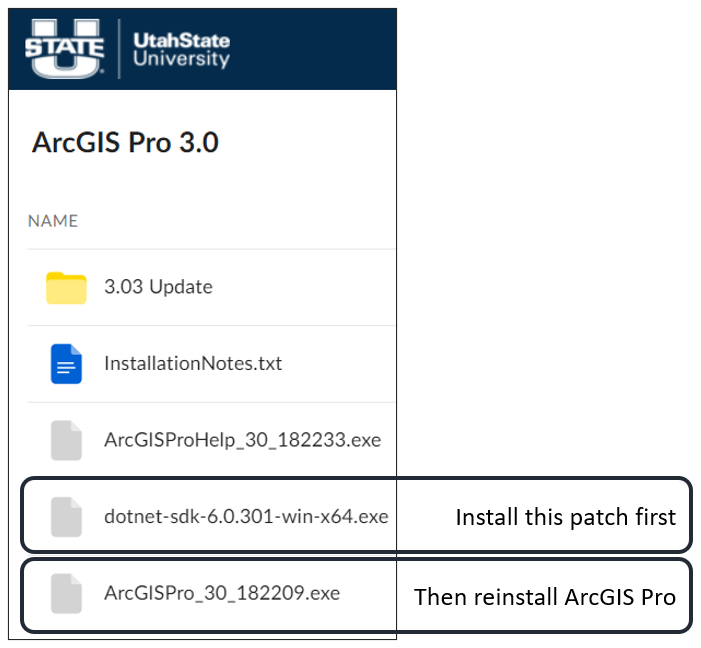
ArcGIS Pro requires a Microsoft .NET SDK program. During the installation process it might ask you to download and run that program first, and then install the ArcGIS program afterwards. This is normal, and the installer will even take you to the page to download the program.
Logging into the ArcGIS Program
Once you have ArcGIS pro downloaded and installed. Open the program and select the User icon in the top right. This will bring up a log in screen similar to the web version pictured above.
If you used the USU Single Sign On credentials, you can choose the dropdown box that says "Your ArcGIS organization's URL". Similar to the web version, there is a blank field that ends in "_____.maps.arcgis.com".
Enter "usuonline" and select the blue "Continue" button.
Select the blue button that says "Utah State University" which will start the USU SSO process.
Enter your A#, strong USU password, and dual factor authentication.
If you have a named user license, enter your ArcGIS username and password.
Migrating content from one account to another (e.g. ArcGIS login to SSO login)
If you had an ArcGIS account before July of 2024 and use the Single Sign On option a new account will be created for you. This account will be based off your USU A# and not the username you used to create your ArcGIS account. You are not required to use the SSO option, and you can continue to sign in to your ArcGIS account with your normal username and password. But if you'd like to use the SSO option, you may have to migrate existing content from your chosen username account to your single sign on account.
Use the ArcGIS Online Assistant to transfer content from one account to another. You can find that tool here: https://ago-assistant.esri.com/Links to an external site.
- Start by signing into the ArcGIS account that has the content that you want to push to a new account. (Typically this will be your named user account, and we'll migrate the content to your SSO account.)
- Navigate to https://ago-assistant.esri.com/Links to an external site.
- At the top of the page you'll see a button that says "I want to....." Click that button and chose Copy Content
- It will ask if you want to copy content from another account or your own account. Select Another Account.
- This will give you a small popup asking you to sign into the new account. This will mostly likely be your Single Sign On account. Sign in with your A# and USU strong password. It may ask for Multi-Factor Authentication (MFA).
- If this page asks for a domain, it might have an empty field with " .maps.arcgis.com" at the end. That domain will be "usuonline.maps.arcgis.com".
- You will see two account on either side of the screen, you can migrate data between these account on this screen.
You can find more information on their Getting Started GuideLinks to an external site. for ArcGIS Online Assistant.