
Understanding what others can see
You may want to make sure what the proctor or testing center staff can see when you are adding or editing an exam. In order to do this, visit the course details page by clicking on a course title from most pages in MATS. From the course details page, make sure the Proctored Exams tab is selected.

On the right column of the proctored exams list you will see the Status column. For most staff and certified proctors, this column indicates if the exam is currently viewable based on the exam dates. If an exam is viewable, there will be a link labeled View. If an exam is not viewable the link will be replaced with text that says Closed. Clicking the View link will bring up the exam preview that staff and proctors see when they administer your exam.
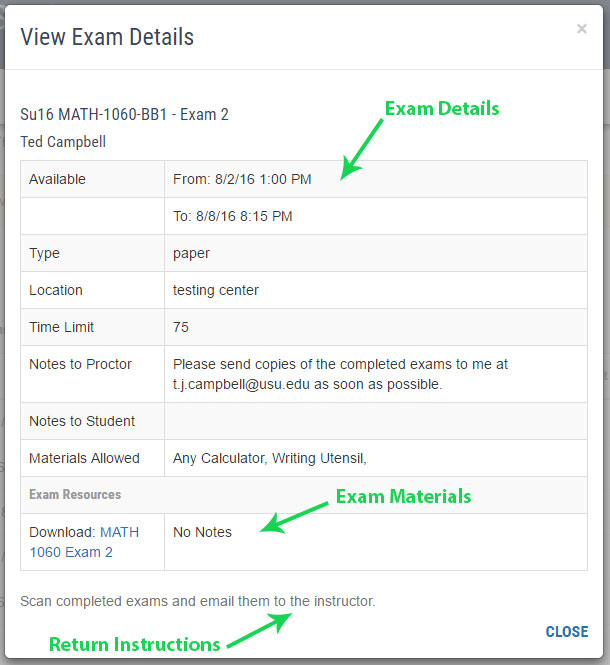
Exam Preview
The exam preview window is broken up into two main areas: Exam Details and Exam Materials. The top portion will show all the exam information as you entered it in MATS, including the access code for Canvas exams. The bottom portion will show all exam materials added to the exam. Below that will be the return instructions for paper exams. If any information is listed incorrectly here you should fix it on the exam form. If you need help, please refer to the Modify Exam guide for help. Please note only certain testing center staff members can access exams outside of the date range specified on your exam.
If you want to preview an exam that isn't currently open, modify the dates on the exam to include today, view the preview and then set the dates back.