
1
Log into Inspire
2
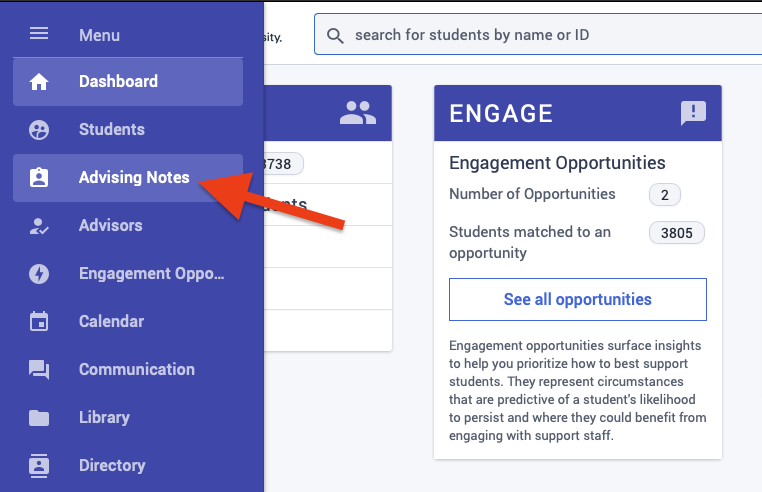
Select Advising Notes from the left menu
3
If needed, use the Advanced Search to narrow down results

4
Click the download button in the upper right then select Download


5
A Downloads panel will appear. Once the report is processed, click the download icon to download the report to your device

6
Securely store the report and discontinue adding notes in Inspire
To store the report securely, upload the file to a secure Box folder (one that is not shared publicly or to all university staff) then remove the file from your device.