
What is Ally for Students?
Ally is a feature available in Canvas that allows you to download course content in your preferred format. Ally Accessibility tools are integrated into Canvas to make digital course content more accessible. They are also powerful usability tools that can make learning in a digital environment easier for every learner.
Ally for Canvas Accessibility
Accessibility makes it possible for all students to use course materials and tools. An accessible Canvas Course allows every student to successfully navigate course content and submit assignments. If your teacher shares a PDF file that is hard to read on your phone, you can quickly download it as an audio or ePub file and listen to or read it on the go.
Getting Started
The following video will give you a quick tutorial on this Canvas feature and how it can be accessed.
How to Navigate Alternative Formats
In Canvas, most files have a drop-down menu where you can download the file. Wherever you see the download option (1), there is also an option to download alternative formats (2) of that file.
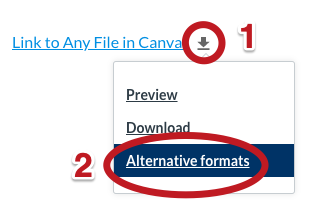
After you click on "Alternative formats," you will see all of the formats in which the content is available for you to download:
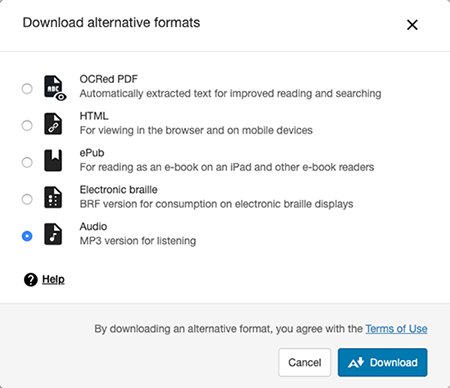
Available formats to download include:
- OCRed PDF - a more accessible type of PDF file.
- HTML - provides a version you can view in any browser.
- ePub - This converts the content to an ePub format, in which the font size and other visual aspects can be adjusted. An ePub is great for reading on mobile devices such as a phone, iPad, or Kindle.
- Electronic braille - cool, right? Did you know braille can be electronic?
- Audio - an MP3 file that you can listen to on the go on your preferred device.
- BeeLine Reader - This downloads an HTML version of the file with Beeline Reader’s colorful text overlay, making it easier to read and focus on.
- Immersive Reader - provides a visual and audio version of the document.
- Translated Version - provides a machine-translated version of the document.
Learn more about these alternative formats and different scenarios where they might be helpful.
Once you select your desired format and click "Download," the file will be prepared for download. If it is not the first time the file has been created, it will download immediately. If it is the first download, it may take a minute or two for the file to be ready—at that point, it will download to your computer or mobile device and will be ready to use.
Consider opening multiple tabs if you need to download multiple files.
More information for students using the tool is available on the Ally website.
Downloading the Alternative Formats
This video is a tutorial gives a walk through demonstration on how to access the alternative formats on Canvas.