Download the Blackthorn Event Navigator App
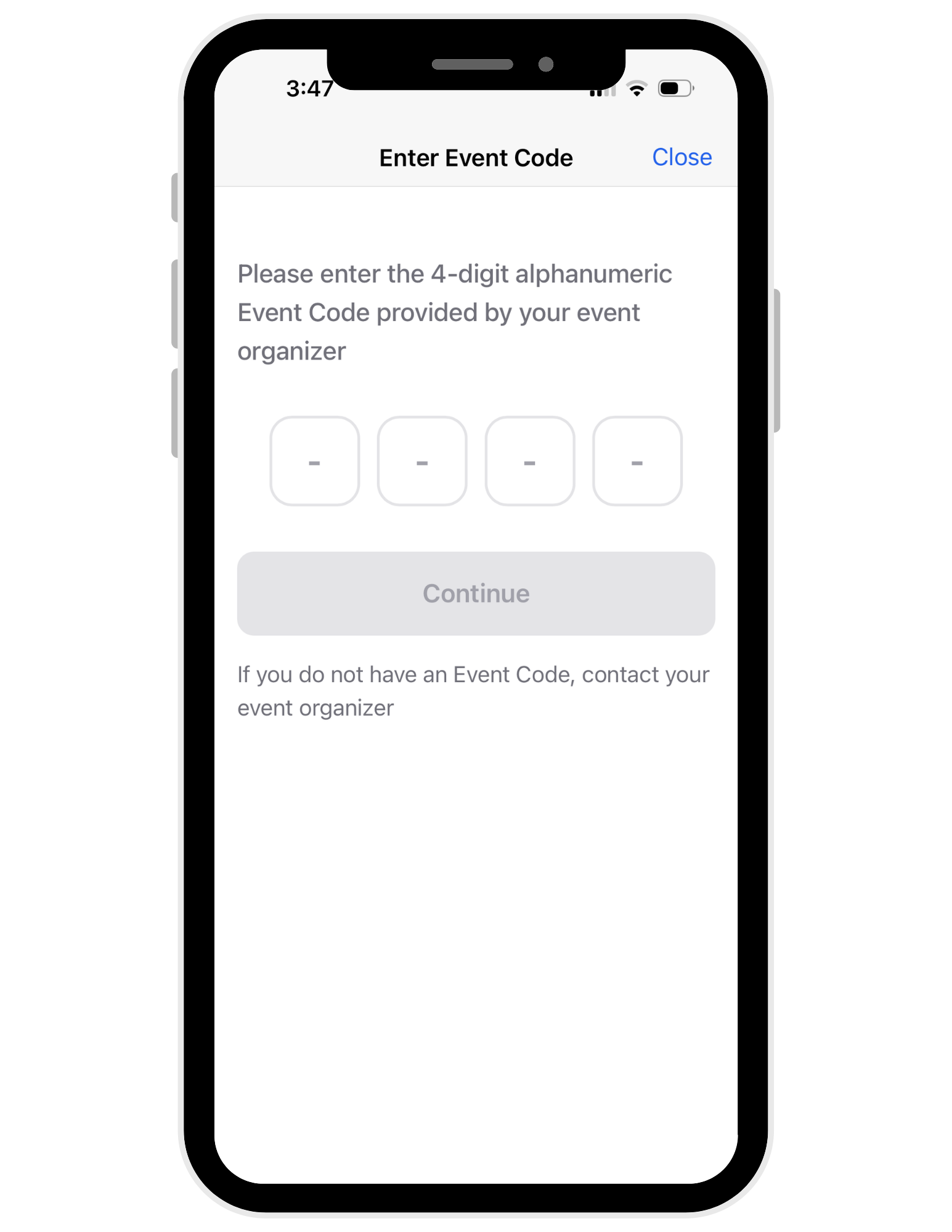
Log in using your event code and email
Use the code FJV6 and enter the email you used to purchase your ticket. Navigate to your email and approve the verification request sent to your email.
Enable push notifications
Make sure to enable push notification in your app settings. Last minute reminders and changes will be sent through the app.
View your schedule and add more events
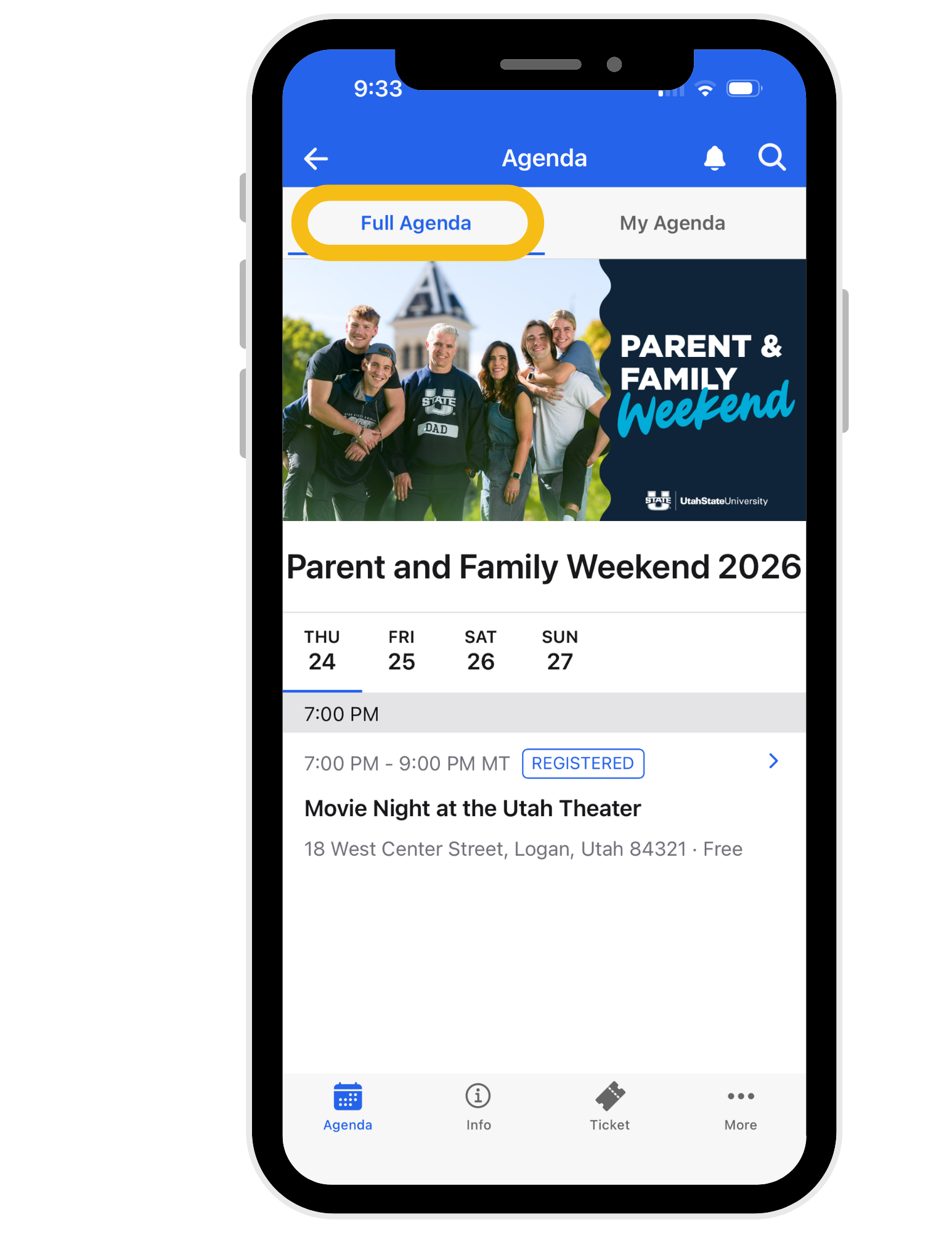
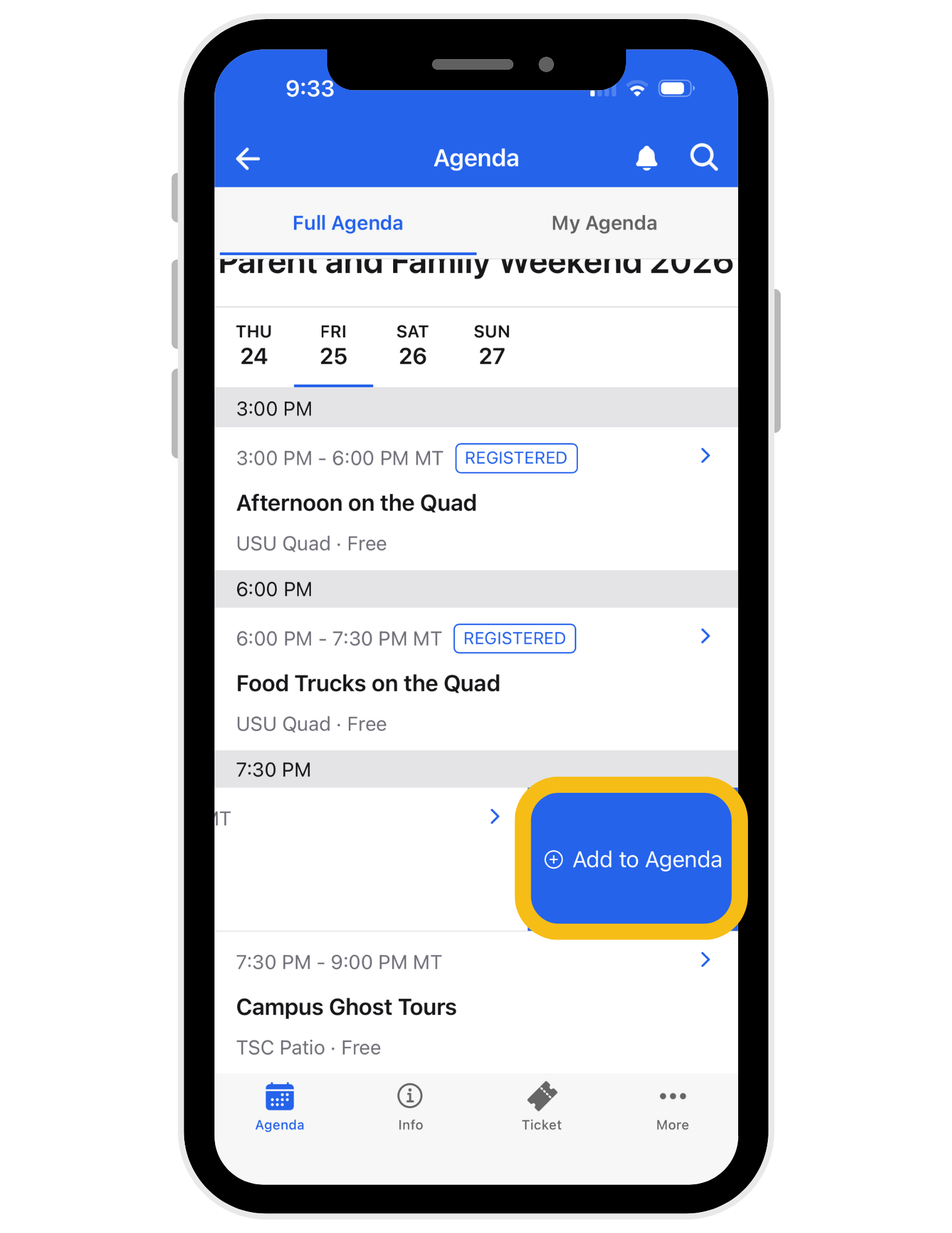
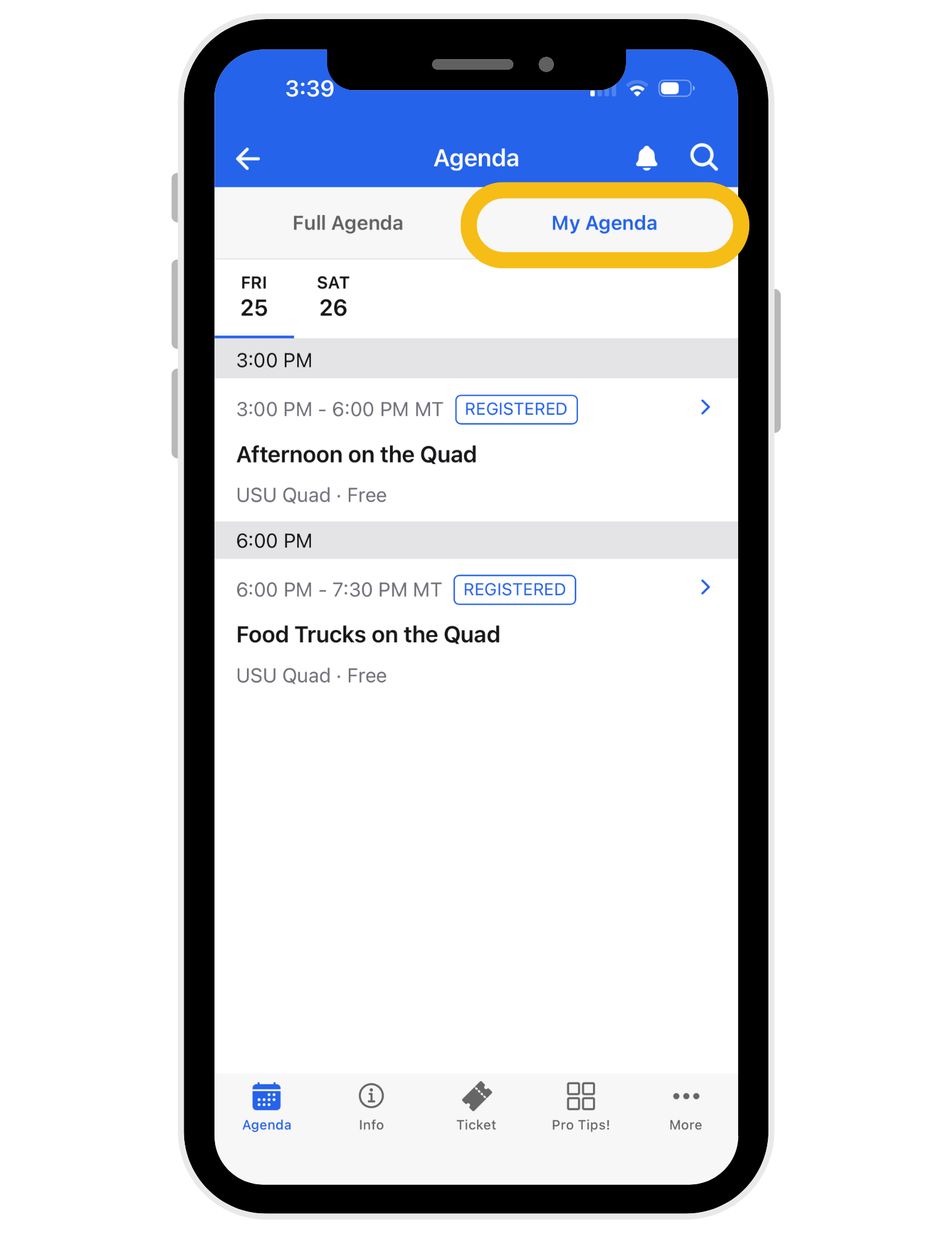
Tap the “Agenda” icon on the bottom of your screen to view the weekend events. On this page, you can view the “Full Agenda”, which includes all events, even those you are not registered for. You can also view the “My Agenda” tab to view the events you RSVP’d for. If there is an event you are not registered for but would like to come to, you can swipe left on the event to add it to the “My Agenda” tab.
View event details
Click on a specific event on the “Agenda” tab to view event details, times, and locations.
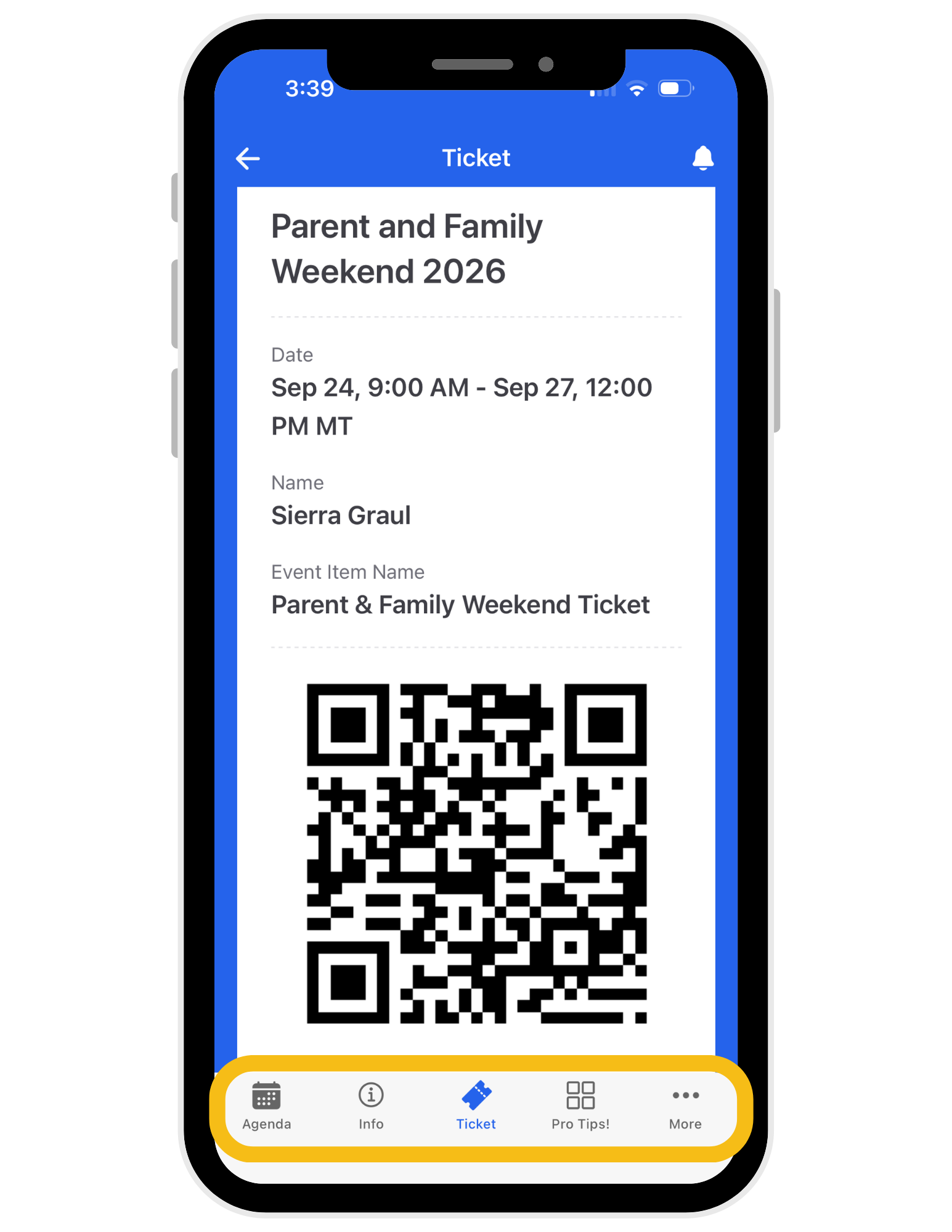
Navigate to your event ticket
You will use your event QR code to sign in to each event throughout the weekend.
View pro tips
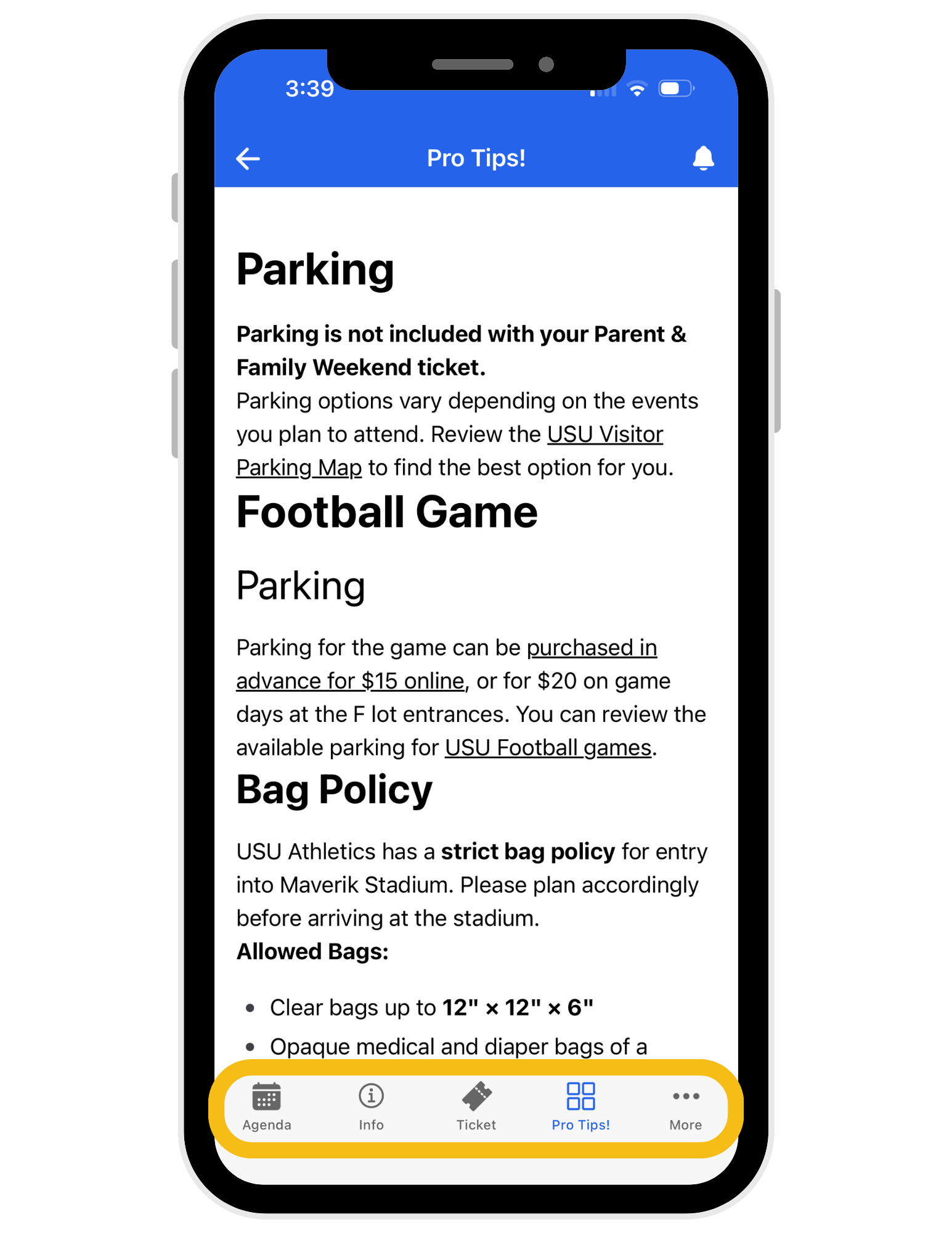
Tips to help you make the most of your weekend will be located on the Pro Tips! page.
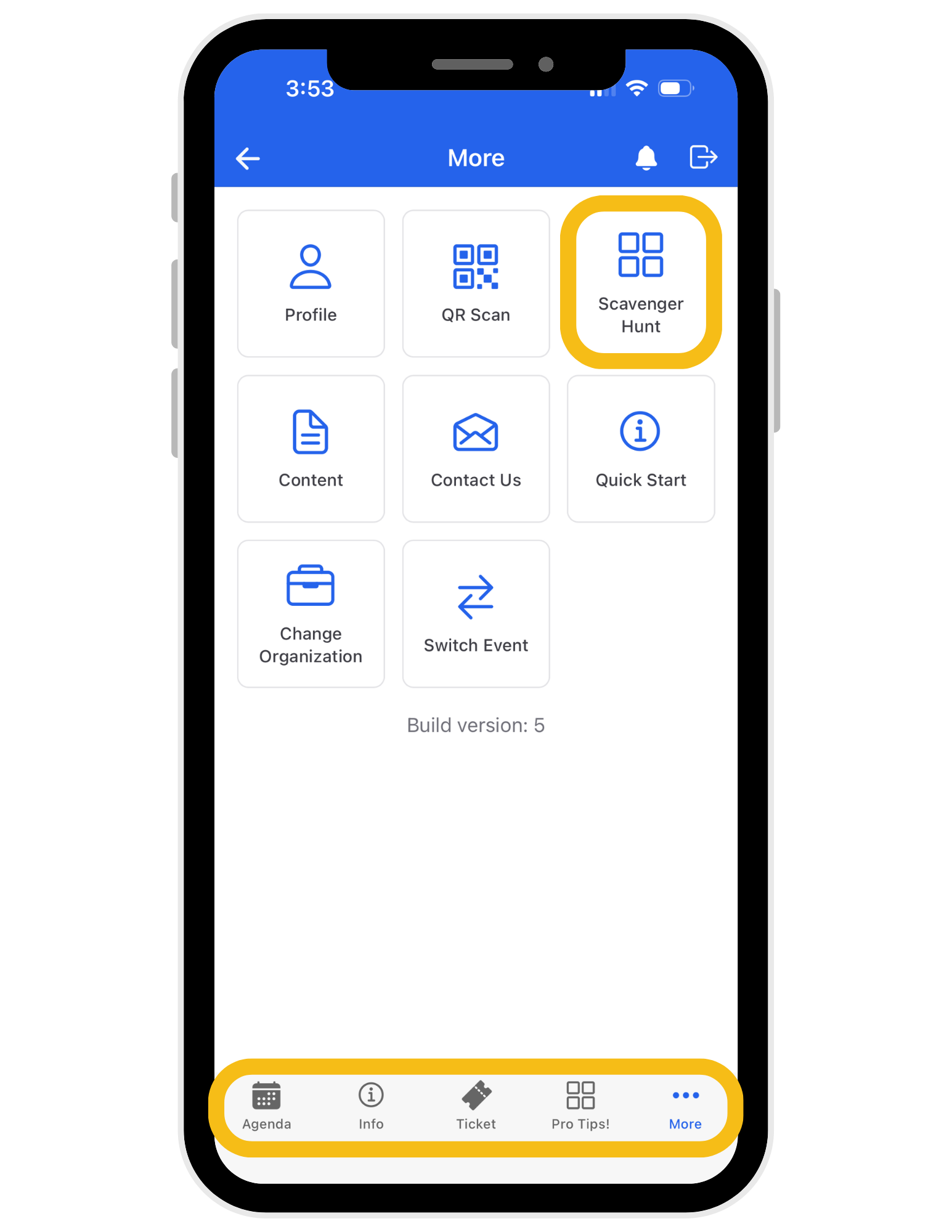
Participate in the Scavenger Hunt
Navigate to the More tab on the bottom of the screen then click the Scavenger Hunt button. This is where you can learn how to participate and find the instructions!