

CIDI Newsletter Feb 2022
2022 Newsletter - February
The CIDI monthly newsletter to USU instructors shares the latest news, teaching tips, and technology updates to help you succeed as a teacher.
Alternatives to Virtual Proctoring
Widespread remote teaching over the past two years led to a dramatic increase in online testing and virtual proctoring using Proctorio. Virtual proctoring has served a useful purpose and remains an option for instructors at USU, but it has several drawbacks, including increased anxiety for students, additional technical requirements, concerns about privacy, and extra challenges pertaining to equity and accessibility. Good alternatives exist to virtual proctoring. We recommend considering a combination of the following methods before you decide to use Proctorio.
Use alternative types of assessment.
If your class size permits, consider other forms of assessment besides closed-book, multiple-choice exams. For example, authentic projects, written assignments, presentations, portfolios, oral examinations, case studies, annotated bibliographies, and more.
Reduce incentives to cheat.
The higher the stakes, the greater the temptation to cheat. Rather than running a few high-stakes exams, break up your assessments into weekly, lower-stakes assessments. Consider dropping the lowest score or, if you have a large enough test bank to draw from, allowing multiple attempts. Mix in varying types of assessment to better measure your performance outcomes and play to students' differing strengths.
Articulate what cheating is and institute an honor code.
Don't assume that students know what cheating is, and remember that some instructors encourage behavior, for specific pedagogical purposes, that others consider cheating. Define upfront what you consider cheating for your assessment. Then consider including some form of an honor pledge, i.e. "I pledge, on my honor, that I have neither cheated nor given help in cheating for this exam" (see various examples).
Design assessments to make collaborating and "looking up" less beneficial.
Exams that are computer-graded can be designed to make collaborating and looking up answers harder for students. Techniques include writing questions that are more application-based and less fact-based, setting a time limit that doesn't leave enough time for looking up answers, and drawing questions randomly from a large question bank. Limiting the availability window of an exam and choosing not to show answers until at least after the exam is done also increases security.
Use in-class testing or live proctoring.
Sometimes proctoring is still recommended--particularly when student identity verification is needed. If your class meets regularly together, testing in class can be your most effective option. Otherwise, USU has a well-established proctored testing center system that is the envy of most institutions and is particularly suited for online testing through Canvas. Exams can be proctored at the Logan campus testing center and any of the USU Statewide testing centers. Additionally, USU has an approved proctor network whereby students who are out of state can find a proctor near them or have a proctor approved. Go to USU's testing center website for information and scheduling tools.
Infographic: To proctor or not to proctor?
Need help deciding whether to proctor your exam or not? This decision tree may help.
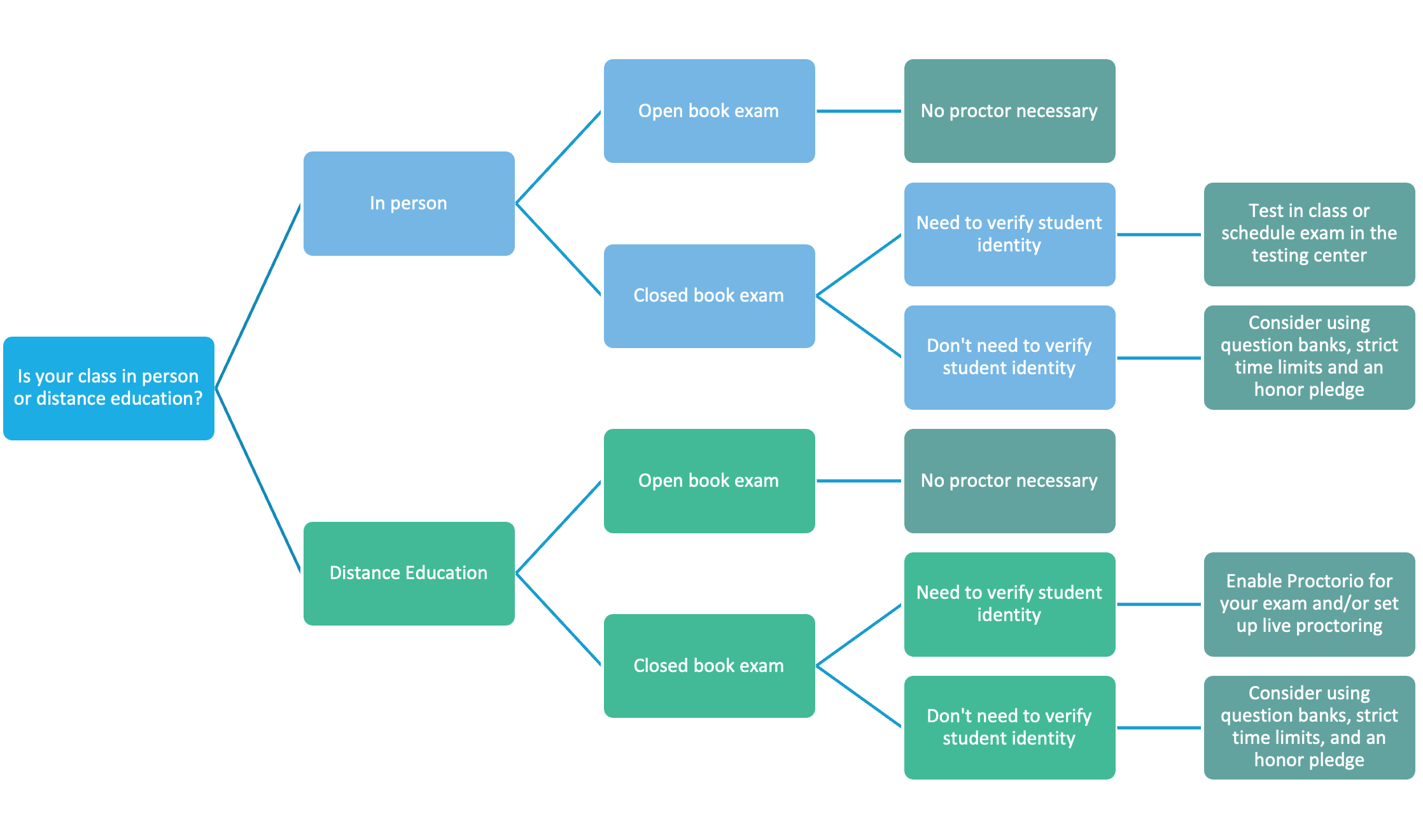
Additionally, check out the testing center's page on determining what type of proctoring you should use.
Virtual Proctoring Considerations
If, upon consideration, you determine that virtual proctoring is still your best option, here are some tips for making the Proctorio experience better for you and your students.
Reduce the sensitivity of behavior settings.
With its default settings, Proctorio tends to flag too many honest students for behaviors such as head movement and environmental noise. You can scale down the sensitivity of Proctorio's "behavior settings" in the Proctorio Settings tab under the Behavior Settings header. Sensitivity can be re-adjusted any time after the test if you feel they were too lenient or severe, and the results will update automatically.
Avoid settings that create unneeded technical challenges.
Setting too many restrictions in Proctorio can create unintended problems. For example, setting "severe" enforcement of full-screen mode will result in students getting kicked out of the exam for accidental keystrokes. Preventing re-entry is likely to result in some students needing additional attempts. Determine the minimum of lockdown and monitoring features you need and turn off the rest.
Make the exam flexible to provide live proctoring alternatives for students who want them.
Some students may feel uncomfortable with virtual proctoring for a number of reasons. Provide an option for them to use a live proctor by making the exam flexible.
Questions? Get help!
CIDI is always available to help you design your assessments to meet your needs, including any of the above tasks. Please feel free to contact us.
Teaching Tools and Updates
Service Preferences Form in Canvas
Located in your Canvas user account menu is a new Service Preferences form. There you can pre-authorize CIDI Support staff to perform certain fixes, like fixing broken links or making content accessible, or you can specify that you would prefer CIDI Support staff to ask for permission first. You can also note specific interests to help CIDI determine what types of training and services to focus on. You can adjust your preferences at any time.
Canvas Updates
- Rich Content Editor: Equation Image Absolute URLs
- Courses: Course Navigation Menu State
- Gradebook:
- Modules: Modules Link State
- Speedgrader: Unposted Comment Warning
- Account Settings: Slack Notifications Feature Option Transition
- New Quizzes: Matching Questions Partial Credit
Upcoming Training Opportunities
- 2/25 at 9:00 AM · Advanced Zoom
- 2/25 at 1:00 PM · Getting Started with Zoom
- 3/3 at 9:00 AM · Writing Outcomes for Assessment
- 3/3 at 2:00 PM · Building Interactive Learning Activities with Atomic Assessments
- 3/15 at 9:00 AM · Web Broadcast Teaching Tips
- 3/15 at 12:00 PM · Shortcuts and Tools to Take Your Canvas Course to the Next Level
- 3/15 at 3:30 PM · New Quizzes in Canvas
- 3/18 at 1:00 PM · Advanced Zoom
Contact CIDI
For on-demand support with teaching technologies, contact CIDI at cidi@usu.edu, via chat, or at 435.797.9506 . Schedule an appointment with an instructional designer to get help making your courses more engaging, usable, and accessible.