
Submitting a New Course Form
This form is for requesting a new course. Submitters cannot request General Education or University Studies designation additions or changes on this form.
View as PDF-
Sign in to Coursedog and select the Curriculum Management module.
If you do not have access to Curriculum Management and you have been designated as the Curriculum submitter for your department, contact your Department Head, who can request access on your behalf. If you are not a designated submitter, they can direct you to them. - Select the ‘+ NEW PROPOSAL’ option in the top right-hand corner of the Home screen.
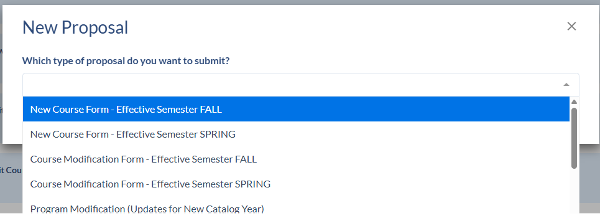
- A drop-down window will prompt you to select the type of proposal you are wanting to submit. Select the New Course Form for the appropriate effective term. Then select ‘Got to Form’.
-
Once the proposal loads, you can now fill out the required course information. Each field and their respective requirements are outlined below.
New Course Form Fields
- The course prefix and course number combination must be available for use in the catalog and Banner. Previously deleted course numbers are not eligible for reuse until six (6) years have elapsed. (i.e. if a course was deleted in fall 2019, it will not be eligible for reuse until spring 2025).
- Select the correct college and department for this course. This will set the approval workflow for this course, so please take care to select the correct information.
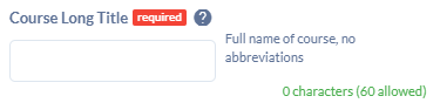
Note that these fields pull from Banner and have a character limit, so names may not reflect the full approved name of the college and the department. - The Course Long Title is the full course title that shows in the catalog and on the course syllabus. Abbreviations must be spelled out, and standard grammar and capitalization rules apply.
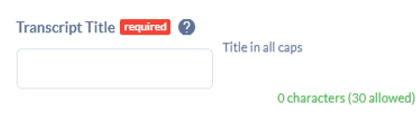
- The Transcript Title is the course that will display on the student’s transcript and in Banner. This field has a 30-character limit and must be truncated and in all caps.
- The Academic Course Level is where you will indicate if this is an Undergraduate or Graduate course. (Undergraduate: 1000-5999 course numbers; Graduate: 6000-7999 course numbers)
- The course description must be 40 words or less, written in complete sentences, with all abbreviations and acronyms spelled out. It must also be gender-neutral, objective, and written in the 3rd person, present tense.
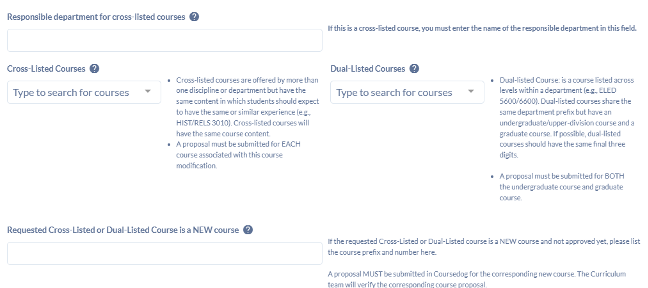
- Cross- and Dual-listings require that that proposals for all courses associated with this change be submitted with the same change. Singular proposals cannot move forward for approval and will be held in the queue until all necessary proposals are submitted.
There is a dedicated training for cross- and dual-listings that covers these fields in-depth. Please refer to that training for more information. - Grade Mode options include either Standard Letter or Pass/Fail options. Temporary ‘T’ grades may be requested under certain circumstances—work with the Office of the Registrar prior to submission to ensure those circumstances are met.
- Ensure the effective start term matches the type of form submitted.
- Submitters have the option to add a syllabus to the proposal. This is not required.
-
The Credit Hours field have a couple different options for entering the credits of a course:
- Enter non-variable credits in the ‘Credit Hours Min’ field only (shown in the example)
- If students can choose between only two credit options, enter the lowest option in ‘Credit Hours Min’ and the highest option in the ‘Credit Hours Max’ field with a ‘Credit Hours Connector’ of ‘OR’. (i.e. 4 OR 7 credits)
- If the course will be offered with a range of credits, enter the lowest option in the ‘Credit Hours Min’ field, and the highest option in the ‘Credit Hours Max’ field with the ‘Credit Hours Connector’ of ‘TO’. (i.e. 3 TO 9 credits)
- Credits must be requested in increments of 1. Approval for fractional credits can only be given to .5 or 1.5-credit courses
-
Course Repeatability indicates if students can get credit for all attempts of the course.
- Not repeatable’ will allow students to take the course only once for credit.
- ‘Repeatable’ will allow students to take it more than once for credit. (Indicate in the ‘Maximum Amount of Credit’ field if there is departmental limit to the number of credits the course can be repeated for)
- Prerequisites can include courses, test scores, competency exam scores, and GPA thresholds, and will be built as Simple Requirements on the course.
-
Corequisites are courses that the student will be required to take at the same time as the course in question. These will also be built as Simple Requirements.
- See the end of this document for a general overview of building simple requirements
- All prerequisites need to be fulfilled prior to registration. Items in this box can be programmed with an and/or indicator, but note that Banner cannot be programed with an ‘or’ between prerequisites and registration restrictions or prerequisites and special approvals.
- Also note that Banner cannot program an ‘or’ between two different Corequisites. Students will either require both, or they will be built as prerequisites that can be taken concurrently. Contact the Catalog Team for more details
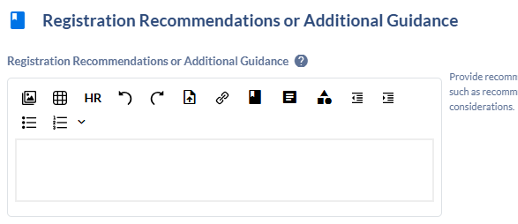
- The Registration Recommendations or Additional Guidance field is intended for any recommended preparation, prior coursework, skills, experience, or other registration considerations, but will not be coded to prevent a student from registering.
-
Registration Restrictions must be specific and reflect something that can be coded in Banner. This includes restrictions based on department, class, level, student attribute, or program admission. Avoid vague and ambiguous language, and provide specific program codes if possible.
- Note that Banner cannot be programmed with an ‘or’ between prerequisites and registration restrictions or registration restrictions and special approvals.
-
Special Approvals include instructor, advisor, or department permission. This will be displayed in the catalog and programmed at the section level. Special approvals cannot be programmed by the scheduling team unless it is listed in the catalog, and this restriction will apply to each student individually.
- Note that Banner cannot be programmed with an ‘or’ between special approvals and prerequisites or special approvals and registration restrictions.
- Also note that Instructor permission will not override prerequisites.
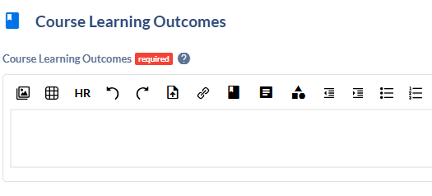
- Course Learning Outcomes will need to be entered in a numbered list.
- Indicate if this is an Honors course, or if Educator Licensing Approval is required. This will ensure the proposal is routed correctly.
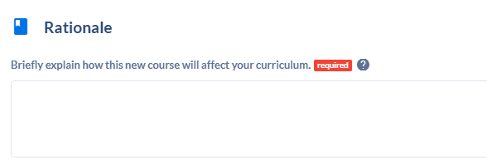
- Offer a short explanation of why this course is being created and how it will affect your curriculum once it is approved.
- Once all required fields have been completed, go ahead and hit the Submit Proposal button.
- A window will appear, confirming the submission of your proposal. It has now moved forward in the workflow.
The Catalog Team will now be able to review and approve your request. Please don’t hesitate to contact them with any questions or issues.
See below for an overview of building prerequisites as simple requirements.















Prerequisite & Corequisite Programming Overview
If no prerequisites are needed, skip this section.
To add a prerequisite or corequisite:
- Click Add in the "Pre-Requisite" or "Co-Requisite" section.
- Set the Requirement Type to “Requirement” to select active catalog courses.
- Name the requirement:
- “Prerequisite” for prerequisites
- “Corequisite” for corequisites
- Click Add Requirement Rule to begin adding courses.
- Choose the condition from the dropdown (this sets the rule logic).
- Leave Data Type as “Courses.”
- Use the course dropdown or type the prefix and number (e.g., ENGL1010).
- Name the Rule (e.g., “Required”).
- To add more rules or courses:
- Use Add Requirement Rule for different logic
- Use the red X to remove an individual course
- Use remove or delete requirement to remove entire requirement blocks
- Optional: Add text to Rule Description (displays at top) or Rule Notes (displays at bottom).
- You may edit existing prerequisites by selecting the ‘edit’ option on the existing requirement and begin adding courses and requirements as needed.
- If you wish to remove an item from the prerequisite, you may click the red ‘X’ icon beside the item to be removed.
- If you wish to remove the requirement entirely, you may select the ‘Remove’ option to remove only that section, or the ‘Delete Requirement’ option to remove the entire prerequisite.


Registration Restriction Programming Overview
- In the restrictions section, either:
- Type restriction info directly, or
- Use the “Embed Program” tool to select programs from a list.
- For each program:
- Type the program name
- Select both BA and BS if the restriction should apply to both
- Click “Embed Link” for each selected program
Note: The system will display both as the same name, but your selections will alert the catalog team to what you want to have listed.

