
Icebreaker — Group Roles
This is a great activity for team or group building and helps students to acknowledge that it takes lots of various talents and skills to have a good team. It's a fun way for students to get to know each other and helps them focus on something other than surface level features that they might share in a traditional introduction.
Implementation
Have students break up into teams or groups. Have the students take turns within their group sharing what their role would be if their group was going to pull of a heist. Each student should also state two or three reasons they picked that role. For example, Antwon might say the he would be on the tech ops team because he is good with technology, quick at thinking on his feet, and good at performing under pressure. Neveah might say she would be the thief because she is flexible, quick on her feet, and can hide in tight areas.
Encourage students to come up with different roles than other members of their group and focus on highlighting their specific talents and skills.
Customizations
You can customize this idea to fit a project that is more aligned with your field of study. For example:
- Business: conference, fundraiser, or product launch
- Performance Arts: concert, theater production, or Shakespearean festival
- Health: blood drive, immunization clinic, health fair
- Generic: party, tournament, create a video game
Teaching Format Modifications
The instructions below can be used to retrofit this activity to an Connect or Online delivery formats.
Connect
Use Zoom Breakout groups to have students get in their groups. You might also have them use the instructions for the online activity below.
Online
Create an assignment in Canvas that provides students instructions and a deadline to complete the activity. Be sure to tell students how they can find the whiteboard for their group (by going to the Zoom link in the course navigation and clicking on the "Whiteboards" tab). Then, create whiteboard in Zoom for students to use with their group. (Tip: This activity could be done with other software, like Google Docs, also.)
Sample Instructions
The purpose of this assignment is to get to know the members of your group and highlight each of your unique talents and skills.
- Pretend that you were going to help your group in a heist. Which role would you play for your group and why?
- Click on the Zoom link in our Canvas course, then click the Whiteboards tab and open the whiteboard for your group. (If you don't know your group name, you can find it on the People page in Canvas.)
- On the Whiteboard, pick the role that you think you would be best at and add your name under the role. Or, add a new sticky note and type the name of a new role at the top and add your name underneath. Get creative, but not offensive.
- Move the note so it is away from the others so that you can add some extra notes around it.
- Click on the sticky note with the role you chose and click one of the dots above or to the side of the note to add some reasons why you would be good for this role.
When you are finished, it should look something like this: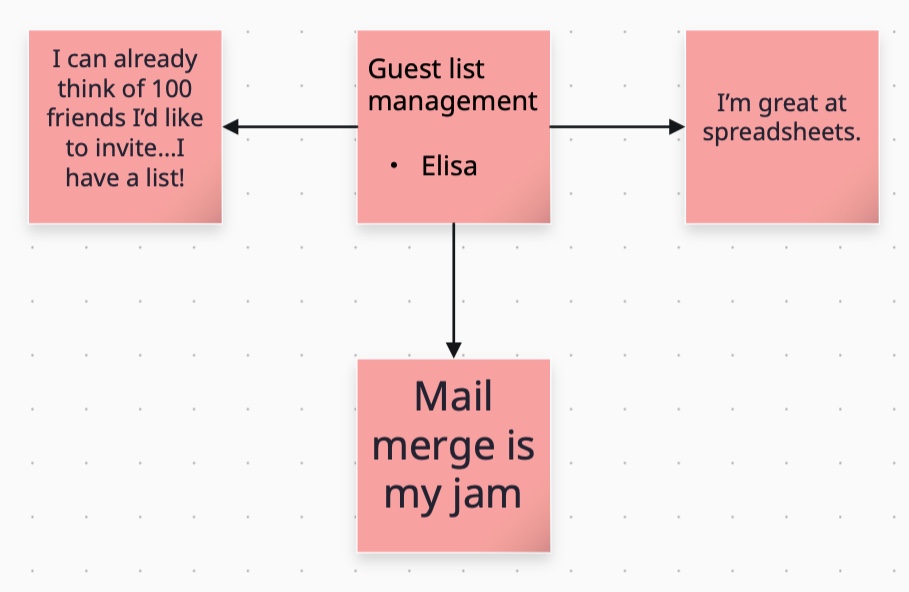
Check back at the end of the week to read what your group mates have shared.
Create the Zoom Whiteboard
1. Open the Zoom app and click on the Whiteboards tab

2. Create a new whiteboard

3. Close the templates pop-up window, if applicable

4. Click the AI Companion button

5. Read the AI technology notice and click Continue

6. Type a prompt to generate some ideas. For this activity, we are going to have students identify a role that they would play if they were to be part of a heist. "What roles are required to perform a heist?"
7. Click the send button

8. If you want the AI to come up with more options, click Add More

9. If you want to adjust the parameters for the brainstorm, click Refine Results
The type any edits to the prompt and click [[Enter]]

10. When you are happy with the list, click the checkmark

11. You can click on a delete any sticky notes you don't want

12. Then move around the sticky notes to put them in a good starting position

13. Click the Text option to add instructions

14. If desired, type the instructions at the top of the whiteboard

Duplicate Zoom Whiteboard for Each Group
1. Click the back button or the Whiteboards tab
2. Click the three dot button for more options

3. Click Duplicate from the menu

4. Rename whiteboard for a specific group

5. Click Confirm

6. Repeat the steps to duplicate the whiteboard so there will be one for each group
Follow-up Assignment
The following week, have the students return to their group whiteboard to see what other members of their group wrote. They might also use the board to identify what each group member could contribute to a group project.