
Document Cameras
Many classrooms at Utah State University have a document camera. Document cameras are great for displaying books, objects, written material, even pizza (for educational purposes)!
Select a camera type to learn more about it.


- Check out the Frequently Asked Questions on document cameras
- Contact us
Find a Classroom Document Camera
Find the building and room number, then select the camera to go to its guide.
Type to filter the list, or select a column heading to sort.
| Building | Room | Document Camera |
|---|---|---|
| AES | 133 | Elmo |
| ANSC | 320 | Elmo |
| ASTE | 104 | IPEVO |
| ASTE | 106 | Elmo |
| ASTE | 108 | IPEVO |
| BNR | 102 | Elmo |
| BNR | 112B | Elmo |
| BNR | 113 | Elmo |
| BNR | 278 | Elmo |
| BNR | 314 | IPEVO |
| DE | 6 | Elmo |
| DE | 11 | Elmo |
| DE | 12 | IPEVO |
| DE | 105 | IPEVO |
| DE | 202 | IPEVO |
| DE | 209 | Elmo |
| DE | 210 | Elmo |
| EBB | 116 | Elmo |
| EBB | 214 | IPEVO |
| EBB | 216 | IPEVO |
| ECC | 216 | IPEVO |
| ECERC | 226 | Elmo |
| ECERC | 228 | Elmo |
| EDUC | 131 | Elmo |
| EDUC | 132 | Elmo |
| EDUC | 178 | Elmo |
| EDUC | 231 | Elmo |
| EDUC | 233 | Elmo |
| EDUC | 272 | IPEVO |
| EDUC | 282 | Elmo |
| EDUC | 385C | Elmo |
| ENGR | 101 | Elmo |
| ENGR | 103 | Elmo |
| ENGR | 104 | Elmo |
| ENGR | 106 | Elmo |
| ENGR | 108 | Elmo |
| ENGR | 201 | Elmo |
| ENGR | 202 | Elmo |
| ENGR | 203 | Elmo |
| ENGR | 204 | Elmo |
| ENGR | 205 | Elmo |
| ENGR | 206 | Elmo |
| ENGR | 238 | Elmo |
| ENGR | 302 | Elmo |
| ENGR | 304 | Elmo |
| ENGR | 406 | Elmo |
| ENLAB | 107 | Elmo |
| ENLAB | 109 | Elmo |
| ENLAB | 221 | Elmo |
| ENLAB | 235B | Elmo |
| ENLAB | 248 | Elmo |
| ENLAB | 252 | Elmo |
| ESLC | 46 | Elmo |
| ESLC | 53 | Elmo |
| ESLC | 130 | Elmo |
| FAC | 118 | Elmo |
| FAC | 123 | Elmo |
| FAC | 214 | Elmo |
| FAC | 222 | Elmo |
| FAC | 228 | Elmo |
| FAV | V113 | IPEVO |
| FAV | V150 | IPEVO |
| FAV | V213D | Elmo |
| FAV | V213E | Elmo |
| FAV | V262 | Elmo |
| FAV | V264 | Elmo |
| FL | 120 | Elmo |
| FL | 206 | Elmo |
| FL | 210 | Elmo |
| FL | 318 | Elmo |
| GEOL | 101 | Elmo |
| GEOL | 102 | Elmo |
| GEOL | 105 | Elmo |
| GEOL | 301A | Elmo |
| GEOL | 301B | Elmo |
| GEOL | 301C | Elmo |
| GEOL | 302 | Elmo |
| GEOL | 308 | Elmo |
| GEOL | 310 | Elmo |
| GEOL | 405 | Elmo |
| HH | 120 | IPEVO |
| HH | 122 | IPEVO |
| HH | 126 | IPEVO |
| HH | 130 | IPEVO |
| HH | 132 | IPEVO |
| HH | 160 | IPEVO |
| HH | 170 | IPEVO |
| HH | 180 | IPEVO |
| HH | 220 | IPEVO |
| HH | 222 | IPEVO |
| HH | 226 | IPEVO |
| HH | 260 | IPEVO |
| HH | 270 | IPEVO |
| HH | 280 | IPEVO |
| HH | 320 | IPEVO |
| HH | 322 | IPEVO |
| HH | 326 | IPEVO |
| HH | 360 | IPEVO |
| HH | 370 | IPEVO |
| HH | 380 | IPEVO |
| HPER | 111E | Elmo |
| HPER | 114A | Elmo |
| HPER | 116 | IPEVO |
| HPER | 118 | Elmo |
| HPER | 137H | Elmo |
| IS | 101A | Elmo |
| IS | 115 | Elmo |
| JQL | 227 | Elmo |
| LIB | 302 | Elmo |
| LIB | 421 | IPEVO |
| LILLY | 3 | Elmo |
| LILLY | 6 | Elmo |
| LSB | 7 | Solution |
| LSB | 15 | Solution |
| LSB | 133 | Solution |
| LSB | 207 | Solution |
| LSB | 214 | Solution |
| LSB | 231 | Solution |
| MAIN | 6 | Elmo |
| MAIN | 115 | Elmo |
| MAIN | 117 | Elmo |
| MAIN | 119 | Elmo |
| MAIN | 121 | Elmo |
| MAIN | 201 | Elmo |
| MAIN | 203 | Elmo |
| MAIN | 207 | Elmo |
| MAIN | 227 | Elmo |
| MAIN | 229A | IPEVO |
| MAIN | 229B | IPEVO |
| MAIN | 301 | Elmo |
| MAIN | 326 | Elmo |
| NFS | 201 | Elmo |
| NFS | 202 | Elmo |
| NR | 105 | Elmo |
| NR | 217 | Elmo |
| RWST | 102 | Elmo |
| RWST | 113 | Elmo |
| RWST | 114 | Elmo |
| RWST | 214 | Elmo |
| RWST | 306 | Elmo |
| SHED | 109 | Elmo |
| TECH | 107 | Elmo |
| TECH | 108 | Elmo |
| TECH | 109 | IPEVO |
| UR | 103 | Elmo |
| VSB | 130 | Elmo |
| WIDT | 7 | Elmo |
Room not listed? Contact Classroom Support to find out what equipment is in the room.
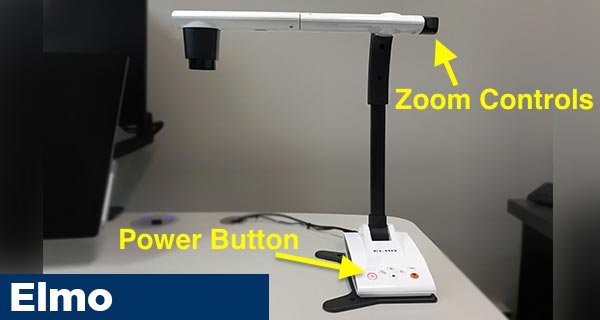
Elmo Doc Cam
A USB document camera with built-in light and zooming capabilities. Connected through the classroom computer.
Power on the document camera using the power button on the base
- If the power button is red, the document camera is off.
- If the power button is purple, it's booting up.
- If the power button is blue, it's on and ready.
On the classroom computer, double click the IM (Image Mate) shortcut on the desktop
Zoom the camera in and out using the controls on the side of the document camera arm
Other controls, including lighting and focus options, are found on the base of the document camera
Solution Cam
A USB document camera with built-in light and zoom capabilities that previews through the classroom computer.
Power on the document camera using the power button on the base
On the classroom computer, double click the Document Camera shortcut on the desktop
Zoom the camera in and out using the controls on the base of the document camera arm
Other controls, including lighting options, are found on the base of the document camera

IPEVO Doc Cam
A simple USB document camera that runs through the classroom computer.
The IPEVO document camera does not need to be powered on and should be ready to use
On the classroom computer, double click the Document Camera shortcut on the desktop
There are no zoom controls on the IPEVO document camera
Should the need to zoom arise, simply move the document camera head closer to the document/object.
To focus, press the focus button on the head of the document camera

Frequently Asked Questions
What do I do if the document camera is not displaying any video?
Ensure the document camera is powered on. Tabletop document cameras often need to be turned on before use. Look for a power button on the base of the document camera. If the document camera is on but is not displaying any video, contact us and we will send someone to help.
Can the document camera be recorded using Kaltura?
Yes! Because USB document cameras run through the classroom PC, simply ensure Kaltura is set to record the PC screen and it will record the document camera as well.