
Classroom Computers
Classroom computers are connected to the classroom AV system. They come installed with a handful of applications. Additional software can be installed if requested in advance (see below for more info).
Select what you'd like to learn about.
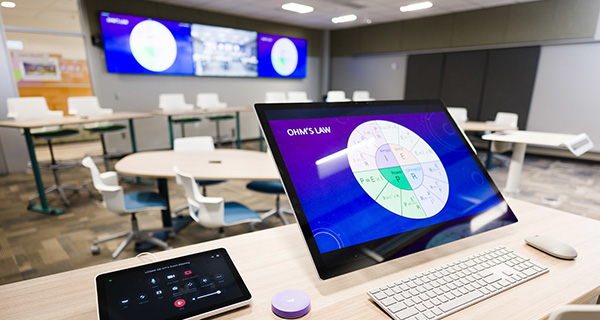

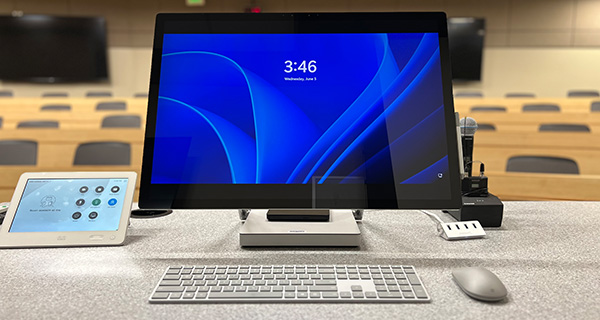
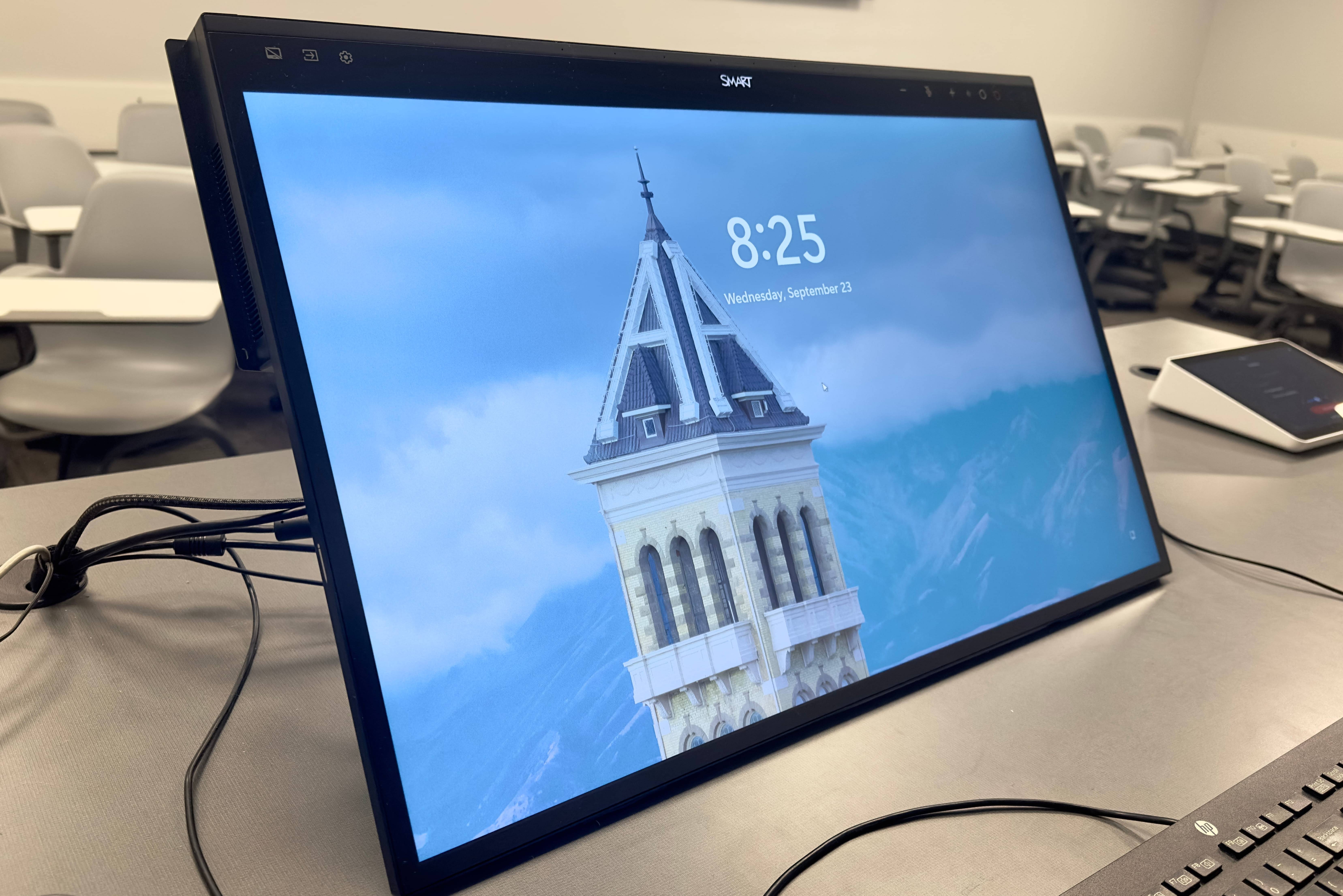
- Check out our Frequently Asked Questions on classroom computers.
- Contact us
External link or schedule a trainingExternal link .
Displaying the Computer in the Classroom
Select PC on the classroom touch panel
Ensure the computer is powered on
Most classroom computers will be powered on but may be asleep. If the computer monitor is black, press any key on the keyboard to wake up the computer. If the monitor continues to remain black, ensure the computer is turned on by pressing its power button.

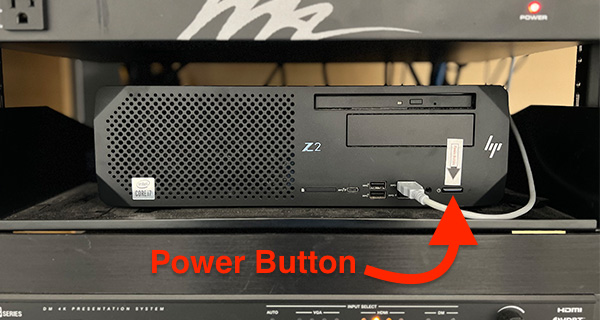
Once the computer is on, log in using your A-number and password
On rare occasions, you may need to log in using the domain name A#@aggies.usu.edu
If using a Surface Studio, make sure the audio is working before opening everything for your class. If it is not working, restart the computer.
Check the audio by playing a short video on YouTube or opening the volume controls and clicking anywhere on the slider. Surface Studios tend to have audio problems, but a quick restart should fix the issue.
Plug in a flash drive or other USB device if applicable.
Classrooms with a Surface Studio should have a USB hub to the side of the monitor. Classrooms with an HP computer typically have monitors with USB ports along the left or right side of the monitor. USB ports can also be found on the front face of HP computer tower.
Once plugged in, the computer should recognize the drive and allow you to open files from it.
Computer Models on Campus: Operating System: Classroom Software:
Additional Software may be installed if:
Surface Studio
Available in select classrooms, the Surface Studio enhances the teaching and learning experience. These displays are great for annotating documents, slides, and digital whiteboards. Digital annotations can be recorded with Kaltura or Zoom and are helpful in large auditoriums or Connect courses where traditional whiteboards are not ideal.
Annotating Guides
- Microsoft OneNote
Start annotating with the Surface Pen as soon as OneNote is opened. Pen colors and options can be found along the top of OneNote. Learn more about OneNote - Microsoft PowerPoint
Once in Slide Show mode, select the Pen icon in the lower-left corner of the slide, then select Pen to start annotating. To change ink color, select the Pen icon, then Ink Color. - Microsoft Word
With Microsoft Word open, gently tap the Surface Pen on the document to display the Pen tab along the top. Select the Pen tab to start annotating and for additional pen options.
SMART Board Mini
Now available in select classrooms, this 27-inch 4K touchscreen sits at the instructor station and allows instructors to write and draw over anything on the classroom computer while facing the class. With SMART Ink, slides, documents, websites, and videos can be annotated, with annotations displayed on the classroom projectors or TVs. Notes can be captured as screenshots or saved directly in supported files. Combined with Kaltura or Zoom, the SMART Board Mini offers a simple, engaging way to teach in large auditoriums and Connect courses.
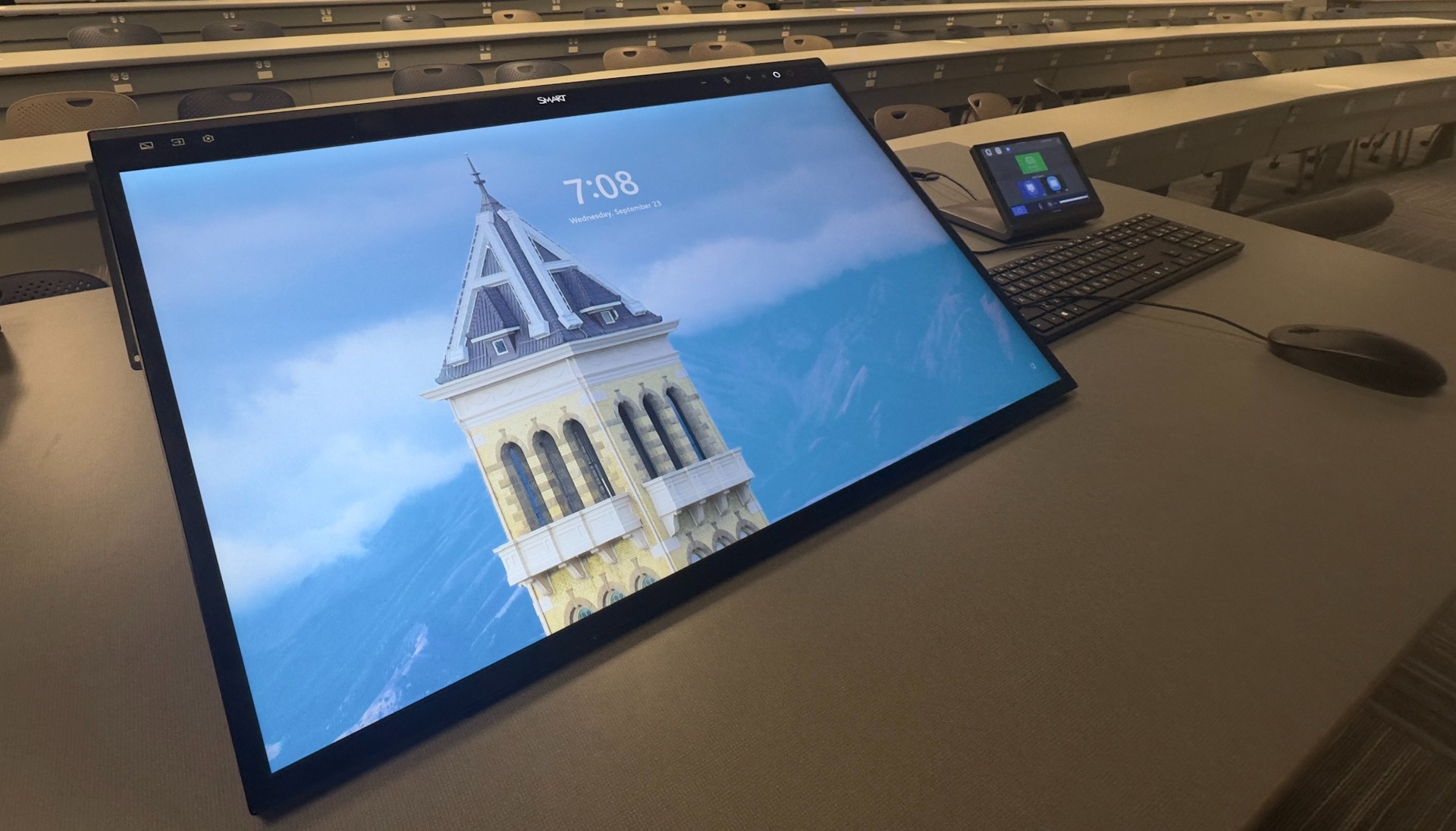
Getting Started
- Pick up the stylus from the tray on top of the display. If the stylus light is off, press the button on the side of the stylus to wake it.
- Write directly on the screen. Flip the stylus over to use the eraser end.
Annotating Guides
- SMART Ink
Pick up the stylus and begin writing over any application on the screen. The SMART Ink floating toolbar will appear, allowing pen color and thickness to be changed or ink to be cleared. Use the screen capture tool to save a snapshot of the annotations. - Microsoft PowerPoint
Start the presentation in Slide Show mode. When the SMART Ink toolbar appears, select Options, then Pen, to write directly on the slides.
Warning Saving PowerPoint AnnotationsDownload the PowerPoint file from Box and open it in the PowerPoint desktop app. Annotations made while presenting from Box in a web browser will not be saved.
- Microsoft Word
Select a pen from the Draw tab and write directly on the document. Annotations are saved with the file when the document is saved.

The color buttons on the SMART Board Mini change SMART Ink colors only. When annotating in Microsoft Word, PowerPoint, or OneNote, select ink colors from the pen options within the application.
Frequently Asked Questions
How do I log into a classroom computer?
Log in with your A-number and password. If you do not have an A-number, contact us for assistance.
The computer monitor is black. How do I get the PC displayed?
See the Showing the Computer on the Projector/TV section above. If that doesn't help, contact us and we'll drop by to check it out.
What do I do if the audio is not working?
- Check the volume level of the PC by clicking the speaker icon in the bottom right of the screen, next to the time. Ensure the volume is turned up and not muted.
- Check the volume level of the video player (YouTube, VLC, etc.) and ensure the volume is turned up and not muted.
- If using a Surface Studio, there is a known issue that causes the sound to stop working after the computer has sat idle for approximately 60 minutes. This can only be fixed by restarting the computer. We are currently working with Microsoft on a fix to this.
- If none of the above solutions resolve the problem, contact us and we'll drop by to help.
What do I do if a system update pops up on the screen?
Ignore system updates that may pop up on the screen. Most system updates occur automatically during the night. If an update notification continues to pop up after a week, please report it to us
How can I access files in Box or Google Drive?
Apart from accessing the services through a browser, a service called Kumo can be used. Kumo allows one to open and save files directly to Box or Google Drive on a classroom computer without having to install the client. Learn more about Kumo
Is my data secure on classroom computers?
To protect your data, ensure you log out of the classroom computer when finished.