Classroom Touch Panels

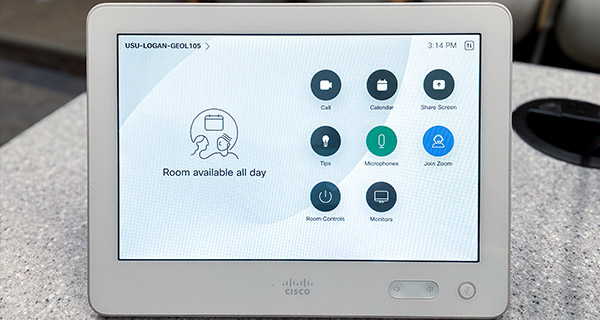
Most classrooms are equipped with a touch panel, located on the instructor's desk. Classroom touch panels provide a user-friendly interface to control the technology in the room (e.g. projectors, TVs, video conferencing equipment, etc.).

Select a touch panel to learn more about it.

standard classroom touch panel
Standard Classroom Touch Panel
Dual Purpose Classroom Touch Panel
Zoom Room Touch Panel for In-person Classes
Zoom Rooms Touch Panel for Connect Classes
Touch 10 Touch Panel
Connect Classroom Touch Panel

warning
Connecting to Zoom

Have Questions?
 

Find a Classroom Touch Panel

Look up the building and room number, then select the panel type to go to the guide.

Building Room Touch Panel
AGRS 101 Zoom Room (In-Person)
AGRS 102 Standard
AGRS 107 Standard
AGRS 135 Standard
AGRS 136 Standard
AGRS 137 Connect (Touch 10)
AGRS 141 Standard
AGRS 412 Standard
ANSC 320 Standard
ARC 216 Standard
ASTE 104 Dual Purpose
ASTE 106 Dual Purpose
ASTE 108 Standard
ASTE 135 Standard
ATRC 103 Standard
ATRC 128 Standard
BNR 4 Dual Purpose
BNR 102 Standard
BNR 112B Standard
BNR 113 Standard
BNR 278 Dual Purpose
BNR 314 Dual Purpose
BNR 360 Dual Purpose
BTEC 103 Standard
DE 5 Connect (Touch 10)
DE 6 Connect (Touch 10)
DE 11 Connect (Touch 10)
DE 12 Connect (Touch 10)
DE 13 Connect (Touch 10)
DE 105 Zoom Rooms (Connect)
DE 109 Zoom Rooms (Connect)
DE 202 Zoom Rooms (Connect)
DE 203 Zoom Rooms (Connect)
DE 204 Connect (Touch 10)
DE 209 Connect (Touch 10)
DE 210 Connect (Touch 10)
DE 211 Zoom Rooms (Connect)
EBB 115 Standard
EBB 116 Standard
EBB 211 Standard
EBB 214 Standard
EBB 215 Zoom Room (In-Person)
EBB 216 Standard
EBB 218 Connect (Touch 10)
ECC 216A Standard
ECERC 226 Dual Purpose
ECERC 228 Dual Purpose
EDUC 130 Zoom Rooms (Connect)
EDUC 130A Zoom Rooms (Connect)
EDUC 131 Standard
EDUC 132 Zoom Rooms (Connect)
EDUC 178 Connect (Touch 10)
EDUC 215C Zoom Rooms (Connect)
EDUC 231 Connect (Touch 10)
EDUC 233 Connect (Touch 10)
EDUC 272 Connect (Touch 10)
EDUC 282 Zoom Rooms (Connect)
EDUC 315A Zoom Rooms (Connect)
ENGR 101 Dual Purpose
ENGR 103 Dual Purpose
ENGR 104 Dual Purpose
ENGR 106 Dual Purpose
ENGR 108 Dual Purpose
ENGR 201 Dual Purpose
ENGR 202 Dual Purpose
ENGR 203 Dual Purpose
ENGR 204 Dual Purpose
ENGR 205 Dual Purpose
ENGR 206 Dual Purpose
ENGR 238 Dual Purpose
ENGR 302 Dual Purpose
ENGR 304 Dual Purpose
ENGR 307 Standard
ENLAB 107 Standard
ENLAB 109 Standard
ENLAB 221 Standard
ENLAB 235B Standard
ENLAB 248 Dual Purpose
ENLAB 252 Dual Purpose
EQUIC 104 Standard
EQUIC 111 Standard
ESLC 46 Standard
ESLC 53 Dual Purpose
ESLC 130 Standard
FAC 118 Standard
FAC 123 Standard
FAC 218 Standard
FAC 220 Standard
FAC 228 Standard
FAV V108 Standard
FAV V150 Standard
FAV V206 Standard
FAV V210 Dual Purpose
FAV V213E Standard
FAV V262 Standard
FAV V264 Standard
FL 120 Standard
FL 206 Standard
FL 210 Zoom Room (In-Person)
FL 318 Standard
GEOL 101 Standard
GEOL 105 Connect (Touch 10)
GEOL 301A Dual Purpose
GEOL 301B Dual Purpose
GEOL 301C Dual Purpose
GEOL 302 Dual Purpose
GEOL 308 Dual Purpose
GEOL 310 Dual Purpose
GEOL 405 Dual Purpose
HH 120 Zoom Room (In-Person)
HH 122 Zoom Room (In-Person)
HH 126 Zoom Room (In-Person)
HH 130 Zoom Room (In-Person)
HH 132 Zoom Room (In-Person)
HH 160 Zoom Room (In-Person)
HH 170 Zoom Room (In-Person)
HH 180 Zoom Room (In-Person)
HH 220 Zoom Room (In-Person)
HH 222 Zoom Room (In-Person)
HH 226 Zoom Room (In-Person)
HH 260 Zoom Room (In-Person)
HH 270 Zoom Room (In-Person)
HH 280 Zoom Room (In-Person)
HH 320 Zoom Room (In-Person)
HH 322 Zoom Room (In-Person)
HH 326 Zoom Rooms (Connect)
HH 360 Zoom Room (In-Person)
HH 370 Zoom Room (In-Person)
HH 380 Zoom Room (In-Person)
HPER 111E Standard
HPER 114A Dual Purpose
HPER 116 Dual Purpose
HPER 118 Standard
HPER 137H Dual Purpose
IS 101A Dual Purpose
IS 115 Standard
IS 119 Standard
JQL 227 Dual Purpose
LIB 2 Dual Purpose
LIB 154 Standard
LIB 302 Standard
LIB 411 Dual Purpose
LIB 421 Dual Purpose
LILLY 3 Standard
LILLY 6 Standard
LILLY 123 Standard
LSB 7 Standard
LSB 15 Standard
LSB 133 Standard
LSB 207 Connect (Touch 10)
LSB 214 Standard
LSB 231 Standard
MAIN 6 Dual Purpose
MAIN 115 Dual Purpose
MAIN 117 Dual Purpose
MAIN 119 Dual Purpose
MAIN 121 Dual Purpose
MAIN 201 Standard
MAIN 203 Standard
MAIN 207 Standard
MAIN 224A Zoom Rooms (Connect)
MAIN 227 Dual Purpose
MAIN 229 Standard
MAIN 229A Standard
MAIN 229B Standard
MAIN 301 Dual Purpose
MAIN 318 Zoom Rooms (Connect)
MAIN 326 Dual Purpose
MAIN 343 Standard
MS 201 Standard
NFS 201 Standard
NFS 202 Standard
NFS 248A Dual Purpose
NR 105 Dual Purpose
NR 217 Standard
RWST 102 Standard
RWST 113 Standard
RWST 114 Standard
RWST 214 Standard
RWST 306 Standard
RWST 311 Standard
SCCE 150 Standard
SCCE 203 Standard
SCCE 204 Standard
SCCE 209 Standard
SCCE 302 Standard
SCCE 304 Standard
SCCE 310 Standard
SER 244 Standard
SHED 101 Standard
SHED 109 Standard
TECH 107 Standard
TECH 108 Standard
UR 103 Standard
VSB 130 Standard
WIDT 7 Standard


Guides

Standard Classroom Touch Panel

The most common touch panel on campus, found in general assignment classrooms in most buildings.

Dual Purpose Classroom Touch Panel

Found in many classrooms across campus, including most of Engineering and several rooms in Old Main and Geology. This panel has two interfaces: a standard interface for in-person classes and a Zoom Room interface for Connect courses.

These panels have two distinct user interfaces. The video below shows how to return to the standard face-to-face interface from the Connect interface. To learn more about the Zoom Room capabilities of this touch panel, please see the Zoom Rooms Touch Panel video.

Zoom Room Touch Panel for In-Person Classes

Found in most Huntsman Hall classrooms and a few rooms in other buildings. The touch panels in these rooms use the Zoom Room interface. The video below goes over how to use the Zoom Room interface for in-person events that do not need a Zoom connection.

Zoom Rooms Touch Panel

This style of touch panel is found in some Connect classrooms on campus.

While this Zoom Rooms panels are meant for Connect classes, face-to-face instructors can still utilize these touch panels to share content, power on and off the room's TVs/projectors, and use sound reinforcement. 

Connect Classroom Touch Panel

This type of touch panel is common in Connect classrooms and conference rooms.

Touch 10 Reference Sheet


Frequently Asked Questions

The touch panel is black. How do I turn it on?

The touch panels automatically go to sleep after a few minutes. To wake them up, simply tap anywhere on the screen.

The projector or TV does not power on when I press the power button.

Try the following:

  1. Check if the projector or TV is on. Do you see any light coming out of the projector lens? Can you tell if the power light on the TV is on?
    • If the projector or TV is on, try switching between sources on the Crestron touch panel (e.g. PC to Document Camera).
    • If switching between sources doesn't do the trick, contact us and we'll send a technician to help.
  2. If you don't see any light coming out of the projector lens or don't see the power light on the TV, you may need to manually turn on the projector or TV.
    • Most rooms have a drawer with a projector and/or TV remotes. The drawer is usually located under the instructor's desk in the equipment rack or in the equipment closet in the room. If you can find the remote, try turning on the projector or TV with it.
    • If you aren't able to find a remote or are unable to work the remotes, contact us and we'll send a technician over to help.

The Touch Panel Shows Only Zoom Options

Many classrooms have been equipped with dual purpose touch panels, which permit connecting to other classrooms via Zoom or teaching in-person. If the class before yours used the Zoom touch panel feature, you may have to return the touch panel to In-Person mode.

Touch Panel in Zoom Room Mode
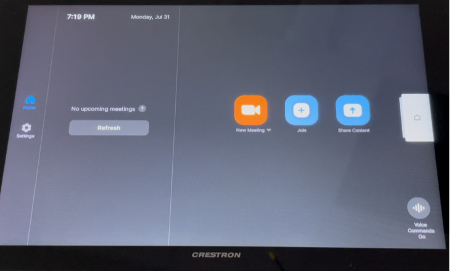
A touch panel in Zoom room mode provides options to begin a new meeting, join a meeting, or share content, all via Zoom.

To switch back to in-person mode, tap the Home icon that appears at the right of the screen.

Tap the Home icon to return to in-person mode.

In-person mode will permit you to control the various in-classroom technologies, such as the projector, speakers, and microphone.

Touch Panel in In-Person (Home) Mode
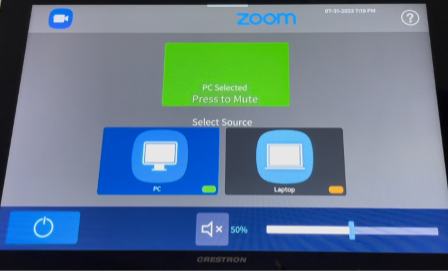
The in-person touch panel mode shows options to control the projector, speakers, and microphone

You can return to Zoom mode at any time by tapping the Zoom icon at the top of the panel when in in-person mode.