
OneNote
Microsoft OneNote is the recommended annotation software at Utah State University. It provides a simple notebook design while providing a wealth of features, including the ability to integrate OneNote with Canvas courses.
OneNote Basics
Microsoft OneNote is installed on all General Assignment classroom computers on campus. To open:
Select the purple OneNote icon in the taskbar along the bottom of the screen
Alternatively, you can select the windows button and search for OneNote.
Sign in with your USU account using the following as your username: A#@aggies.usu.edu
e.g. A01234567@aggies.usu.edu
Canvas Integration
OneNote can also be integrated into Canvas. To do this, you must set-up the classroom notebook from within your Canvas course. Once the notebook is set-up, you will be able to access the notebook from the online version of OneNote, the OneNote application on a your computer, OneNote application on a tablet/smartphone, and the local classroom computer. Please note that students must also log into OneNote via Canvas the first time they use the classroom notebook.
Video
Enable Microsoft OneNote in Canvas
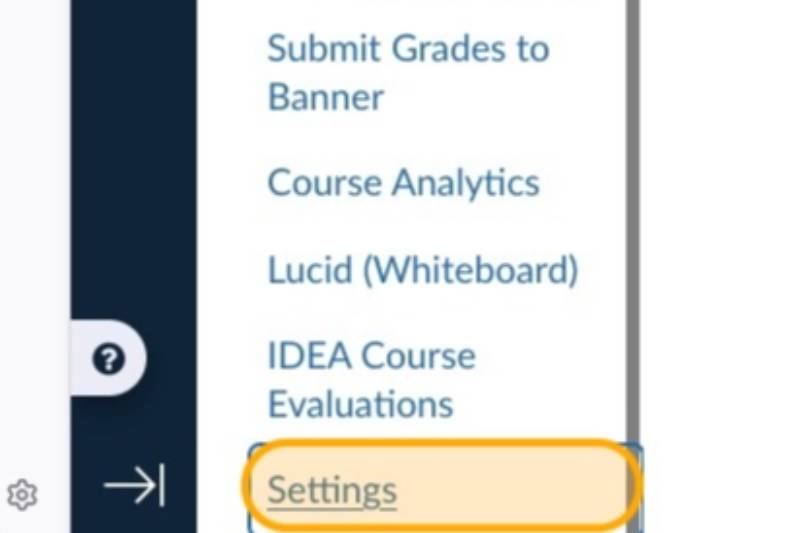
Click Settings
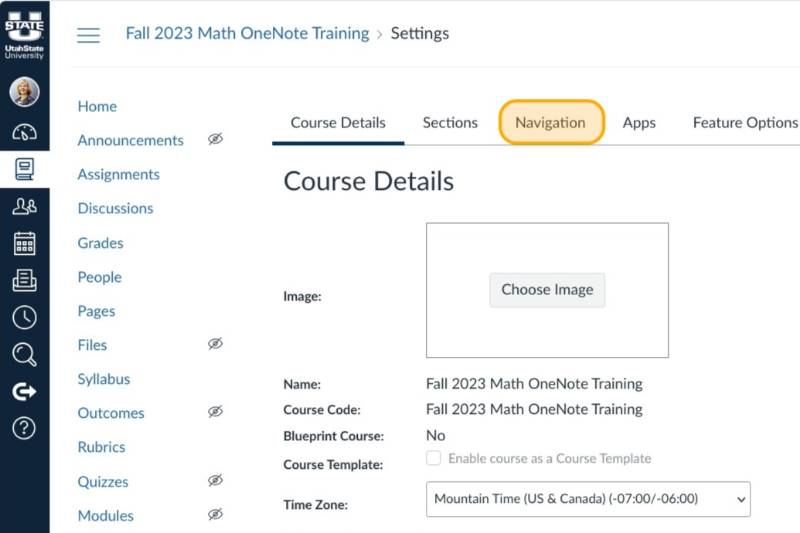
Click Navigation
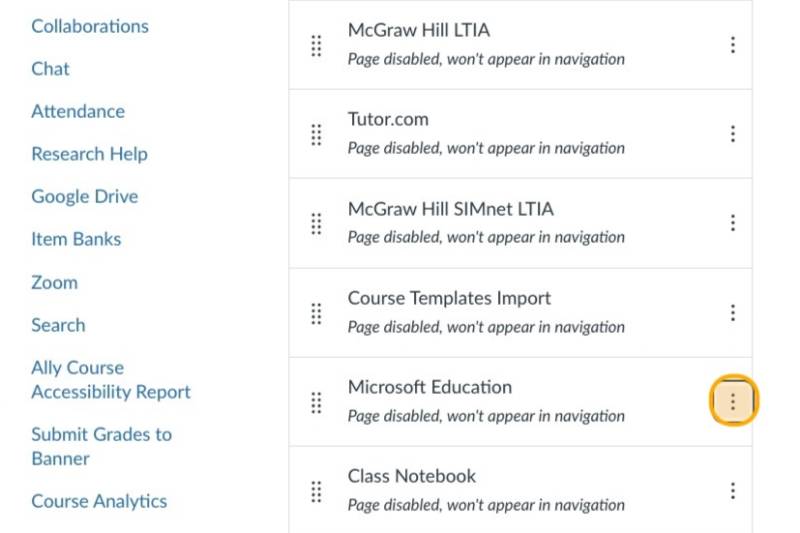
Click options next to Microsoft Education
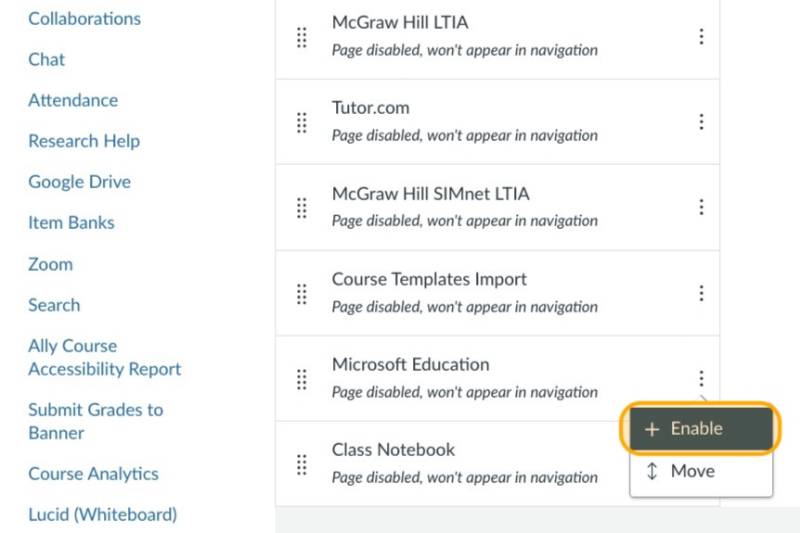
Click Enable
Click Save
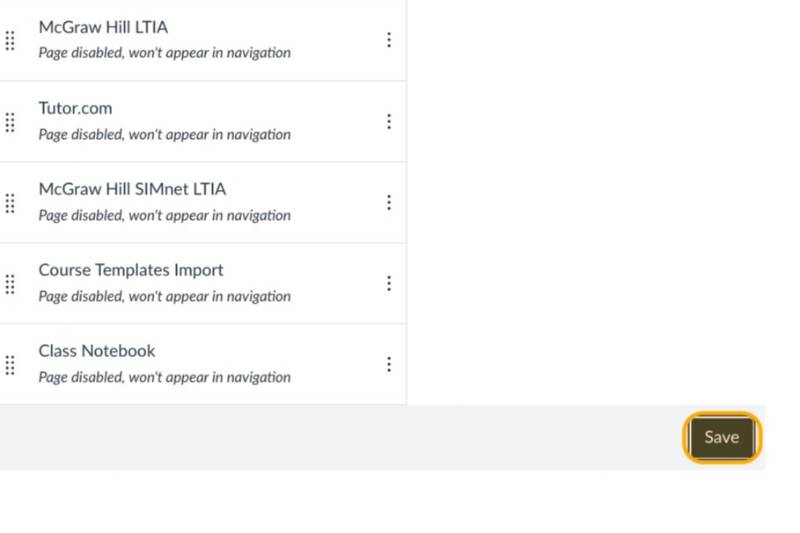
Click Microsoft Education in the course navigation
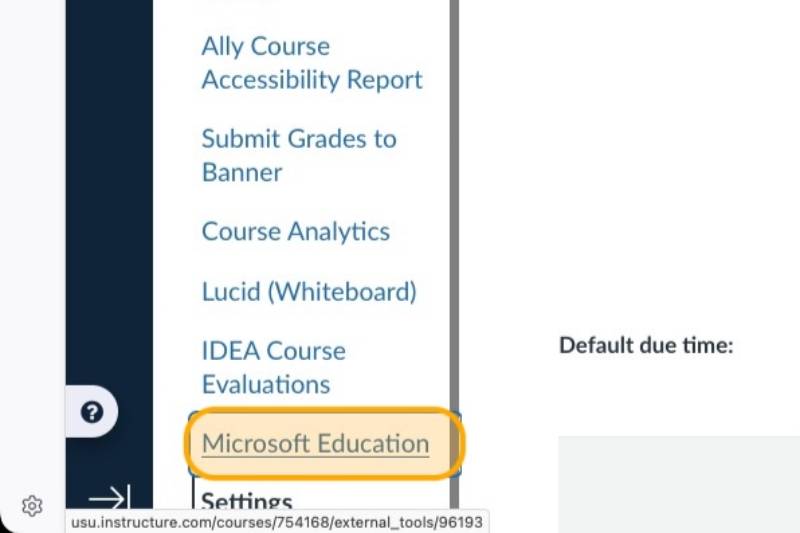
Click Sign in
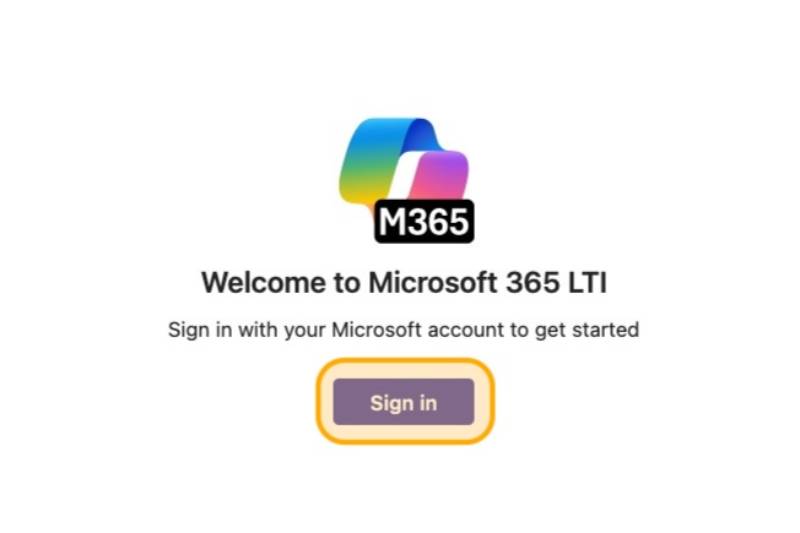
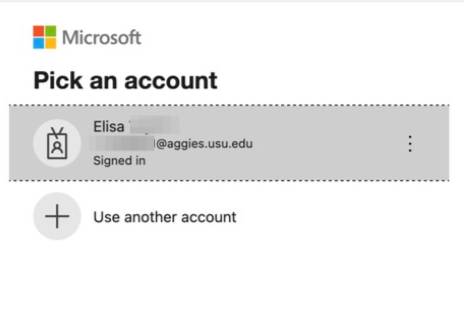
Pick the Microsoft 365 account you want to use
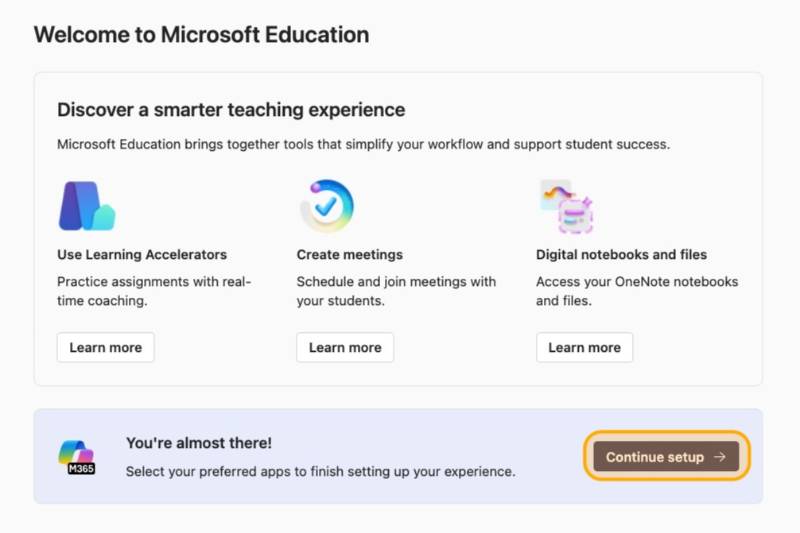
Click Continue setup
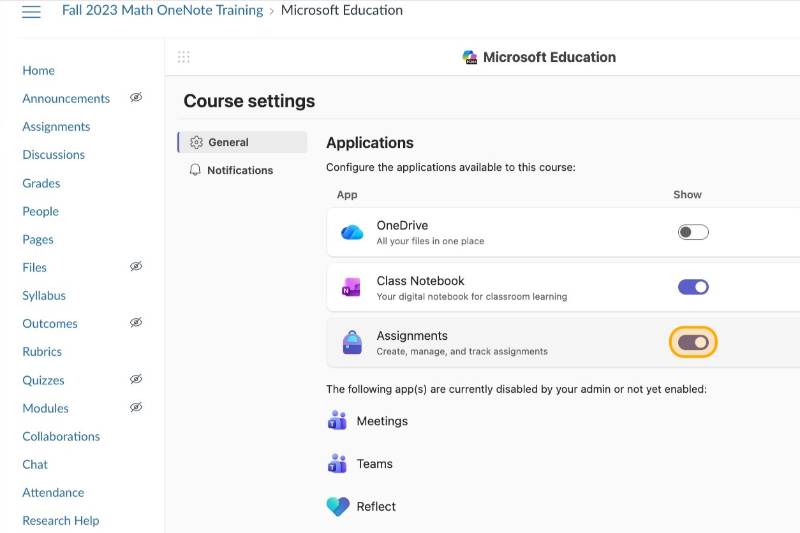
Turn off OneDrive and Assignments, if you aren't going to use them
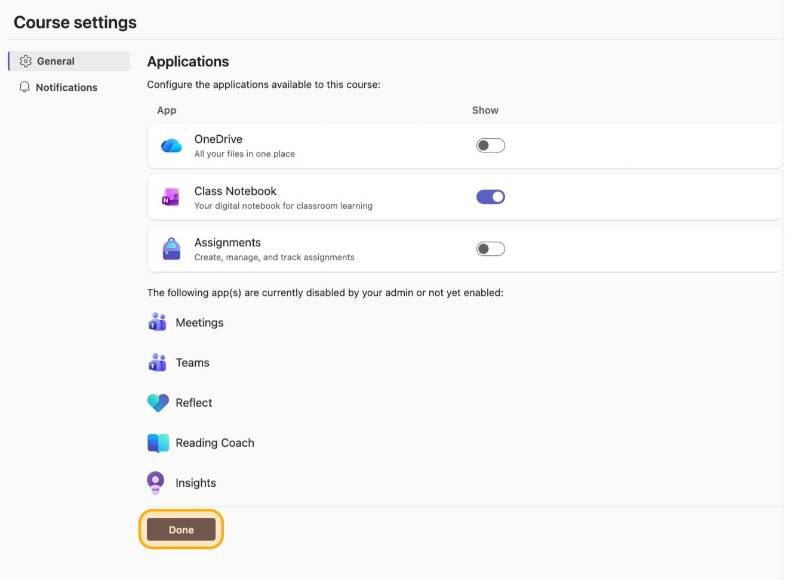
Click Done
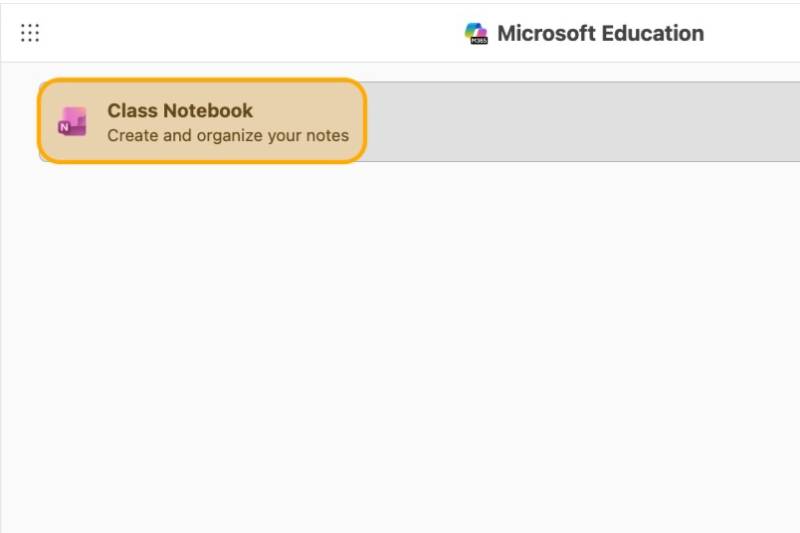
Click Class Notebook
Click Set up a OneNote Class Notebook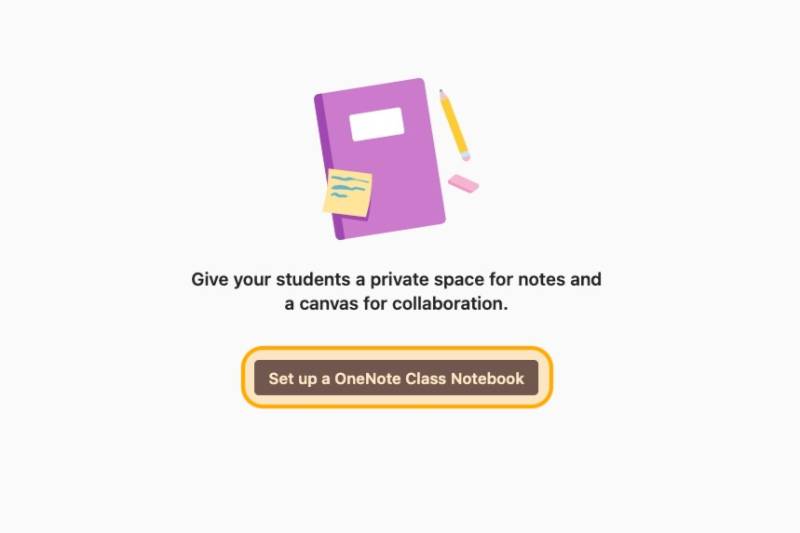
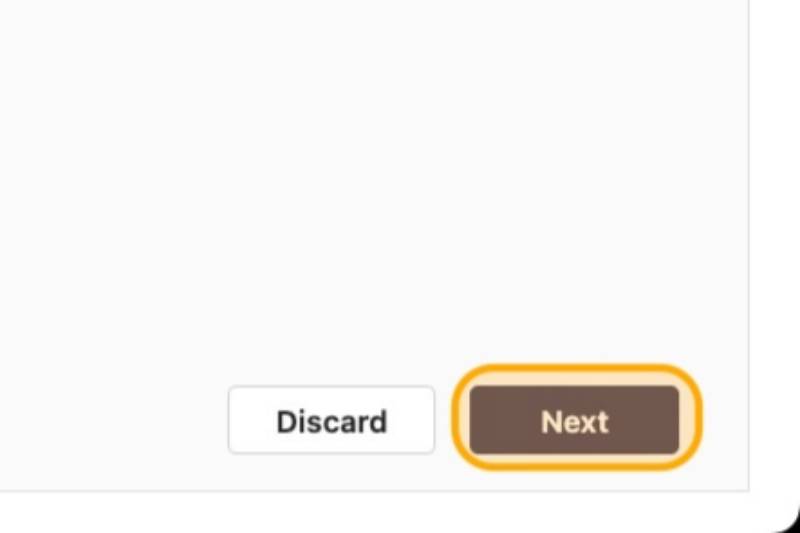
Edit preferences of which spaced you want available to students, then click Next
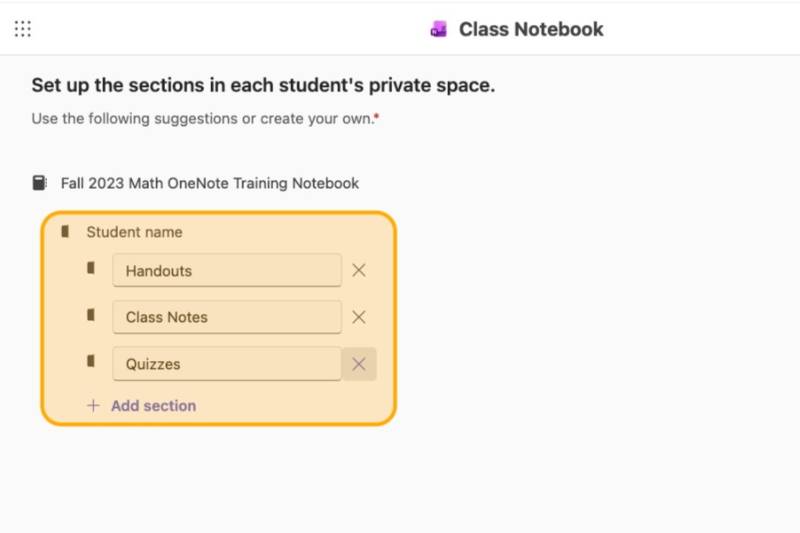
Customize student notebook sections
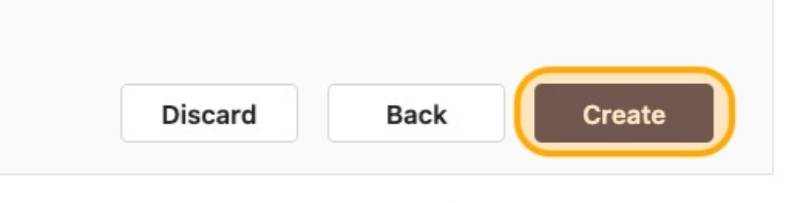
Click Create
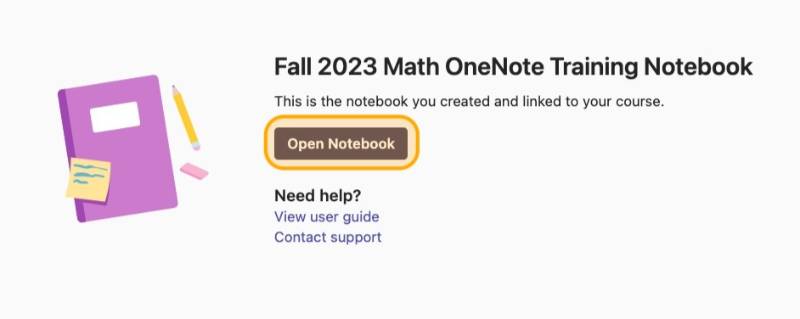
Click Open Notebook
Edit and use your Notebook
Class Notebook Features
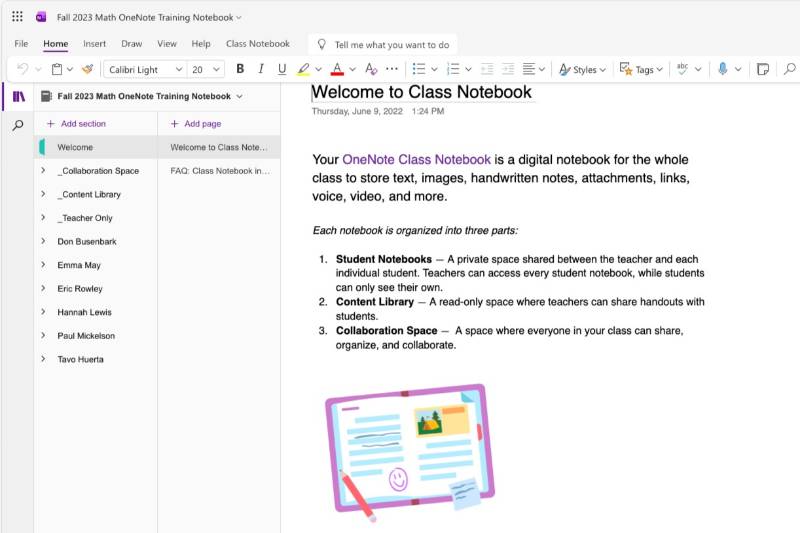
There are several features available through the class notebook including the ability to create templates for students, mass distribute a page to students' personal notebooks, and copy the notebook from one semester to the next. When creating a class notebook, Canvas will automatically manage the students' access through sub-notebooks. Sub-notebooks are managed in various ways include the following:
- Student Notebooks: Each student will have their own notebook titled by their name. The instructor automatically has access to it. Students cannot see other students' notebooks.

- Content Library: Notes in the Content Library are editable for faculty members and view-only for students. The content here will update almost in real-time which will allow students see the notes you are making in the middle of class on their own personal devices.
- Collaboration Space: This section allows all students and instructor(s) to collaborate together. It is viewable and editable for everyone in the class.
- Teacher Only: This section serves as a repository for the instructor who can use 'Distribute Page' or 'Distribute Section' to share content with students.
Reviewing Student Work
To review student work, you will need to ensure that the 'Class Notebook Add-ins' has been downloaded. Once the Class Notebook tab is visible in OneNote, follow the steps below to review your students work.
Select Class Notebook in OneNote app
Go to Review Student Work, then select the tab coinciding with the location of the students' work

On the right-hand side, another window will appear allowing you to select the title of the work
Below the title, a list will expand showing all submissions from your students.

Choose a student to review by selecting their name
Within their assignment, you are able to provide feedback
You are able to draw, type text, etc. to give personal feedback to your students.


Student Access
Students will need to go to their Canvas course and click on 'Class Notebook' where they will be prompted to log into their Microsoft account. Once logged in, the students will need to go back to Canvas to access the Class Notebook. (It will take several minutes for the notebook to show up for them once they have logged in with their Microsoft account.) If they are logged into Microsoft via a personal or work account they may need to log out, close their browser, and log back in with their USU login credentials.
FAQ
Why would I use OneNote over other collaborative tools?
It is a tool already available in classrooms that can track the progress of the instructor's annotations. Additionally, the students have instant access to notes without any additional effort required of the teacher.
Does the grading from One Note automatically feed into Canvas?
No, it does not. The grades would need to be manually entered into the Canvas gradebook if utilizing assignment submissions from OneNote.
Do students need a digital tablet to participate?
No, they are able to draw with their computer mouse, as well. It is more difficult to draw with the mouse, but it is possible. Students might prefer to just type their contributions if they do not have access to a tablet.
Can students with personal Microsoft account collaborate on a class notebook?
It is best if the students use their Microsoft account associated with their USU email address. They will need to log out of any other personal account they have to be able to log into their school account. An instructor also has the ability to add a personal Microsoft account to OneNote notebooks, but it will often be too cumbersome to reasonably manage in most cases.