
Importing Contacts
Learn how to import a list of contacts from a .csv file into Modern Campus Message.
1
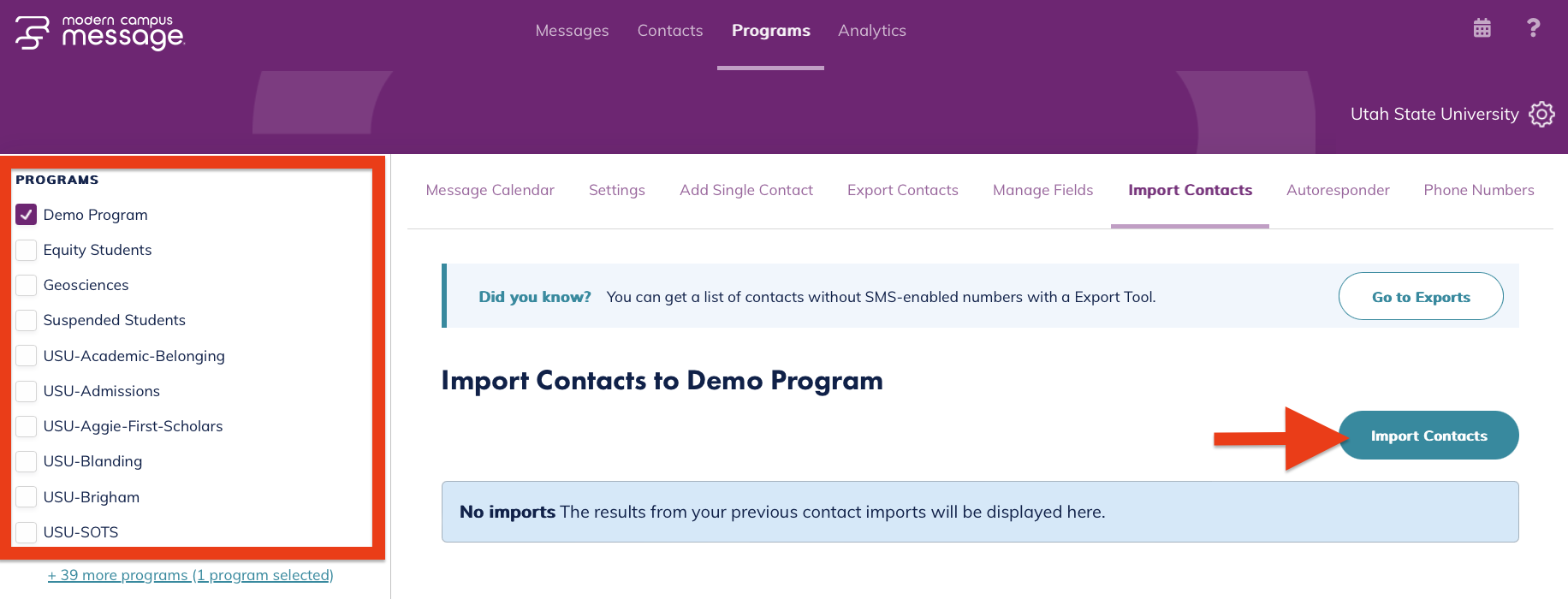
Under the "Program" tab, select "Import Contacts"

2
Select the appropriate program from the left, then click "Import Contacts"
3
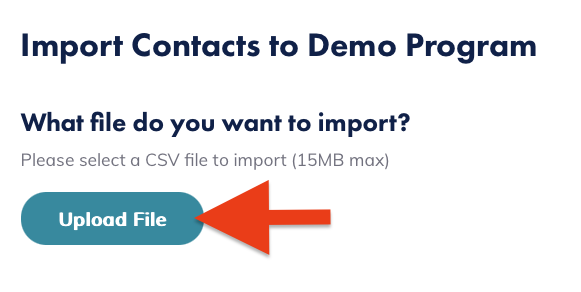
Click "Upload File" and select the .csv file to upload
Heads Up!
The uploaded file must be a .csv file.
Learn how to create and clean up a .csv file to import into Message.
4
Set the appropriate import settings
- Keep the Import new contact checkbox checked.
- For beginners, it's recommend Only import the file if it contains no errors be selected.

Heads Up!
Importing new contacts does not replace any existing contacts in a program. Instead, new contacts are added to the existing list.
Learn how to both import new contacts while updating previous contacts.
5
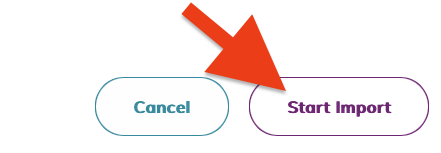
Select "Start Import"
Once the file is imported, a summary will appear with the number of newly added contacts an the number of errors, if any.
Run into an error?
Next Steps
Now that you know how to import a contact list into Message, learn how to update existing contact data.