Handling Wrong Numbers
If you pull student contact details from Banner, you may come across a wrong phone number or two. When this happens, it's important you do two things:
- In Message, mark the number as invalid to stop outbound messages from being sent to the number
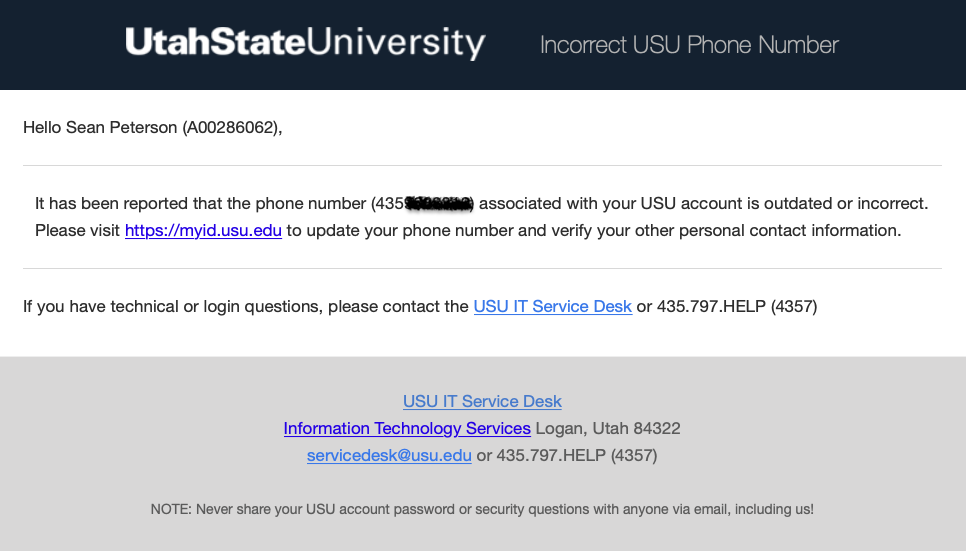
- Report the wrong number in Monocle so that the student is notified their contact information needs to be updated
This guide goes over how to do this.
Table of Contents
Marking a Number as Invalid in Message
Marking a Number Invalid vs. Opting Them Out
Both have the same end result - messages will not be sent to the contact. That said, we recommend marking wrong numbers as invalid rather then opting them out for a couple reasons:
- It helps differentiate these contacts from those who actually have opted out of the program
- To avoid these contacts from counting as opt-outs in metrics
1
In Message, open the Contact Details of the contact who has a wrong number
There are two ways you can access a contact's Contact Details:
- By selecting the contact's name when messaging them in the Messages tab:

- By selecting the contact in the Contacts tab:

2
Under Status, select 'set as invalid'
Once this is done, outbound messages will not be sent to the contact until someone marks their number as valid.
Reporting the Wrong Number in Monocle
Requesting Monocle Access
If you don't yet have access to Monocle, submit the Monocle Access Request form and mark you'd like to receive "notify" access.
1
Log into Monocle at monocle.usu.edu
2
Search for the student with their A-Number or by using the Advanced Search
If you don't know the student's A-Number, try searching for them using their phone number in the Advanced Search.
3
On the student's profile, select the Contact tab

4
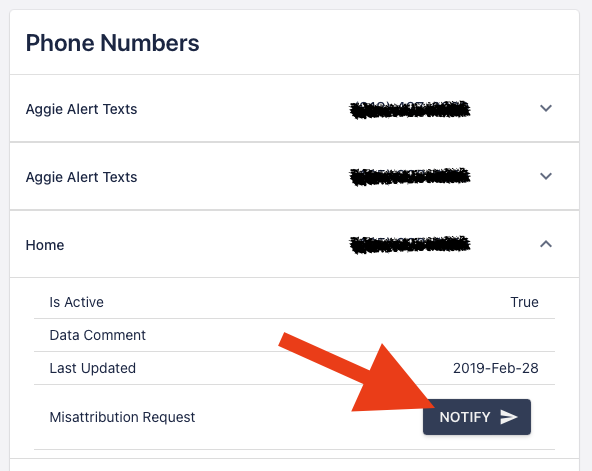
Under Phone Numbers, select the number that is wrong

5
Select the Notify button
The student will receive an email from the IT Service Desk asking them to update their number.