
Message Shared Calendar
With over 35 units using Message at USU, the Message Shared Calendar helps us track each other's message campaigns. By knowing when other teams are sending messages, teams can better plan and schedule their own campaigns without conflicts.
How does it work?
1
Obtain access to the shared calendar
If you haven't yet received access to the calendar, contact Sean Peterson.
Once the calendar invite is sent to you, it will appear in your email inbox. Accept it by clicking the Accept button above the invite.
2
View the calendar in Outlook
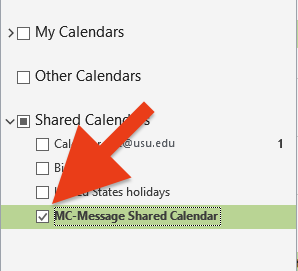
In your Outlook calendar, under Shared Calendars, select MC-Message Shared Calendar to view and add events.
3
Add message campaigns that your team schedules or sends
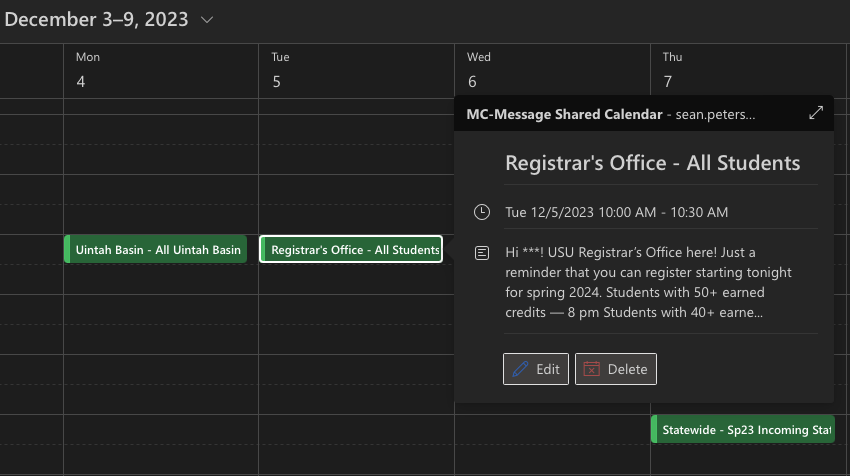
- With the calendar selected in Outlook, create an event on the date/time you are sending a message.
- In the Event Title, add your unit's name and the target student population.
(Example: Statewide - Sp24 Incoming Statwide Students) - In the Event Body, include the text message being sent or an overview of what is being sent.
(Example: A reminder to all students when they can start registering for fall semester.)
Questions?
Contact Sean Peterson.