Connect the iClicker Cloud course to Canvas
Connecting the iClicker Cloud to your Canvas course doesn't require you to activate anything in Canvas. All of the following steps can all be done within the iClicker Cloud instructor website.
The screenshots in the succeeding steps were taking from the iClicker Cloud site, where you can have a complete interactive walk-through
Sign into the iClicker Cloud instructor website
Navigate to Settings
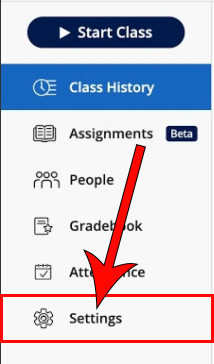
Navigate to the Integrations tab and click Connect to Canvas

Click Go to Canvas
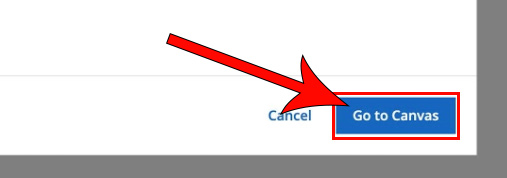
Enter your Canvas login credentials and authorize the integration
After you finish this step, you will be redirected back to the iClicker Cloud to continue with your setup.
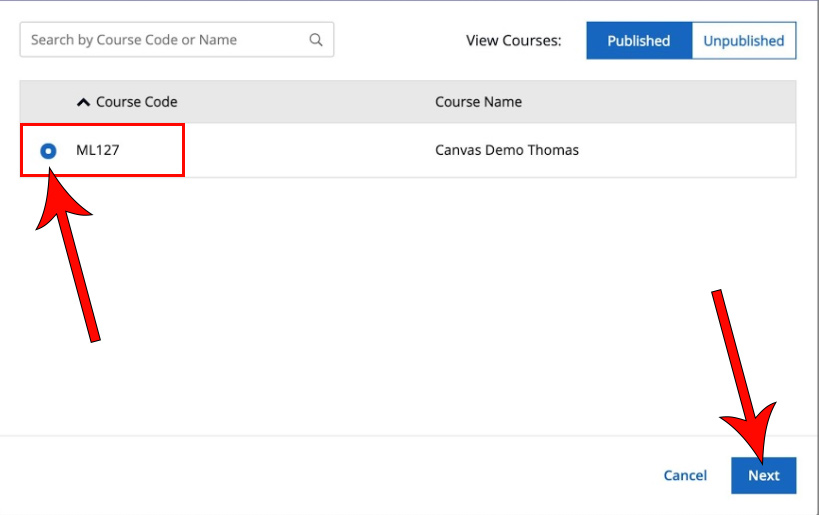
Select the course you want to your iClicker Cloud and click Next
If you don't see your course, try toggling the unpublished tab in the upper right corner to make sure that your course isn't unpublished. If you still can't find it, try using the search bar in the opposite corner and searching for it.
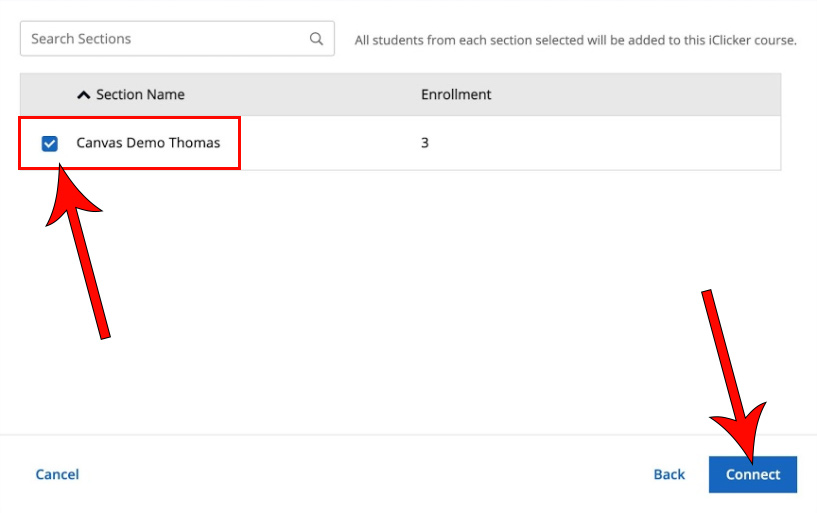
Select the sections of the course that you would like to link, then click Connect
If your course doesn't have any sections, you won't see this step.
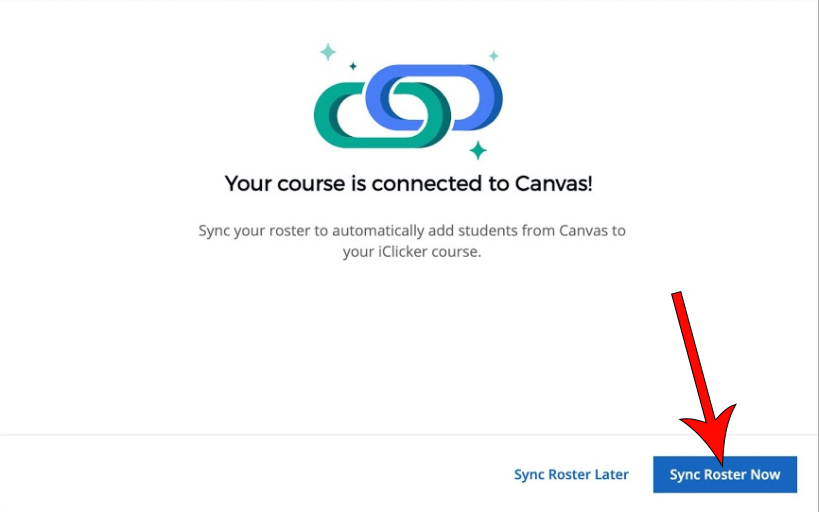
Click Sync Roster Now
If you ever need to sync your roster again, follow the Sync your Roster steps found below.
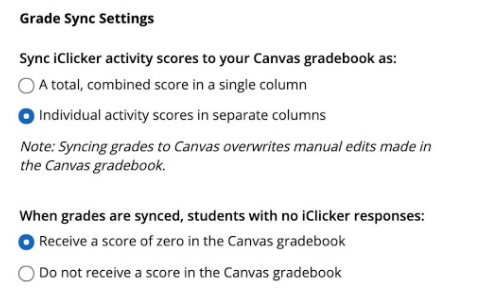
Adjust the Grade Sync Settings to your liking
Below is a description of what the settings for the Sync iClicker activity scores to your Canvas grade book section mean:
- A total, combined score in a single column: All iClicker activities will be combined into one total grade that will show up as a single column in the grade book.
- Individual activity scores in separate columns: Each iClicker activity will be graded individually and will appear as its own column in the grade book.
Click Save in the upper right corner

Sync Your Roster
Navigate to the People tab
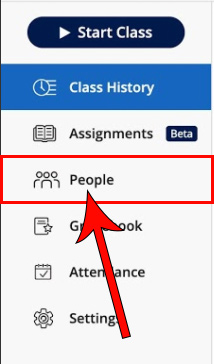
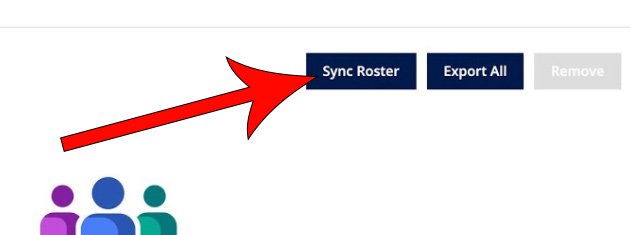
Click Sync Roster
If your roster sync was successful, a confirmation message will appear. If some of the students in your roster didn't sync, a message will appear with the details of which students' sync wasn't successful and the actions that need to be taken for it to completely sync.