Grading and Syncing with iClicker Cloud
In order to enable grading and syncing with iClicker Cloud, you'll need to follow the instructions below.
Grading Set-up Inside iClicker Cloud
Navigate to your iClicker Cloud course
- Click the Launch iClicker Cloud link
- Log into the iClicker Instructor website Opens External Link and clicking on the course name
Click on Settings
Click the Integrations tab
Click the Connect to Canvas button
(You will need to authenticate by logging into Canvas the first time.)
Follow the on-screen instructions to link your Canvas course to your iClicker Cloud course
You will then have the option to sync the roster immediately. Or, you can do it later by going to the iClicker Cloud roster page by clicking on People, then Students.
The Canvas course information will appear in the Integrations tab along with the Grade Sync Settings
Select the desired session scores to sync to Canvas then Save to complete the setup
- A total, combined score in a single column: selected polls and quizzes will be combined into a single score for each student synced in the Canvas gradebook to an assignment called either “iClicker Grade” (or something else you designate).
- Individual activity scores in separate columns: selected polls and quizzes will be synced to Canvas as separate assignments. The assignment names will be from the iClicker Cloud session name.
Sync Grades
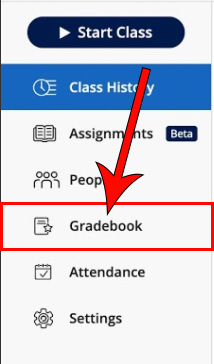
Navigate to the Gradebook tab
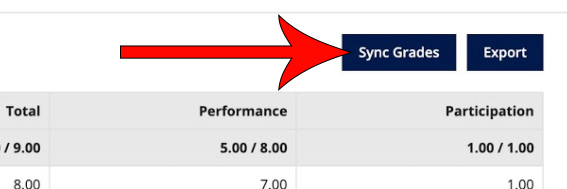
Click Sync Grades
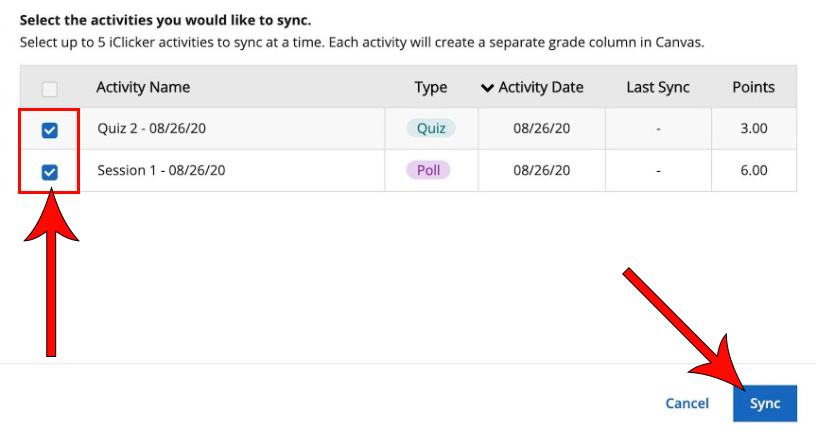
Select the activities that you would like to sync and click Sync