
Running Polls in iClicker Cloud
To begin running polls in iClicker Cloud, follow the following steps and for a detailed walkthrough of running polls with iClicker Cloud, see McMillan's help guide on how to run polls in class with iClicker Cloud
Sign into the iClicker Cloud desktop software
Hover over name of your course and click Start Class

Instruct students to join the session
Once you have a question ready, click the polling icon in the class toolbar

For example, you might include a slide in your PowerPoint presentation with a question prompt and four answer choices. Or, you might have a website up and ask students to identify an element on the site and verbally state the various answer options.
Select the question type of the available options:
- Multiple Choice (default)
- Short Answer
- Numeric (students can input up to 8 digits)
- Target (students can touch a section on the screen)

Click on the ellipsis icon on the Polling toolbar to select Anonymous and Timer Count options

Start Polling by clicking on the play button
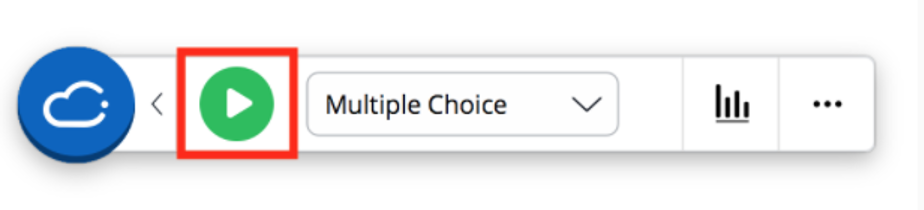
After the desired number of students have answered, click the red button to end polling

To display results or grade during class, click on the results icon
The correct answer can be selected by clicking on the right answer choice

When you are finished, end the session by clicking the X on the class toolbar
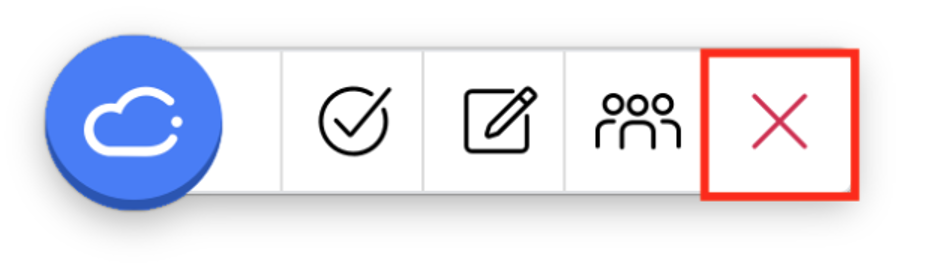
After closing, you will be given an opportunity to End Class with Exit Poll
You can click on that option to gather student feedback
