
Getting Started with Wooclap at USU
Welcome to USU's Wooclap Guide. In this guide, we'll explore how you can start using Wooclap in your classes, both in-person and online.
Wooclap lets you ask your students questions, live as part of an in-person or Zoom class, or as self-paced activities they complete on their own time. It works with Canvas, PowerPoint, and Google Slides.
Faculty Log in with your USU account
To sign into Wooclap go to wooclap.usu.edu and sign in with your USU credentials. That will create your account automatically.
If you start from wooclap.com instead
- Click Login in the top right.
- Click Single Sign-On (SSO).
- Enter your A-number email address (A#@usu.edu), then click Continue with SSO.
- Sign in with your USU credentials when prompted.
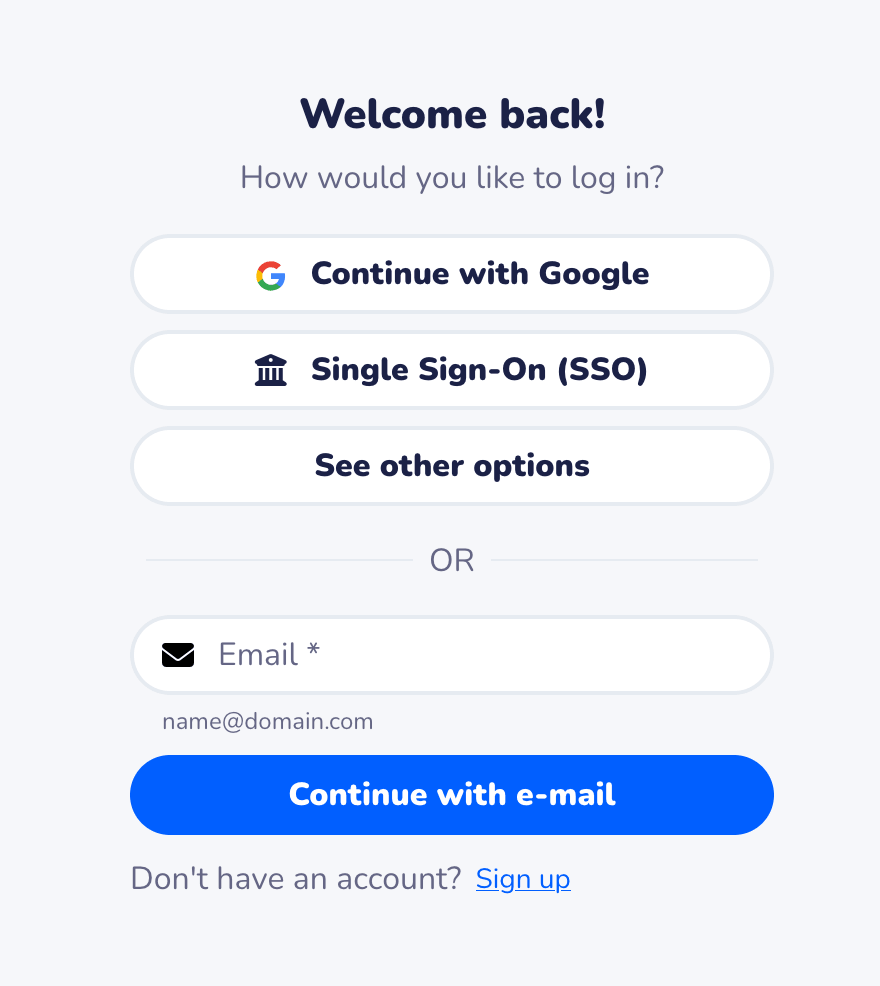
Always use Single Sign-On. SSO gives you every Wooclap feature, and it's required if you plan to grade in Canvas. If you sign in with Google, Microsoft, or a personal email instead, Wooclap creates a separate account, so your events may seem to disappear and grades won't sync.
What is a Wooclap event?
An Wooclap event is the container for your questions. It can be delivered in one of two ways:
- Live session: You control the pace. You show a question, students answer on their phones or laptops, and results appear on-screen in real time. Use it in the classroom or on Zoom.
- Self-paced session: Students answer a questionnaire on their own time, for example In Canvas before class, after class, or as review.
Every event gets its own event code, link, and QR code. Students use these to join, and they don't need a Wooclap account or an app.
Learn more: What is a Wooclap event? (Wooclap Document)
Create and share your first event
Before you can use Wooclap in class, you’ll need to create an event. Once it’s set up, you can launch it during class or share it ahead of time for students to complete.
Basic steps:
- Creating an event in Wooclap
- Connect Wooclap event to Canvas as an external tool assignment for grading
- Share Wooclap event with class
- Grade Wooclap event in Canvas
Watch: How to create your first Wooclap event (2 minutes)
- If you plan to grade in Canvas, you can save time and start there. Create an external tool assignment connecting to Wooclap, and then opt to create a new event.
- Events not created through wooclap.usu.edu or in Canvas cannot be graded after the fact.
Wooclap Student Log in
USU's student guide, Participating in a Wooclap Event in Class, explains how to join, including through Canvas.
Teaching with Wooclap, or setting it up in Canvas: contact the Center for Instructional Design and Innovation (CIDI) at cidi@usu.edu or at 435-797-9506, chat with CIDI, or schedule a consultation.