Presenting an Event in Class
Learn how to present your Wooclap event to students live, including step-by-step instructions for sharing an event and navigating the interface while presenting.
Want to incorporate Wooclap into your existing PowerPoint or Google Slides presentations?
Options to share your event with students
When you click Start event in the top right, Wooclap opens the full presentation, beginning with a join screen that has everything students need. (To show just one question or the join instructions, click Display next to it in your question list.)
Students can join in any of these ways:
|
How students join |
What they do |
|
QR code |
Scan the code on the screen with their phone camera. |
|
Event code |
Go to wooclap.com and type the event code. |
|
Link |
Click a link you post in Canvas, Zoom chat, or email (wooclap.com/ + your event code). |
|
Text message (SMS) |
Text the event code to the phone number on the screen. No internet or smartphone needed. For ungraded activities only. |
To post the code, link, or QR code before class, click Share event in the top right and copy what you need.
For more on joining: How to present an event and participate in it (Wooclap Document)
Make your event code easy to remember. Wooclap assigns a random code, but you can change it to something like BIOL1610: click the pencil icon next to the event code at the top of your event. Codes must be unique across Wooclap, so a common word may already be taken.
Turning on text-message answers: SMS is off by default, and it works for live sessions only, not self-paced questionnaires. Texted answers can't be linked to a student's Canvas account, so they don't count toward Canvas grades. Use text messages for ungraded activities, such as word clouds or quick polls.
For More SMS Details see: How does SMS/text message participation work? (Wooclap Document)
If your event is linked to Canvas: students must join in a web browser through Canvas. When they scan the QR code or enter the event code, Wooclap sends them to Canvas to log in first. Texted answers won't sync to the Gradebook.
Show students what to expect: USU has a student guide, Participating in a Wooclap Event in Class, you can link in Canvas.
Log into https://www.wooclap.com/
- Click Login in the top right.
- Click Single Sign-On (SSO).
- Type in your USU email address, then click Continue with WWO to log in with your USU account.

Select the event you want to present

Select Start event

Give students time to join the event
Students can join an event in one of three ways:
- Scanning the displayed QR code
- Going to wooclap.com and entering the displayed event code
- Texting in their response (if enabled by the instructor)

If an event is linked with an assignment in Canvas, Wooclap will require students to access the event through Canvas. When a student scans the QR code or uses the event code, Wooclap will direct them to Canvas to login and access the event.
Advance to the first question by clicking the arrow on the right or by pressing the right arrow key on the keyboard

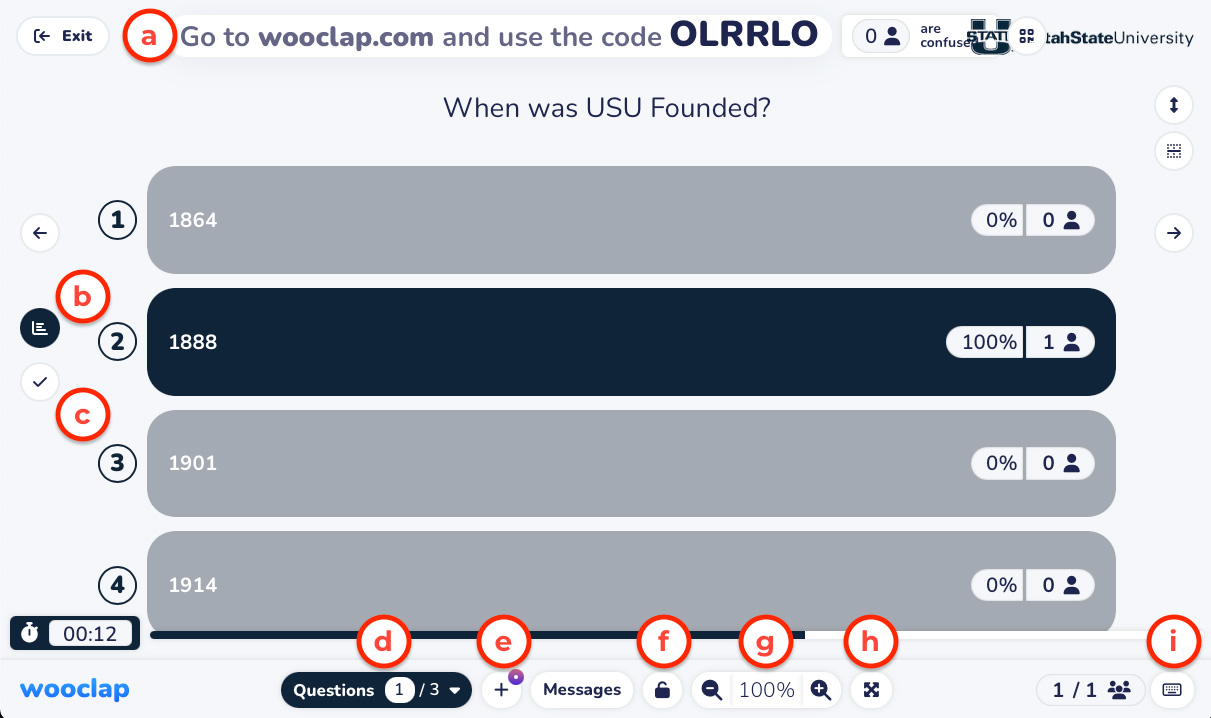
Use the presentation interface
Several options are available to you while presenting, including:
- Students can connect to the event at any time by following the connection instructions.
- Results: Displays the live results as students respond.
- Correct Answer: Displays the correct answer.
- Question Navigator: Allows you to jump to any question in the event.
- Create a Quick Question: Allows you to quickly add an additional question into the event.
- Close/Open the Vote: Allows you to close the vote so no more responses are collected. Once closed, you can open the vote.
- Page Zoom: Allows you to enlarge or shrink the event text
- Enable Full Screen
- Keyboard Shortcuts