Presenting an Event in Class
Learn how to present your Wooclap event to students live, including step-by-step instructions for sharing an event and navigating the interface while presenting.
Want to incorporate Wooclap into your existing PowerPoint or Google Slides presentations?
Log into https://www.wooclap.com/
- Click Login in the top right.
- Click Single Sign-On (SSO).
- Type in your USU email address, then click Continue with WWO to log in with your USU account.

Select the event you want to present

Select Start event

Give students time to join the event
Students can join an event in one of three ways:
- Scanning the displayed QR code
- Going to wooclap.com and entering the displayed event code
- Texting in their response (if enabled by the instructor)

If an event is linked with an assignment in Canvas, Wooclap will require students to access the event through Canvas. When a student scans the QR code or uses the event code, Wooclap will direct them to Canvas to login and access the event.
Advance to the first question by clicking the arrow on the right or by pressing the right arrow key on the keyboard

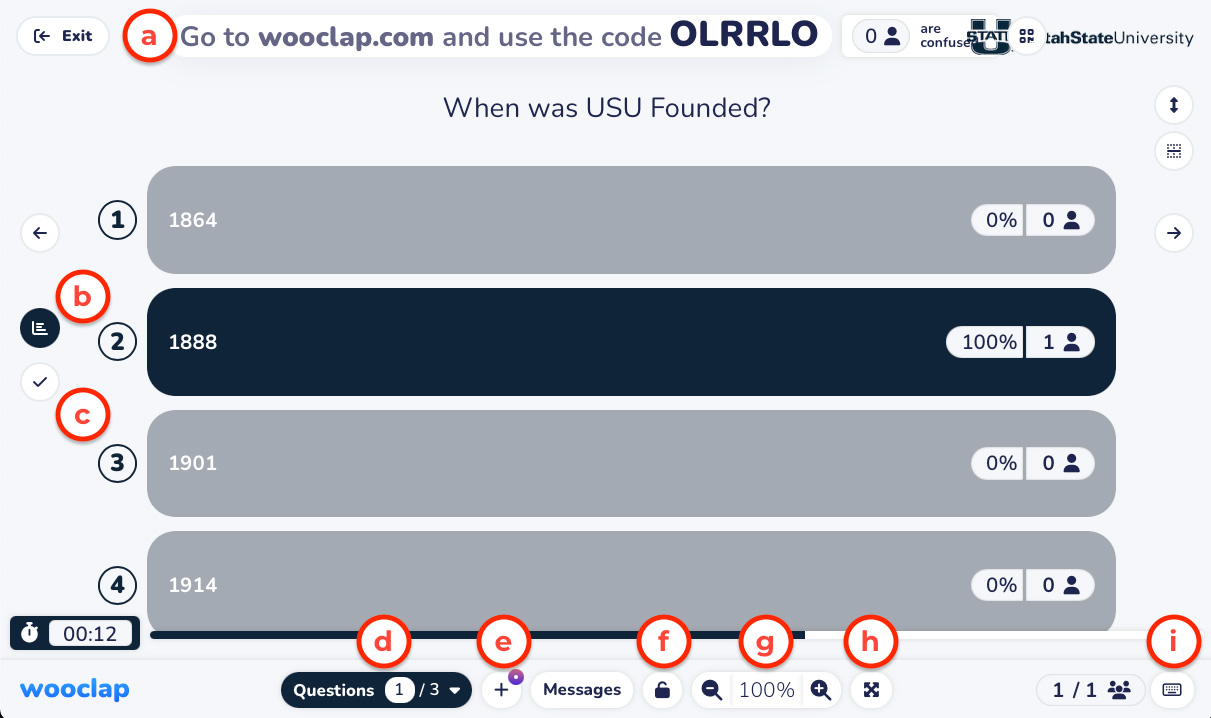
Use the presentation interface
Several options are available to you while presenting, including:
- Students can connect to the event at any time by following the connection instructions.
- Results: Displays the live results as students respond.
- Correct Answer: Displays the correct answer.
- Question Navigator: Allows you to jump to any question in the event.
- Create a Quick Question: Allows you to quickly add an additional question into the event.
- Close/Open the Vote: Allows you to close the vote so no more responses are collected. Once closed, you can open the vote.
- Page Zoom: Allows you to enlarge or shrink the event text
- Enable Full Screen
- Keyboard Shortcuts