Access and export your course list from Banner
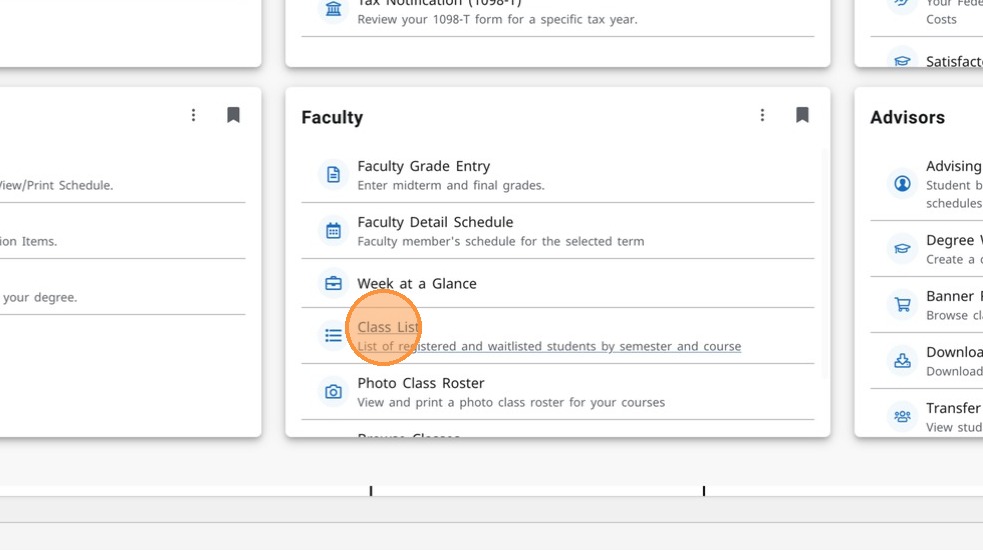
- Navigate to Banner Dashboard and click on the Class List link in the Faculty card. At this point, you may be prompted to sign into your account again.
-
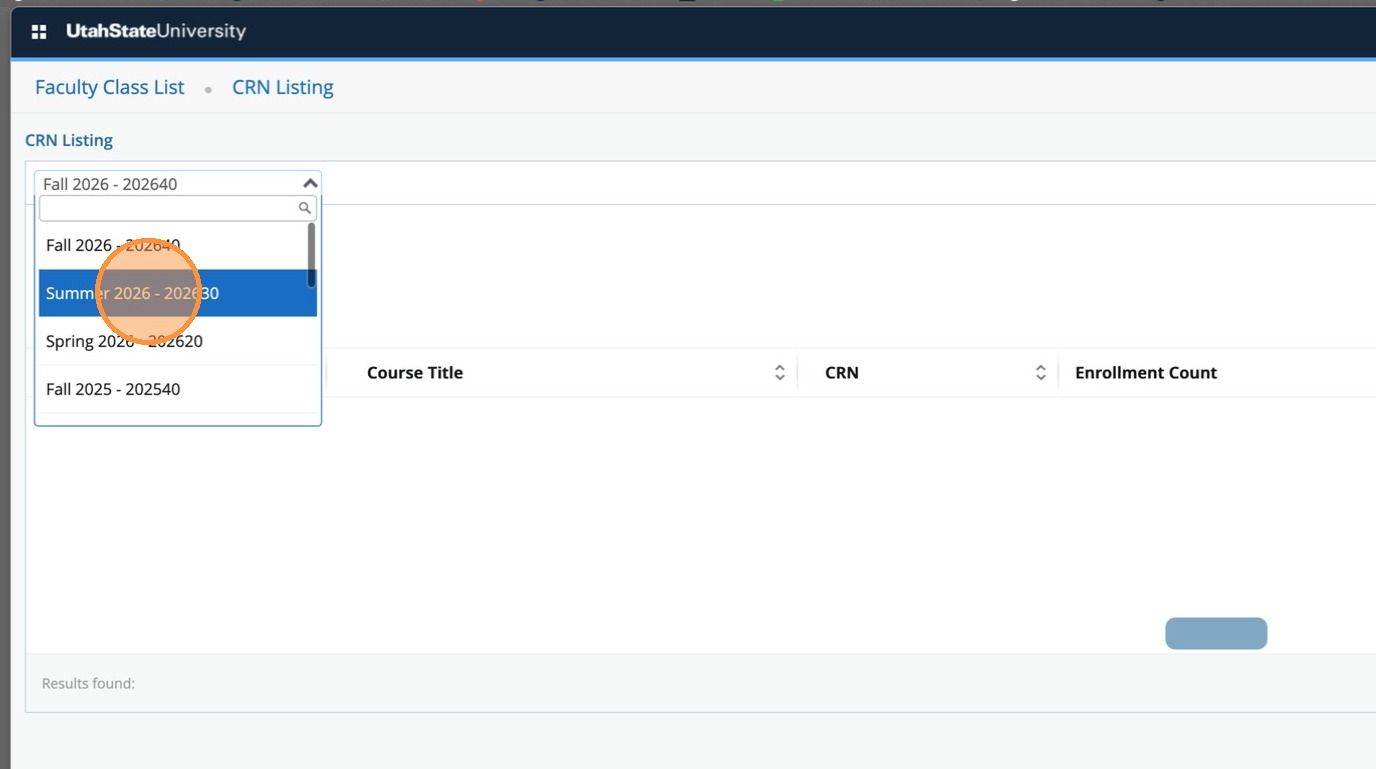
Select the current term from the list.
-
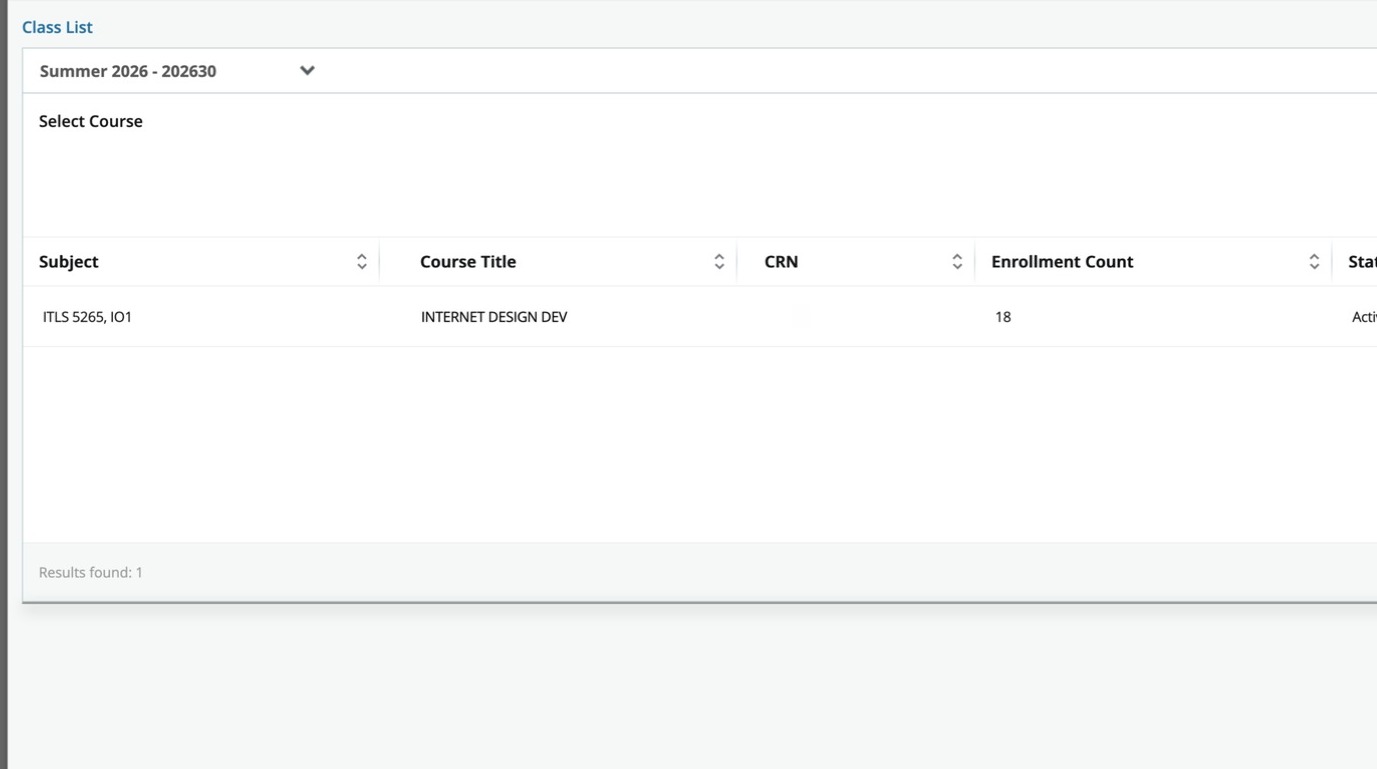
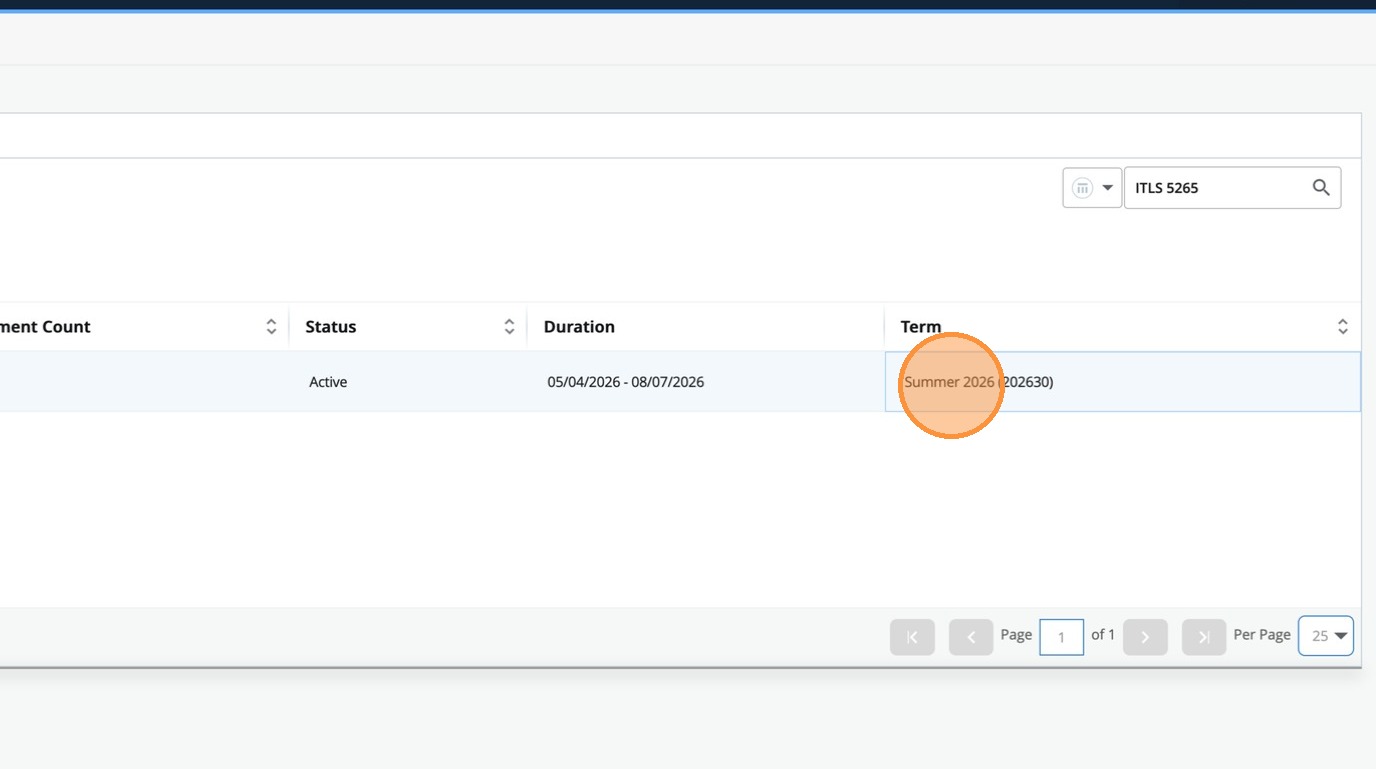
Locate the course in the list.
-
Click on the Term column.
-
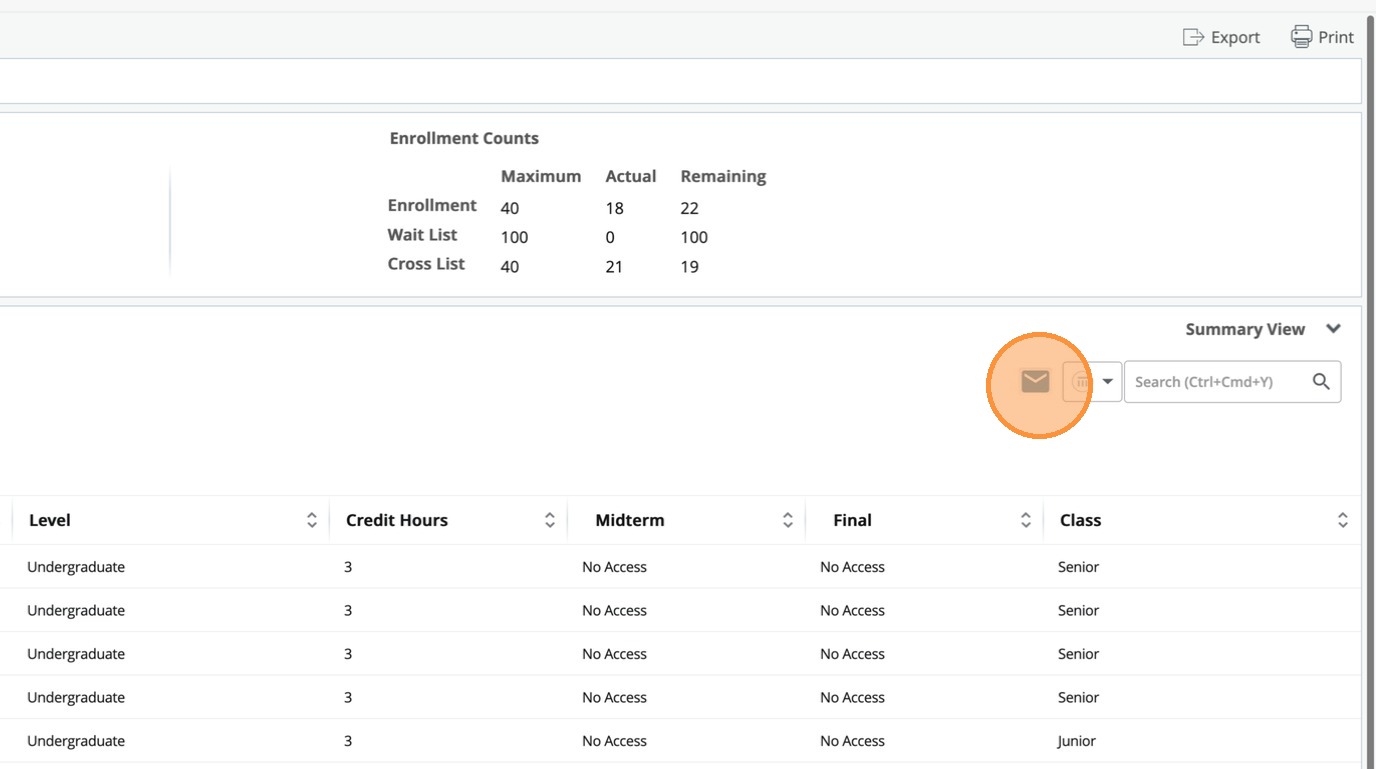
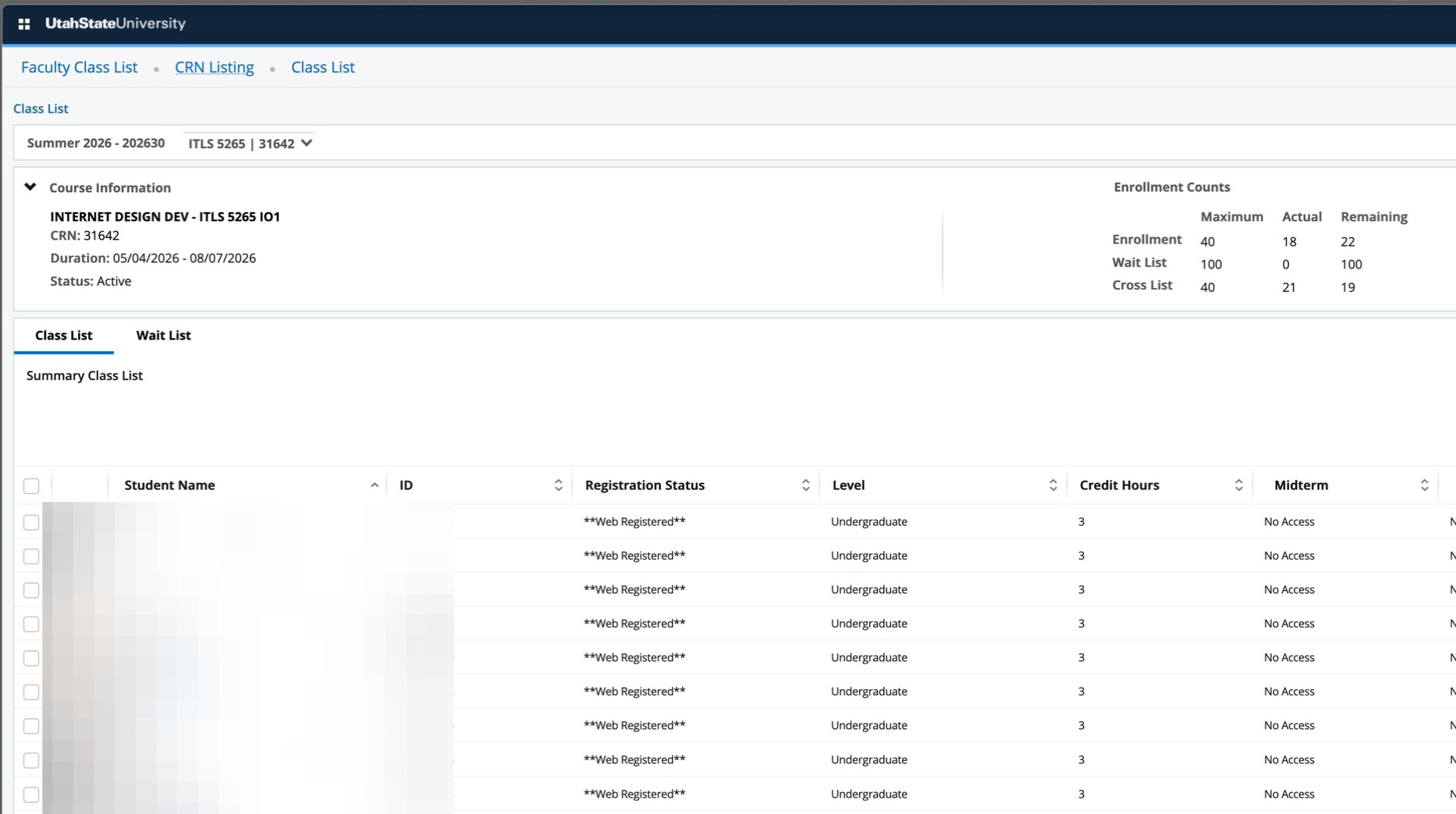
The roster will appear with a options to export to excel or email students from the roster page.
-
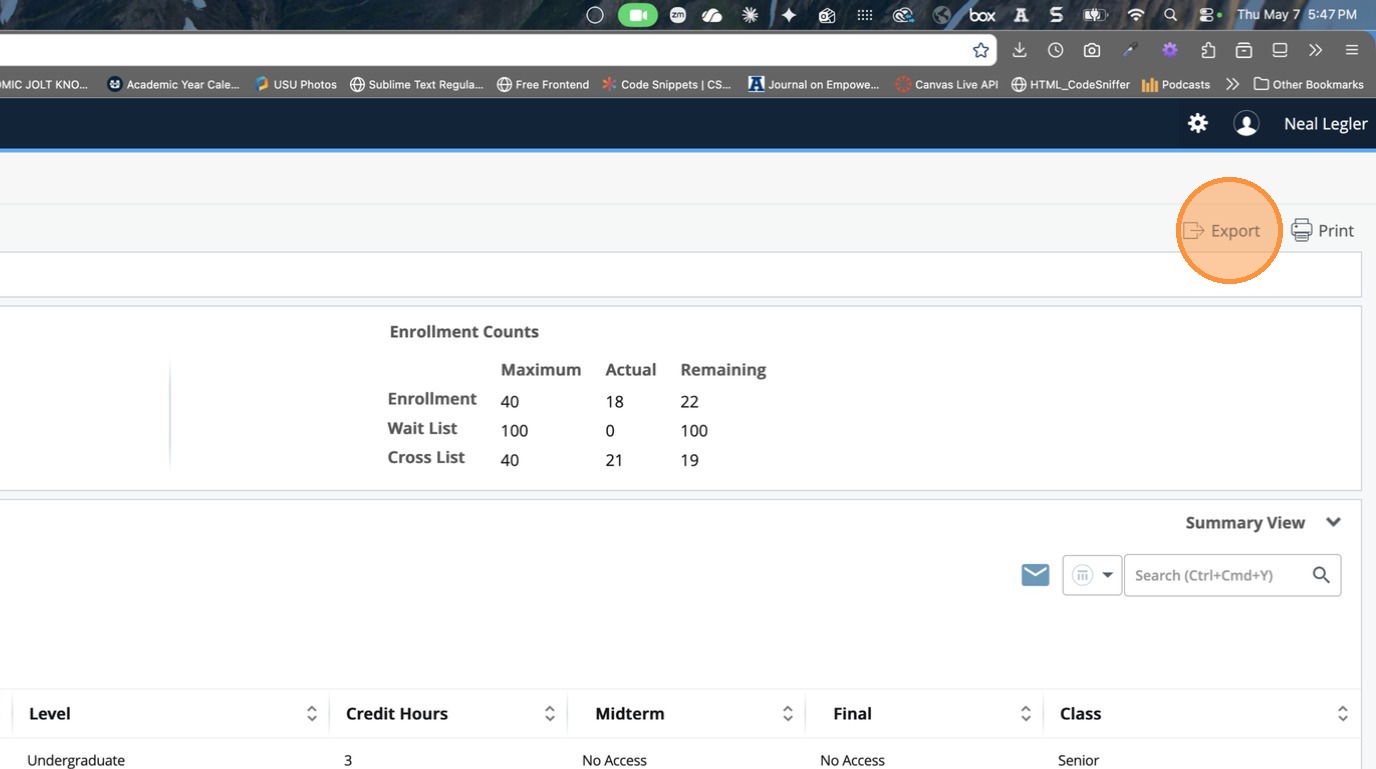
To export a list of students with their email address, click the Export link at the top right.
-
To open an email to all students in your email client, click the email icon that appears above the roster. It is recommended to move email addresses to the BCC line.