
Microphones in the Classroom
Many classrooms have a microphone that can be used for Kaltura recordings, broadcast classes, and in some cases, in-room sound reinforcement (amplification). If a room has a microphone, it can be found in one of the following locations:
- In a charging station on top of the instructor's desk
- In a black drawer under the instructor's desk
Microphones that run off disposable batteries should have extra batteries near where the microphone is stored.
Microphone Guides
There are a few types of microphones used in classrooms. Select the microphone you're interested in learning about.
Other Guides
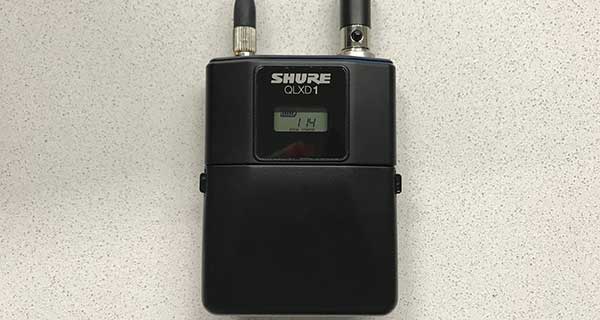
QLXD Microphones
QLXD microphones consist of a rechargeable battery pack, shown below, and either a lapel or over-the-ear microphone.
How to Operate
Turn on the microphone by toggling the power switch on top of the battery pack to "on." A green light will appear next to the switch indicating the microphone is on.

The battery pack is rechargeable and should not need replacement batteries.
Proper Microphone Placement
For lapel microphones (shown below), clip the microphone 6-8 inches directly below the mouth. Placing the microphone off to the side should be avoided.
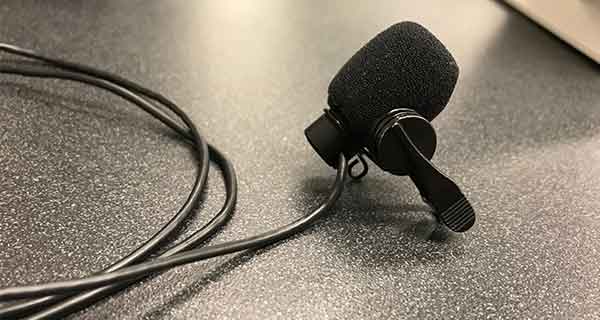
Place the battery pack in a pocket or clip it to a belt or other article of clothing. It should not be placed near a cellphone or other wireless device so as not to interfere with the signal.
After Class
Place the microphone in the charger base (shown below) before leaving to ensure it is charged and ready for the next event that may need it. Ensure the microphone is fully inserted into the charger base. When fully inserted, the microphone will click into place, and a red light underneath the battery icon will appear on the charger base. The charger base is located either on top of the instructor's desk or in the equipment rack underneath the instructor desk.
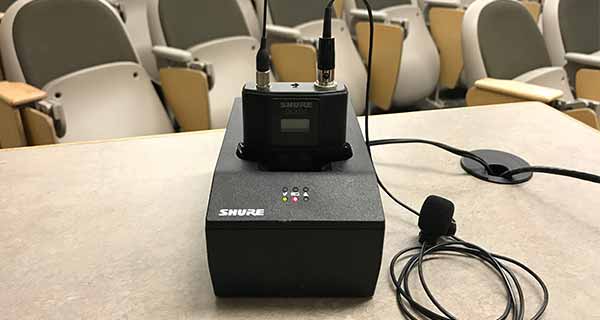
While it may look nice, the microphone cable should never be tightly wrapped around the battery pack or pinched. This can damage the microphone cable and cause shorts in the wire.
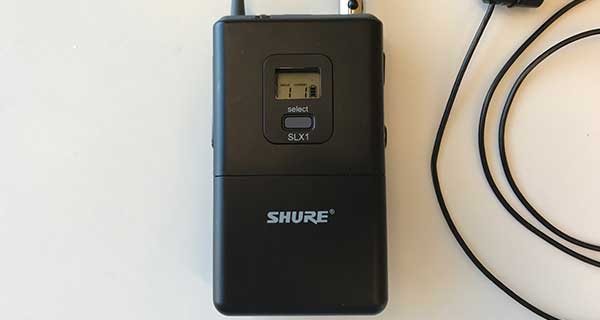
SLX Microphones
SLX microphones consist of a battery pack and lapel microphone, shown below.
How to Operate
Turn on the microphone by pressing the power button on top of the battery pack. The status light near the power button should turn green indicating the microphone is on.
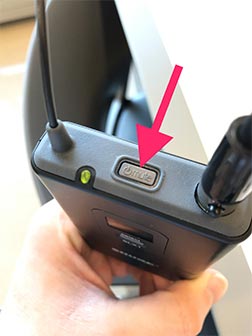
After turning on the microphone, wait thirty seconds and check the battery meter on the front of the battery pack. If the battery meter shows only one bar, replace the batteries. If the status light on top of the battery back is flashing or solid red, the batteries are dead and need to be replaced.
To replace the batteries, press in the tabs on either side of the battery pack and lift open the battery compartment door.
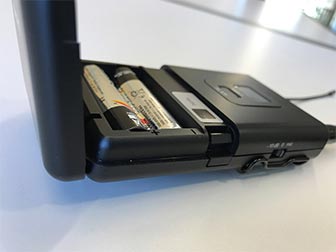
On the side of the battery back, there is a microphone level switch that should not be changed. Most microphones have tape over the switch to prevent the switch from being changed. In most cases, but not all, it should be set to "mic."
Proper Microphone Placement
Clip the microphone on an article of clothing 6-8 inches directly below the mouth. Placing the microphone off to the side should be avoided.
Place the battery pack in a pocket or clip it to a belt or other article of clothing. It should not be placed near a cellphone or other wireless device so as not to interfere with the signal.
After Class
Place the microphone back in the drawer below the desk at the end of class so that the next class can easily find the microphone. While it may look nice, the microphone cable should never be tightly wrapped around the battery pack. This can damage the microphone cable and cause shorts in the cable.
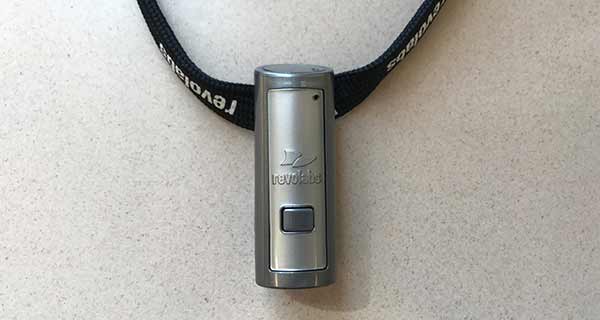
RevoLabs Microphones
Revolab microphones are simple USB microphones that consist of a wireless microphone, shown below, and the charger base.
How to Operate
Remove the microphone from its charger. The microphone should already be powered on but will most likely be muted. Unmute the microphone by pressing the mute button on the front of the microphone.
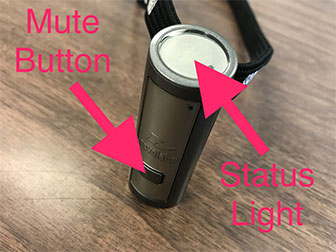
A green light will flash on the top of the microphone indicating the microphone is on and unmuted. If a flashing red light is visible, the microphone is muted.
The microphone is rechargeable and should not need replacement batteries.
Proper Microphone Placement
Clip the microphone to a piece of clothing 6-12 inches directly below the mouth or hang the microphone around the neck using the included lanyard. Placing the microphone off to the side should be avoided. The top of the microphone should be pointed up toward the mouth.
After Class
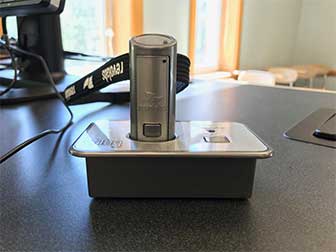
Place the microphone in the charger base (shown below) before leaving to ensure it is charged and ready for the next event that may need it. Ensure the microphone is fully inserted into the charger base. The charger base will be either on top of the instructor's desk or in the drawer in one of the cupboards below the instructor's desk.
Ceiling Microphones
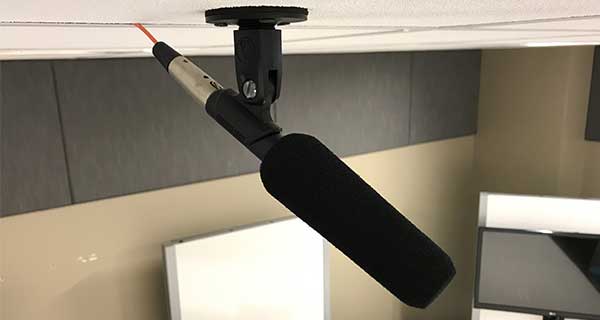
Ceiling microphones are found in most connect classrooms. They are used to capture audio from the students/audience in a room. The ceiling microphones can also be used to record student/audience participation in Zoom or Kaltura.
Most ceiling microphones look like the one in the image below.
How to Operate
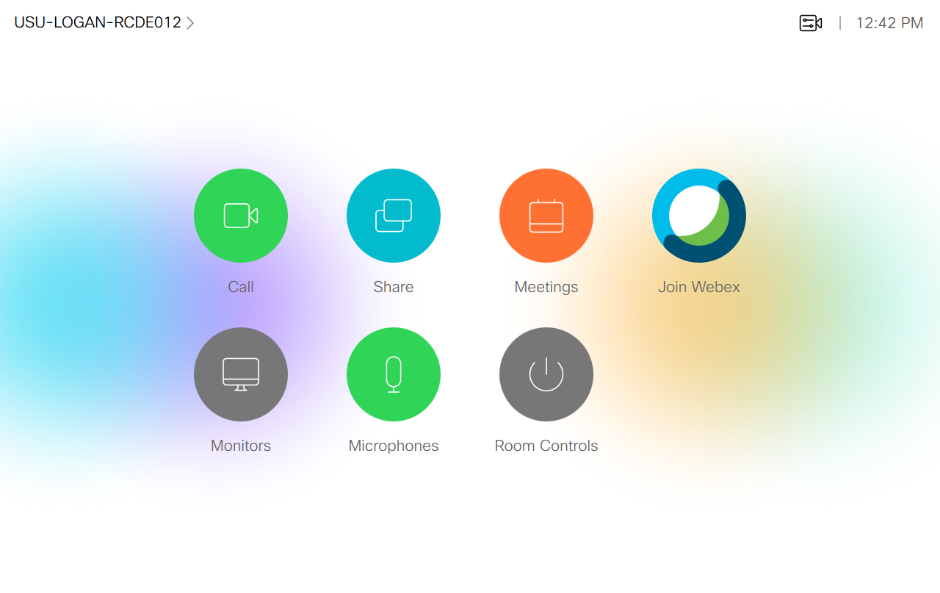
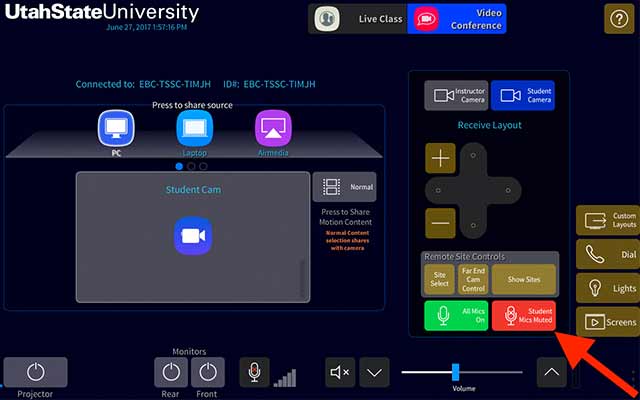
Mute and unmute the ceiling microphone from the Classroom Touch Panel.
- On the front of the touch panel, bottom row, there is a microphone button. Select this button.
- Press the "Mute" or "Student" button to mute and unmute the ceiling microphones in the room. When selecting "Mute" the button will turn blue to show the ceiling microphones are muted and gray to show they are unmuted. If you had to select the "Student Mic" button, the button will appear as a solid or flashing red to indicate the ceiling microphones are muted. When green, the microphones are on.
The ceiling microphone mute buttons can be seen in the two following touch panel screenshots:

After Class
Mute the ceiling microphones before leaving the room.
Additional Information:
- For the best audio quality, instructors and presenters should use the wireless microphone to record their voice and only turn on the ceiling microphones when needed. Ceiling microphones will pick up just about every noise in the room, including shuffling papers and keyboard typing.
- While ceiling microphones are great at picking up most voices, soft-spoken individuals may need to speak up to be heard over the ceiling microphones.
- Ceiling microphones cannot be used for in-room sound reinforcement (audio amplification).
Set Up Sound Reinforcement
Sound reinforcement amplifies a person's voice in a large room or space. It is only available in larger classrooms.
How to Set Up
First, turn on the wireless microphone and put it in position, then follow the instructions below to properly set up sound reinforcement.
On the Classroom Touch Panel:
- Select the "Mics" button in the lower right or lower middle of the Crestron touch panel. This will display the audio level for the sound reinforcement.
- Turn the sound reinforcement level down to about 25%.
- Start counting or speaking into the microphone.
- While speaking into the microphone, slowly turn up the sound reinforcement volume until you can just barely hear the sound reinforcement.
- That's it!
Following the above instructions should ensure the sound reinforcement is set to the correct level and will prevent feedback.
SCCE and HH Instructions
Turn on sound reinforcement in supported SCCE and HH classrooms by pressing the mic icon in the lower middle of the Crestron Touch Panel next to the room volume controls. When the mic icon is green or blue, sound reinforcement is on.
After Class
Return the microphone to the charger base or the drawer under the instructor's desk.
Additional Information
In rooms with lapel microphones, place the mic 6-8 inches directly below the mouth.
FAQ
Do all classrooms with a microphone have sound reinforcement?
No. Small to mid-size classrooms do not have in-room sound reinforcement (audio amplification). Most large classrooms will have sound reinforcement.
What do I do if the batteries are dead and I can't find extra batteries?
Contact us and we'll run some over immediately.