PDF Accessibility

The PDF file type was created to preserve formatting across platforms and software. This makes PDFs difficult to edit or change. From an accessibility standpoint, it’s better to keep files in their original formats (such as Word Documents and PowerPoints) whenever possible. If that’s not an option, you can use these resources to make new and existing PDFs as accessible as possible.

Creating New PDF Files

If you’re creating a new PDF, make sure the source document is accessible. From there, you can convert the file, and its accessibility features will be carried over to the PDF. Check out these instructions for creating accessible documents in some common formats:

Once a document has been made accessible, it can be saved as an accessible PDF. 

  1. Choose File > Save As.
  2. Expand the “File Type” dropdown and choose “PDF (.pdf)”.

Note:  Do not use export widgets or plugins, as they don’t preserve the tags needed for PDF accessibility.

Editing Existing PDF Files

If you don’t have access to the original file, use this guide to work with the PDF itself. Keep in mind that most of these adjustments can only be made to high-quality PDFs. Scanned PDFs can’t be made accessible without starting the process from scratch. If you aren’t sure if your PDF is high-quality, check this Adobe overview for the standards you should be looking for. 

The following instructions are for making adjustments to PDFs using Adobe Acrobat DC.

Open the PDF in Adobe Acrobat and Use the Accessibility Checker

Note:  Make sure your Adobe Acrobat software is updated to the newest version. Otherwise, these  steps will be difficult to follow and may be different on older versions.

The accessibility checker can be accessed from the toolbar on the right side menu or from the “Tools” tab located at the top of the page. If you do not have Adobe Acrobat, you can request it via the Adobe Creative Cloud Request form. Adobe Creative Cloud is free through the University. 

  1. In Acrobat, go to See All Tools, then select Prepare for Accessibility.

    The top bar of Adobe Acrobat. The bar shows some of the tool options starting with Combine FIles, Request E-signature, Fill & Sign, Organize Pages, Comment, Protect, Edit PDF, and then a button saying See All Tools. The button is highlighted in a red box showing the user where to click.
    • If the Prepare for Accessibility option doesn’t show up in the right toolbar, then it may need to be added. To do this, search for “Accessibility” and click open. This will add it directly to the toolbar on the right-hand side.

      The Adobe Acrobat accessibility icon with an Add button below it. To the right is a short description of the accessibility tool and some of its subitems below the description. The description says: Create and verify PDF files to meet accessibility standards for people with disabilities. The subitems include Accessibility Check, Autotag Document, and Reading Options.
  2. Select the file you want to edit.
  3. In the left toolbar, select Check For Accessibility.
  4. A pop-up box will appear. Make sure all the boxes are checked under the Checking Options section.

    A section of the pop-up box that appears after selecting the Check For Accessibility option in Adobe Acrobat. The Checking Options section shows the accessibiliting check opptions a user can choose for the document. The options include Category: with the option Document selected, then the listed items with a check next to them include, accessibility permission flag is set, document is not image-only PDF, document is tagged PDF, document structure provides a logical reading order, text language is specified, document title is showing in title bar, bookmarks are present in large documents, document has appropriate color contrast. Below these options are two buttons. The left one saying Select All while the right one says Clear All.
  5. Then select Start Checking.

    Screen snippets and a screen shot showing the steps to start checking the PDF for accessibility. There are 3 bullet points on the left showing the screen snippets and the steps to starting checking for accessibility. On the right is the screenshot of the entire screen showing the accessibility checks in order with a red box highlighting each step. In order the steps are 1. the accessibility check button in the left toolbar 2. a snippet of the accessibility check pop up showing the Checking options and 3. the start checking button at the bottom of the pop-up
  6. A sidebar labeled Accessibility Checker will appear on the screen with all the issues in the file.

    Two screenshots showing the accessibility checker toolbar on the right side of the screen. On the left is a snippet of the Accessibility checker heading. On the right is a screenshot of the entire adobe acrobat window with a red box highlighting the accessibility checker button. A red arrow connect the two screenshots.
  7. Click the Documents drop-down menu.
  8. Each issue will be preceded by a small red or blue icon. Any issues that aren’t found will be followed by the word Passed.
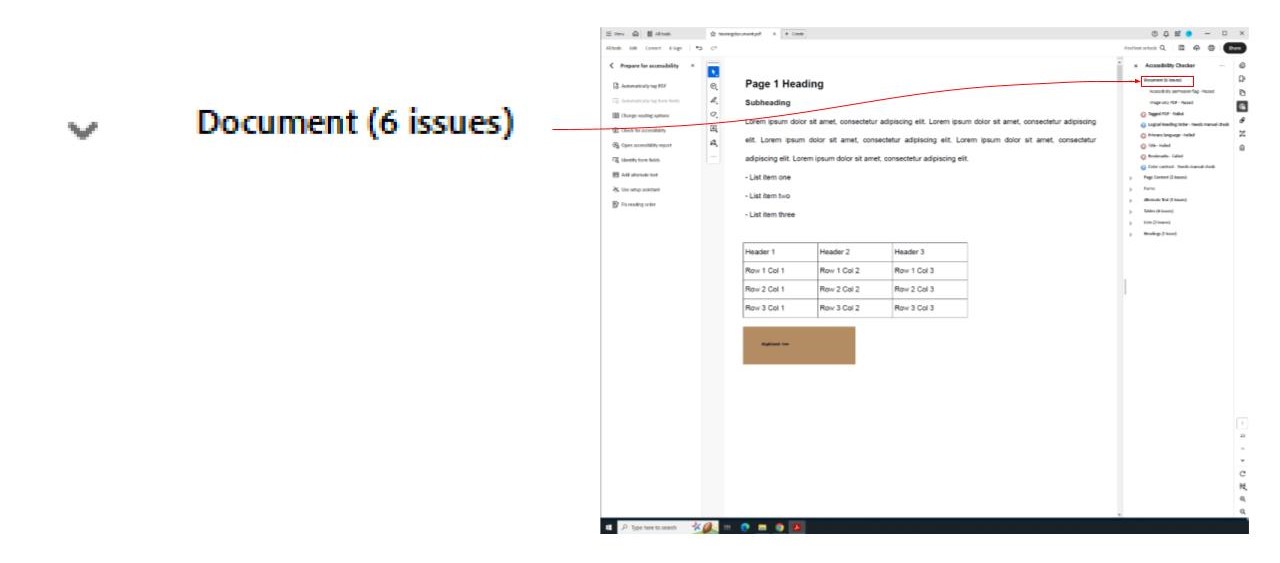
    Two screenshots showing the location Documents dropdown menu. The left screenshot is a snippet of the Document dropdown menu. The screenshot on the left is of the entire adobe acrobat screen with a red box highlighting the document dropdown option. A red arrow connects the two images.
  9. You can get more information on any of the items in the list by right-clicking the the issue and then selecting “Explain.”
  10. You can now go down the list of issues and edit the document. A list of possible issues and the steps to solve them can be found below.

List of Possible Accessibility Check Issues

Tagged PDF Order

Tags are labels that define the different types of content in the documents. They make the document usable with screen readers.

Note: The following tags will be used most often in the document: The H1 tag should be reserved for the document title. Headings from H2 to H6 should follow a logical, chronological order. Regular body text should be enclosed in the P tag. For lists, use ol for ordered lists and ul for unordered lists, depending on the content

Occasionally, Acrobat will misidentify tags in a document. Most times, these issues should be fixed before any other accessibility problem can be solved.

  1. These issues are labeled as “Tagged PDF” under the “Document” drop-down menu in the Accessibility Checker on the sidebar.
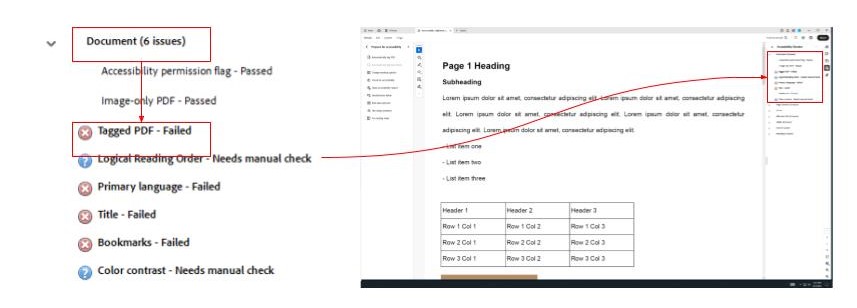
    Two screenshots shwoing the location of the Tagged PDF option. The left image is the shows the documents dropdown menu. The Document heading and the Tagged PDF option are both highlighted in red boxes with an arrow connecting the two showing that the user needs to click on the documents dropdown to find the tagged pdf option. The image on the right is a full image of the adobe acrobat screen with the documents dropdown menu highlighted in a red box. A red arrow connects the two images.
  2. Select the tag icon in the Navigation Pane (this is the bar to the side of the Accessibility Checker tool bar). A list of the tags in the file will be shown (there may not be any tags in the document).
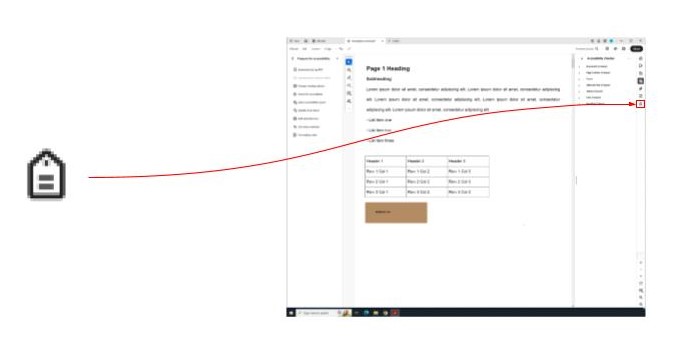
    Two screenshots showing the tag icon and where to find it on the adobe acrobat screen. The righ screenshot shows the tag icon. The left screenshot is a full image of the adobe acrobat screen showing where the tag icon can be found; at the bottom of the navigation bar on the far right of the screen.
    • If this icon isn’t visible, right-click on an empty part of the Navigation Pane and select the tag icon from the list that pops up. 

      Two screenshots showing how to access the accessibility tag if it doesn't appear in the navigation bar. The left image shows the information pop-up with the accessibility tag option highlighted in a red box. Then it shows the accessibility tag option that appears in the navigation bar highlighted in a red box. The two boxes are connected with a red arrow. The left screenshot is of the entire adobe acrobat screen with the navigation bar information pop-up and the tags icon location highlighted in a red box. A red arrow connects the two screenshots.
  3. If the tag type needs to be changed, go to Fix Reading Order under the Prepare for Accessibility pane.

    Two screenshots showing where to find the Fix Reading Order option. The left screenshot shows the Prepare for accessiblility pane with the heading prepare for accessibility heading and the fix reading order option highlighted in a red box. The two boxes are connecte with a red arrow showing where to find the fix reading order opiton. The second screenshot shows the entire adobe acrobat screen with the prepare for accessibility toolbar on the far left side of the screen highlighted by a red box. A red arrow connects the two screenshots.
  4. A Reading Order pop-up box will appear.
  5. Draw a box around the area that needs re-tagging, from there you will be able to select the correct tag for the highlighted section.
  6. Then select “Close.”

    Two screenshots showing the steps to fix the reading order of the pdf. The first image is of the steps listed out in small snippets. The list goes 1. the Fix reading order option 2. the page 1 heading on the pdf highlighted in a pink box and 3. the fix reading order pop-up. The right screenshot shows the location of those steps highlighted in red boxes with arrows connecting all three showing the order and the location of the steps.
    • An example would be that images are tagged with the “Figure” button, tables with the “Table” button, etc.
  7. Make sure the tags are in the order in which the document should be read.

Reading Order (Tag Order)

Sometimes the PDF will have an automatically assigned reading order. This means that the order that the tags show up in the Tags section of the Navigation Pane are the order that a screen reader will read them in. Review the tags to make sure they are in the correct order.

  1. Go down the list and click on each tag. 
  2. When the tag is selected, a pink box will highlight the content that is tagged.

    Two screenshots showing the steps to figuring out if the documents tags are in the correct order. The left screenshot shows the steps to finding the location of the tag in three separate snippets. The steps go 1. the tag icon in the navigation bar on the far right side of the screen, 2. the page 1 heading tag with the <H1> highlighted, and 3. the page 1 Heading text on the pdf highlighted by a pink box. the left image is a screenshot of the entire adobe acrobat screen showing the steps highligted in red boxes with red arrows connecting them showing the order and the location of the steps.
  3. If the tags are out of order, select the tag you would like to move and drag it to the position you want it to be in.

Title

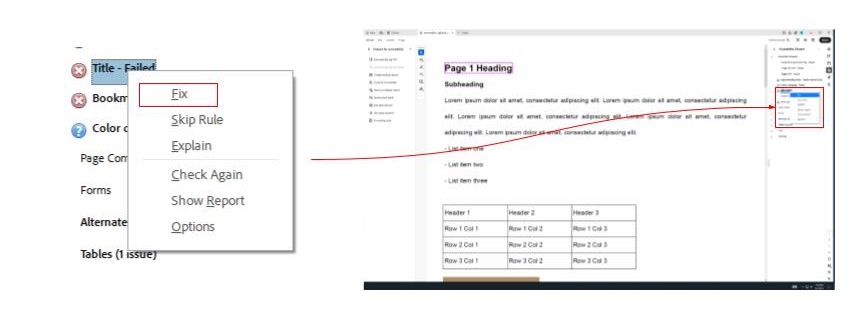
  1. Go to the title issue under the Document drop-down menu.
  2. Right-click the “Title”.
  3. Select “Fix”.

    Two screenshots showing the location of the title option and the right-click information under the documents drop down menu. The left screenshot shows a close up of the title option as well as the right-click pop up information with the Fix option highlighted by a red box. The right screenshot is a full window screenshot showing the location of the title option and the right-click pop-up information, the location of both are highlighted by a red box. The two screenshots are connected by a red arrow.
  4. A pop-up will appear. Deselect Leave As Is and then type in the title of the document.
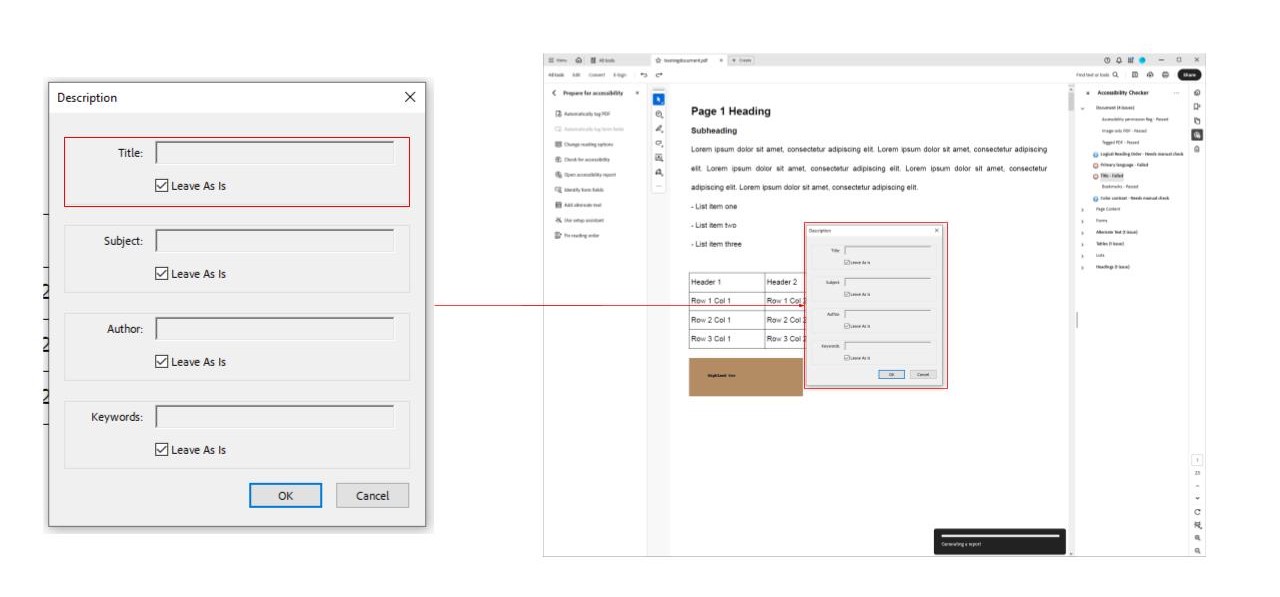
    Two screenshots showing the information and location of the description pop up box. The left screenshot is a close up of the description pop up with the title text box option highlighted. The right screenshots is a full window screenshot shows the location of the description pop-up with the pop-up highlighted by a red box. The two screenshots are connected by a red arrow.

Occasionally, the Fix option won’t automatically solve the issue. To solve this problem, follow the steps below. 

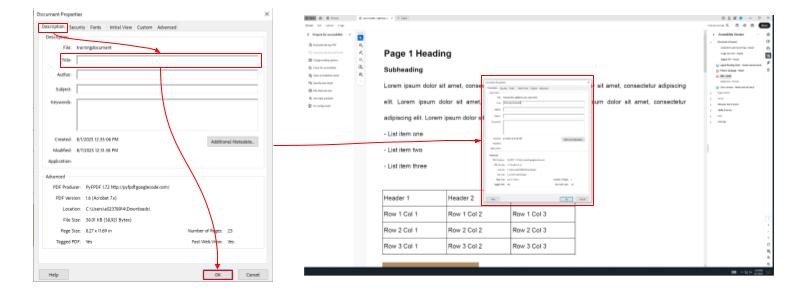
  1. Select the Menu option (three dashes) in the upper left-hand corner and click on Document Properties (Ctrl + D).
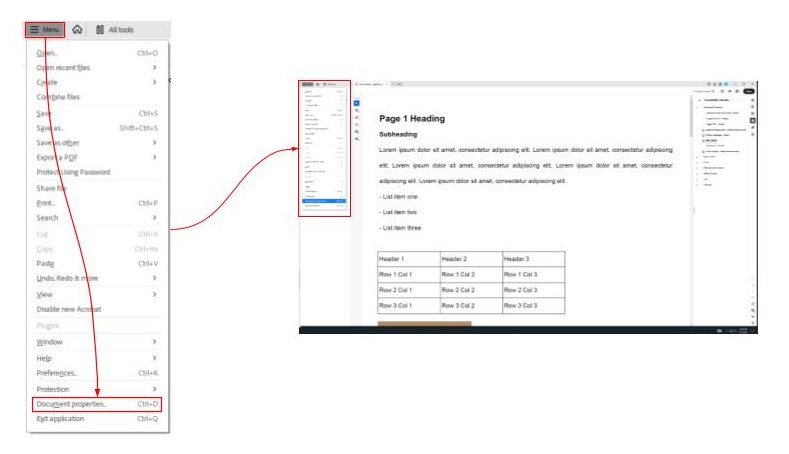
    Two screenshots showing the location and information of the menu button. The left screenshots is a close up of the menu button and the information menu. Both the Menu button and the document properties option are highlighted by a red box and have a red arrow connecting them. The right screenshot is a full window screenshot showing the location of the meu button and the information menu in the window. The menu and the button are highlighted by a red box. The two screenshots are connected by a red arrow.
  2. A pop-up will appear, and you will be able to type in the title in the Descriptions Tab in the Title bar.
  3. Click OK.

    Two screenshots showing the information and location of the document properties pop-up. The left screenshot is a close up of the document properties pop-up. In the pop-up the steps the order the steps that the user should take are highlighted in red boxes and connected with red arrows. The order is the description tab, the title text box, and then the ok button. The right screenshot is a full window screenshot showing the location of the document properties pop-up on the page. The two screenshots are connected with a red arrow.

Language

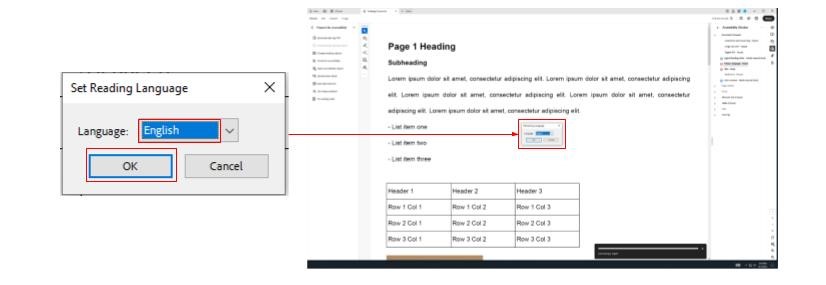
  1. Right-click the Language option under the Document drop-down menu.
  2. Select Fix.

    Two screenshots showing the location and information of the Primary language option and the right click info pop-up. The left screenshot is a close up of the primary language option along with the right click pop-up information with the fix option hihglighted in a red box. The right screenshot is a full window screenshot showing the location of the primary language option and the right-click info pop-up below in the documents drop down menu. The option and the pop-up are highlighted by a red box. The two screenshots are connected by a red arrow.
  3. Choose the correct language in the pop-up bar.
  4. Select OK.

    Two screenshots showing the information and location of the set reading language pop-up. The left screenshot shows a close up of the set reading language pop-up with the language drop down option and the ok button highlighted by a red box. The right screenshot is a full window screenshot showing the location of the set reading language box on the adobe acrobat page. The two screenshots are connected by a red arrow.

Bookmarks 

  1. Before fixing these errors, make sure the document is fully tagged. Otherwise, there won’t be any bookmarks to fix.
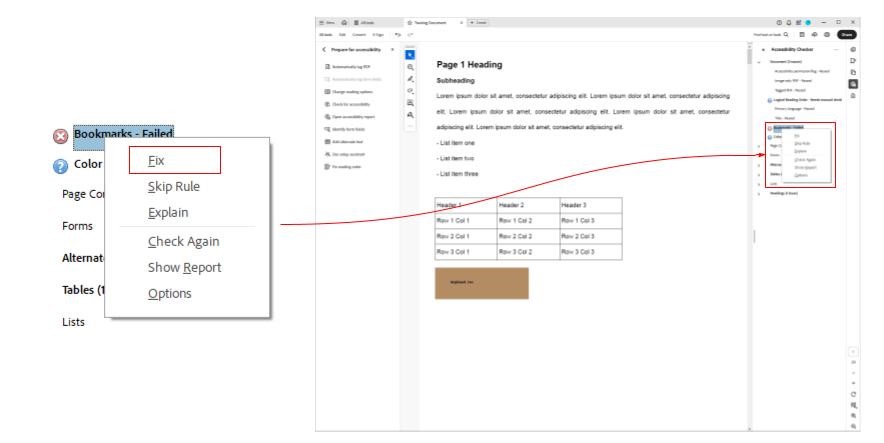
  2. Right-click the Bookmarks option under the Documents drop-down menu and select Fix.

    Two screenshots showing the location and information after rightclicking the bookmarks option. The left screenshot is a close up of the bookmarks option and the right click pop up with the fix option highlighted by a red box. The right screenshot is a full window screenshot showing the location of the bookmarks option and the righ-click pop up below the documents drop dow menu. Both the pop-up and the option are highlighted by a red box. A red arrow connects the two screenshots.
  3. A pop-up menu will appear. Choose Select all and then OK.
    Two screenshots the information and locationof the structure elements pop up. The left screenshot is a close up of the structure elements pop-up. The select all and ok button are highlighted by a red box with a red arrow connecting the two. The right screenshot is a full window screenshot showing the location of the structure elements pop-up. The pop-up is highlighted by a red box. A red arrow connects the two screenshots.

Tab Order

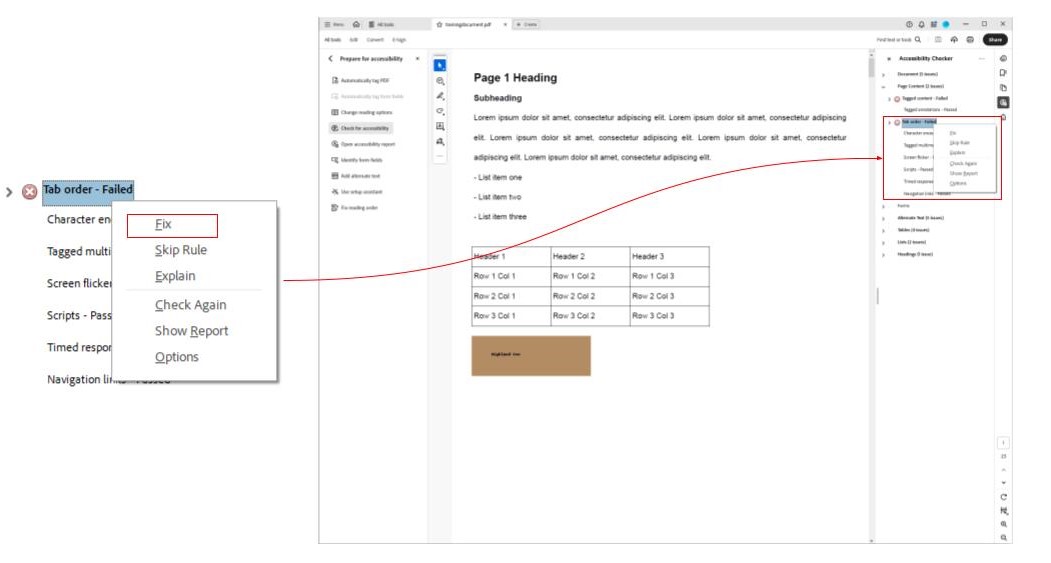
The tab order is what allows a user to use the “Tab” key to navigate through a file. It will appear under the “Page Content” section of the accessibility checker. 

  1. Right-click and select Fix.

    Two screenshots showing the location of the tab order option and the right click info pop-up. The left screenshot is a close up of the tab order option and the right click info pop up with the fix option highlighted by a red box. The right screenshot is a full window screenshot showing the location of the tab order option and right click pop up below the document drop down menu. The pop up and the option are highlighted by a red box. The two screenshots are connected by a red arrow.

If that doesn’t work or if you want to reorder the pages, then follow the steps below.

  1. Select the Pages icon (the icon with two pages). 
  2. Then drag and drop the pages where you would like them to go.
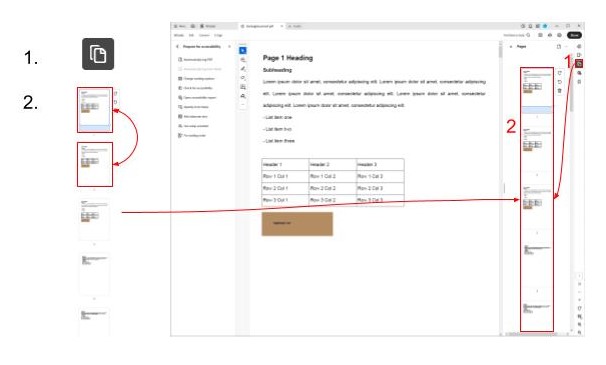
    Two screenshots showing the location of the pages icon and how to re-order the pages. The left screenshot shows close up images of the steps to re-order the pages. The two steps include 1. the pages icon: two pages stacked on top of one another, the front one has a folded corner 2. the pages scroll bar showing the different pages of the document. The first and second page are highlighted by red boxes with an arrow pointing between the two, indicating the way to re-order the pages. The right screenshot is a full window screenshot  showing the location of the icon and the list of pages on the right side of the screen. Both the pages and the icon are highlighted by red boxes with a red arrow pointing from the pages icon to the pages. Red numbers next to the red boxes show the order in which the user should move throughout the page. The screenshots are connected with a red arrow.
  3. The reading order and the tag order will adjust automatically.

Alternative Text 

Alternative text (alt text) is a text description of an image. This is read by assistive technology, such as screen readers, for users who are blind or have low vision. When adding alternative text, keep it concise and relevant to the document’s context. Describe what’s essential about the image—avoid phrases like “image of” and make sure to end in punctuation. If you’re unsure about what to say, you can use generative AI (ChatGPT, Gemini, etc.) for ideas. To add alt text to an image:

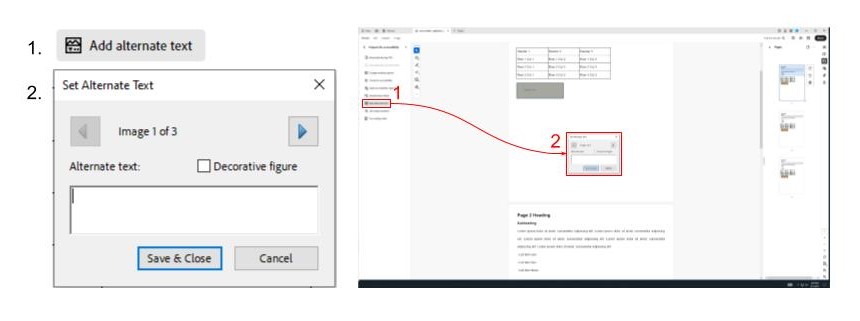
  1. Go to the Alternate Text option under the Accessibility Checker sidebar.
  2. A pop-up text box with arrows leading to each image in the PDF will appear.
  3. Add alt text for each image inside the dialogue box.
  4. Select Save & Close.

    Two screenshots showing the steps and location of adding alternative text. The left screenshot includes two close up screenshots showing the steps to adding alternative text. The stpes go 1. close up of the add alternate text button and 2. the set alternate text pop-up with the image nxt and previous buttons, the text box, the decorative figure option, and the save and close/cancel buttons. The right screenshot is a full window screenshot showing the location of the two steps talked about previously. The Add alternate text button is highlighted by a red box and is located below the prepare for accessibility heading and the set alternate text pop up is located in the center of the page, it is also highlighted by a red box. The red boxes are connected with a red arrow and there are red numbers outside the boxes showing the user how to navigate through the pages. Another red arrow connects the two screenshots.

If this doesn’t work, then follow the steps below:

  1. Go to Fix Reading Order.
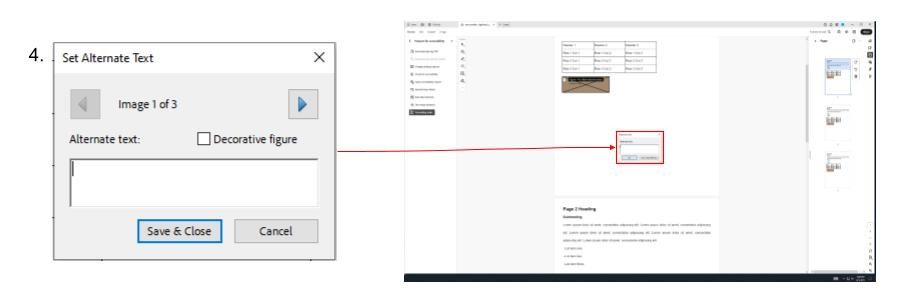
  2. Right-click each figure and select Edit Alternate Text.

    Two screenshots showing alternative steps and the location to adding alt text to images. The right screenshot shows 3 close up images showing the steps to adding alt text. The steps show 1. the fix reading order button 2. the image on the page with the right-click pop up menu 3. the edit alternate text option. The right screenshot is a full window screenshot showing the location of the previous steps. The fix reading order button is located below the prepare for accessibility heading and is highlighted by a red box. The image, pop-up menu, and the edit alternate text option are also highlighted in red boxes. Red arrows and red numbers point between each of the boxes showing the user what order to go in.
  3. Then add alt text in the pop-up text box.
  4. Select OK.

    Two screenshots, continuing the steps fromt he previous screenshot, showing the location of the set alternate text pop up. The left screenshot includes a close up screenshot showing the set alternate text pop up. The right screenshot is a full window screenshot showing the location of the two steps talked about previously. The set alternate text pop up is located in the center of the page, it is highlighted with a red box. A red arrow connects the two screenshots.

Tables

Tagging tables helps screen readers identify them; however, further steps should be taken to help identify other parts of the tables, such as headers. If these other steps aren’t taken, issues will appear in the accessibility checker under the Tables tab as Headers.

To fix a table header problem:

  1. Open the Fix Reading Order tool and make sure the table is tagged as a table.
  2. Click the Table Editor button found near the center of the Reading Order window.
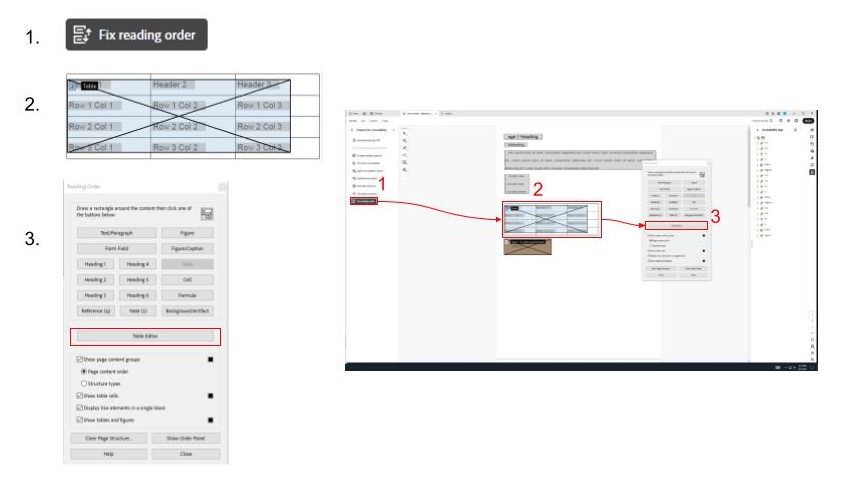
    Two screenshots showing the steps and location of the steps to adding table headers. The left screenshot shows close up screenshots of the 3 steps to adding table headers. The steps go 1. the fix reading order button 2. a table highlighted in blue 3. the reading order pop up with the table editor option highlighted with a red box. The right screenshot is a full window screenshot with each of the previous steps highlighted by red boxes showing their location on the page. Red numbers and arrows connect each box showing the user which order to go in.
  3. Highlight the table cells that are headers. After they are highlighted, the cells should be outlined in a blue box. Then right-click the cells and choose Table Cell Properties.
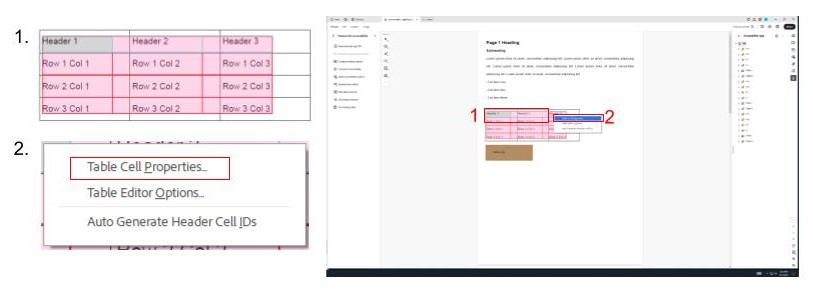
    Two screenshots continuing the steps of adding table headers from the previous screenshot. The left screenshot shows two steps. The steps go 1. the table with the top three cells highlighted with a blue box and the rest of the table highlighted in pink. 2. The right click pop up list with the table cell properties option highlighted with a red box. The right screenshot is a full window screenshot with red boxes highlighting the previous steps. Red numbers are placed outside the red boxes showing the user the order they should follow.
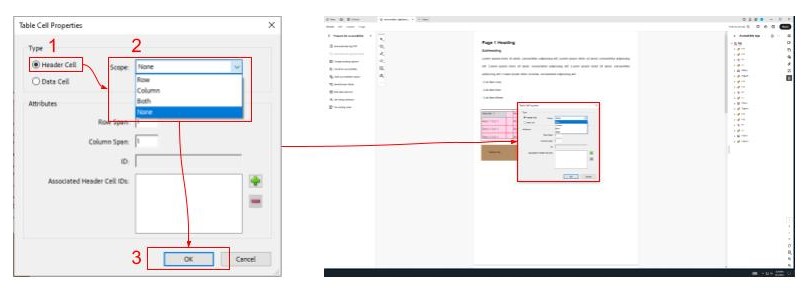
  4. In the window that opens, change the Type from Data Cell to Header Cell.
  5. Select the scope for those cells. Either Rows or Columns (Rows define a horizontal set of data while columns define a vertical set of data).
  6. Click OK.

    Two screenshots continuing the steps from the previous screenshot. The left screenshot is a close up of the table cell properties pop up. Red boxes and numbers highlight the order the user should follow. The steps go 1. the header cell selection 2. the scope drop down menu selection 3. the ok button. The right screenshot shows the location of the table cell properties pop-up on the adobe page. The pop-up is highlighted by a red box. A red arrow connects the two screenshots.

Note: If an alert pops up next to the summary option under the tables drop-down menu, this is a section where you can summarize the data in your table. You can skip this step as it is not necessary; however, if you would like to add one, feel free to do so.

A table summary should explain the content of the table. If the table is missing a summary, then it will cause an error. To fix this:

  1. Open the Reading Order tool.
  2. Right-click on the table and choose Edit Table Summary. The summary can be added in the window that pops up.
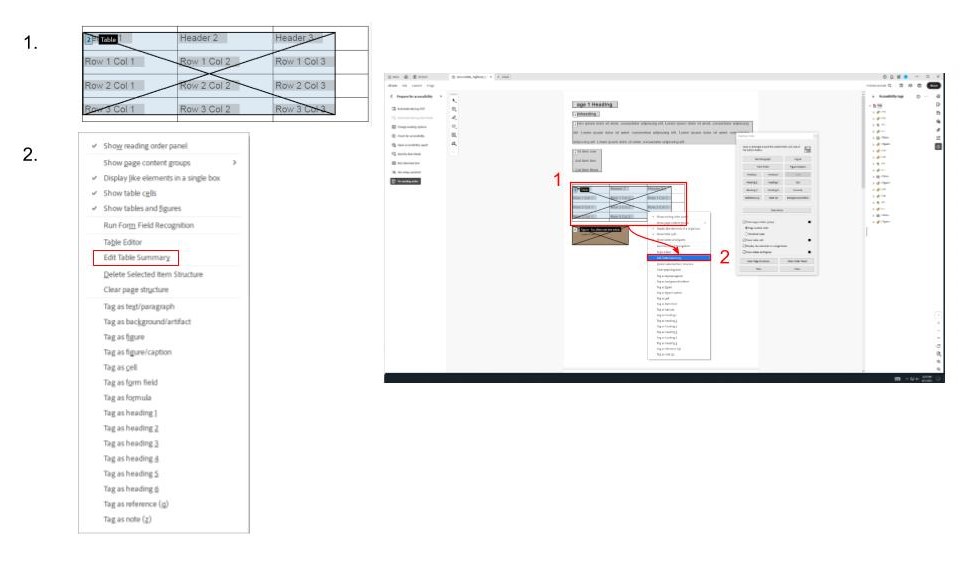
    Two screenshots showing how to add a table summary. The right screenshot includes close up screenshots of the steps to take when adding the table summary. The steps go 1. a table highlighted in blue 2. the righ click menu with thte edit table summary option highlighted. The right screenshot is a full window screenshot showing the location and order of the previous steps. The table and the edit table summary are highlighted in red boxes. Red arrows and numbers show the order the user should follow to add a table summary.

Lists

Lists need to be formatted correctly for screen readers to read them as lists. Otherwise, they are read as regular text.

  1. Go to the Tags icon in the Navigation Bar.
  2. Double-click on the tag that is supposed to be a list.
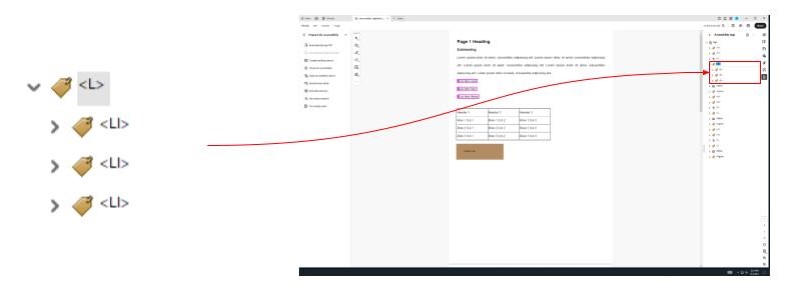
    Two screenshots showing the location and information of the list tags. The left screenshot shows a close up of the list tag and the three list item tags. The right screenshot is a full window screenshot with the list and list item tags highlighted by a red box. A red arrow connects the two screenshots.
  3. Tag the entire list with the List tag (L).
  4. Then tag each individual list sub-item with a List Item (LI) tag.
  5. Watch this video walkthrough from KSU for more detailed instructions.

Note: Ordered lists (numbered) use the tag OL, and for unordered lists (bullet points), the tag is UL. All list items will be tagged LI.

Color Contrast

Color contrast will always show up as a blue icon error. This means that Acrobat wants you to manually check if there’s an issue. You can generally ignore any color contrast issues.
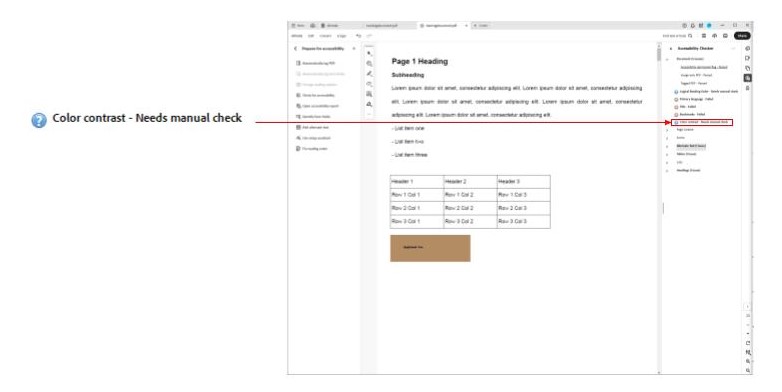
Two screenshots show the the location of the color contrast option. The left screenshot shows a close up of the color contrast option. The right screenshot is a full window screenshot showing the location of the color contrast option. The option is located under the documents drop dow menu and is highlighted by a red box. The two screenshots are connected by a red arrow.

Ignore Warnings for Logical Reading Order

If Acrobat flags Logical Reading Order, ignore these warnings. 

Save and Recheck

After fixing issues, Save the file, then re-run the Accessibility Checker to confirm all items are addressed.