
3Play Media FAQs
Can I Cancel a Caption Request That Has Already Been Submitted to 3Play?
There is a limited window of time in which you can cancel a captioning job after it has been submitted. The cancel option is only available while the video is in the “pre-processing” stage which lasts roughly as long as the duration of the video. See 3Play’s instructions to Cancel a File from Uploading for additional steps.
It may be possible to cancel an order after the “pre-processing” stage for a fee of $.25 per minute if they have not worked on it yet. In this situation, contact 3Play directly using the Contact > Customer Support link within 3Play.
Can I Change the Notifications I Receive for 3Play Jobs?
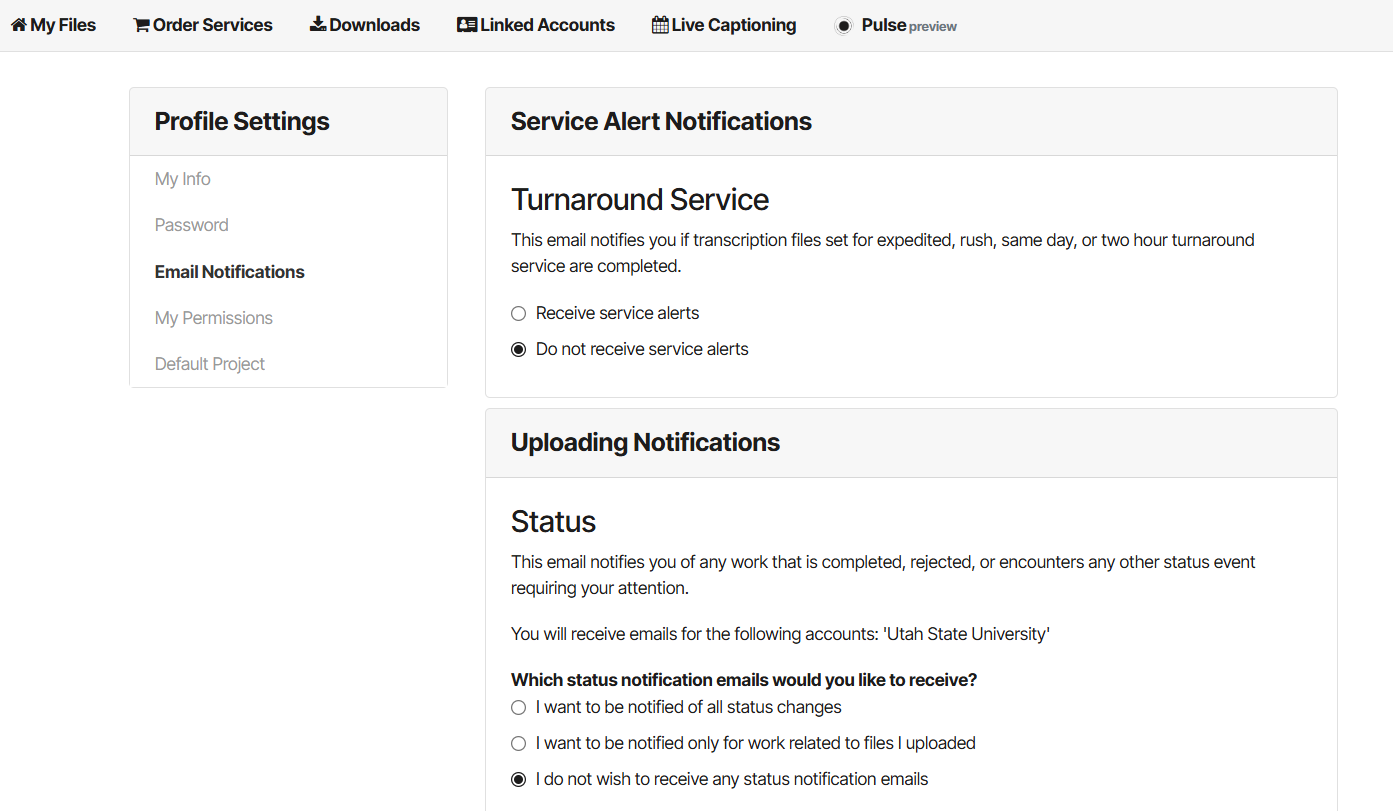
Follow these steps to change specific notification settings for your account.
- Login to your 3Play Media account.
- Select the dropdown next to your email in the upper right corner of the 3Play home page and choose the option “Profile Settings”.
- Under the Profile Settings navigation on the left-hand side, select “Email Notifications”.
- Proceed to change your desired notification preferences for each category. Be sure to select “Save Changes” when finished.
Can 3Play Caption Any New Videos On My Channel Automatically?
Yes, we have worked with 3Play to create a process that will automatically caption new videos added to your channel. If you would like this feature, please contact us. Please tell us what channel the feature will be turned on for and the turnaround level you would like all the videos to be captioned with (typically extended).
Can I Order Captions in a Different Language?
If you need a video captioned/subtitled in another language, please contact us.
How Do I Connect My USU YouTube Channel with 3Play Media?
- Start by going to YouTube.com. Make sure you are logged in to your channel.
Note: You must be logged into the channel directly, not as another manager in the account. - Login to your 3Play Account (Contact captions@usu.edu if you need an account).
- Select “Linked Accounts” in the top navigation bar.
- Select the button “Link a New Account” and click on the YouTube option.
- Select your channel and click “Allow”.
- You will be taken to a settings page in 3Play. Make sure the dropdown “Postback Captions” is turned on. This will allow video captions to automatically post back to your YouTube video.
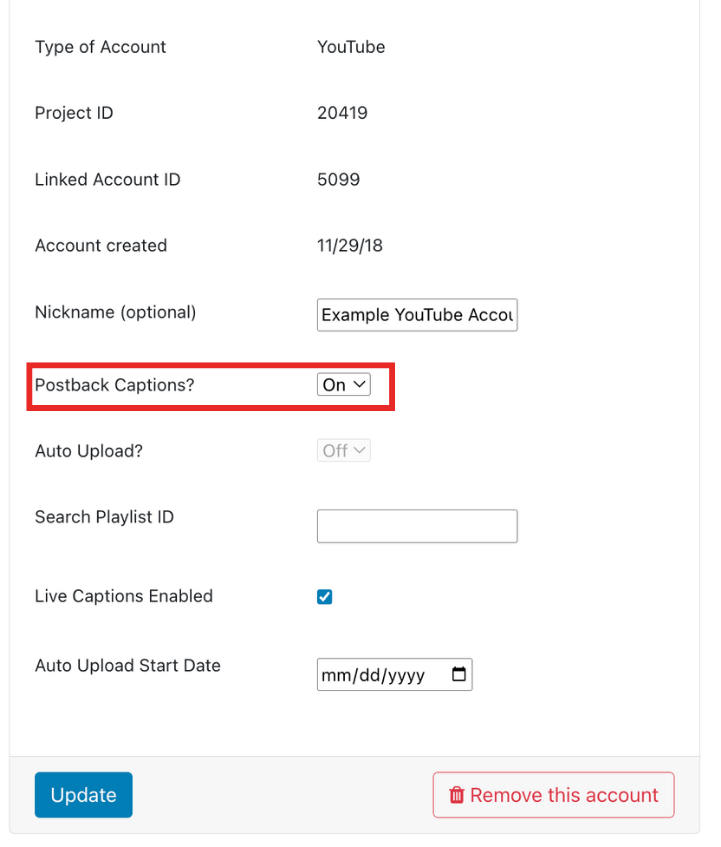
- Select “Update”.
- Done!
Additional Information on Connecting Your YouTube Channel:
How Do I Reauthenticate My USU YouTube Channel with 3Play Media?
Sometimes you’ll get an error message in 3Play asking you to re-authenticate your account:

This can happen if permissions are changed in your account. To re-authenticate your account follow these steps:
- Select the “click here’ link in the 3Play error message.
- Select the re-authenticate button. This will take you to the YouTube login. Use the login information for your YouTube channel.
- Select your account and choose “Allow”.
- Go back to 3Play and select the re-authenticate button again. Make sure to also choose the “Update” button.
- Done!