
Accessibility features in social media schedulers vary widely, and capabilities may change as platforms evolve. When possible, use native social media platform features (Instagram, Facebook, X, etc.) to add alternative text and closed captions.
Some scheduling tools do not currently support adding separate caption files to videos. In these cases, videos should include burned-in captions prior to upload. When caption files are supported, they should be uploaded after posting using the native social media platform.
If a platform does not support alternative text, one possible workaround is to include an image description at the end of the post caption. For example: “[Image Description: A golden retriever sitting in a sunny park holding a tennis ball.]” Screen readers can read this text directly from the post caption field.
The following sections provide an overview of several commonly used social media scheduling tools and the accessibility features they currently support.
Sprout Social
Sprout Social includes AI-assisted tools for generating alternative text and video captions. Because these features are AI-generated, all content should be reviewed for accuracy before publishing.
To generate alt text within Sprout Social's Compose Window:
- Use the Profile Picker to select the networks you want to publish to.
- Add an image to your post.
- Select the Add Alt Text link below the image.
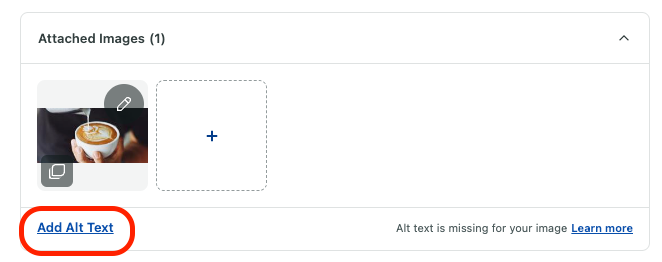
- Select the Generate icon in the alt text box on the right.
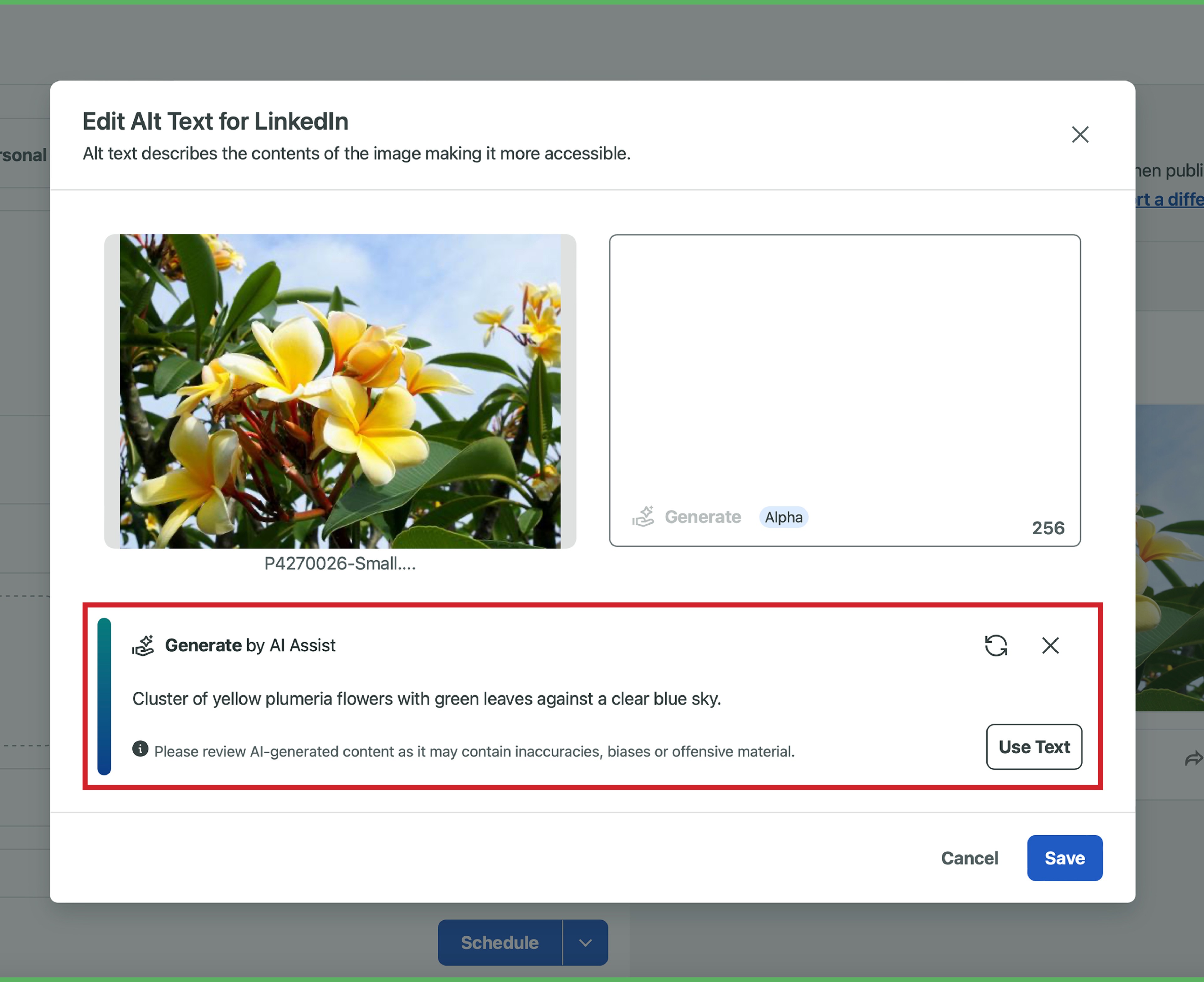
- Select Use Text to insert the generated text, or click the regenerate icon to create different alt text.
- Select Save when you're happy with the generated alt text.
Sprout Social’s Generate by AI Assist feature can generate subtitle (SRT) files for videos directly within the platform. Users can edit captions after generation, preview subtitles overlaid on the video, and download the completed SRT file for use across multiple platforms.
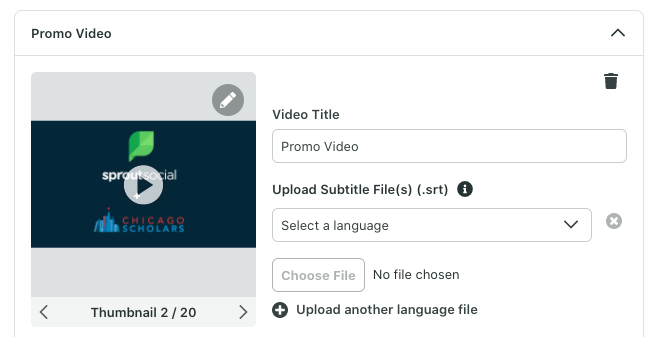
Sprout Social also supports uploading SRT caption files for videos on supported platforms, including Facebook, YouTube, and X. Users can upload subtitle files directly within the Compose workflow when creating a post.
To upload an SRT file in Sprout Social:
- Upload your video into the Compose window or select it from the Asset Library.
- Select Add a Subtitle file.
- Choose the language that matches the caption file.
- Upload the SRT file before scheduling or publishing the post.
Multiple SRT files can be uploaded for supported platforms to provide captions in different languages.
Zoho Social
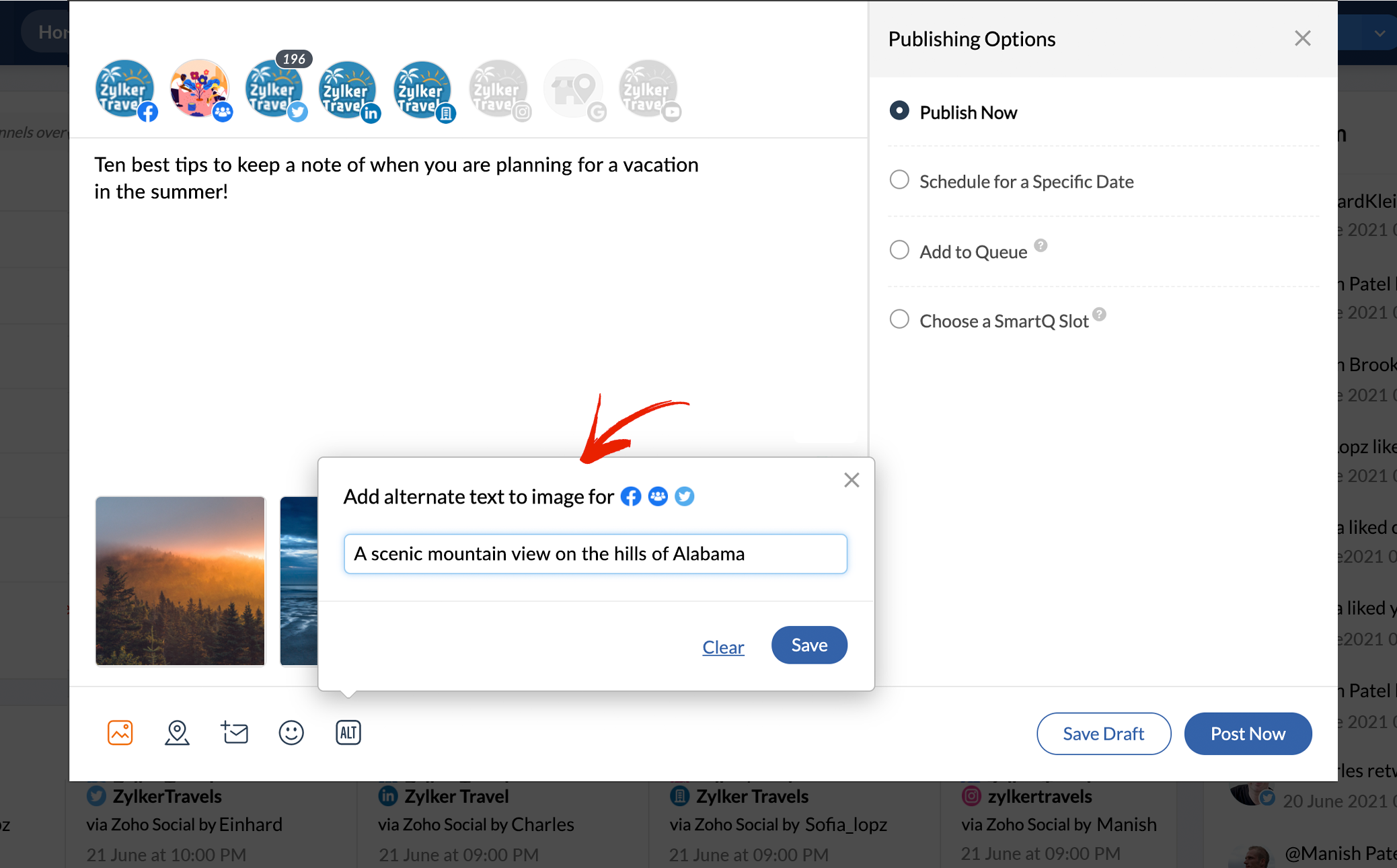
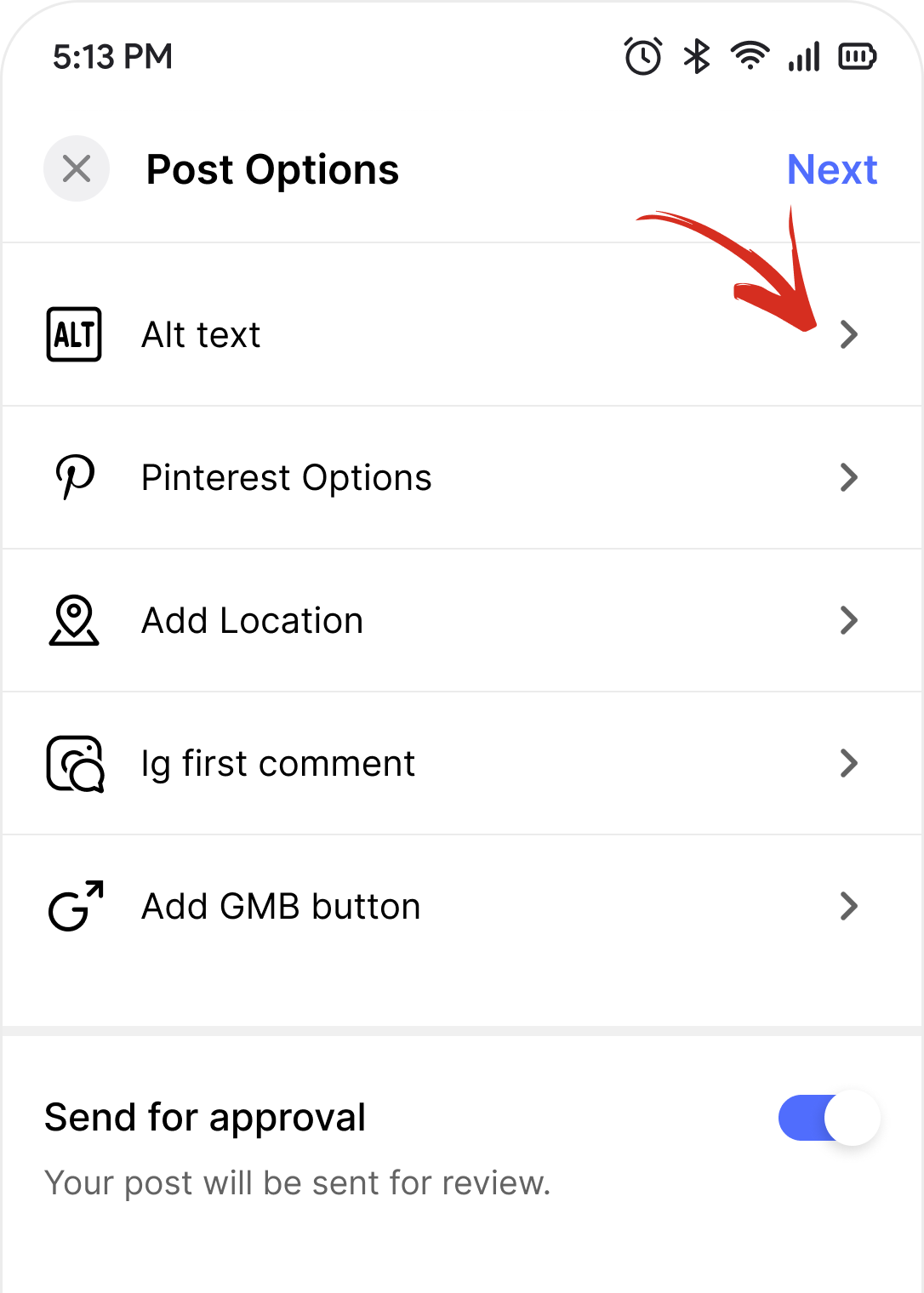
Zoho Social supports adding alternative text to images on selected social media platforms. Alt text options vary depending on whether the desktop or mobile version of the platform is being used.
On desktop, alt text can be added through the Compose window using the Alt Text icon in the bottom navigation area.
On mobile, users can select “Alt text” during post creation to add image descriptions for supported platforms including Facebook, X, LinkedIn, Pinterest, Mastodon, and Bluesky.
Buffer
Buffer supports adding alternative text to static images scheduled to platforms including LinkedIn, X, Facebook, Pinterest, Mastodon, and Threads.
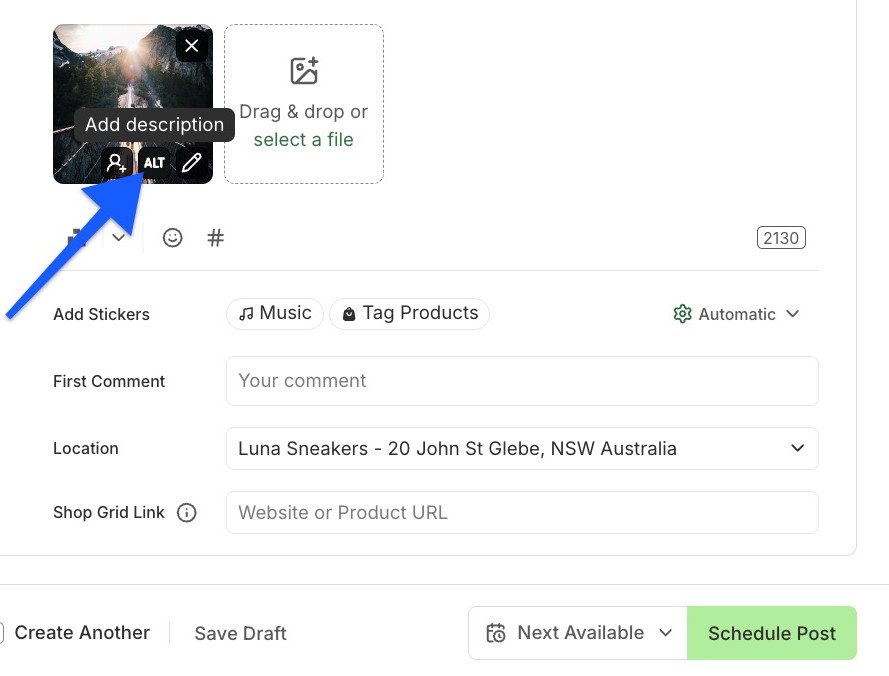
When an image is uploaded in the Buffer composer, users can select the “ALT” button to open the image preview and add an image description before saving the post.
Buffer does not currently support uploading or generating video captions.
Hootsuite
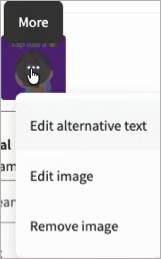
Hootsuite allows users to add alternative text to images for platforms including LinkedIn, X, and Facebook directly within the post composer. Alt text editing is done by clicking on the more icon (three dots) and choosing "edit alternative text" from the drop down menu.
Hootsuite’s web-based video editor supports adding SRT caption files to videos for Facebook, LinkedIn, X, and Bluesky. Caption files must follow Hootsuite’s required naming convention using language and country codes.
To add captions:- Point to a video thumbnail.
- Select More (three dots).
- Select Video settings to add SRT captions to Facebook, X, Bluesky, and LinkedIn videos.
Planable
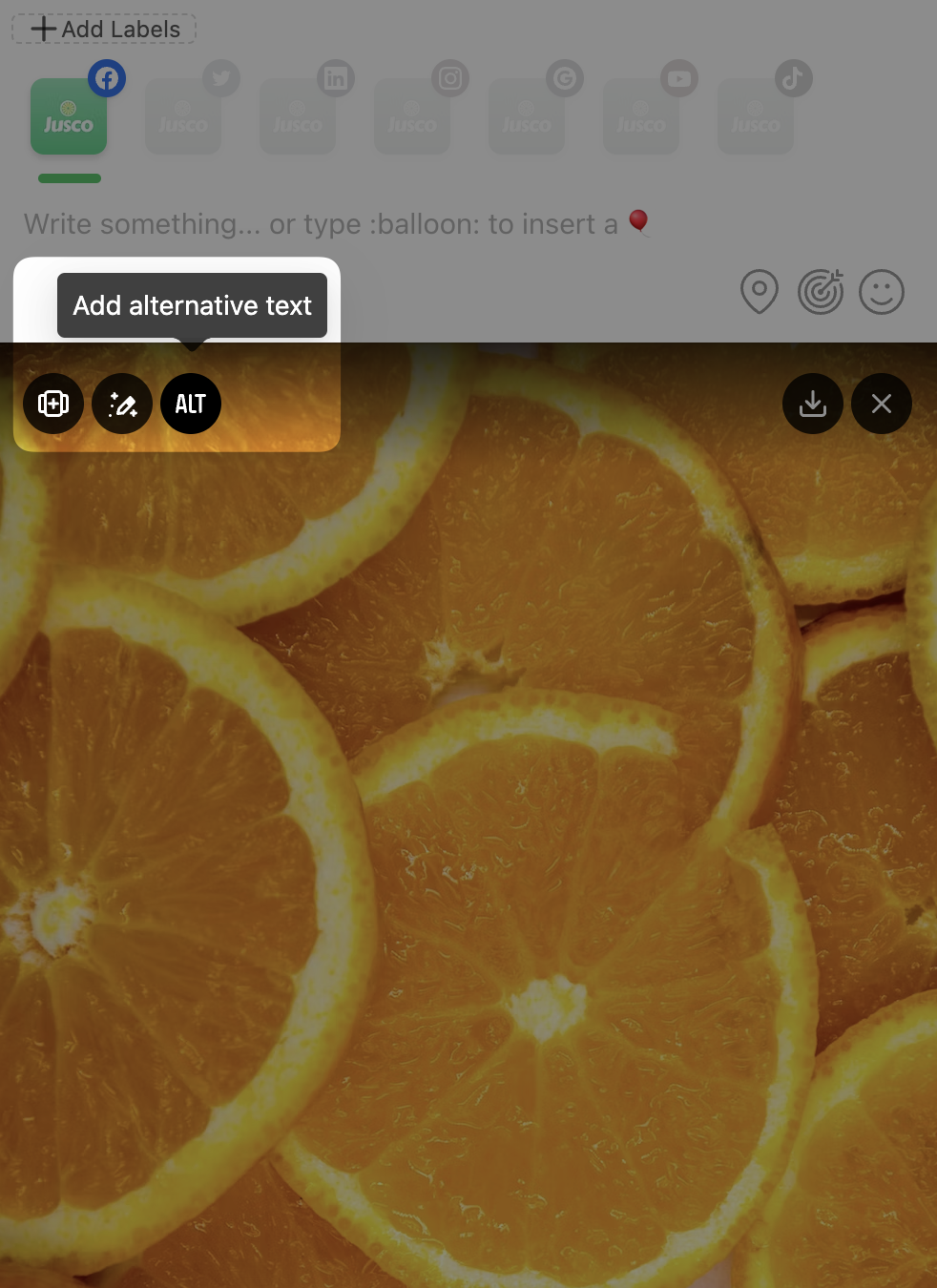
Planable includes options for adding alt text to images, which helps make content more accessible to blind or low-vision users.
For Instagram, alt text support is only available for accounts connected through Facebook. Accounts connected directly through Instagram do not currently support this feature.
Planable does not support video captions at this time.
Planoly
Planoly does not currently support adding custom alternative text or video captions within the platform.
Users who schedule posts through Planoly should add accessibility features, such as alternative text and captions, directly through the native social media platform whenever possible.
Meta Business Suite
Meta Business Suite includes built-in desktop tools for adding custom alternative text to images and generating or uploading captions for videos.
Alternative text can only be added through the desktop browser version of Meta Business Suite. The mobile app does not currently support this feature.
To Add Alt Text:
- Go to the Meta Business Suite Desktop Dashboard.
- Click "Create Post".
- Click "Add Photo" and upload your image.
- Locate the image thumbnail in the Media section and click the "Pencil (Edit)" icon.
- Select "Alt Text" from the menu sidebar.
- Type your custom, descriptive text into the field and click Apply. Click Create Post.
As of 2026, custom alternative text added through Meta Business Suite only applies to Facebook posts and is not passed to Instagram. To ensure Instagram images include alternative text, posts should be published directly through the Instagram mobile app.
Additional Resources
All Social Media
Sprout Social
- How Do I Add Alt Text to My Images?
- 10 Guidelines for Social Media Accessibility
- How Do I Use Generate by AI Assist?
- Uploading SRT Files in Sprout Social
- Generate Alt Text by AI Assist.
- How to Add YouTube Subtitles to Your Videos
- How Sprout Social is championing WCAG 2.1 AA compliance
Zoho Social
Buffer
- Hootsuite vs Buffer Accessibility Features.
- Adding Alt Text to Your Images (Desktop)
- Adding Alt Text to Your Images (Mobile)
Hootsuite
- How to Add Alt Text in Hootsuite [2026 Full Guide].
- Editing Videos in Hootsuite.
- Hootsuite Accessibility Features
Planable
- Scheduling Video Posts Across Multiple Platforms in Planable.
- Adding Alt Text to Images on Planable.