
Ally Course Accessibility Report
How Accessible is your Course?
Ally is a tool built into Canvas that helps improve the accessibility of digital course content. It works in the background to scan files, documents, and images that are uploaded to your course and provides feedback on how accessible they are for students with disabilities.
Each Canvas course includes an Ally Course Accessibility Report, which gives you an overview of the overall accessibility of your course materials. The report highlights areas that need attention and offers practical guidance on how to make improvements. It’s a quick and effective way to see where your course stands and to take simple steps that make your content more accessible and usable for all students. Fixing accessibility issues in the report helps ensure all students, including those using screen readers or other assistive technology, can access your materials.
Enabling the Ally Course Accessibility Report in Your Course Navigation
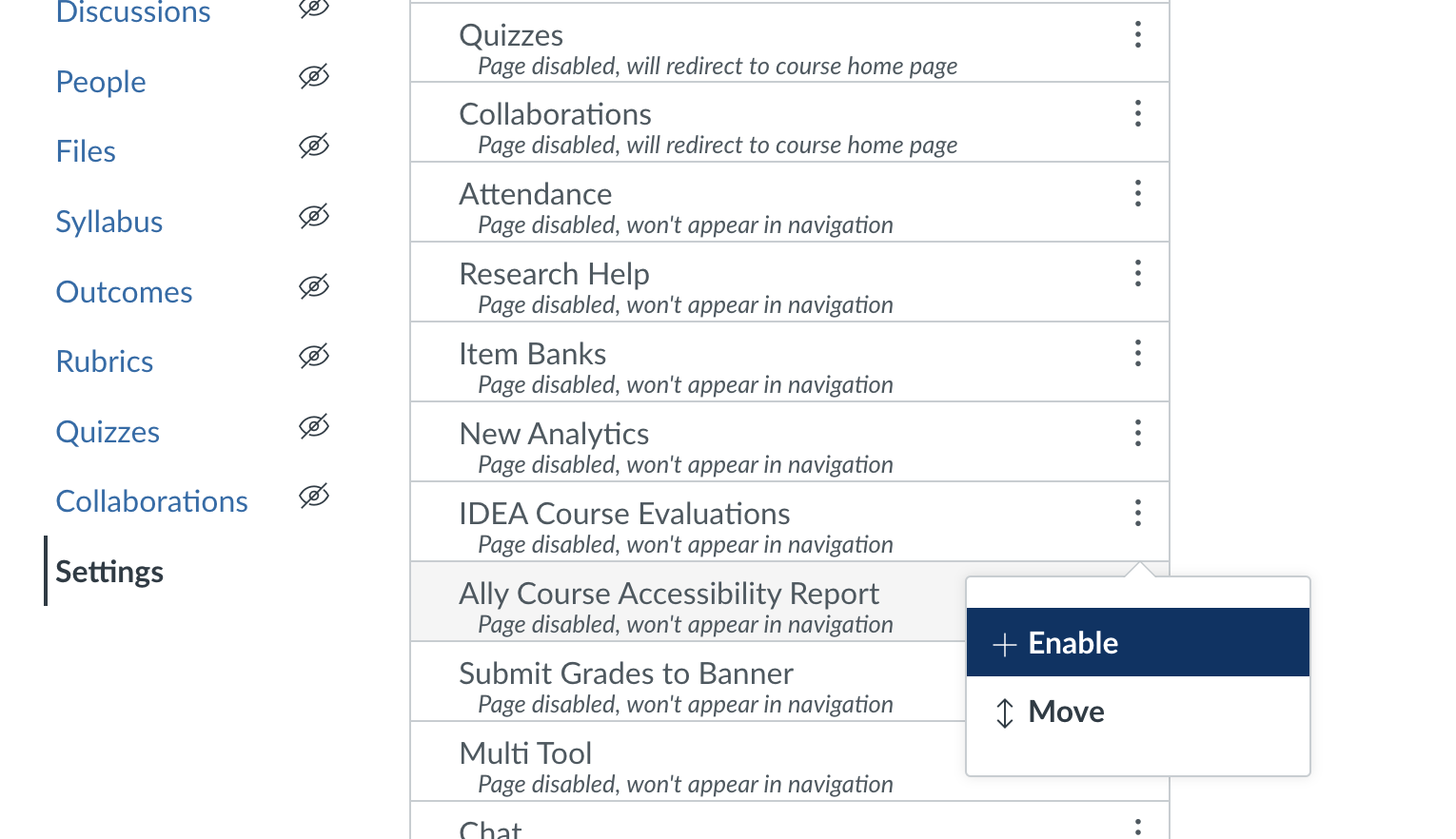
If your course does not have the Ally Course Accessibility Report already in the left-hand navigation, you can enable it in your course navigation. Go to Settings > Navigation in your Canvas course, then drag Ally Course Accessibility Report into the visible course navigation menu or select the three vertical dots and choose Enable.
View Your Course Accessibility Report
Now that the Ally Course Accessibility Report is enabled in your course navigation, you can use it to view your course’s accessibility. The tool is only visible to you as the instructor and is not visible to your students. To see your report, select the Ally Course Accessibility Report tab in your navigation.
Overview Tab
The Ally Course Accessibility Report has a few different sections. In the Overview tab at the top of the report, you’ll see an overall course accessibility score. This score reflects the accessibility of all files, documents, and images in your course. This helps you quickly understand the general state of accessibility in your course. You’ll also see a breakdown of all the content in your course. In the example below, there are 85 total course content items, including images, pages, assignments, Word documents, and more.

- Content with the easiest issue to fix: This section highlights files where small, simple changes can make a big impact. For example, adding alternative text to an image or adjusting the heading structure in a document. These quick fixes often raise your accessibility score right away and improve usability for students.
- Fix low-scoring content: This section highlights files with the lowest accessibility scores. These often have complex or critical issues, such as scanned PDFs without readable text, slides with poor color contrast, or documents missing proper heading structure. While they may take more time to fix, addressing them removes barriers that could prevent students from accessing important course material.
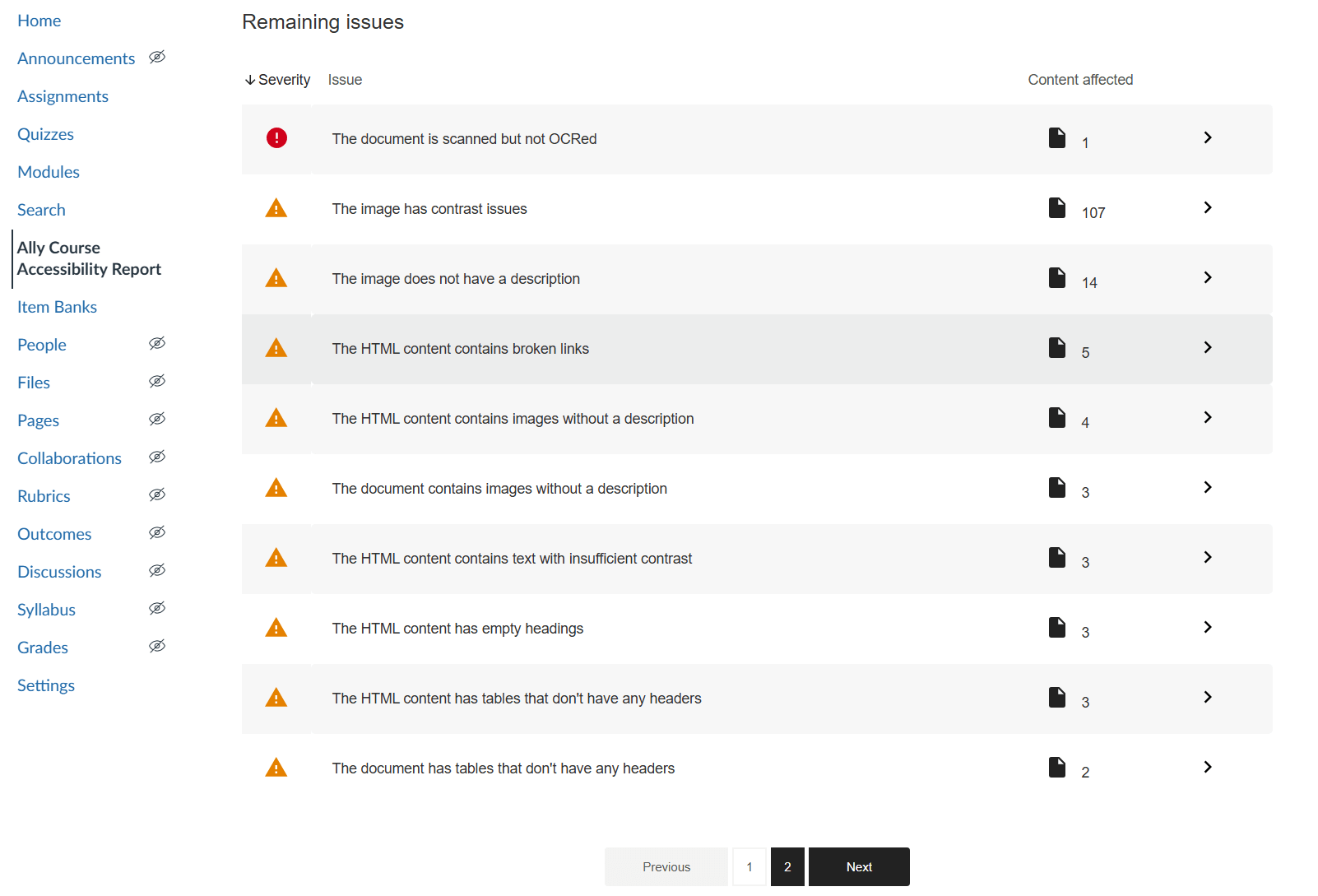
- Remaining issues: This section gives you a detailed list of accessibility problems found in your course. Each row shows the type of issue, the number of items affected, and a link to those items. You can use this section to fix content step by step. Keep in mind that the issues are sorted by severity and type, and some of the issues may be easier to fix than others.
Content Tab
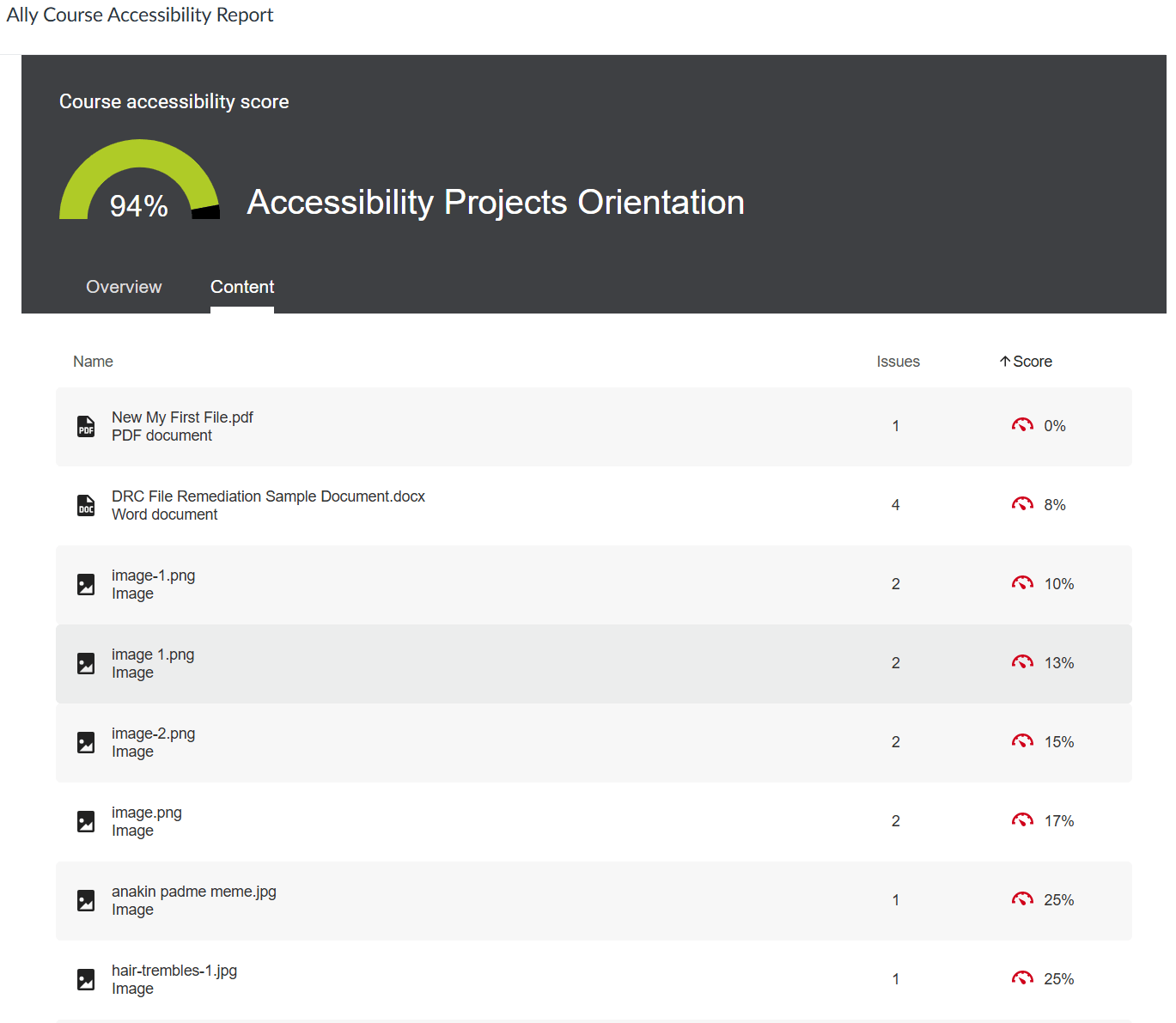
The Content tab lists every file, image, and document in your course, along with its accessibility status. You can use it to work systematically through your materials—either starting with the easiest fixes or tackling the most severe issues first, depending on your priorities.
What Do the Issues Mean?
There are several different issues you might see in your Course Accessibility Report. If they don’t make sense right now, that’s okay! Ally has built in guidance to help walk you through what each means and how to fix it. We also have several resource guides about specific accessibility issues on the Accessibility website. Here is a brief overview of some of the issues you might see in the Course Accessibility Report:
- Images without descriptions – Add alternative text so students using screen readers know what the image shows.
- Low contrast text or images – Adjust colors so text and important details are easy to see.
- Broken links – Update or remove links that no longer work.
- Empty headings – Remove unused headings or add the missing text.
- Tables without headers – Add a row or column header so tables make sense to screen reader users.
- Scanned PDFs – Replace with a text-based version so the content can be read aloud or searched.
Each issue is shown as occurring in either documents or HTML content (Canvas pages, assignments, quizzes, etc.). HTML issues are usually the easiest to fix, followed by Word documents. PDFs tend to be the most difficult. Because of this, we recommend keeping course materials in their original format (such as Word, PowerPoint, or HTML) whenever possible, rather than converting them to PDF.
Ally uses severity levels to help you understand how much an issue affects students’ ability to access your course content.
- Severe impact

- These issues can completely block access to the material for students with disabilities.
- Example: a scanned PDF is just an image, so a screen reader can’t read any of the text.
- Impact: A student may not be able to use the resource at all unless it’s fixed.
- Moderate impact

- These issues make the material harder to use but don’t always block access.
- Example: an image without alt text means a screen reader user misses important context, but the rest of the page may still be readable.
- Impact: Students can often still access the content, but key meaning or ease of use is lost.
- Minor or no impact

- These items are considered accessible.
- Example: a Word document with headings and alt text already in place.
- Impact: Students can fully access the material with assistive technology.
Severity levels help you prioritize your work. Fixing red issues first removes major barriers, while addressing orange issues improves usability and makes your course more accessible overall.
Where Do I Start?
The Course Accessibility Report may show a long list of issues, but you don’t need to fix everything at once. Here’s a good order of steps to make the most impact without feeling overwhelmed:
- Start with the easiest fixes
- Look at the Content with the easiest issues to fix section.
- Add missing image descriptions (alt text), update broken links, or add table headers.
- These small changes quickly raise your score and improve student access.
- Move on to low-scoring content
- Next, review items in the Fix low-scoring content section.
- These often include scanned PDFs, documents without headings, or slides with contrast problems.
- These take more effort, but removing them makes a big difference for students.
- Check the remaining issues
- Use the Remaining issues list to work through other problems one at a time.
- Prioritize based on severity (red issues first), but remember every fix improves your course.
Even small improvements matter. You don’t have to fix everything in one sitting—start with quick wins!
We’re Here to Help!
If you need any help accessing your Ally Course Accessibility Report or improving the accessibility of your content, please email accessibility@usu.edu. You can also learn about using Ally on each of your course pages, files, and more on our Accessibility Tools in Canvas page.