
Canvas Course Home Page
The course Home page is the first page that students see when they open your course or click on "Home" in their course navigation. As an instructor, you can decide what you want students to see on the Home page.
Suggestions
Consider using the home page to:
-
Introduce yourself and the course to students (with a custom page that you design).
-
Direct your students to the most important resources they will need to be successful in your course.
-
Remind students of their upcoming assignments.
-
Outline on a weekly basis what you will be covering in class and how they can prepare.
-
Set the home page as a course activity stream so that you and your students can see the most recent announcements and discussions in your course.
This home page, from an actual course at USU, is an example of an attractive and effective format. However, there are many good approaches for your course home page.

Creating a Home Page using Design Tools
This video will guide you in creating a home page using Design Tools withing Canvas.
How to Set the Home Page
On the Course Navigation menu, click Home

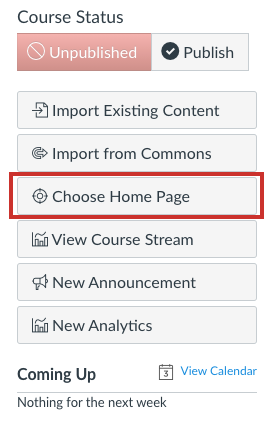
Click Choose Home Page
In the Choose Home Page dialog box, select what to display on the Home page
If you would like to use a custom Canvas page as your home page, but the Pages Front Page option is disabled, follow the instructions in the Enable Pages Front Page section.
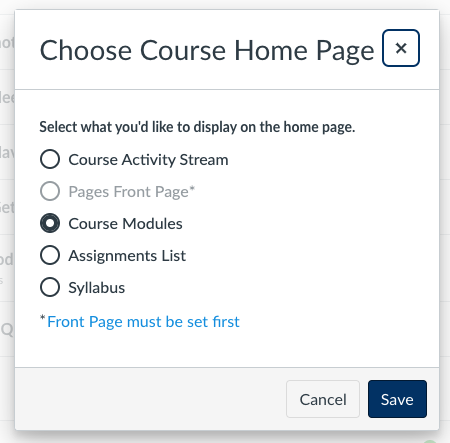
Click Save
Enable Pages Front Page Option
Before a custom Canvas page can be set as the home page, it has to be designated as the front page.
This video will guide you through the process in canvas.
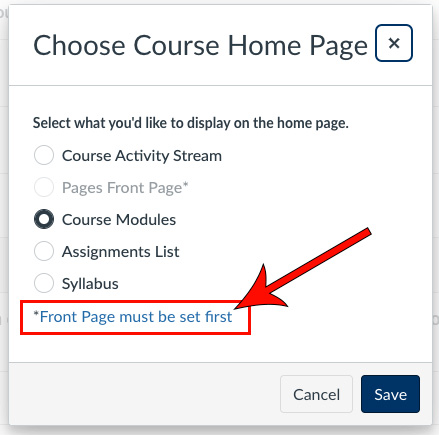
Click Front Page must be set first or navigate to the Pages tab
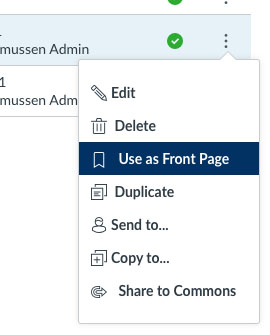
Find the desired page and click on the three-dot icon at the right end of the row

Click Use as Front Page
Repeat the steps in the How to Set the Home Page section
Select a Homepage Theme
Once you have a homepage created. You can customize it with a theme.
This video will guide you through selecting a theme for your Canvas course homepage.
Step by Step:
On your Canvas course go to Pages

Click + Page

Enter a Page Title

Open DesignPlus

Click Theme

Select Front Page

Open the Style tab

Select Standard Themes

Choose a theme from the list

Save to apply changes

Homepage Module Shortcuts
The module shortcuts can be customized on your homepage.
This video will guide you in creating module shortcuts on your Canvas course homepage.
Step by Step:
Click Edit

Open the DesignPlus sidebar

Click the + (Add New Elements)

Place the cursor within the page window

Select Module List
Click the Calendar Icon

Select the days the first module should open and close

Click the down arrow to copy the date pattern to future modules

Open the Advanced options

Click All to show the Quick Links for all modules

Choose a Quick Links style from the list

Click Save

Your Quick Links module shortcuts will be shown on the homepage

Edit Homepage Title and Course Number
How to change the course number and title shown on your Canvas course homepage.
Canvas - Get Started
The following list of pages will guide you through getting started with this tool. The current page is listed in bold.