
Question Banks in New Quizzes
“Banks” or “item banks” in New Quizzes are similar to the question banks used for Classic quizzes. Item banks can be used to sort questions and store questions for use in multiple quizzes.
Create an Item Bank
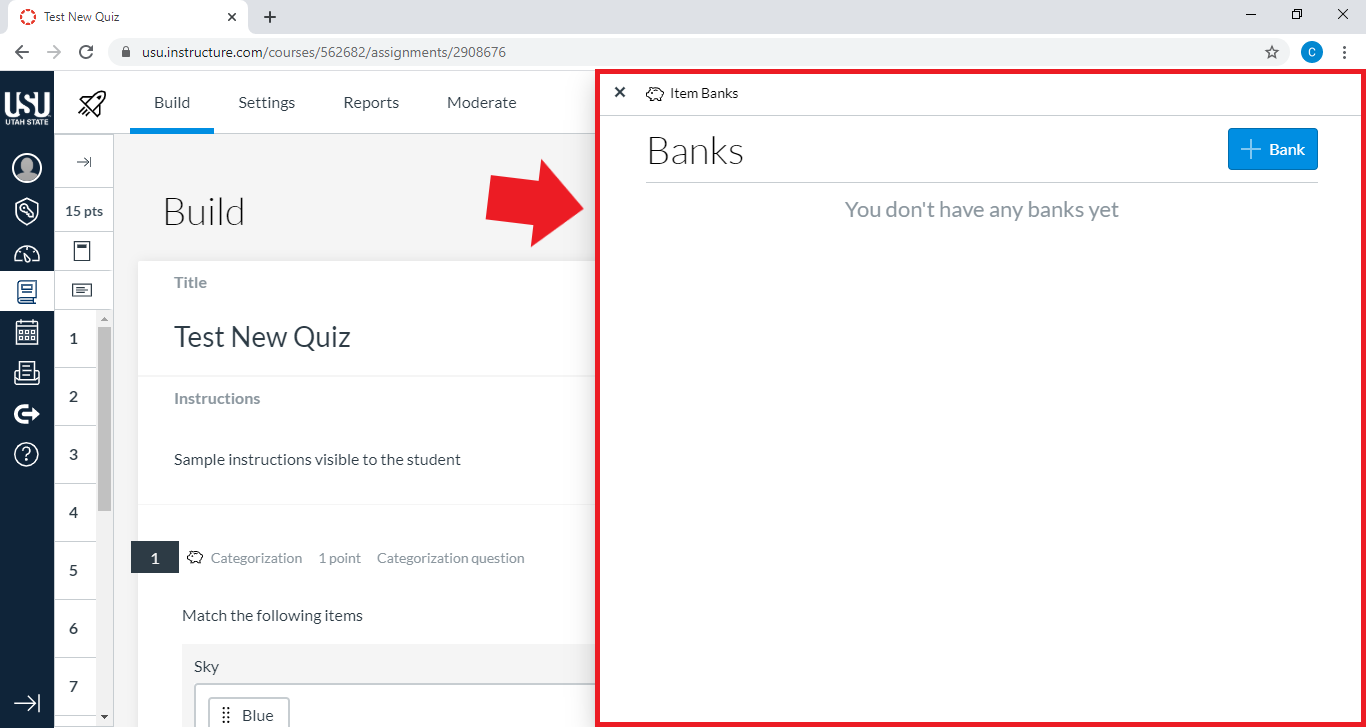
Click Item Banks on the Build page of your New Quiz

In the menu that appears, you will see all the item banks you have created in the course
Item banks share many of the same functions as question banks, but you will not see any question banks added to New Quiz Banks.
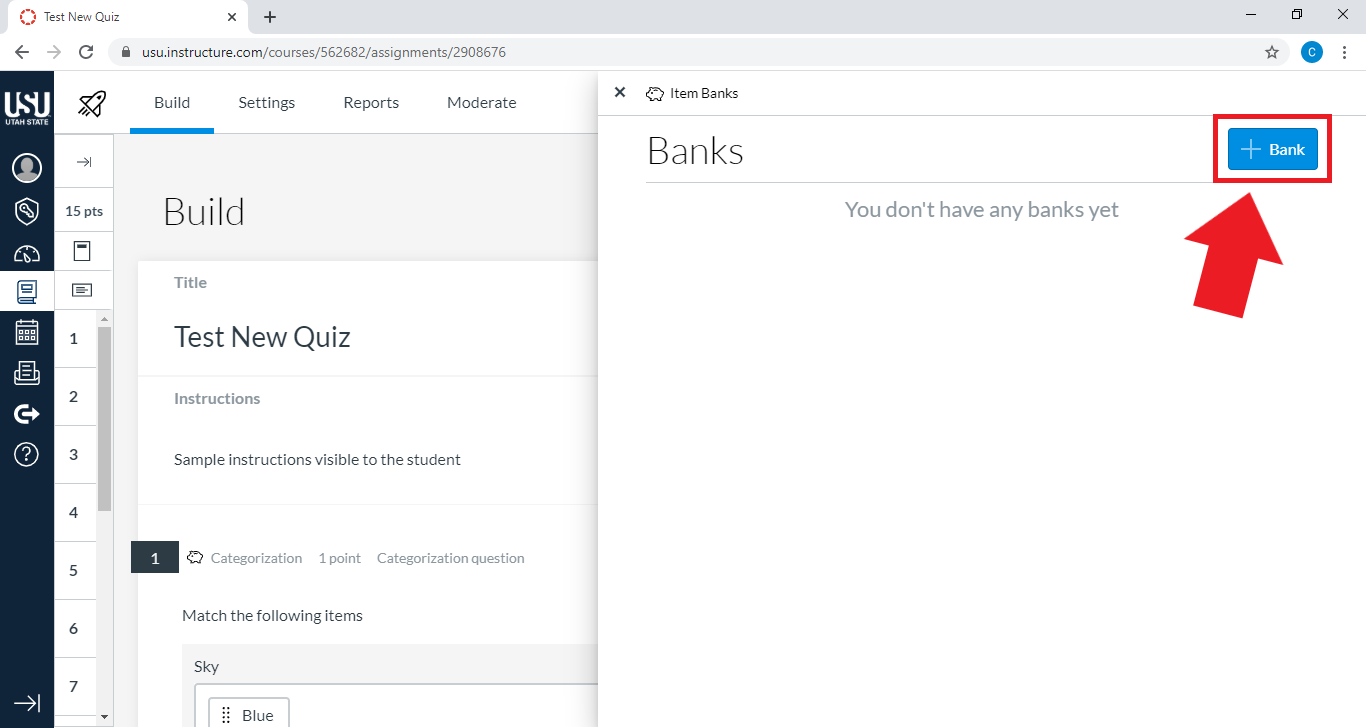
Click + Bank to create a new question bank
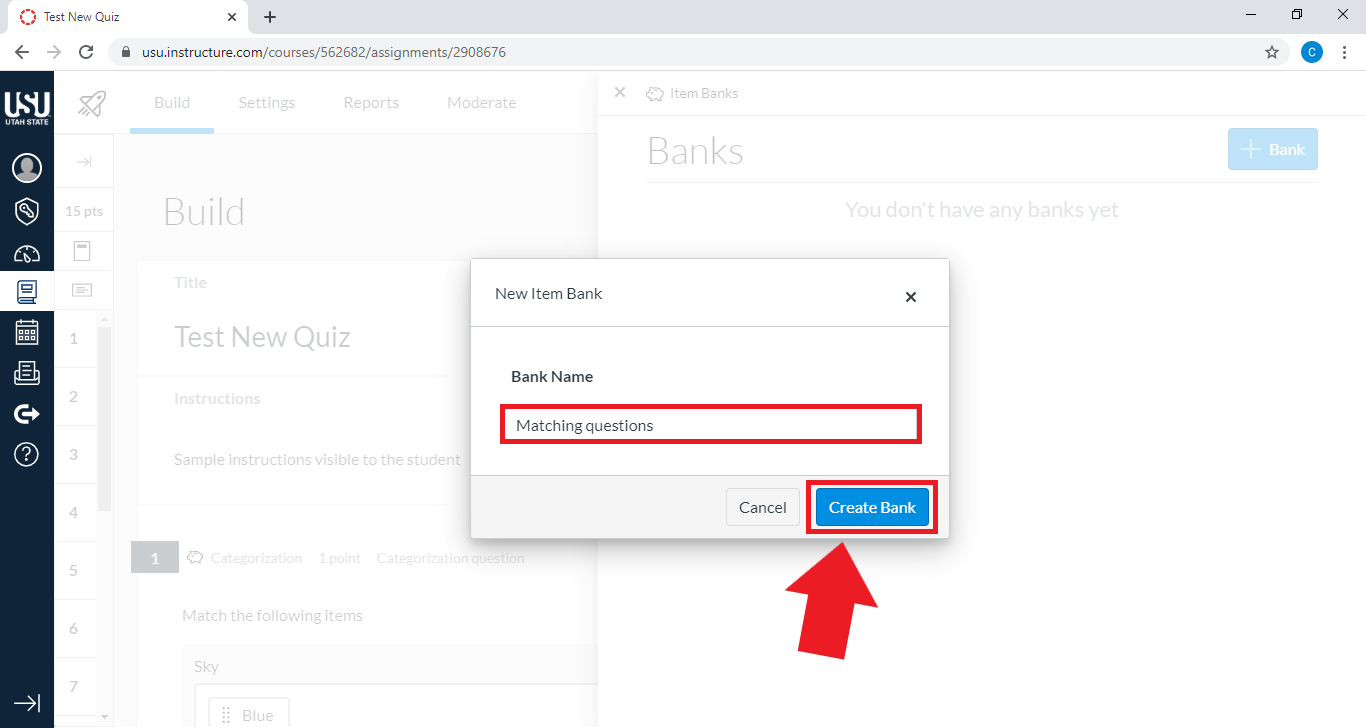
Enter a distinct name for your item bank, then select Create Bank.
Edit the bank by clicking on the 3 dots
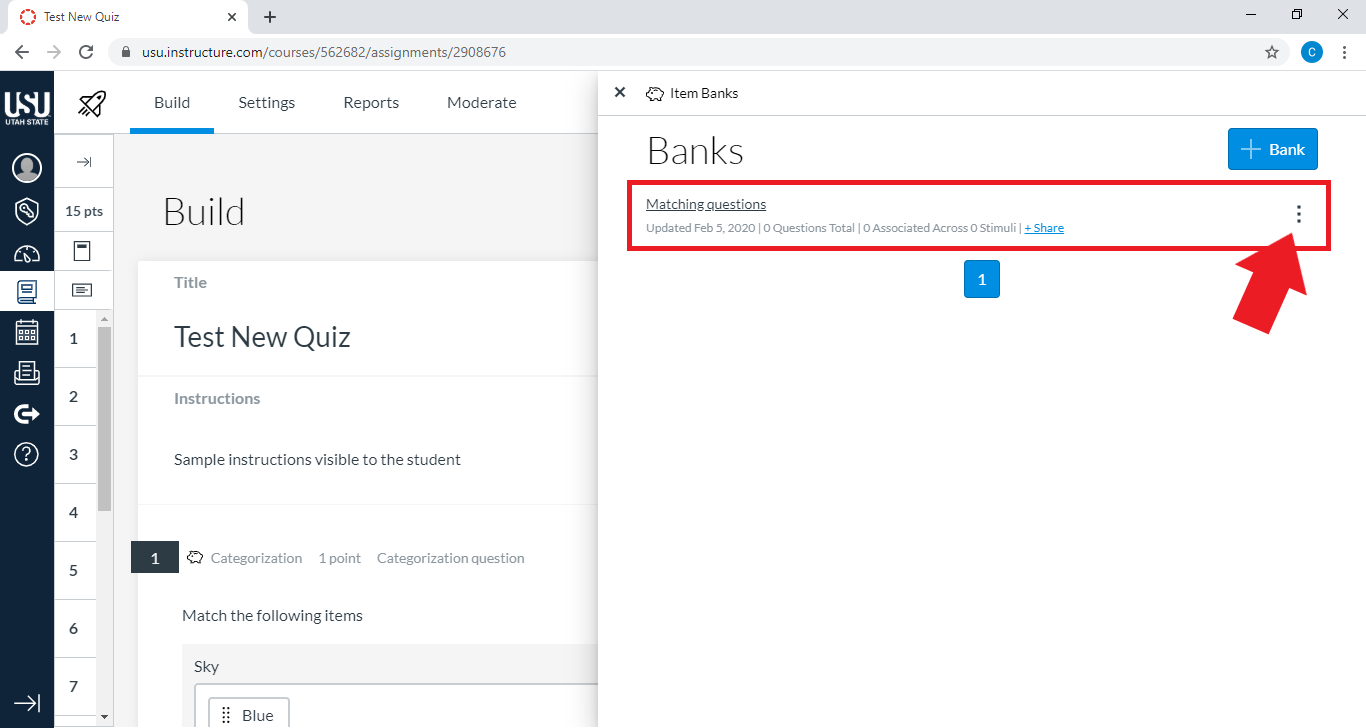
You can also share the bank with other users Open External Link
Add Questions to an Item Bank
Navigate to the Build page in your New Quiz
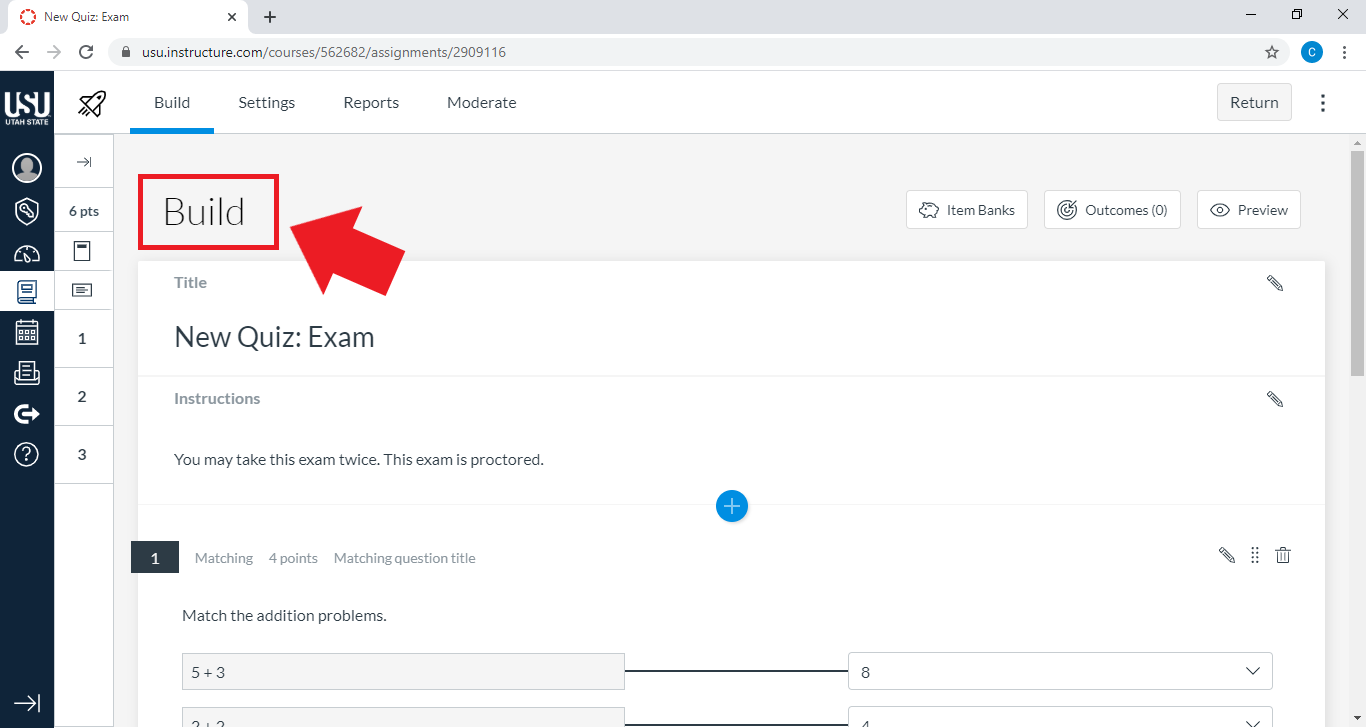
Select the pencil icon to the right of the question you would like to add to an item bank
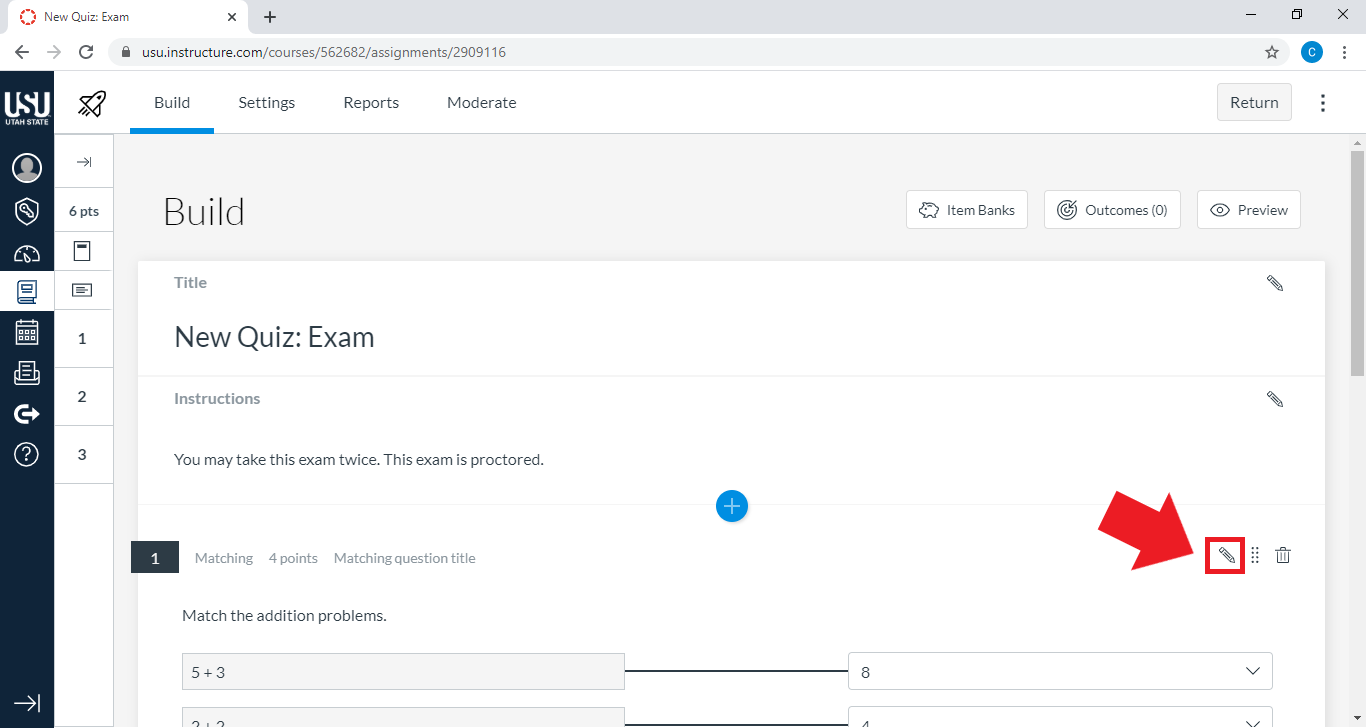
Find and expand the Item Banking dropdown
You may need to scroll down to find this option.

Click Add to Bank
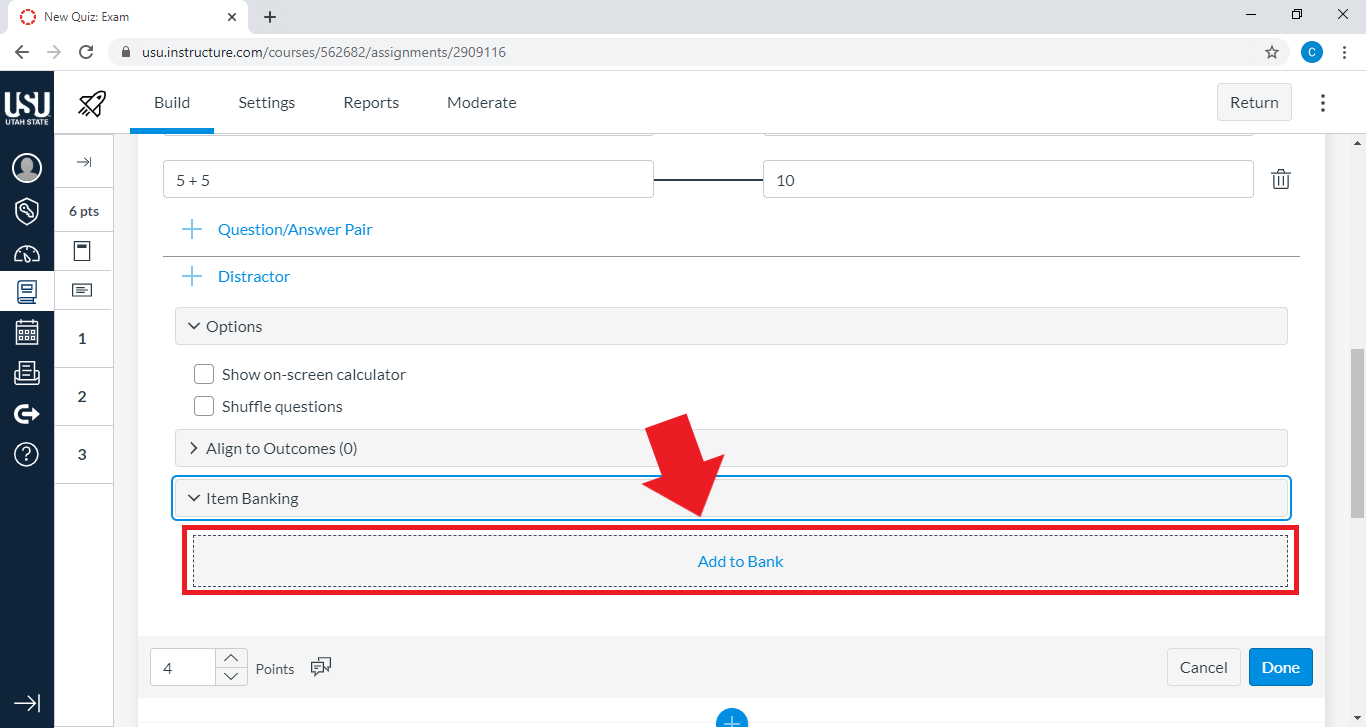
Select the bank destination to which you would like to add the question
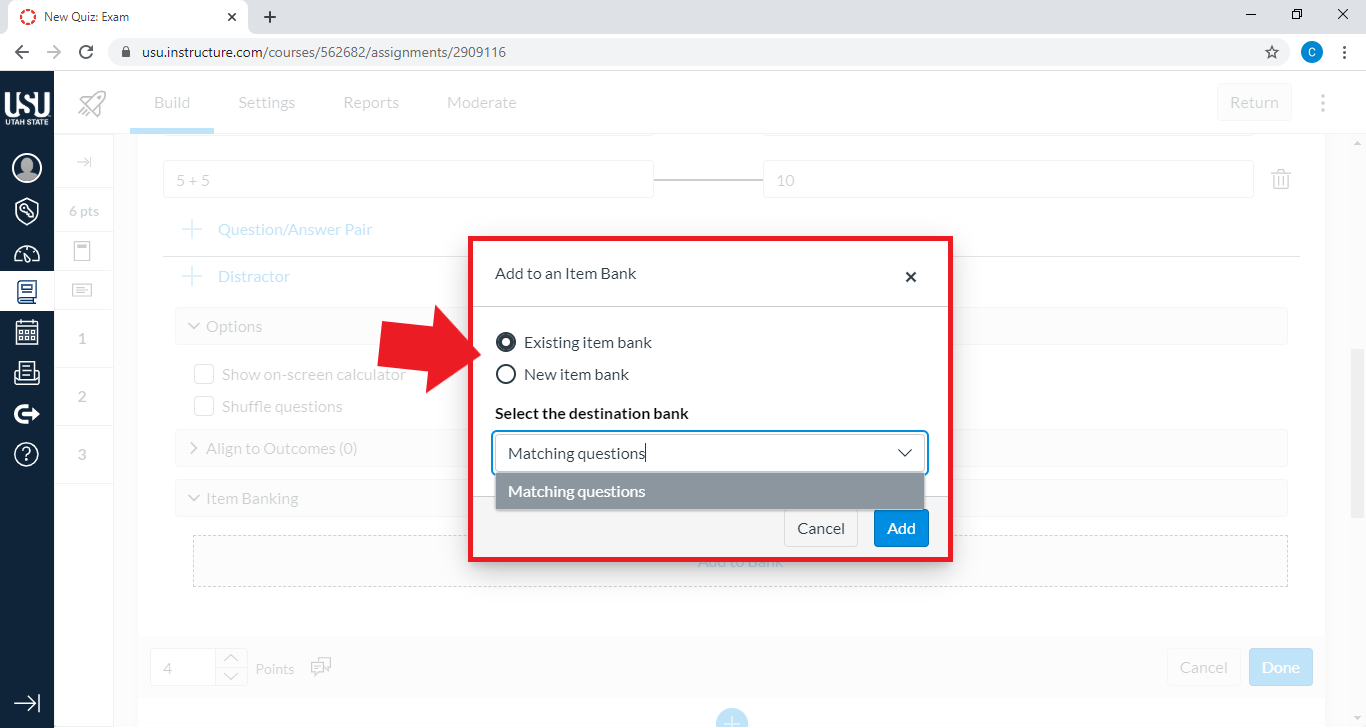
Click Add

Confirm that the item had been banked
Any changes to the question should now be done in the item bank. This ensures that if the item (question) is used in multiple New Quizzes, there won’t be several versions of the same question.

Click Done
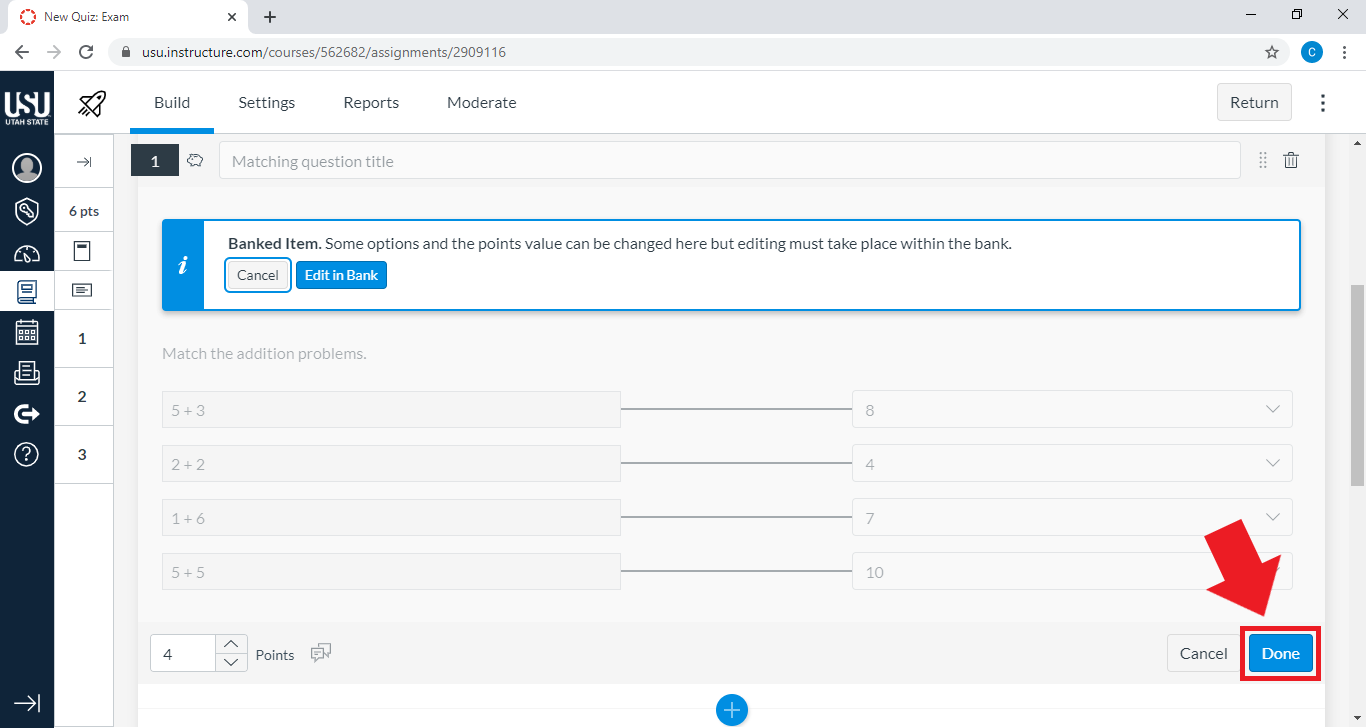
Add an Item Bank to a New Quiz
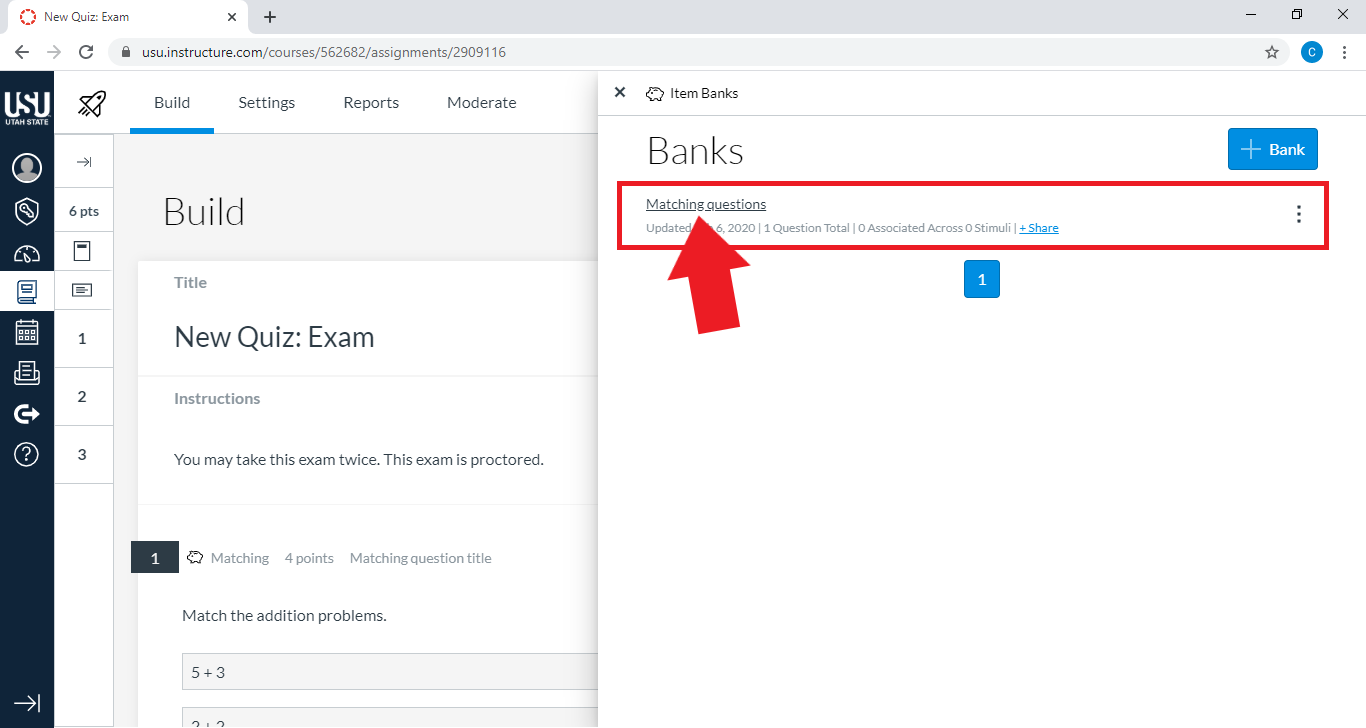
Click Item Banks on the Build page of your New Quiz
Find and select the name of the bank that contains items you would like to add to the quiz
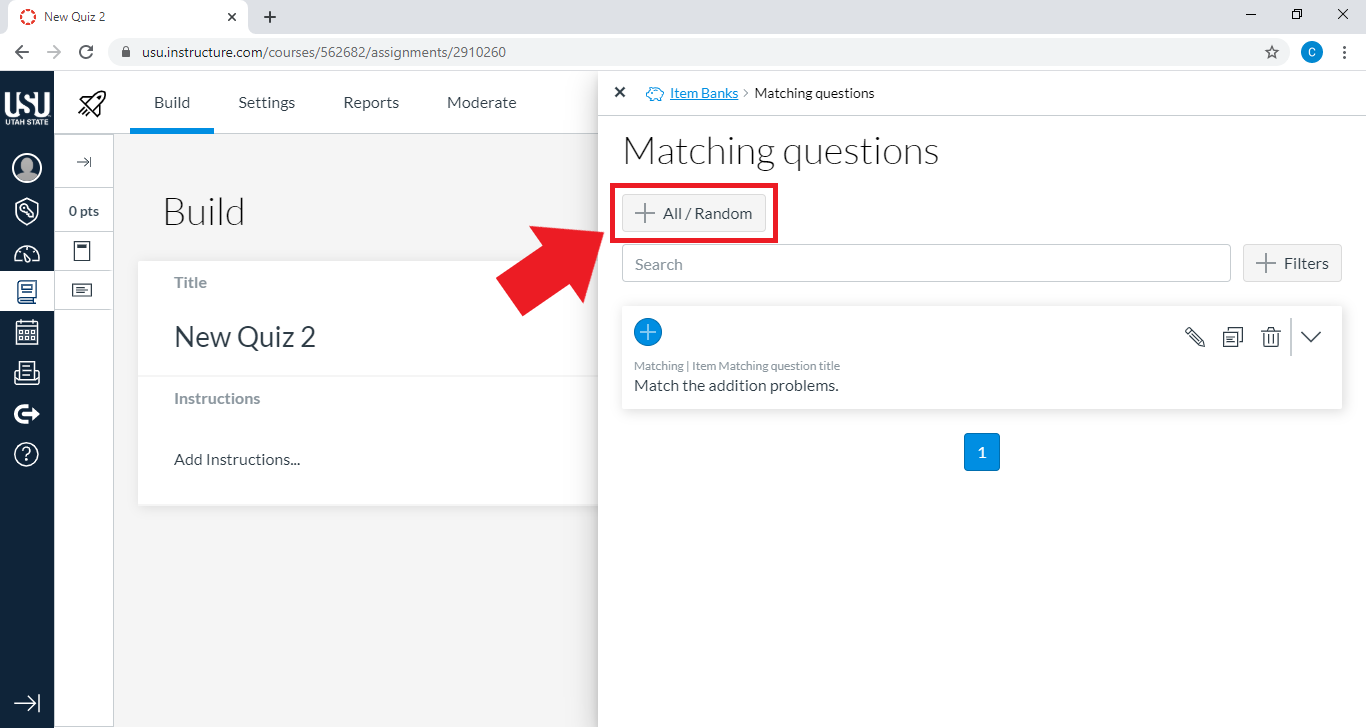
If you would like to add all items in the bank or a set number of random questions, select + All/Random
For instructions on setting the number and point value of randomized questions, see How do I add all items or a random set from an item bank to an assessment in New Quizzes? Open External Link
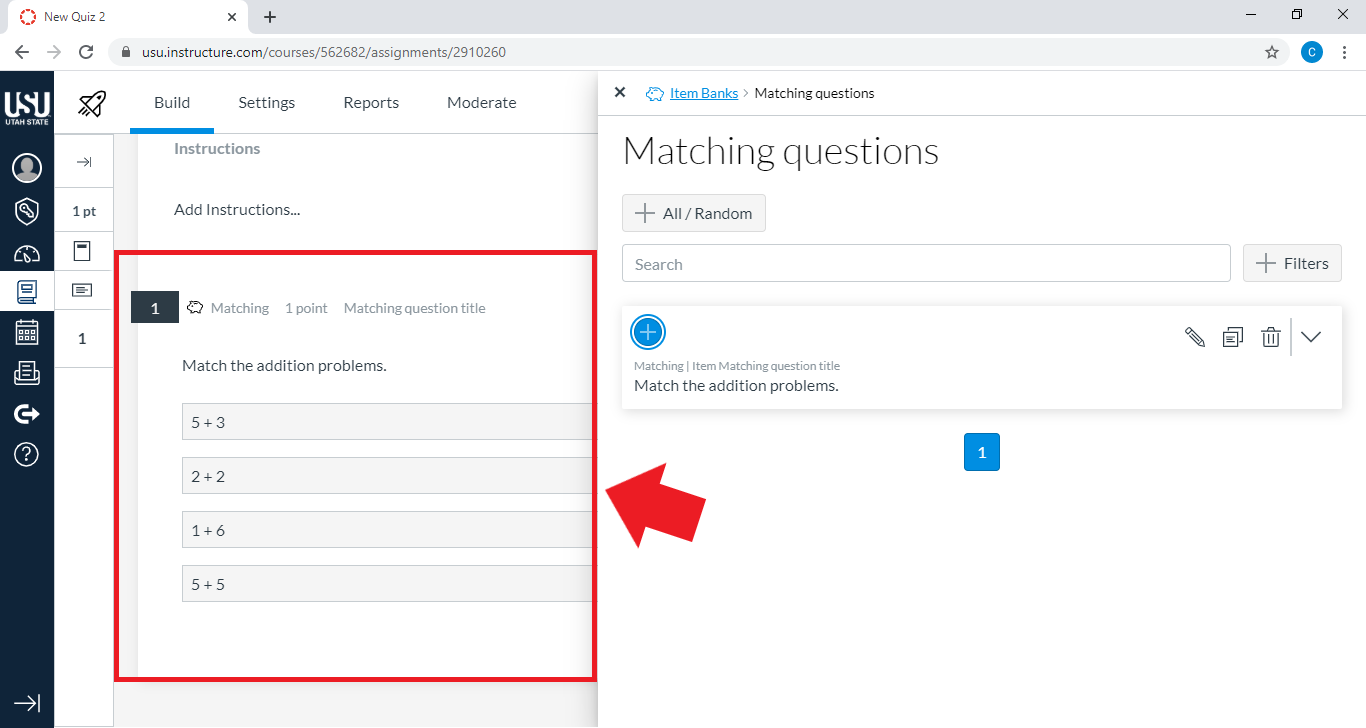
Add individual bank items to your quiz by selecting the + symbol in the top left-hand corner of each item

The bank item(s) you select will appear in the quiz
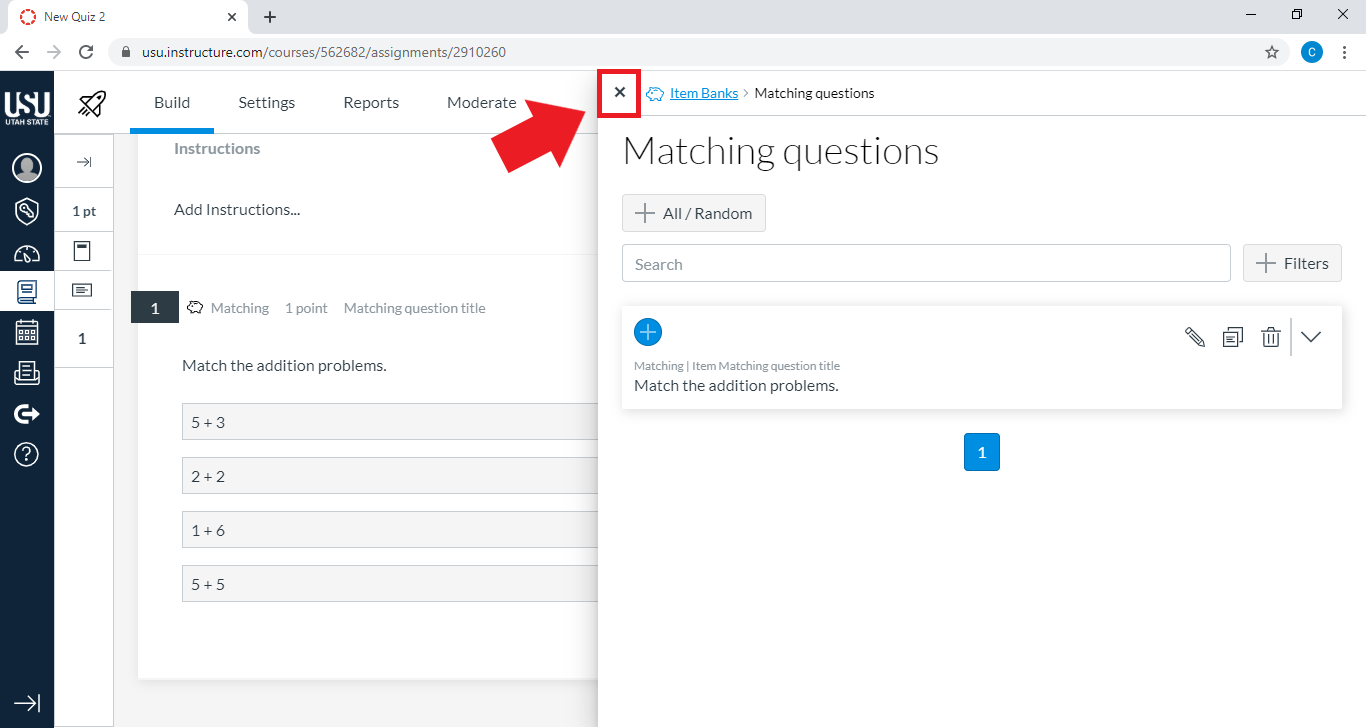
Click the X to close the Item Banks window
Moving an existing question bank to a New Quiz “item bank”
Currently, existing question banks used for classic quizzes cannot be converted directly to New Quiz “item banks” in the Canvas system. Next to using a QTI package to import items into a bank Open External Link , the best option is to transfer a classic quiz that does not pull from any question banks to a New Quiz, then to add all migrated quiz questions to an Item Bank.
See how to transfer a classic quiz to a New Quiz.
See above for instructions on how to add questions to an item bank.
Sources
For more information, see the following Canvas Guides:
- How do I add content to an item bank in New Quizzes? Open External Link
- How do I add an item from an item bank to an assessment in New Quizzes? Open External Link
- How do I add all items or a random set from an item bank to an assessment in New Quizzes? Open External Link
- How do I move or copy a question from one item bank to another in New Quizzes? Open External Link
- How do I import questions from a QTI package into an item bank in New Quizzes? Open External Link