
Update Date References in Canvas Module Titles
If you have previously typed dates to appear in your module titles in your homepage, you'll want to update them through the Multi Tool.
To learn how to update the date references in Module titles, you can watch the video or follow the steps below.
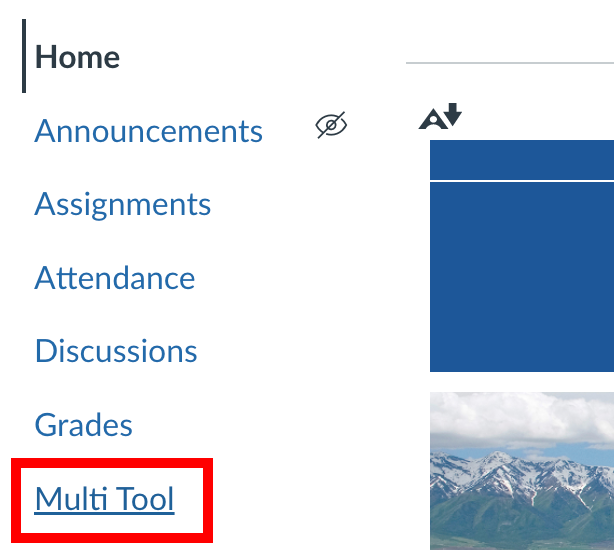
Click on Multi Tool in the course navigation
If the multi-tool does not appear in your course navigation, see the Canvas Multi Tool walkthrough
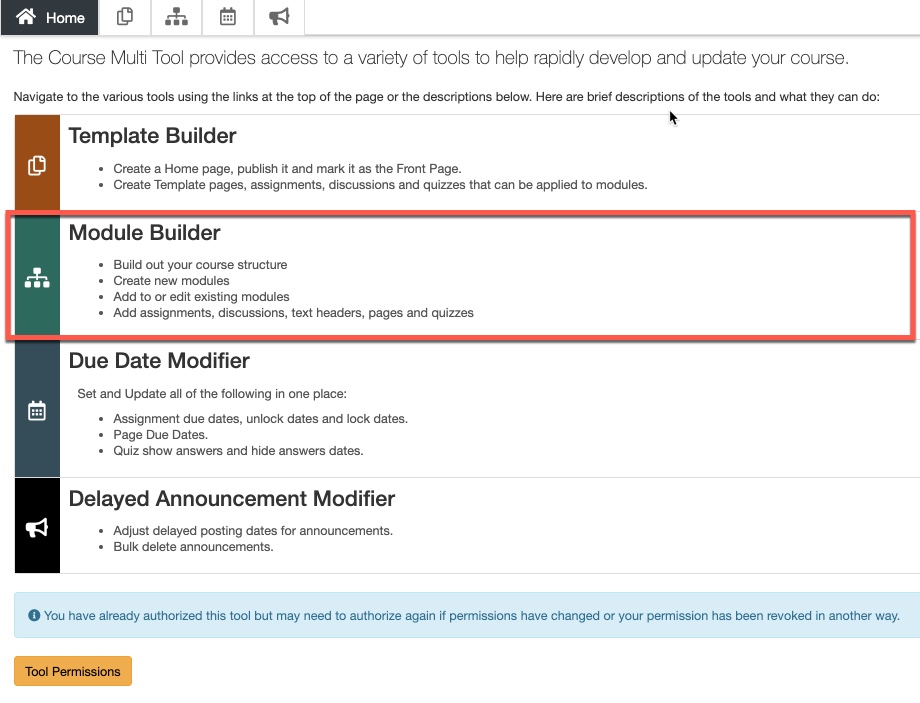
Click on Module Builder
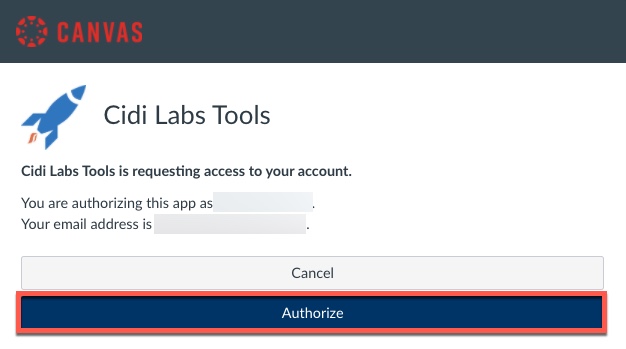
If you haven't already done so, Authorize the Cidi Labs Tools.
Under the list of Existing Modules, click on the Expand All button
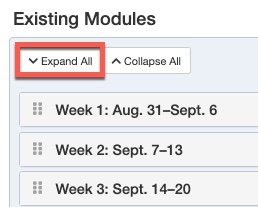
Update the dates in the title box for each module listed, then click on the Update This Module button
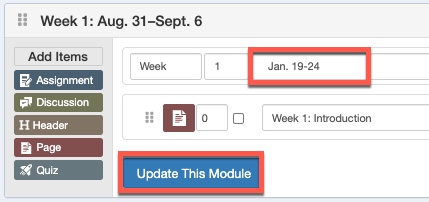
Now you will need to update the module listing on the homepage.
Click on the Home link in the course navigation

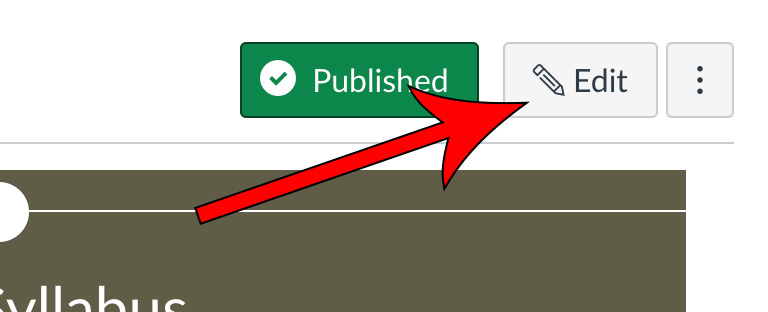
Click the Edit button
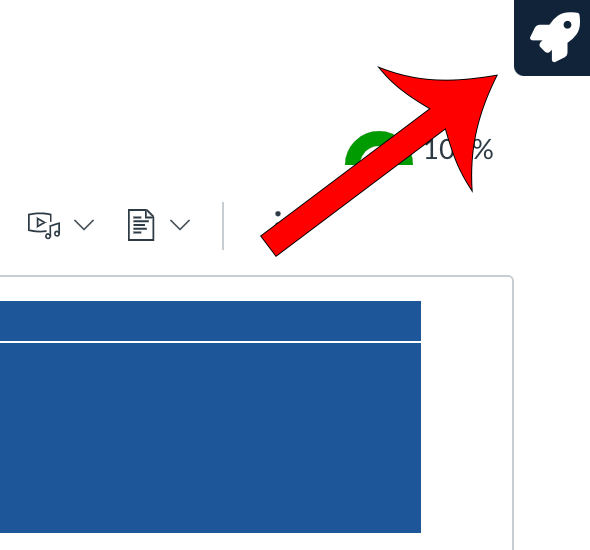
Launch the Design Tools by clicking on the spaceship icon in the top-right corner
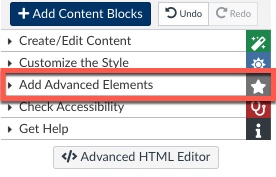
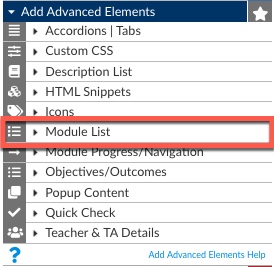
Open the Add Advanced Elements section
If you don't see "Add Advanced Elements" section in the Design Tools, click the gear icon and toggle Module List item on
Open the Module List section
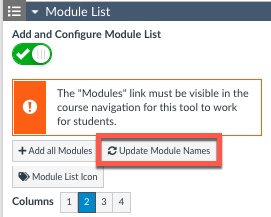
Click the Update Module Names button
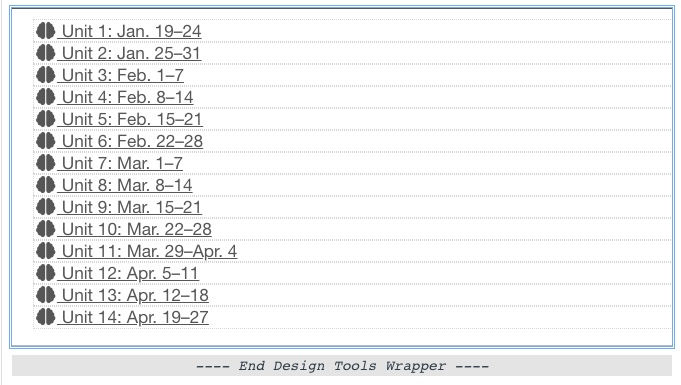
The module names should update in the content area of course
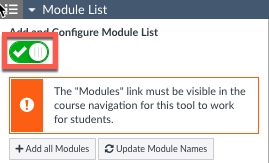
If you are not seeing them correctly, in the Design Tools > Add Advanced Elements > Module List, click the pill at the top of the section to turn off the module list and then turn it back on. That should correct the problem.
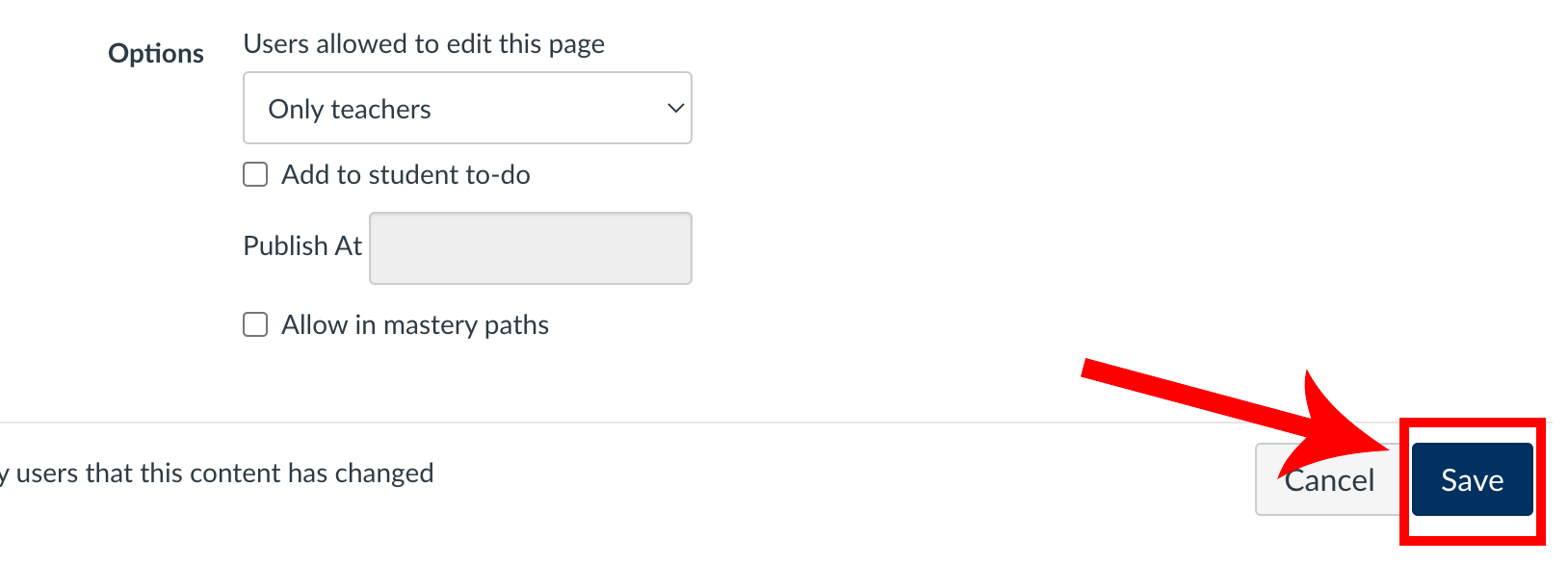
Finally, click on the Save button
Please see the Update Active Dates for Modules to Display page for details on how to have Canvas automatically highlight the current module based on the current date.