
Fix Missing to-do Items in Canvas
If students report that their quizzes are not appearing on their Canvas "To Do" list or that assignments without due dates lack a submit button, this issue typically arises when a course is copied from one semester to the next without adjusting due dates. Canvas is aware of this problem and is working on a solution. This page details a workaround to correct the issue yourself.
Important note If students missed quizzes due to this issue, please consider extending the due date for them.
Guide:
To find out which assignments are impacted, go to the grade book and click Export

Click Export Entire Gradebook

Open the grade book csv file from your Downloads folder
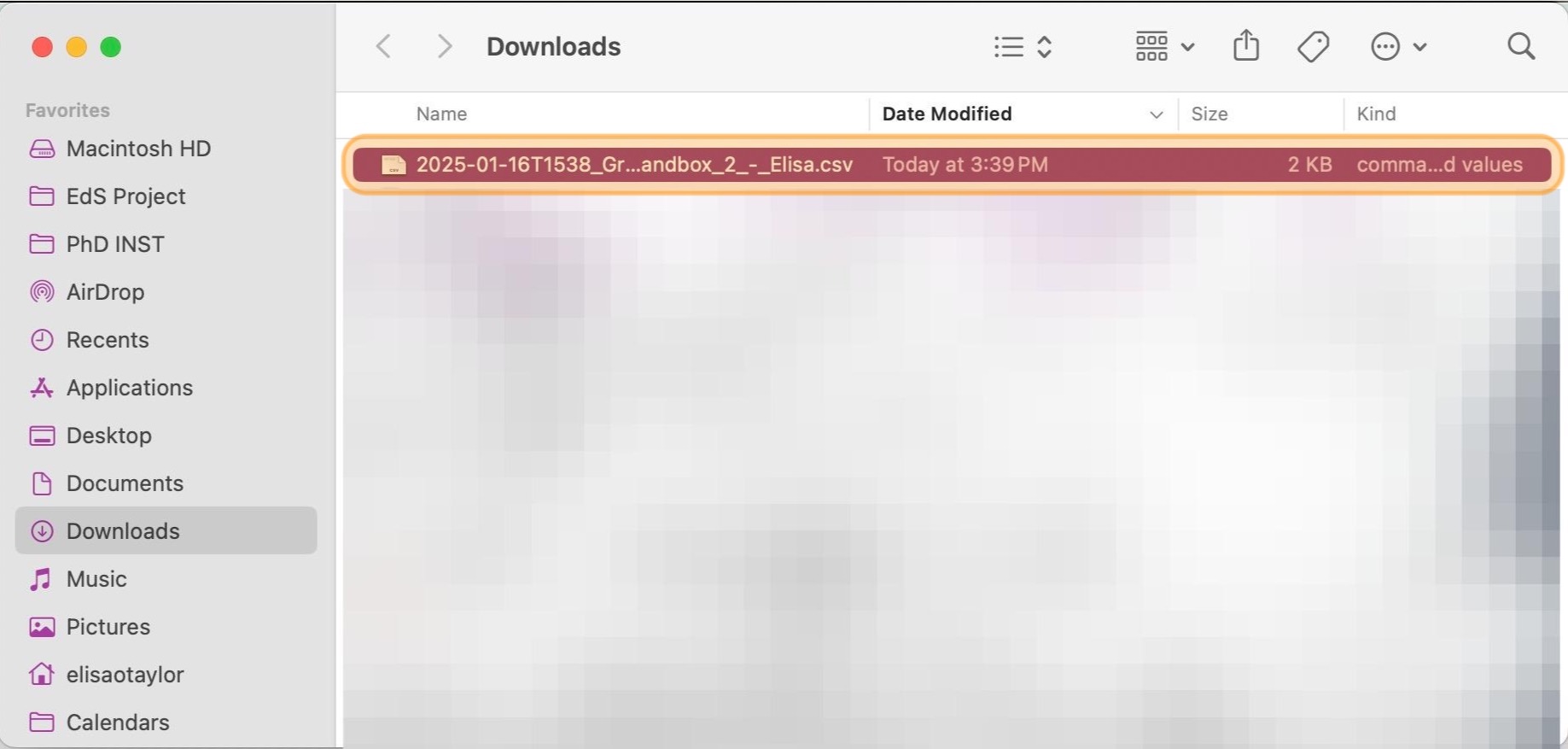
Identify the assignment titles for which some students have N/A grades in the grade book

Go to the Assignments page in your Canvas course

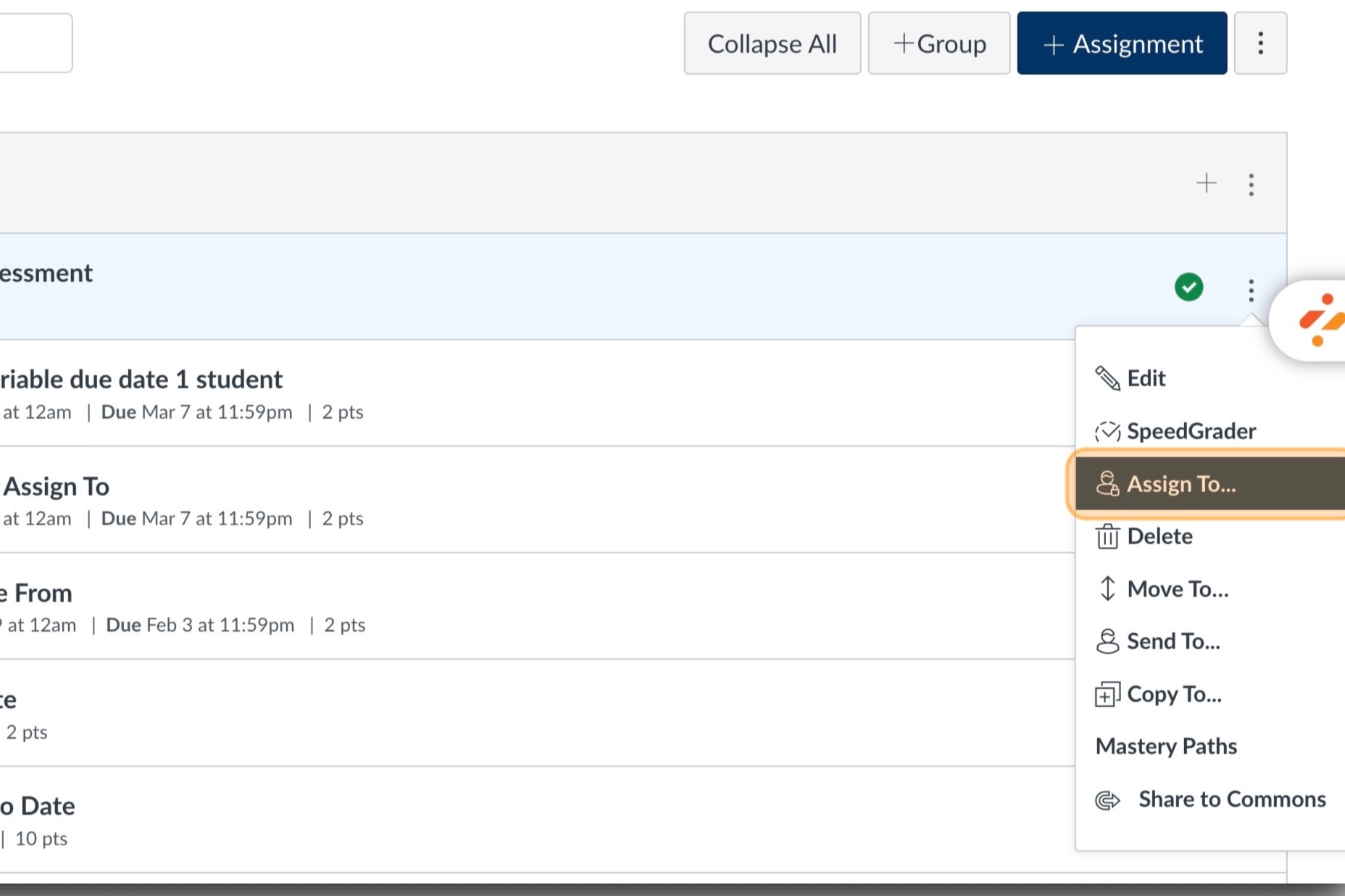
Click settings button for the first assignment you identified in Step 4

Choose Assign To... from the menu
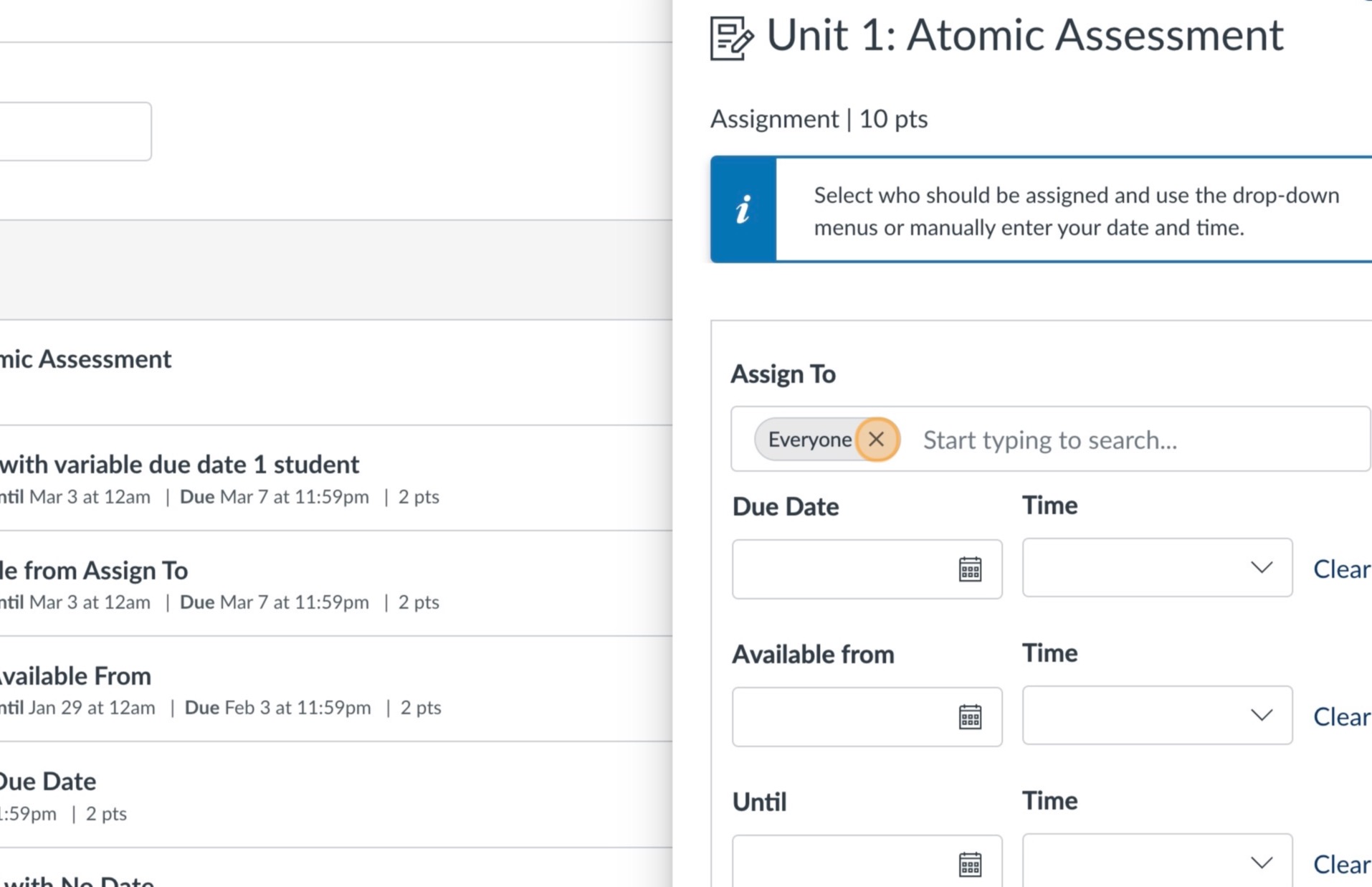
Click the X next to Everyone
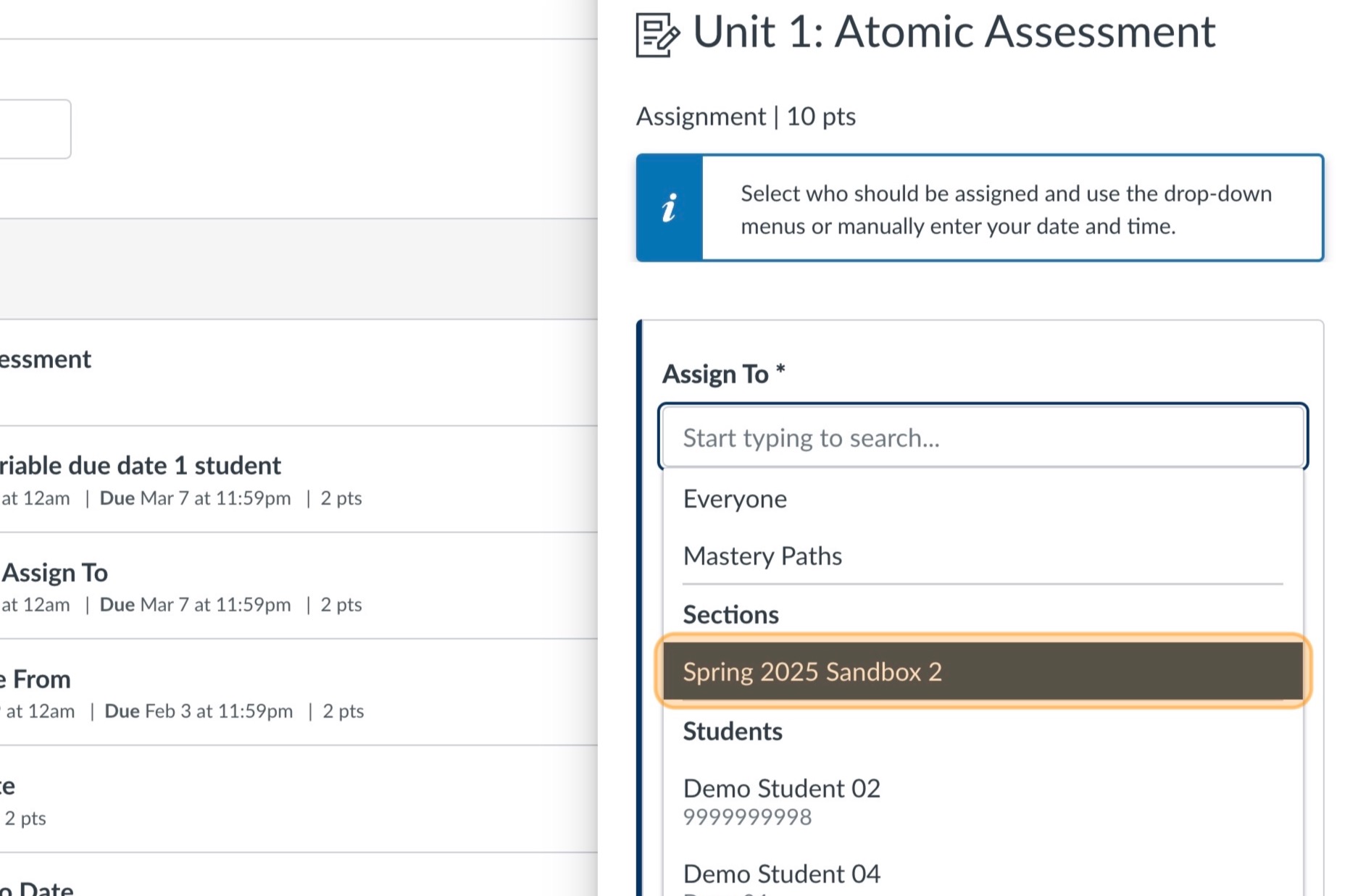
Click in the now empty Assign To * field
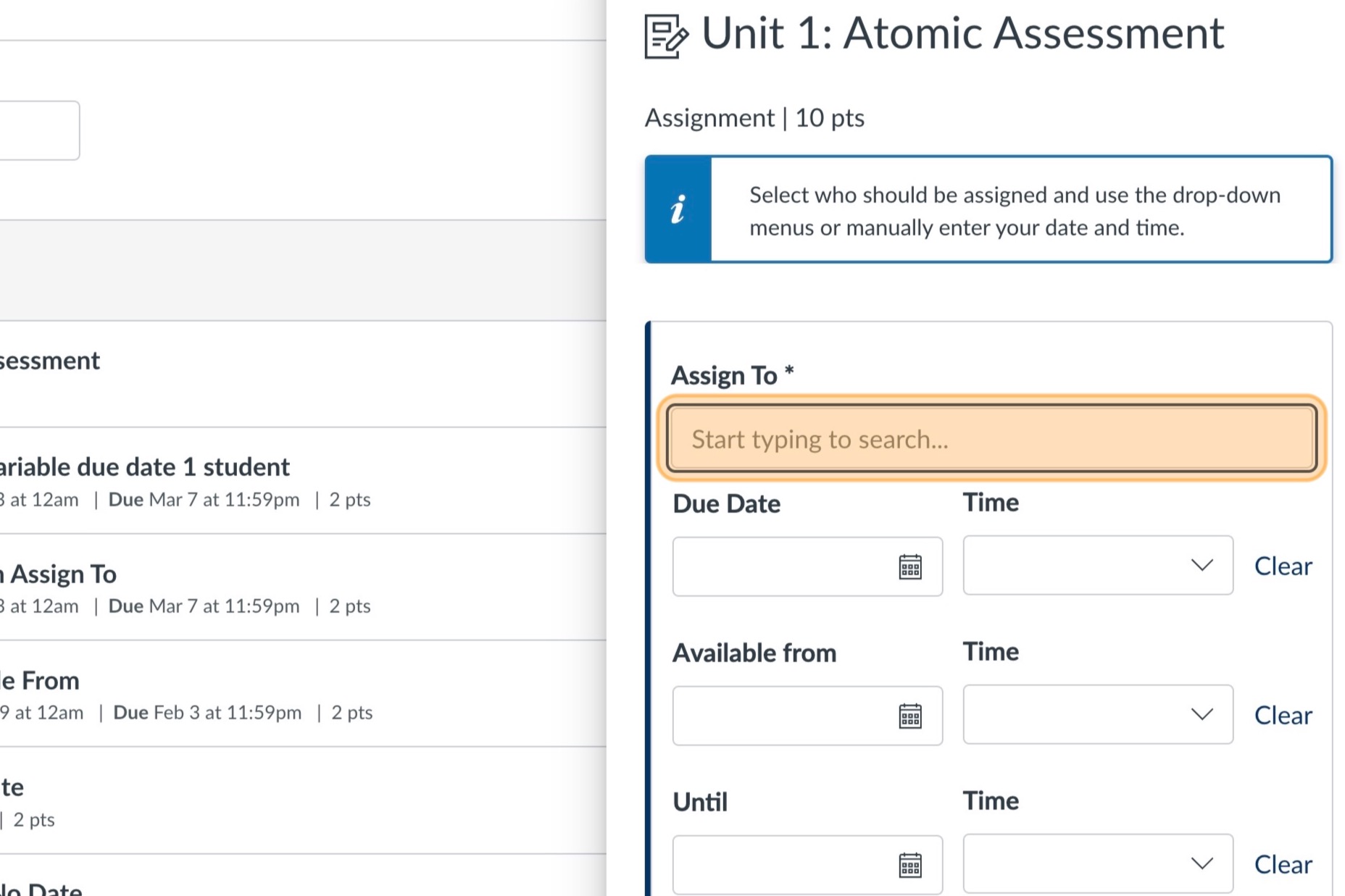
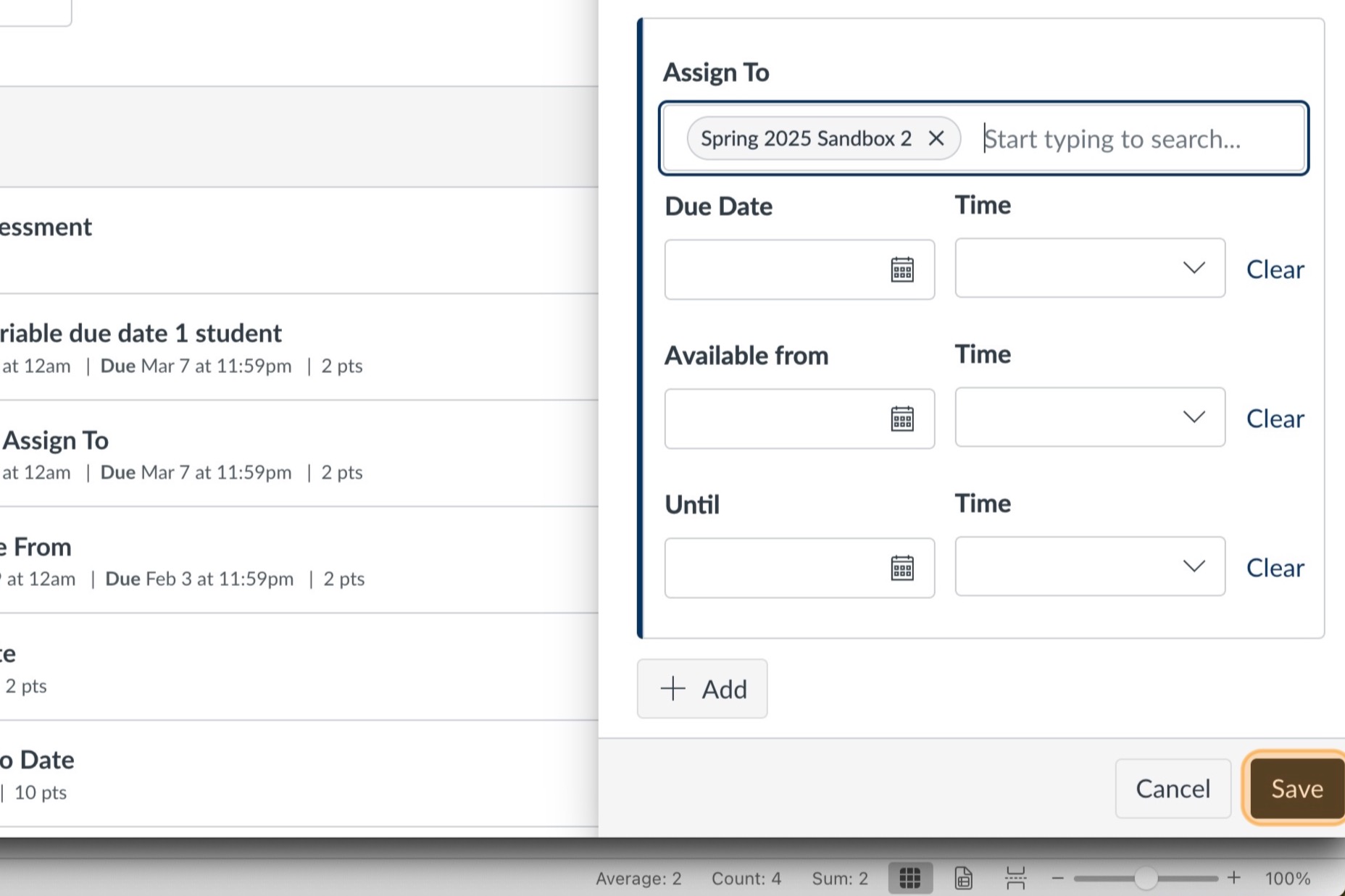
Choose the section that corresponds with your course
Click Save
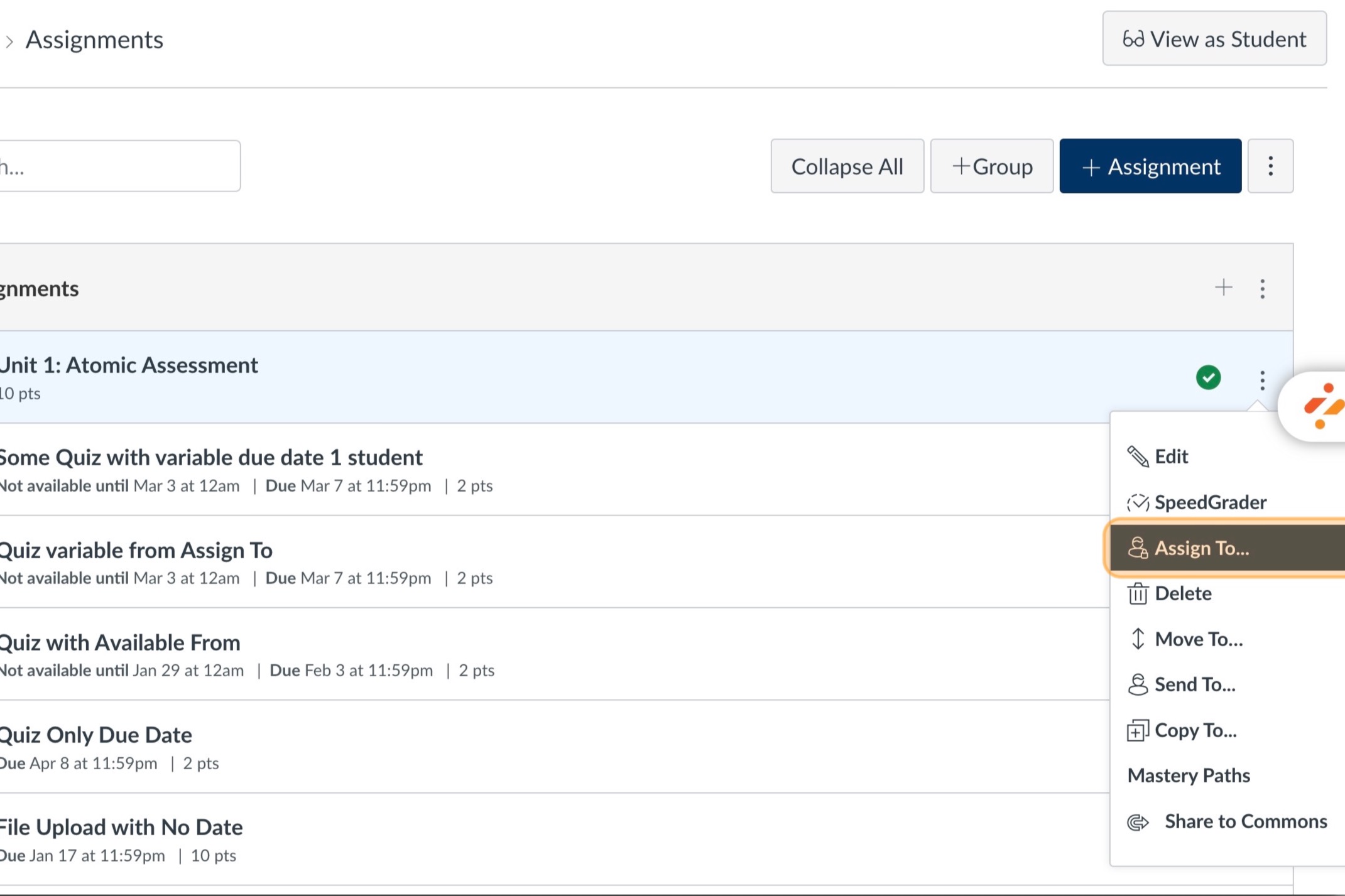
Again, click the settings button for the first assignment you identified in Step 4

Click Assign To... from the menu
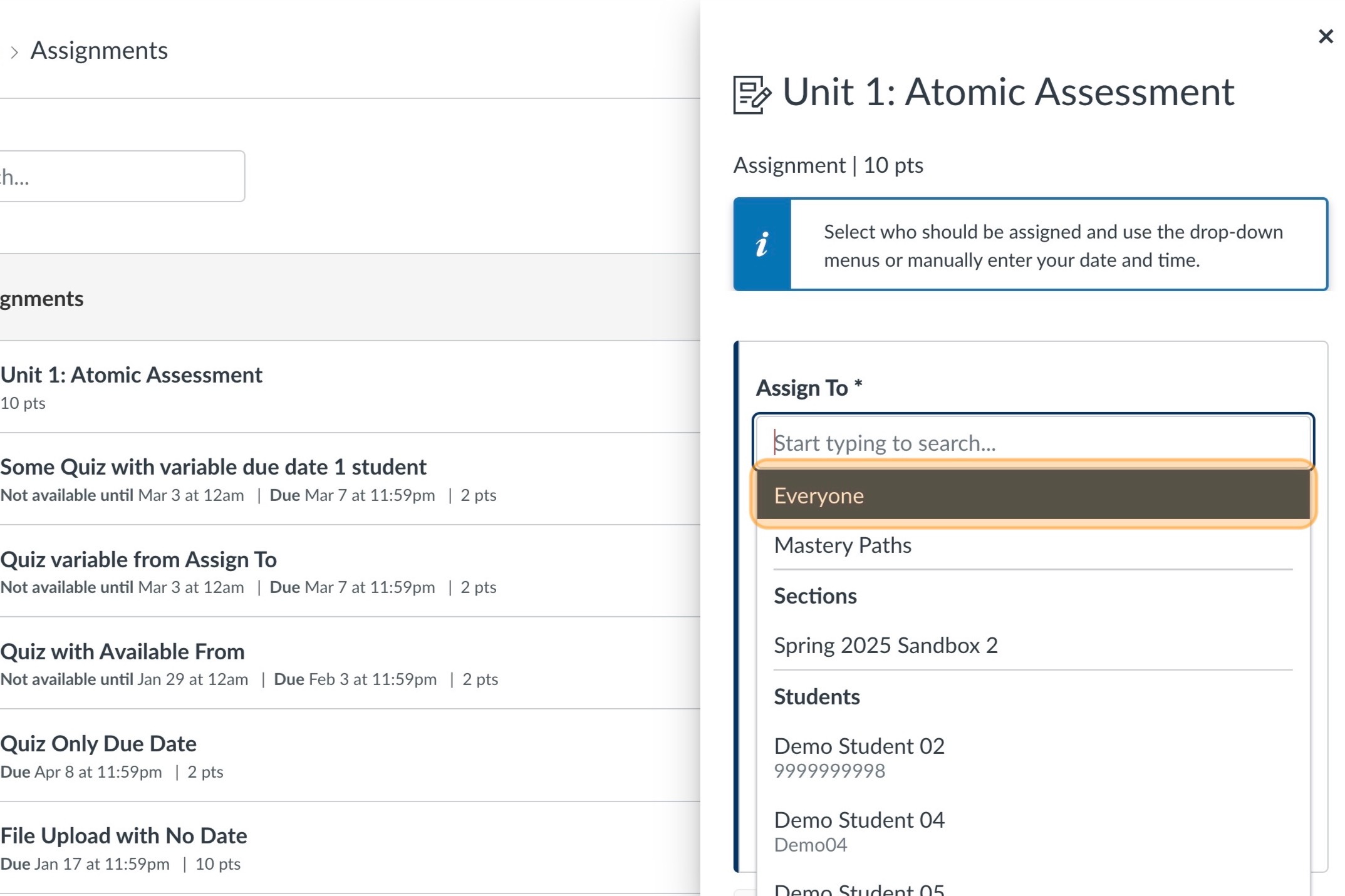
Click the X next to the section

Choose Everyone in the Assign To * drop-down menu
Click Save

Repeat the process for each assignment on which students had N/A in the grade book by assigning it to the section and saving, then assigning it to everyone
To ensure you got them all, return to the Grades page

Click Export and choose the "Export Entire Gradebook"

Open the newly download grade book csv file and ensure all the N/A grades are gone