
Create an Assignment in Canvas
In Canvas, any activity with an associated point value is considered an Assignment and will appear on the Assignments page, as well as in the gradebook. Assignment formats include quizzes, discussions, online document submission, and no submission, and external tool assignments. You can give an assignment to everyone in the course or target it to a specific section or user.
Types of Graded Activities in Canvas
The following table lists the types of graded activities in Canvas and their strengths and weaknesses.
| Type | Strengths | Weaknesses |
|---|---|---|
| Assignments | Multiple submission types, alignment with rubrics and outcomes, no paper waste, easier to control content, easier to randomize, faster grading, student submission directly to instructor and TAs | Potential technical problems such as network problems or internet connectivity loss, possible file size limitations, less personal feedback, learning curve for teachers or students not familiar with Canvas or technology in general |
| Quizzes | Automatic grading and regrading, multiple attempts, instant feedback | No regrading if you pulled questions from a question bank, cannot add points automatically, limited regrading options |
| Surveys |
Instant feedback, faster grading, no paper waste, faster than passing out paper surveys to hundreds of students Points awarded based on survey submission |
Potential technical problems Not available in New Quizzes format |
| Discussions | Discussions not limited to a single class period. Students have more time to formulate responses, keeps a record of comments for grading purposes, shy students more likely to participate. All students in the class can see the submission so students can get ideas from each other. | Potentially time-consuming to read comments from large groups of students, potential technical problems, students may not do their own work after seeing work of others (can be circumvented using the requirement to post before seeing other student replies) |
To Create an Assignment
On the Course Navigation menu, click Assignments
On the Assignments list page, click Add Assignment
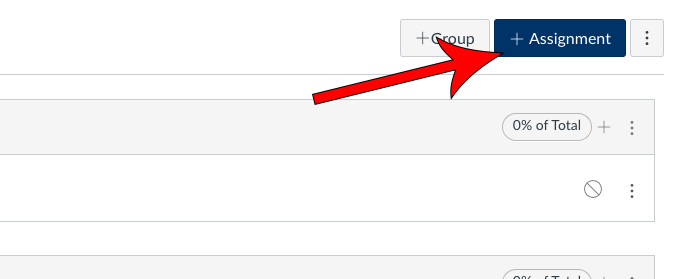
On the Assignment edit page, create the assignment by adding a name, instructions, and specifying the assignment options
(See the Assignment Options table for details)
Click Save
Assignment Options
The following table describes the options for creating assignments.
| Option | Description |
|---|---|
| Points | Determines the point value of the assignment. |
| Assignment Group | Places the assignment into an assignment group. You can use this option if you want to organize the Assignment list by assignments, discussions, and quizzes. Groups can also be used to filter assignments in the gradebook. The default group is Assignments, so Canvas places all assignments, discussions, and quizzes in that group unless you specify otherwise. For more information, see Create an Assignment Group. |
| Display Grade as |
Determines the method of grading. Methods include points, percentage, complete/incomplete, letter grade, GPA Scale, or Not Graded. |
| Submission Type | Indicates how you want your students to submit the assignment. Submission types include No submission, Online, On paper, or External tool. For more information, see Submission Types. |
| Group Assignment | Makes the assignment a group assignment. You can indicate if you will give a group grade or an individual grade. |
| Peer Reviews | Requires the students to have the assignment reviewed by another student. |
| Assign | Assigns the assignment to a specific group or to everyone. Sets the due date for the assignment. |
Canvas - Get Started
The following list of pages will guide you through getting started with this tool. The current page is listed in bold.