
Add Modules to Homepage Module List
When new modules are created in your course, they do not automatically populate on the course homepage. You must manually add them to the homepage's module list for them to be visible. This guide provides the step-by-step process for using the DesignPLUS sidebar to quickly add new modules, automatically set their dates, and update their icons.
Navigate to the course homepage

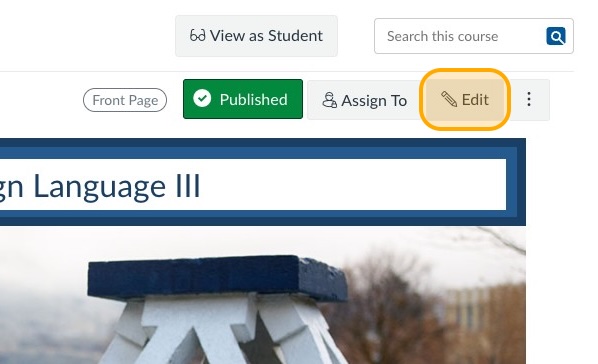
Click "Edit" to edit the page
Launch the DesignPLUS Sidebar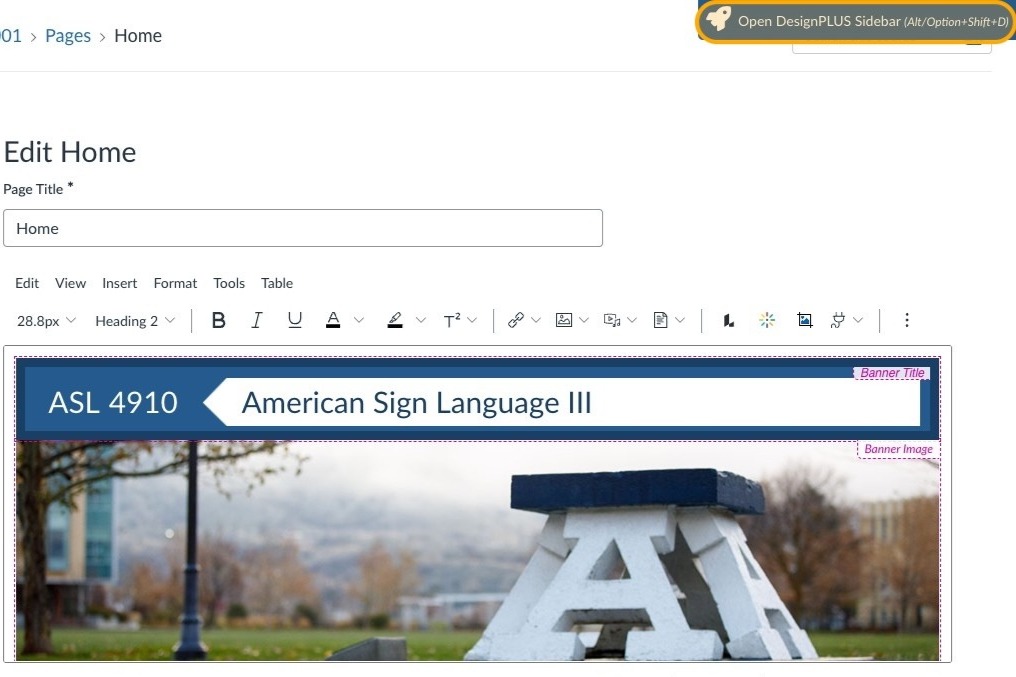
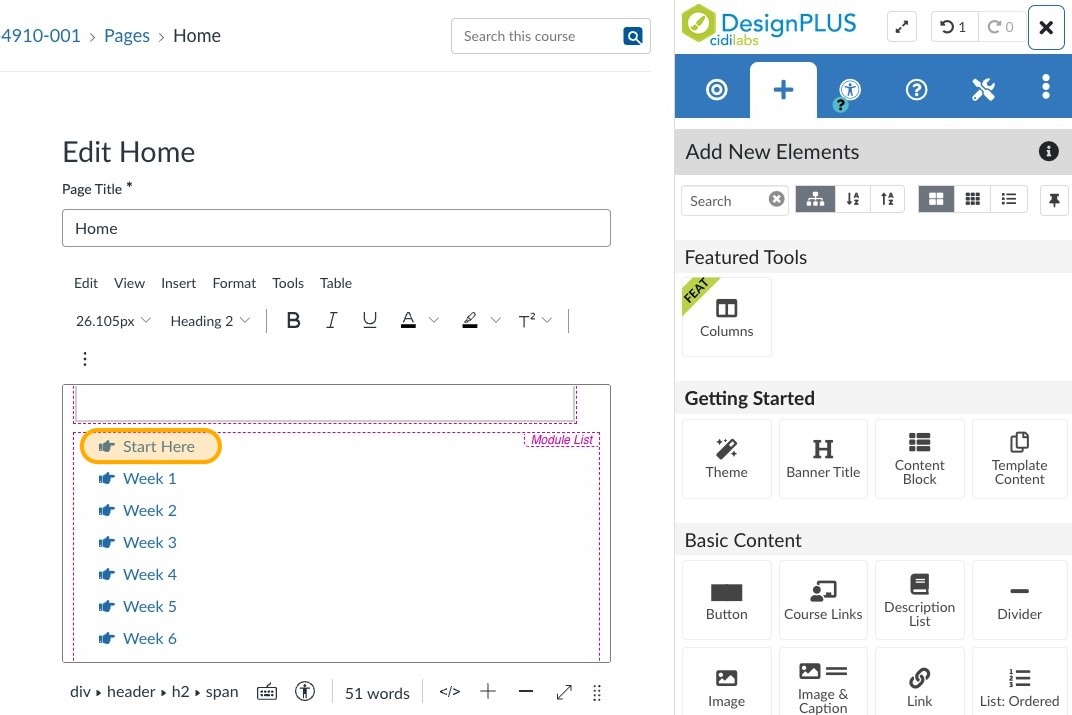
Click anywhere in the module list
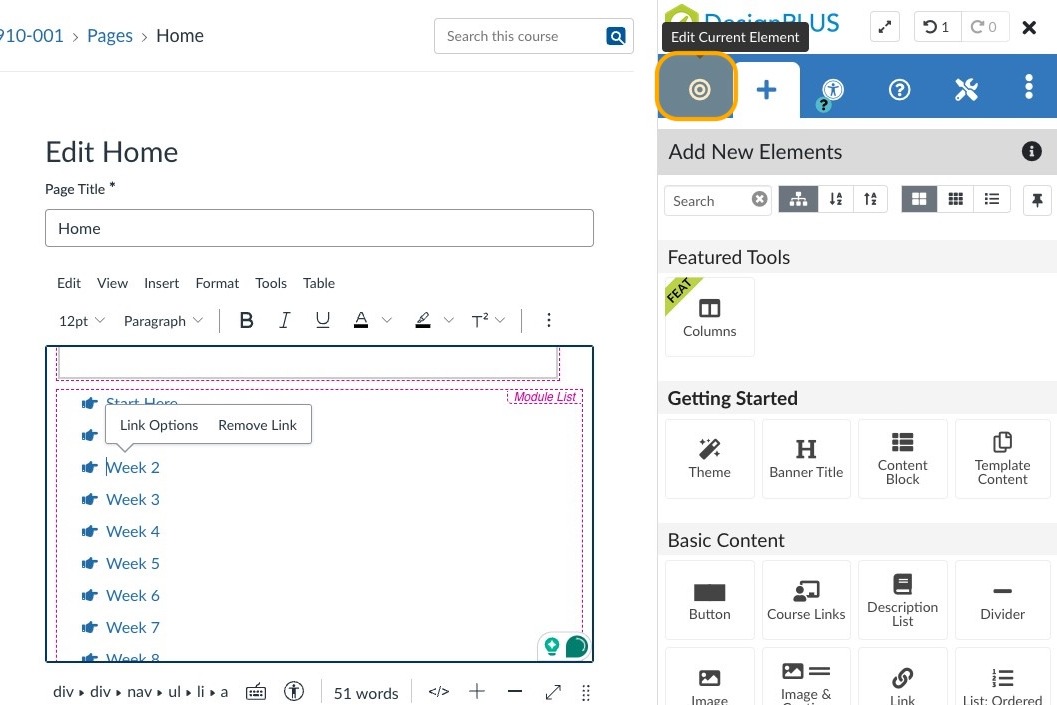
Click the target icon in the DesignPLUS toolbar
Click on the Module List tool
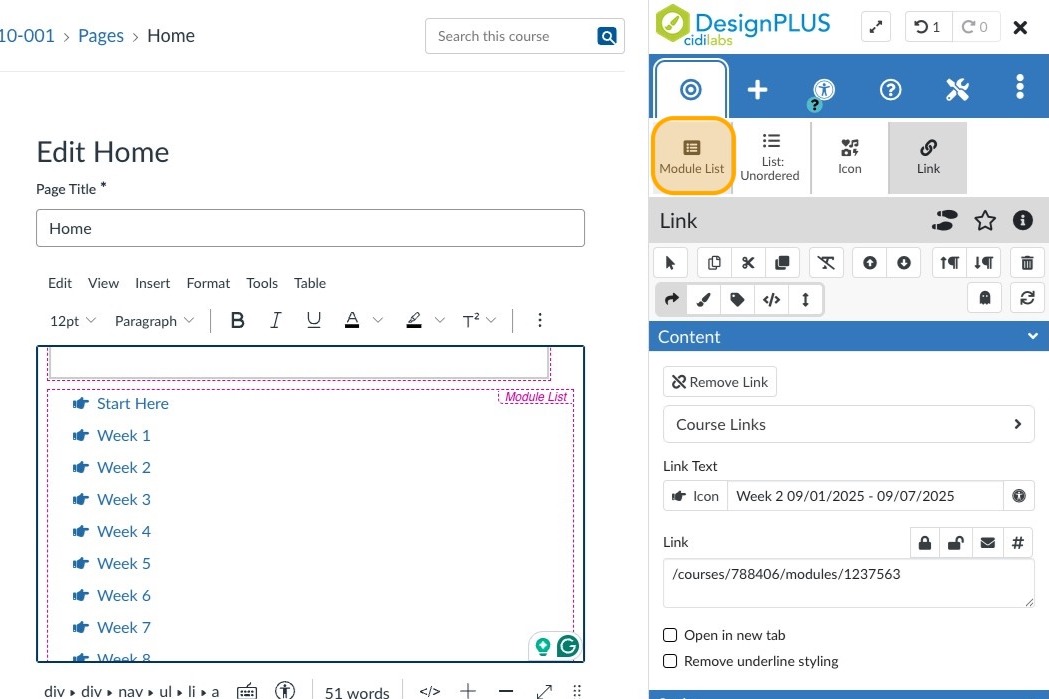
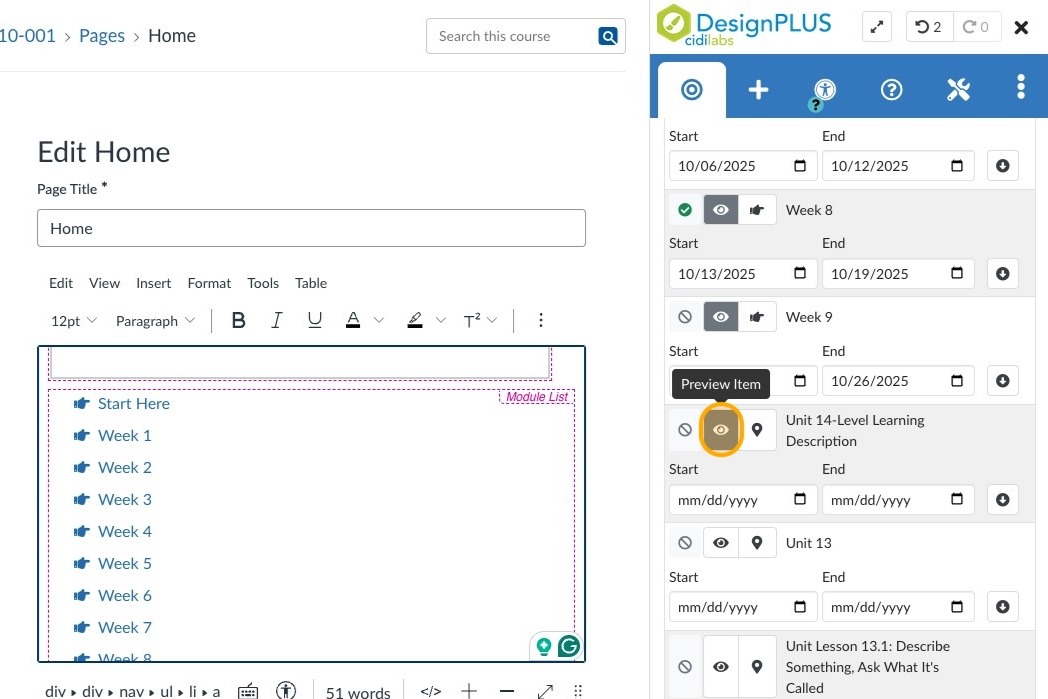
Scroll to the modules in the list that you want to add, then click on the eyeball icon next to each of the new modules you want to add.
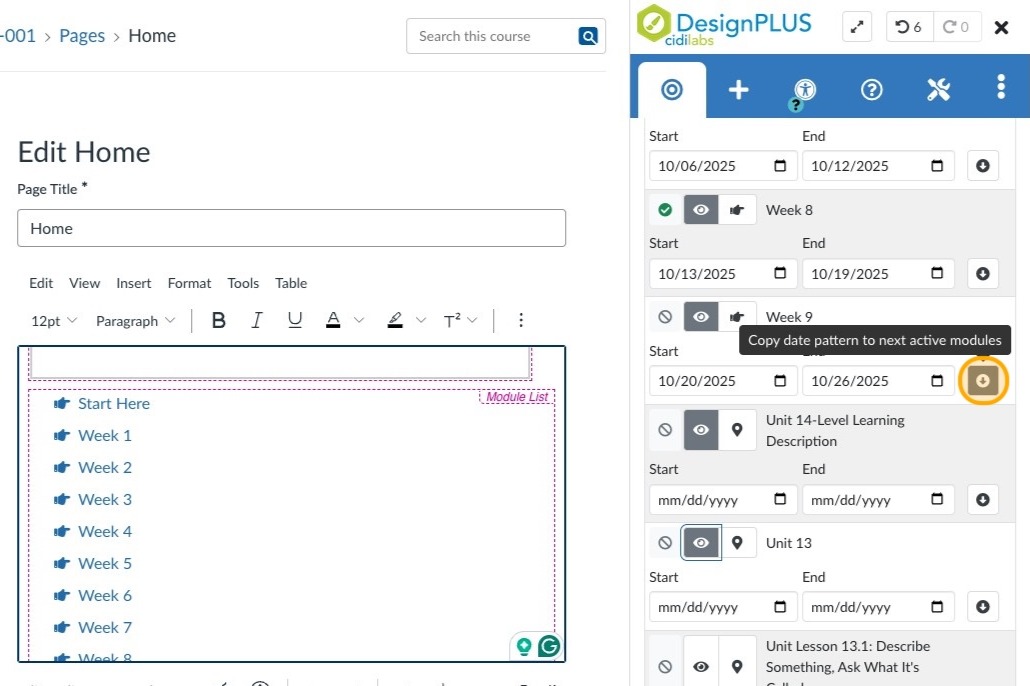
Click on the down arrow next to the dates of the last module that was previously added to fill in the dates for the new modules you just added (following the same date pattern from the previous module)
Click on the icon picker next to the module title to change module icons individually...

and pick the icon you want in the icon picker...
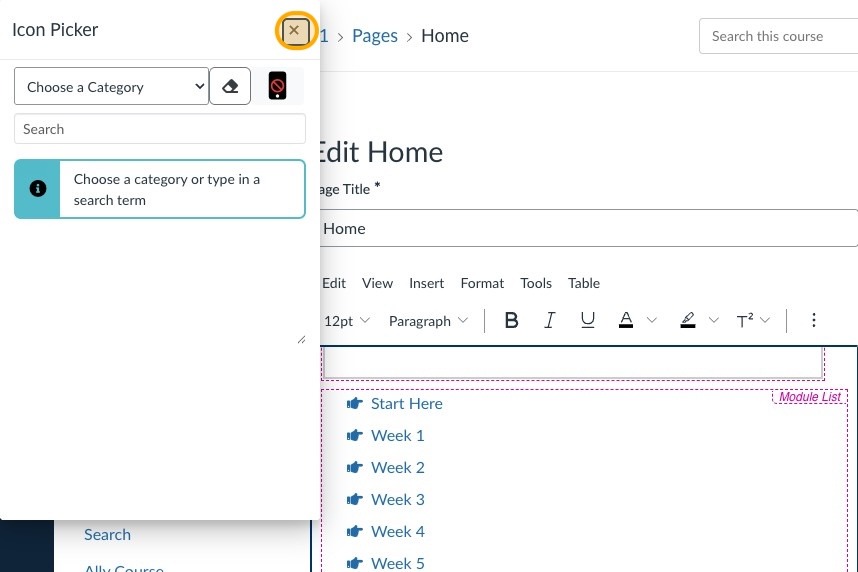
or go to the top of the listing of modules, click on the icon picker there...
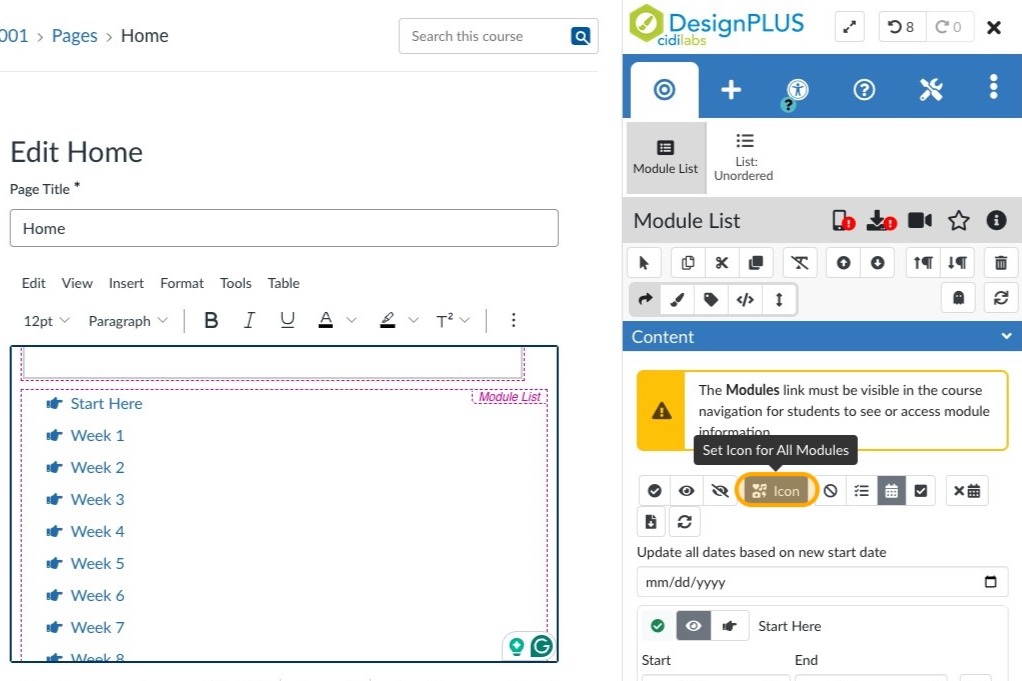
and search for...
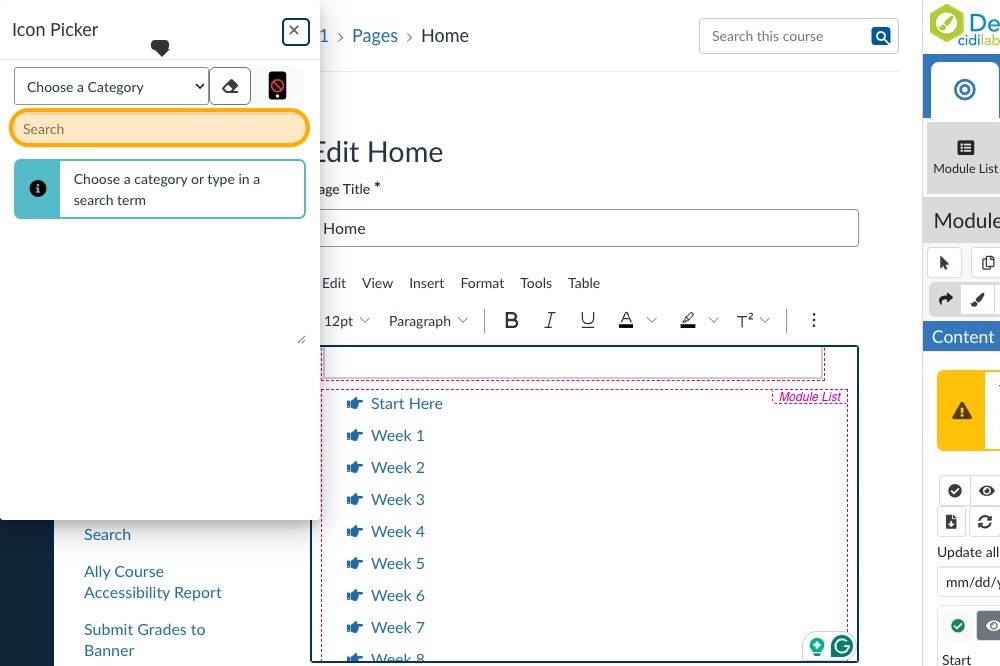
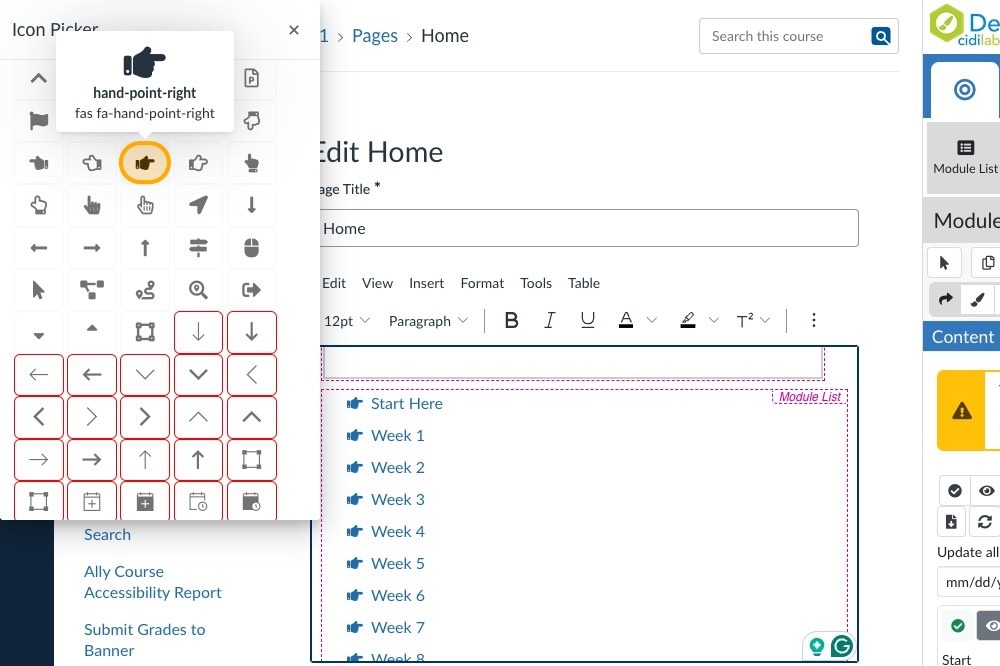
and click on the icon you want to use for all the modules.
Click the "Save" button at the bottom of the page to save your changes.