
Converting Quiz Questions to Question Bank Items
How to convert quiz questions into a question bank that you can then pull from and use for other assessments.
Converting Quiz into Question Banks
To convert your quiz question to a question bank, you will need to export the quiz into a QTI file and then re-import it. There you will be able create the new question bank.
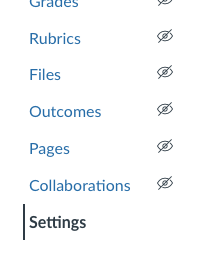
Navigate to Settings
Click Export Course Content

Select Quiz

Uncheck the All Quizzes option and select your desired quiz(zes)

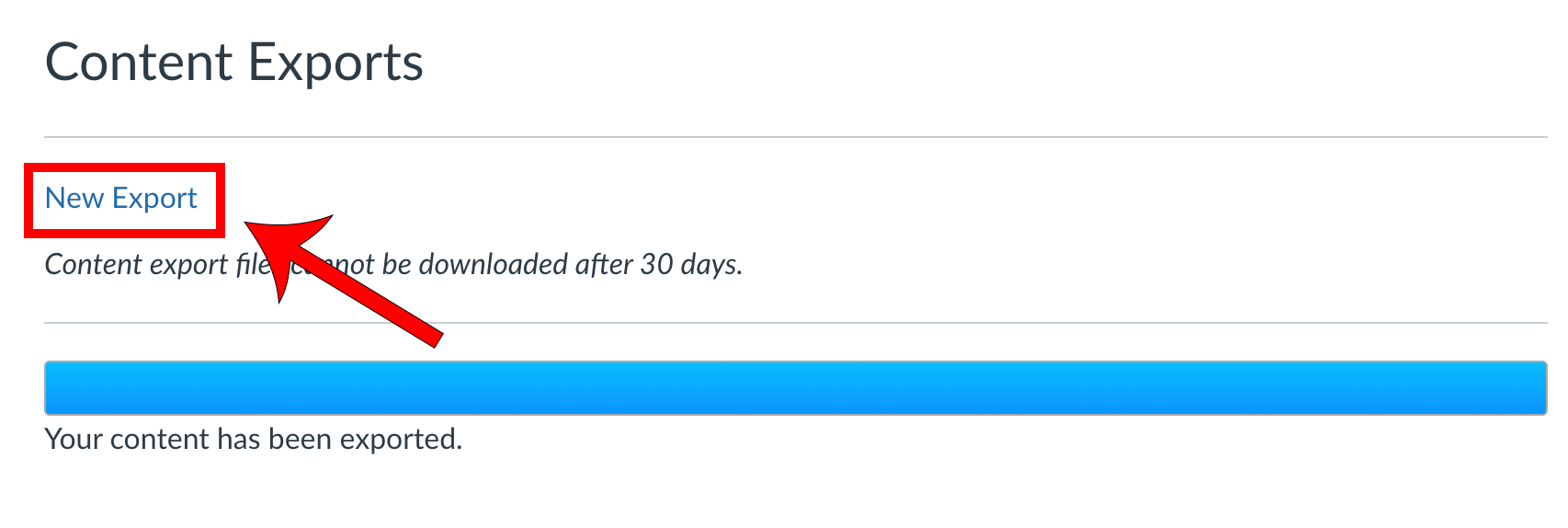
Click Create Export

Click New Export
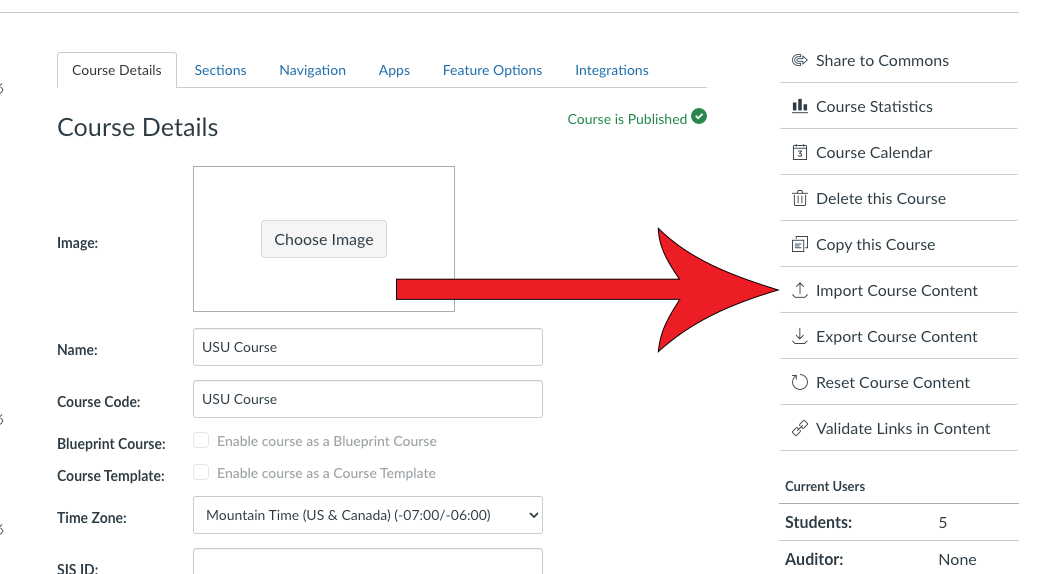
Return to Settings
Click Import Course Content
Expand the dropdown and select QTI .zip file

Click Choose File and select the file you just downloaded

Expand the Select question bank dropdown and select -- Create new question bank --

Give the new question bank a name

Click Import
We recommend that you leave the additional Options unchecked.

Combining Question Banks
Once you have imported the questions from the quiz, you can manipulate them as you please. One helpful way is to be able to combine the imported questions into previously created question banks.
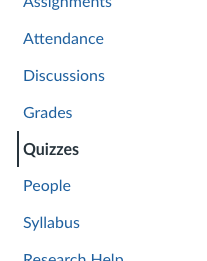
Navigate to Quizzes
Click on the 3 dots in the upper-right corner and select Manage Question Banks

Select the imported question bank
Click Move Multiple Questions

Select all of the questions

Select [New Question Bank]
![Arrow pointing at radio button for [New Question Bank]](/teach/images/move-multiple-questions-new-question-bank.png)
Enter the New Bank Name

Click Move Questions

Click Delete Bank

Delete Duplicate Quizzes
When you imported the quiz content to create the question banks, it created another instance of that quiz, which you will see in the Quizzes tab of your Canvas course.
To prevent any confusion, we suggest that you delete the copied instance. Doing so will not delete the questions you imported into your question banks.

Locate the duplicated quiz
Click on the three dot menu
Select Delete
Click OK