Replace the Instructor Photo on Your Home Page
The Visual Template comes with a pre-styled homepage with pre-selected images. The instructions below will show you how to replace and edit those images. For additional help, you can review CidiLabs page on how to add Teacher and TA details on your homepage Open External Link .
Click the Edit button on the homepage
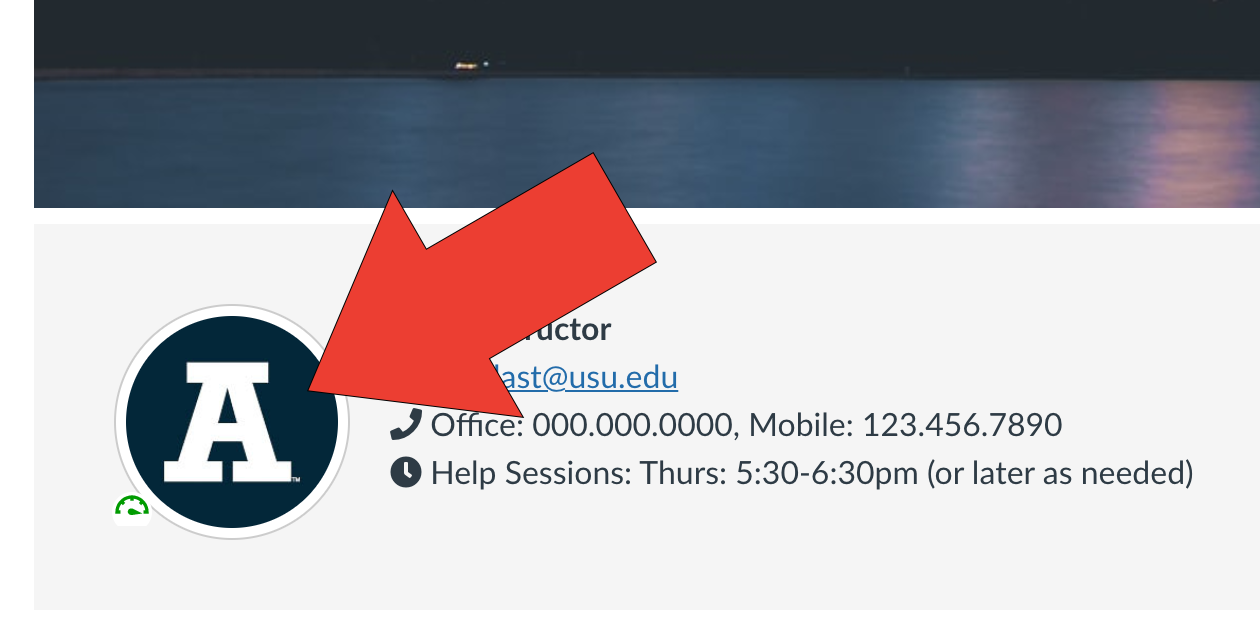
Click on your profile image
Click on the Upload / Embed Image button in the toolbar

Choose the image that you would like to replace with the current one
Navigate to the crop settings
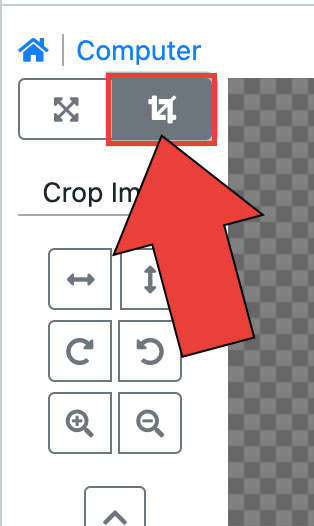
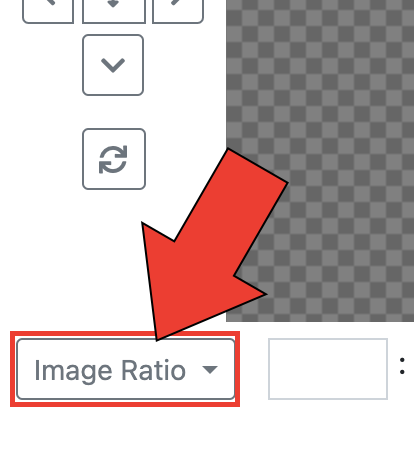
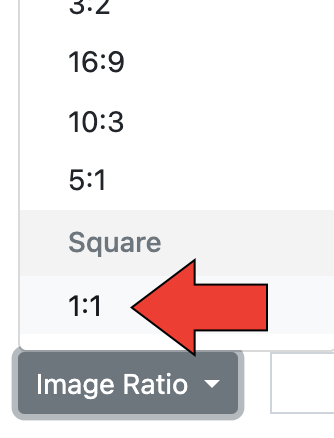
Click Image Ratio and select 1:1
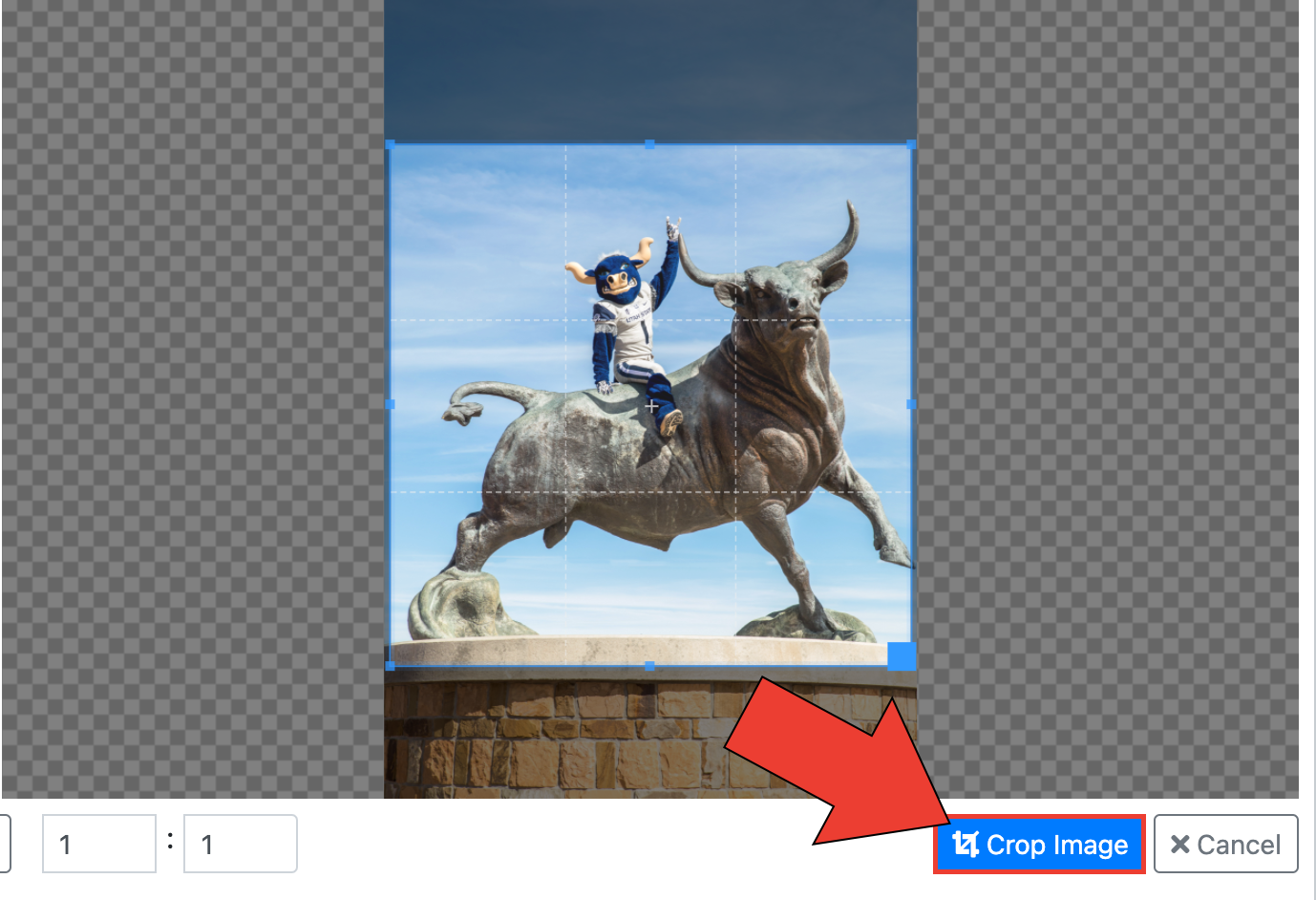
Adjust your image as needed
Click Crop Image
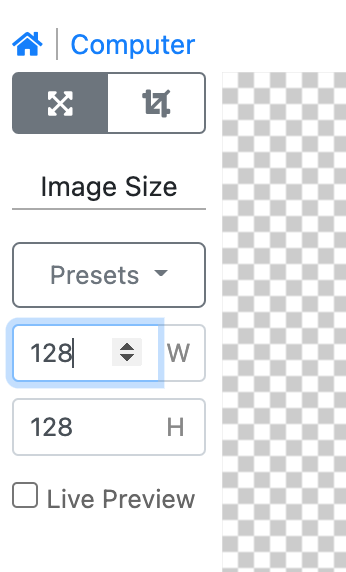
Change the Width to 128
This will cause the height to automatically change to the same amount as your width
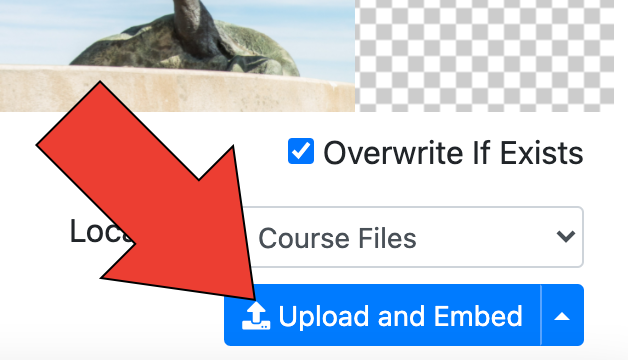
Click Upload and Embed
Open Design Tools

Select the Current Element Style in the navigation

Click on your image
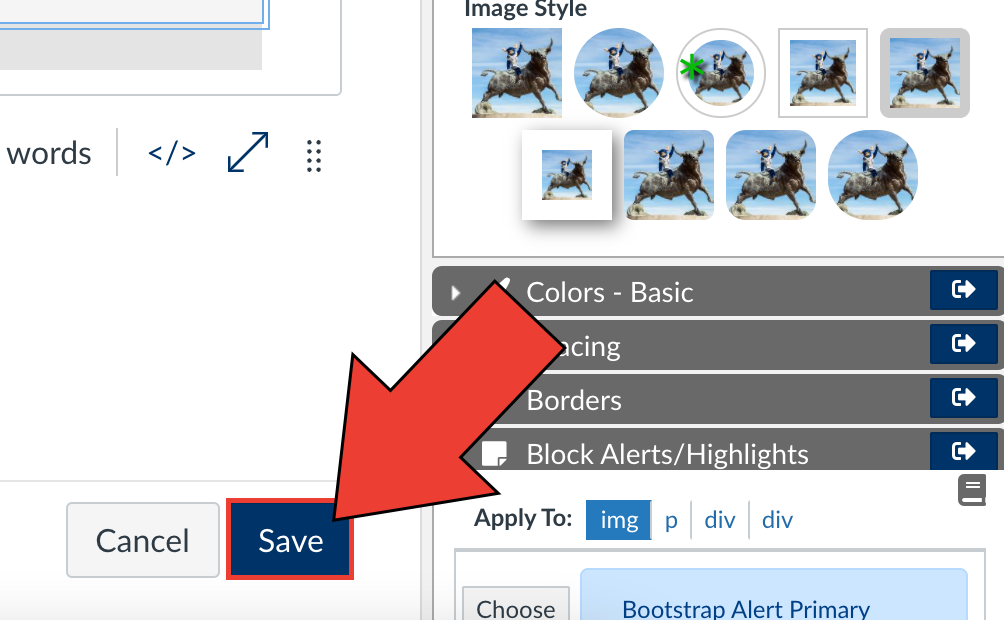
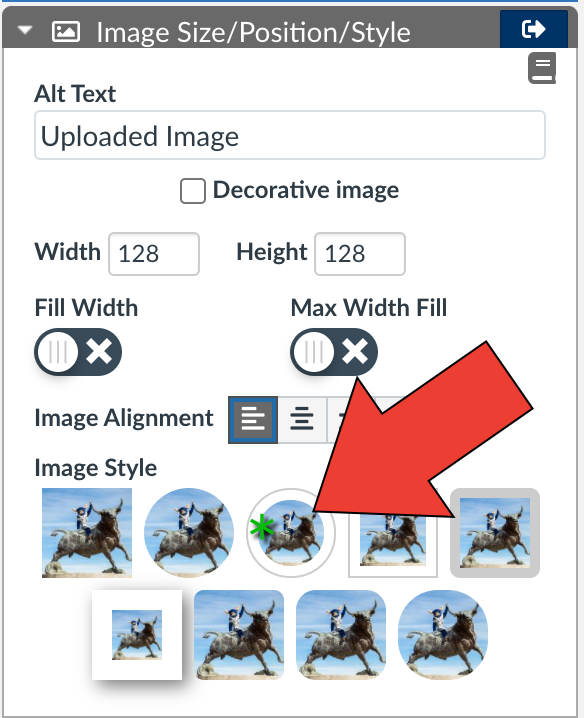
Choose the circle image with the frame
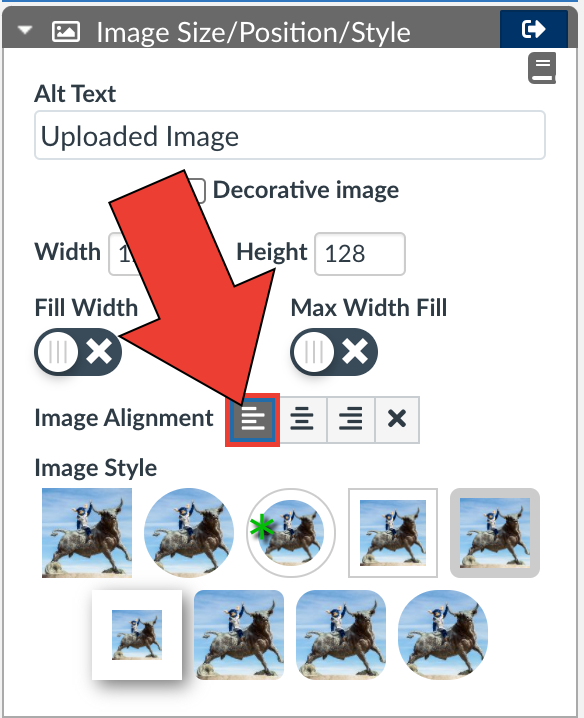
Click Left Align
Click Save