
Giving Students Time Extensions in New Quizzes
New Quizzes makes it easy to moderate a quiz if students need accommodations such as additional attempts or extra time.
Time Extension for One New Quiz
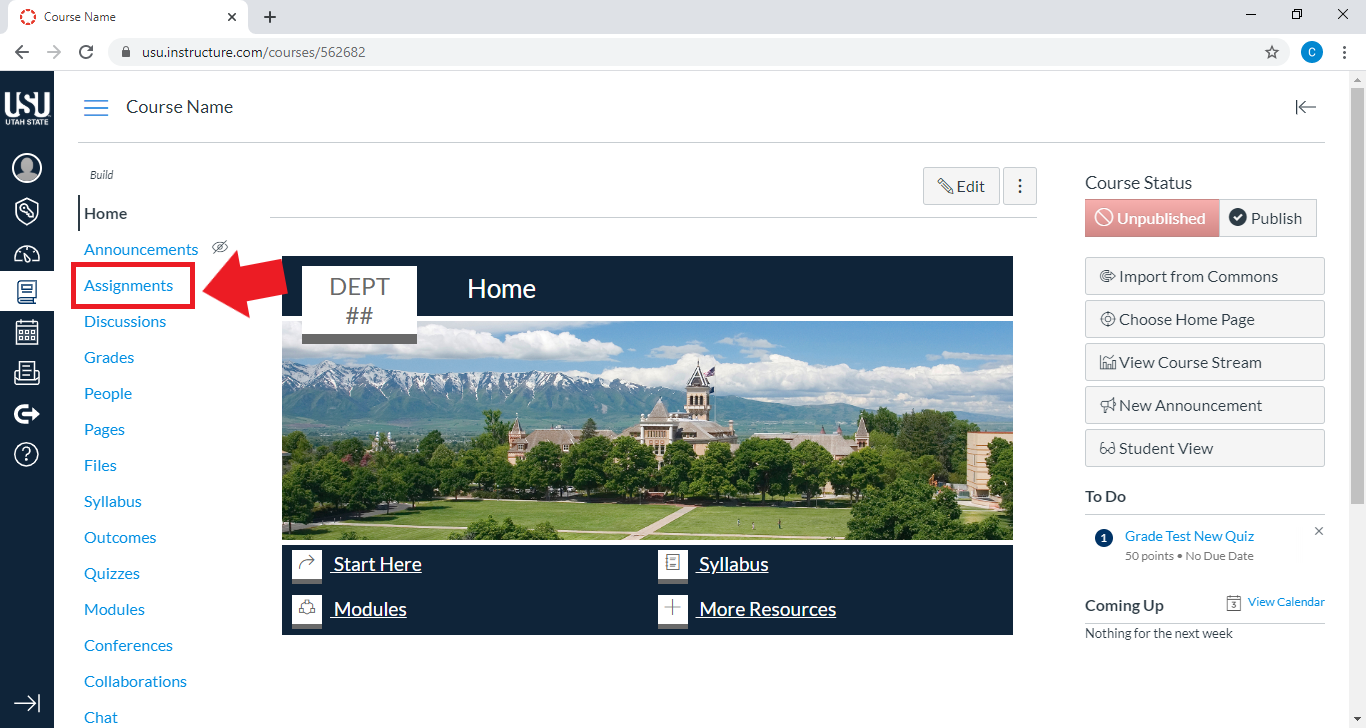
From the course home page, select Assignments
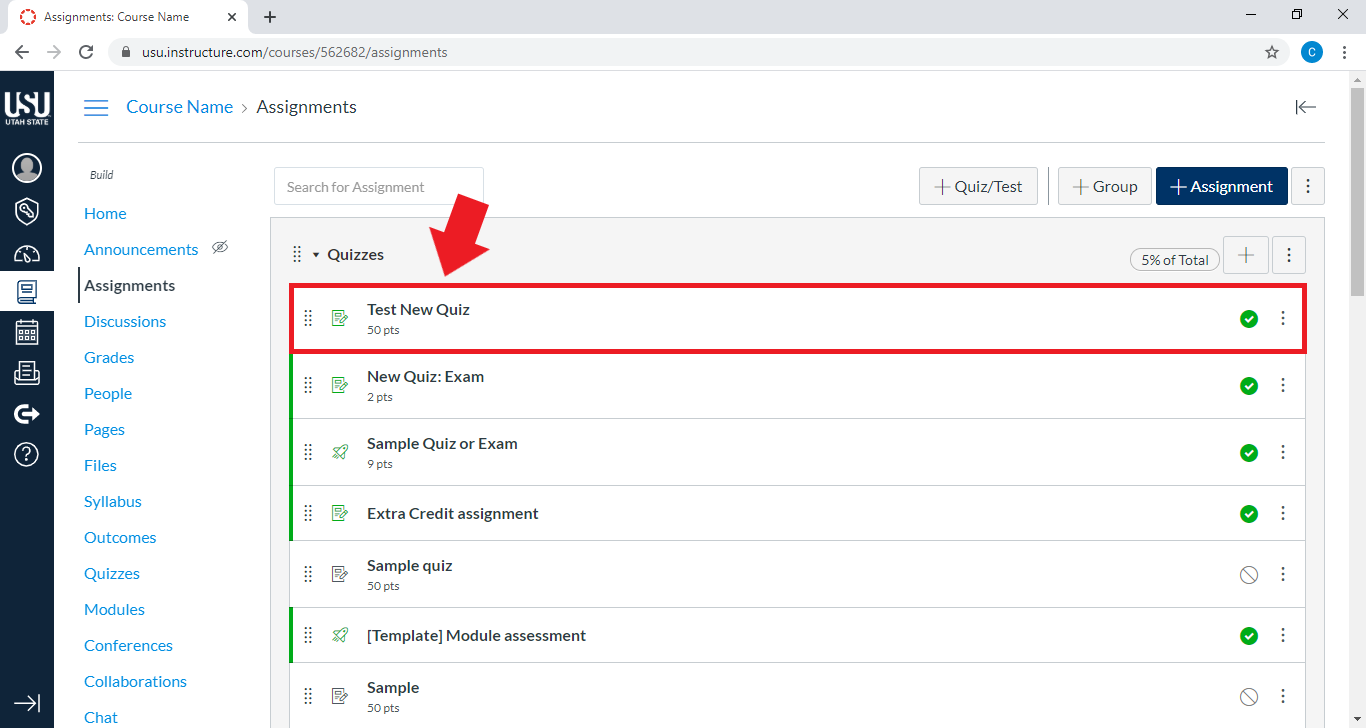
In Assignments, select the quiz
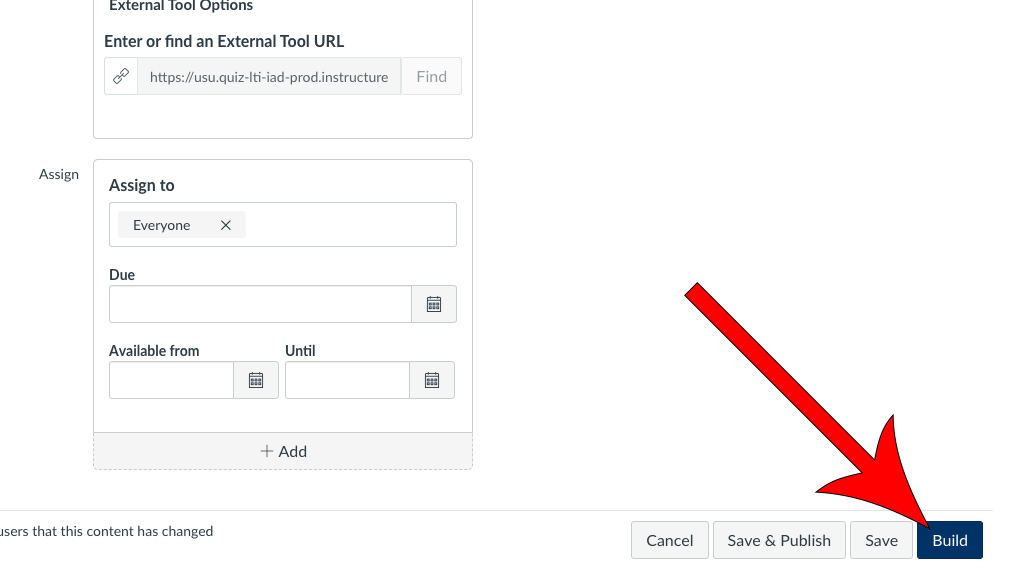
Scroll down and select Build
In the top menu of the Build page, select Moderate

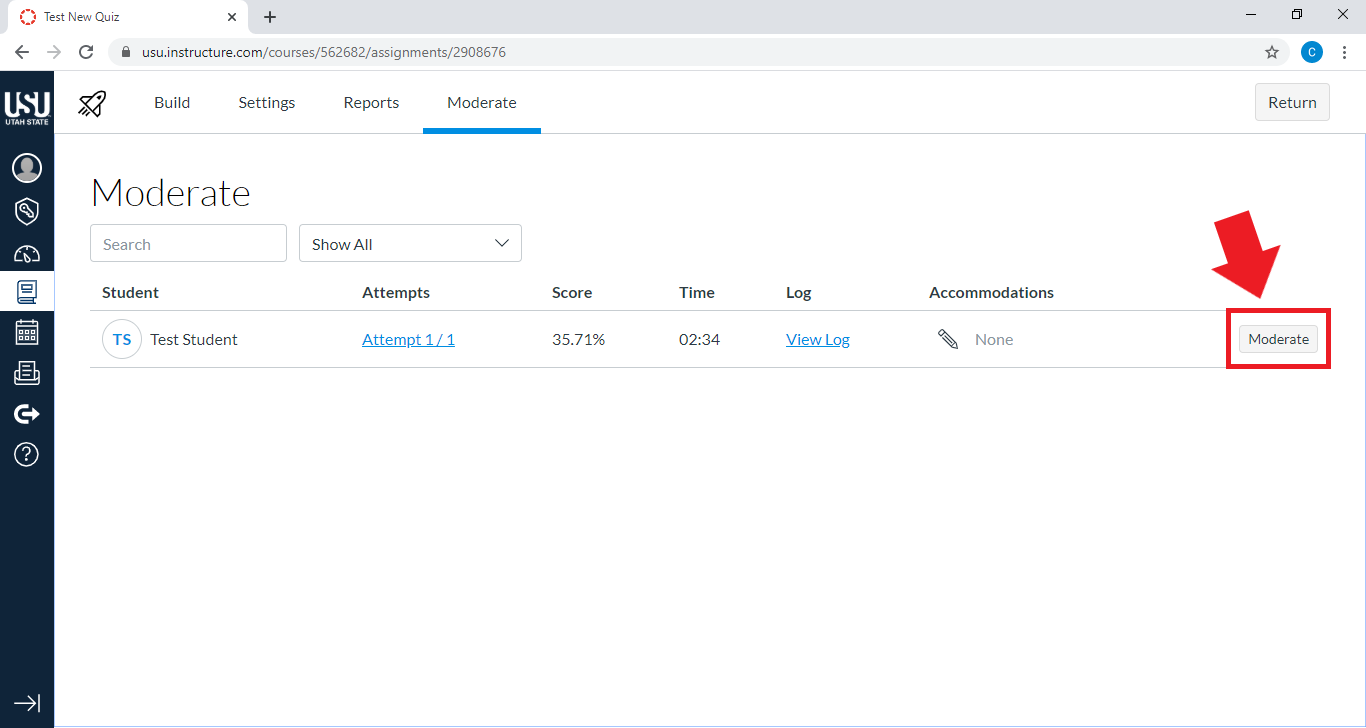
On the Moderate page, locate the student who needs a time extension or an additional quiz attempt
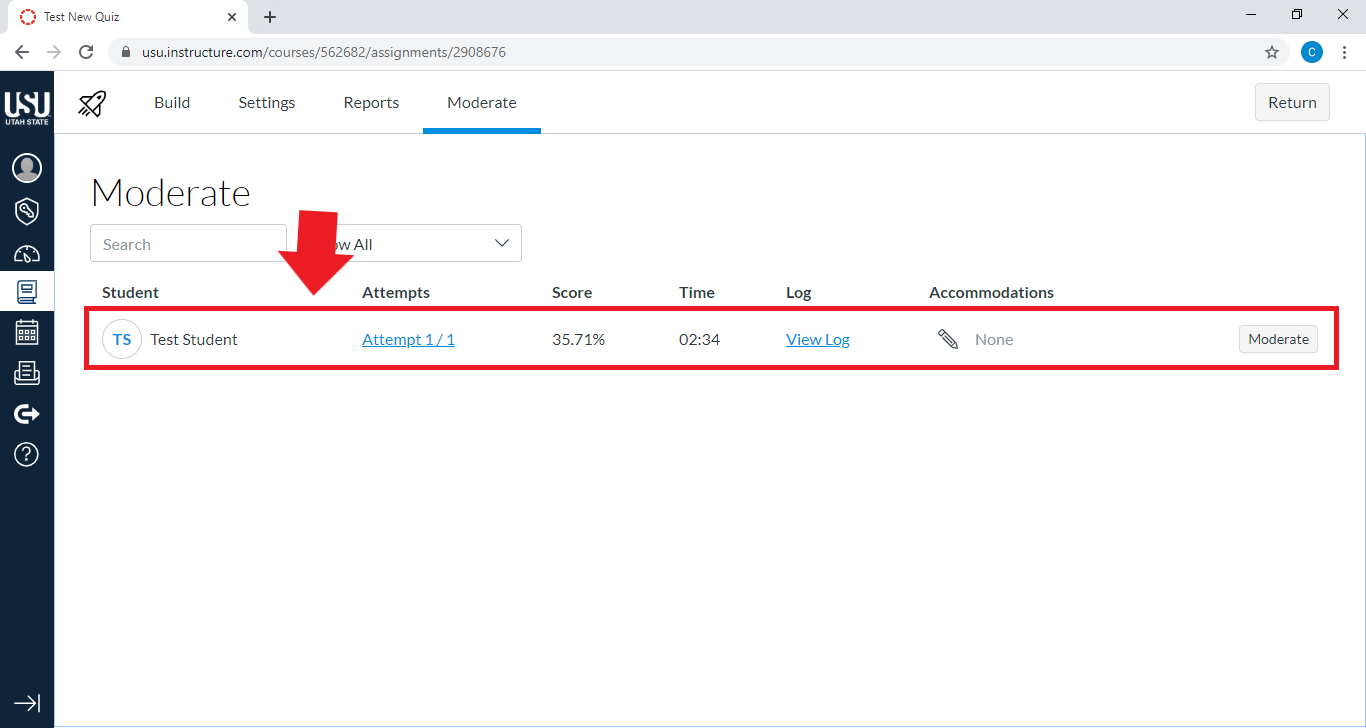
To the right of the student’s quiz information, select the button Moderate
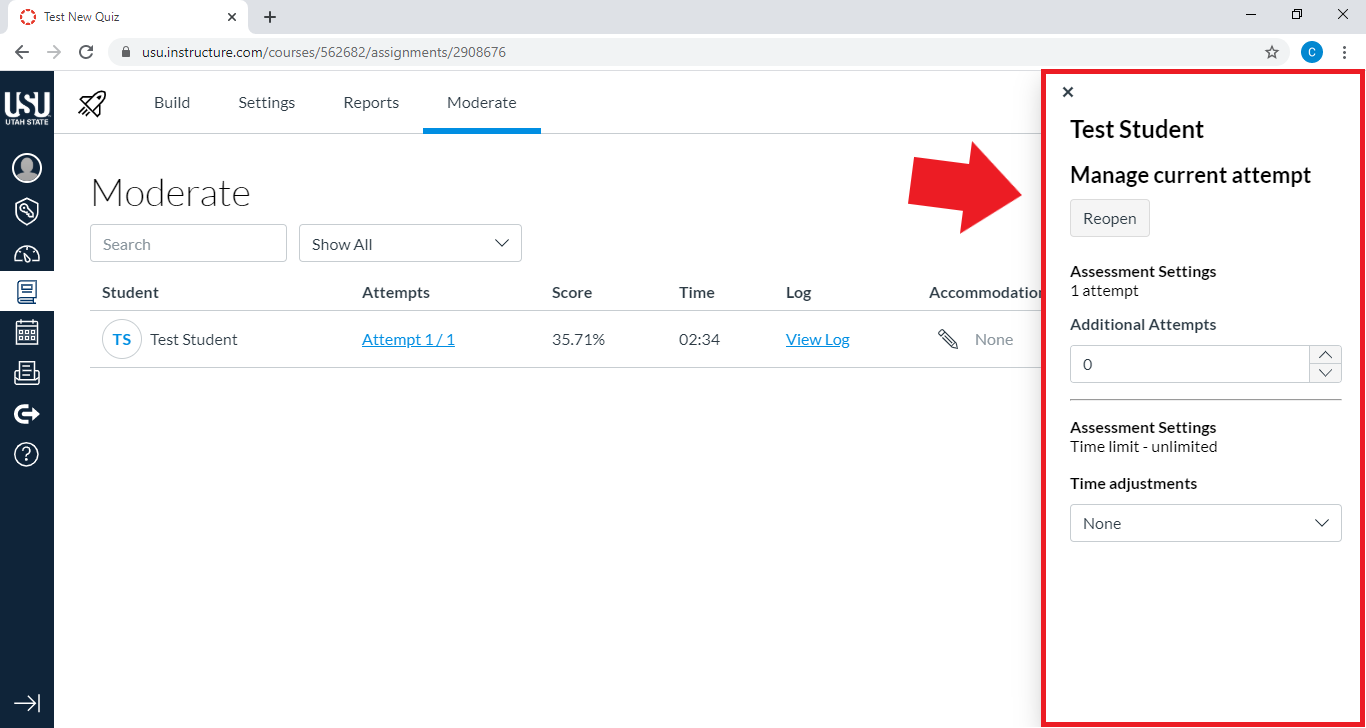
In the right sidebar that appears, you can reopen the quiz for the student, add additional attempts, or adjust time restrictions
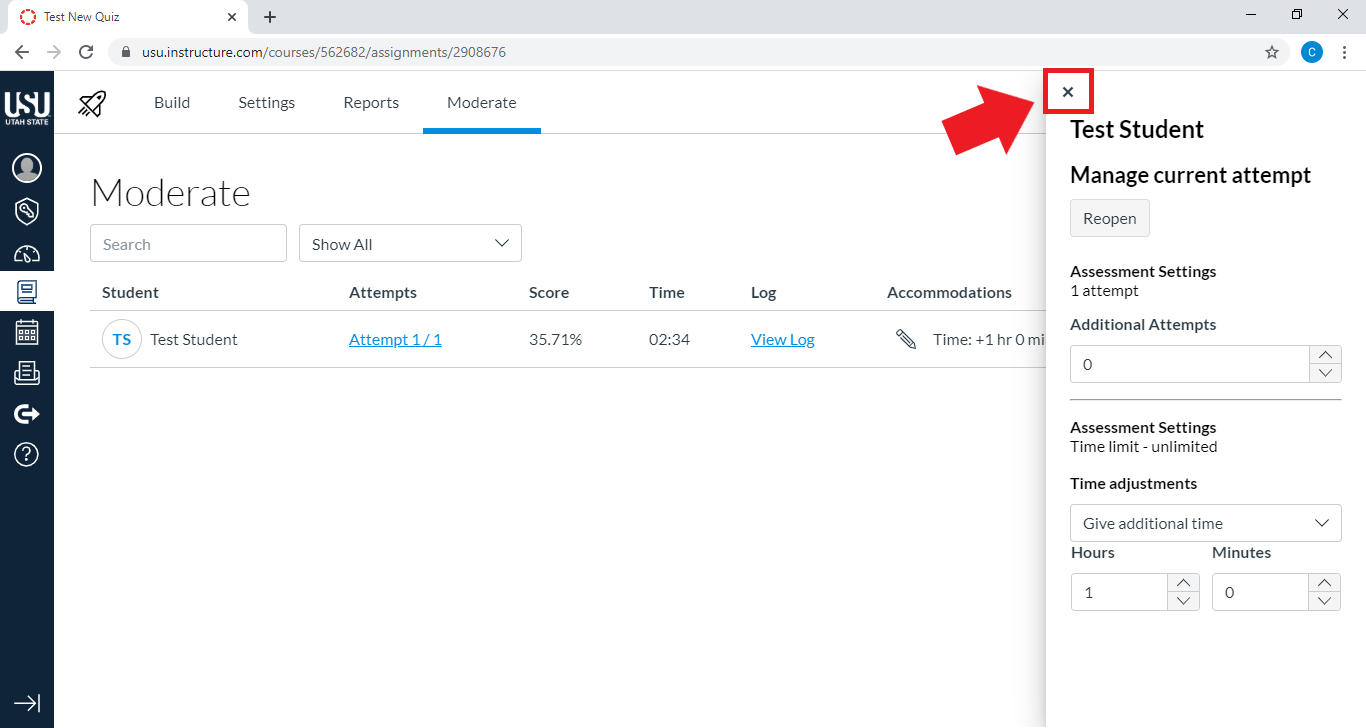
When you are finished with changing these settings for the student, select the X in the top left corner of the sidebar to close it
Your changes will be saved
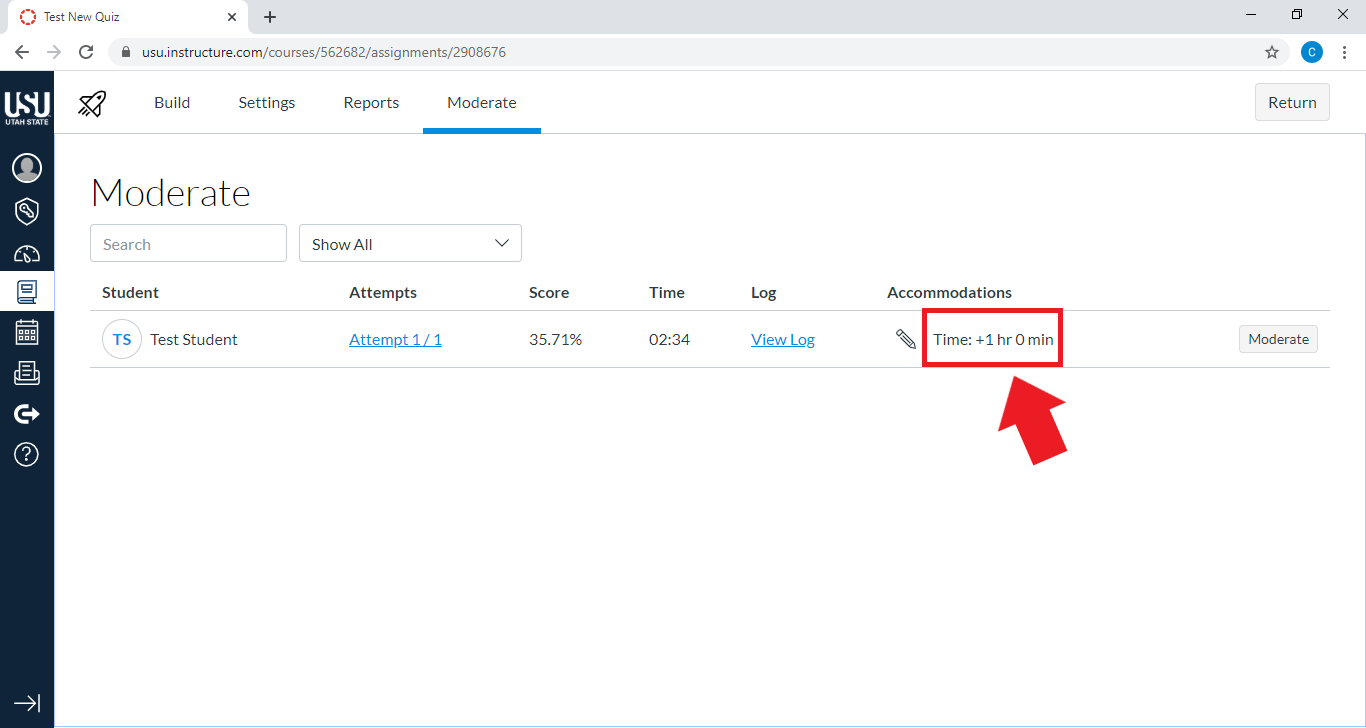
If you added additional time for the student, note that this time is now listed under the column “Accommodations.”
Time Extension for All New Quizzes
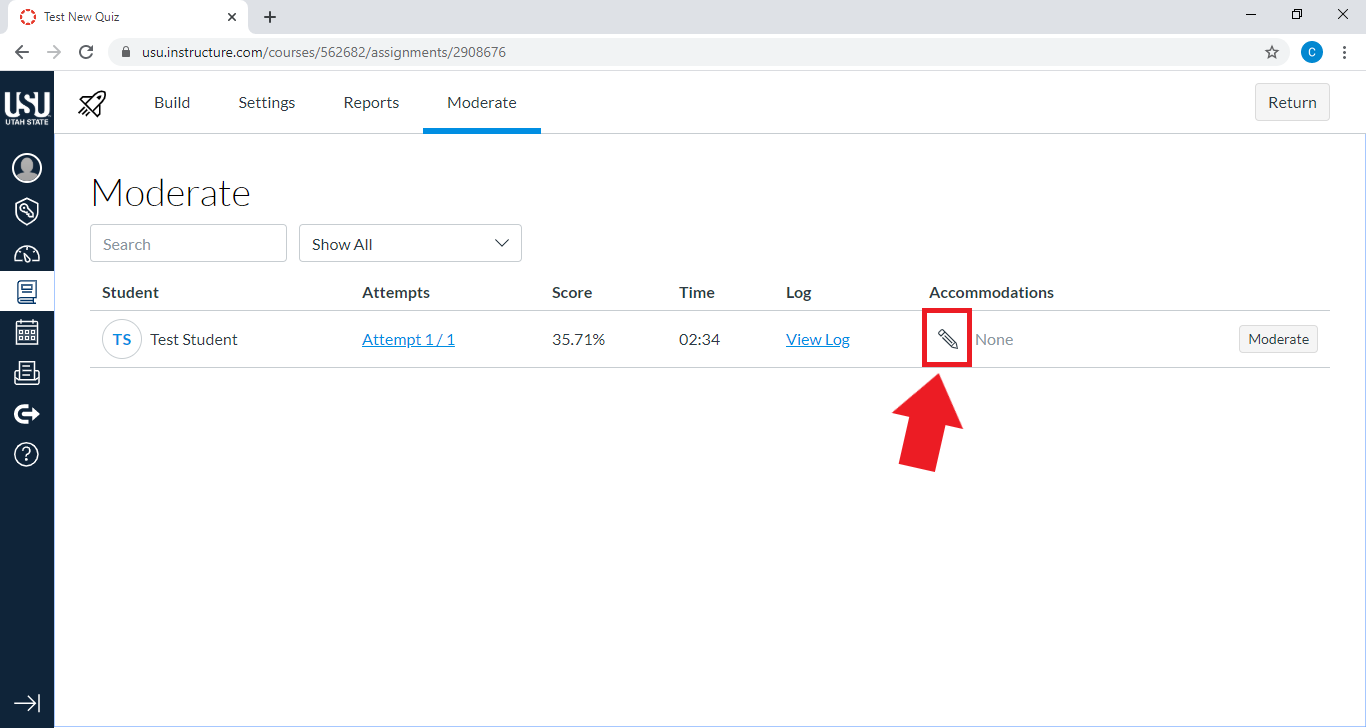
If you would like the student to have the same time adjustment for all New Quizzes in the course, find the student on the Moderate page.
Instead of using the Moderate button, select the pencil icon under the column Accommodations
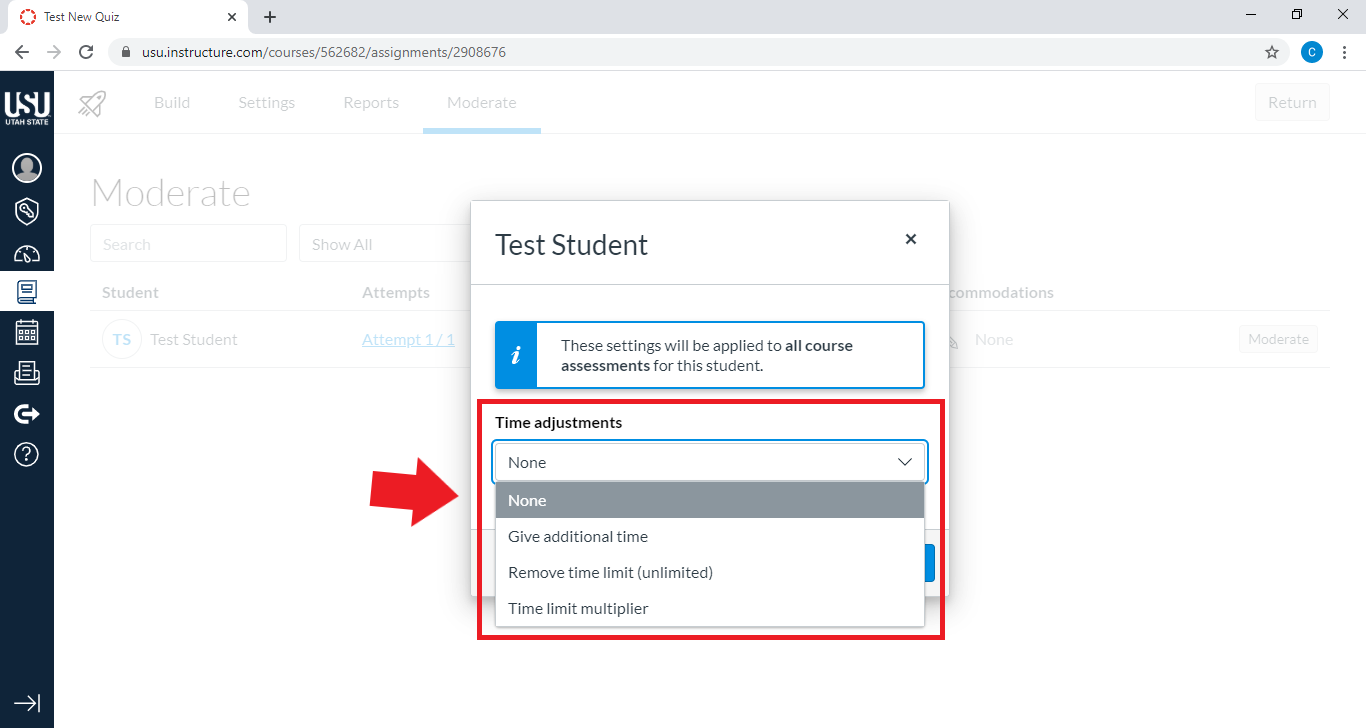
From the drop-down, set a time adjustment for the student
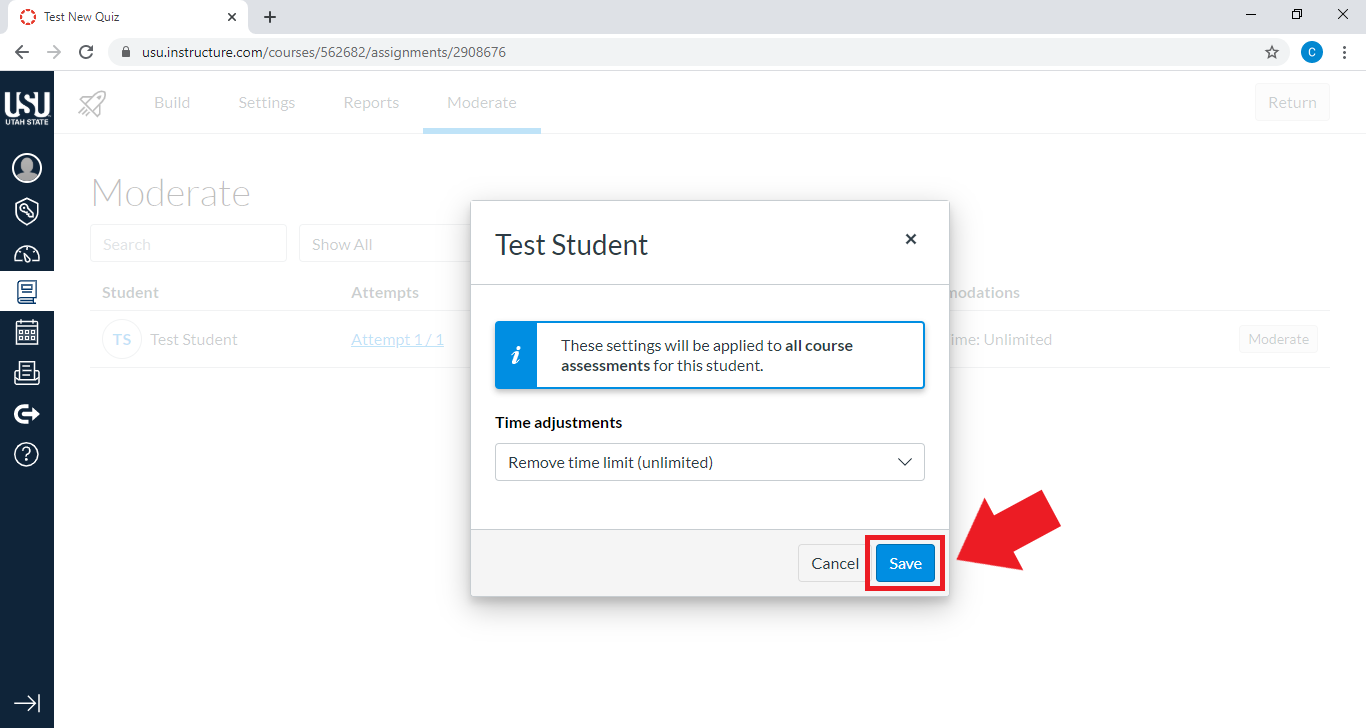
Click Save
Additional Resources
For more information, see How do I add assessment accommodations for a student in New Quizzes? Open External Link and How do I moderate a student’s assessment attempt in New Quizzes? Open External Link