
New Quizzes Overview
When creating a quiz in Canvas, there is an
.
This article includes Canvas resources, a side-by-side comparison of Classic and New Quiz features, and a walk-through of the New Quiz landing page, “Build,” to help you make the choice between using Classic and New Quizzes for your course.
There is quite a bit of documentation on how to use the New Quizzes tool in the Canvas Guides for New Quizzes Open External Link , so please see their documentation for additional information about how this tool works. See also Instructure's FAQ for New Quizzes Open External Link .
Feature Comparison
This section is a side-by-side illustrations of some Classic and New Quiz features. You can also see a more comprehensive list provided by Instructure Open External Link .
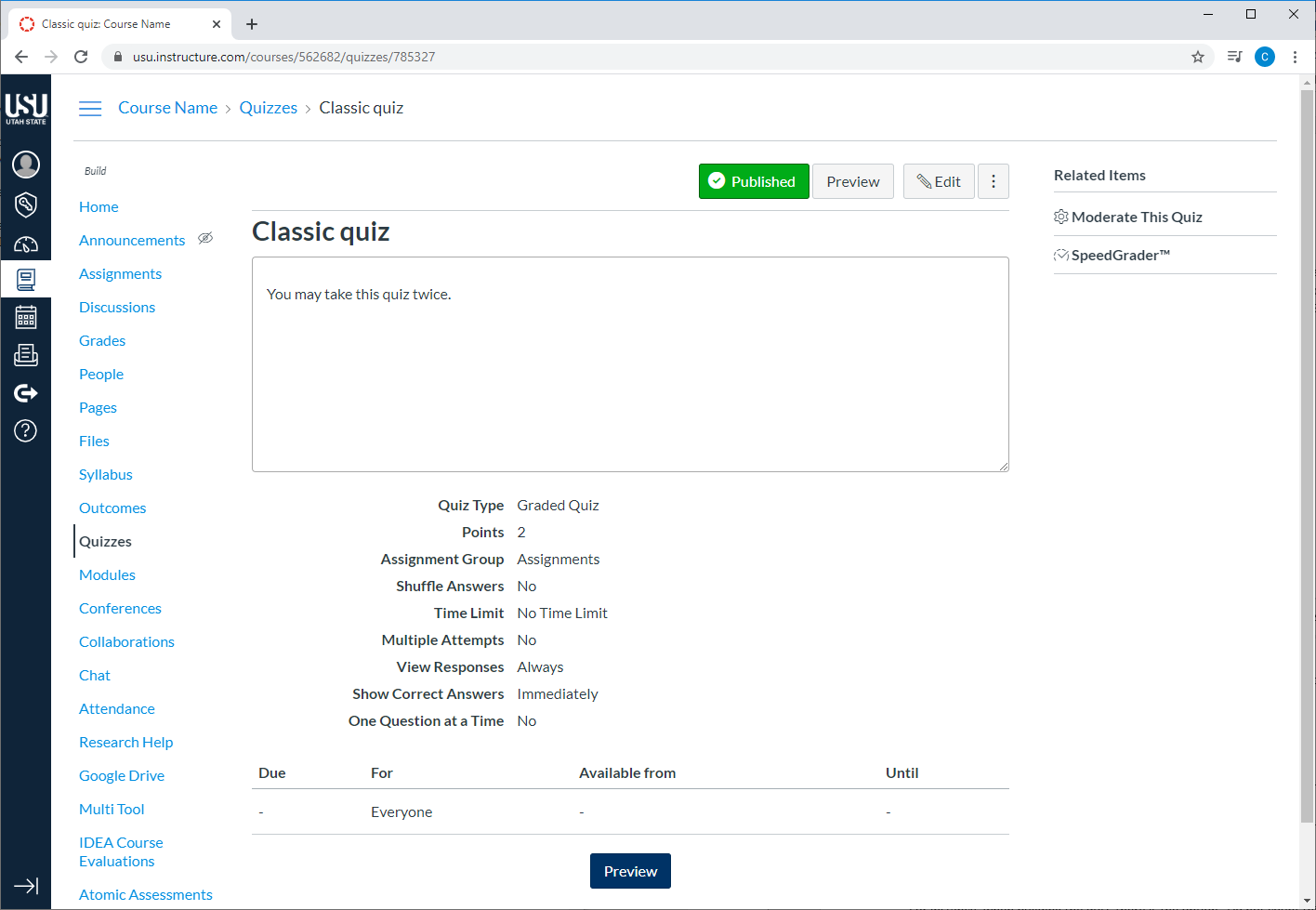
The quiz landing page has been changed to a Build page with tabs for Settings, Reports, and Moderation.
Classic Quizzes
New Quizzes
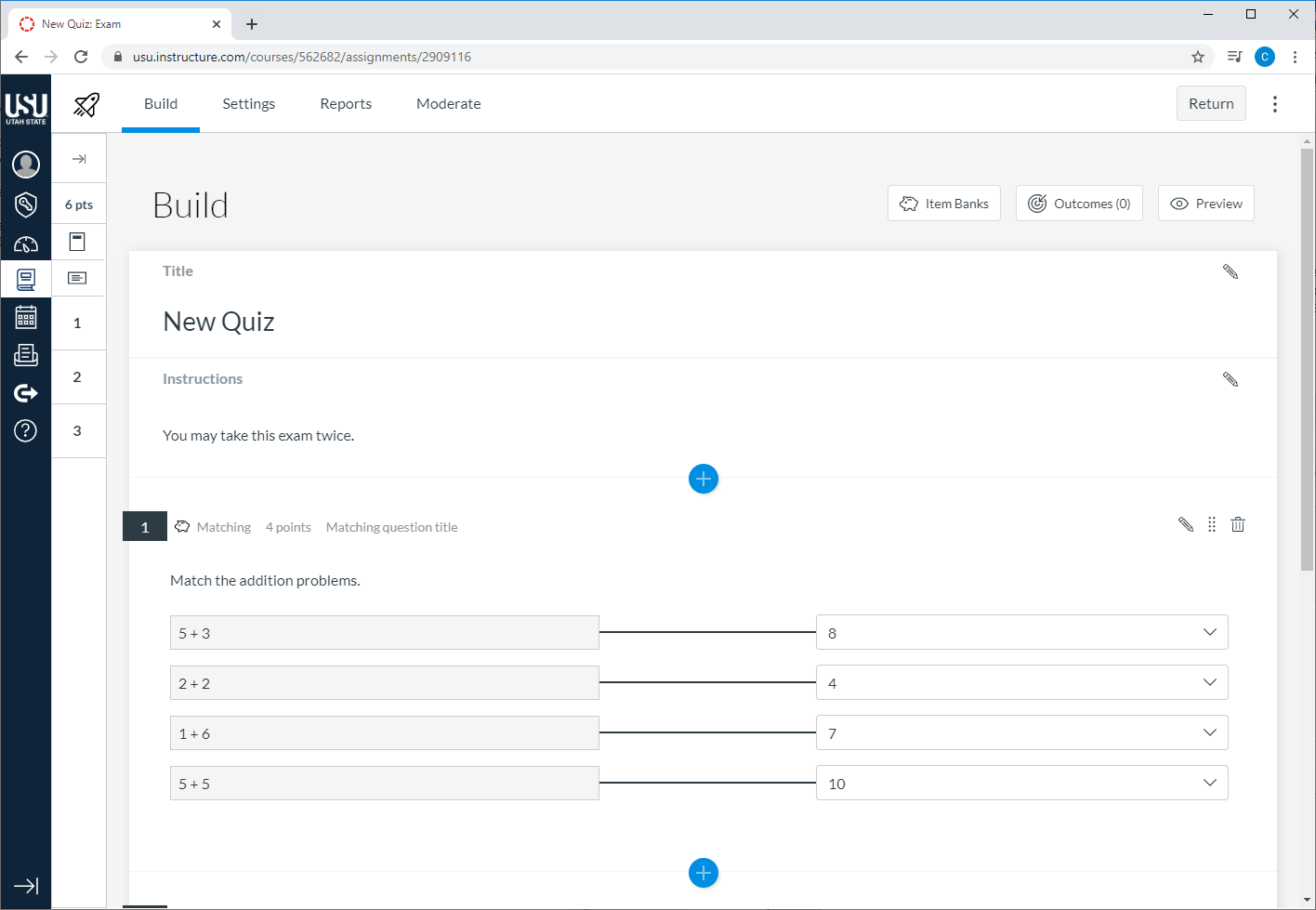
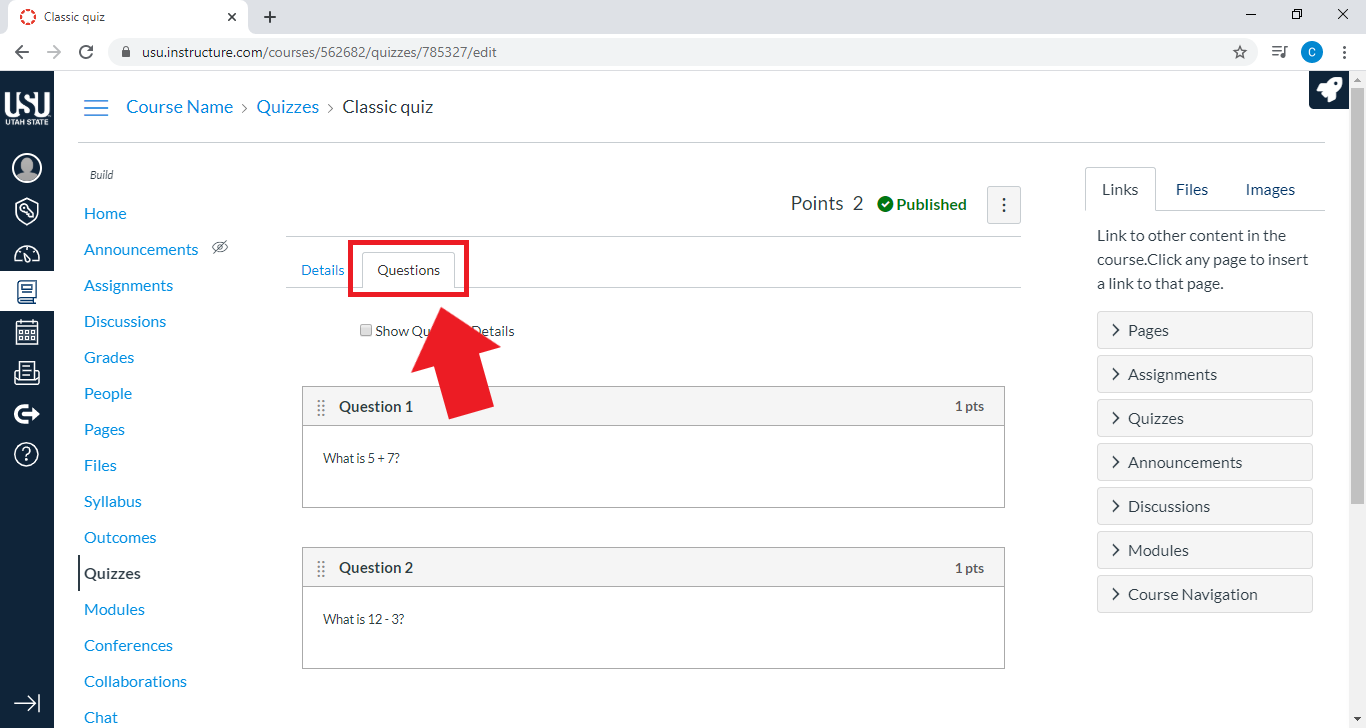
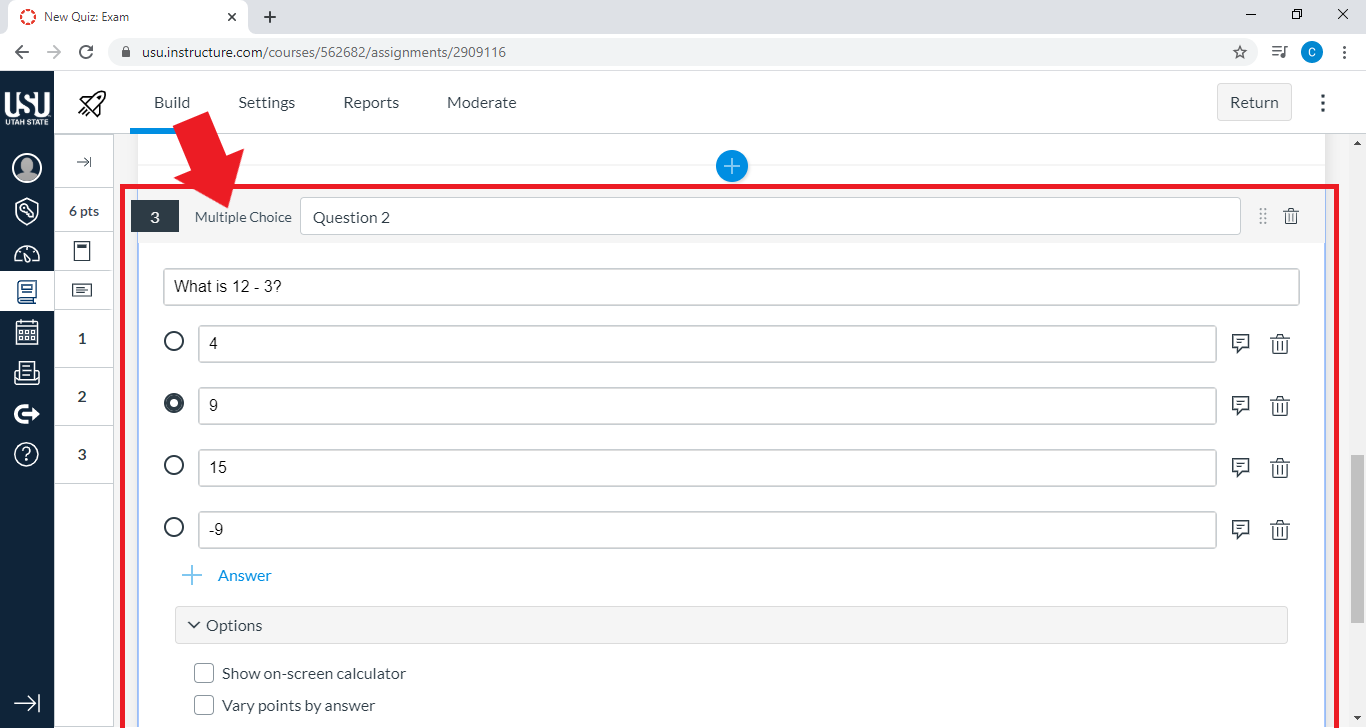
Questions can be edited directly from the Build page, rather than by navigating from the Questions tab in classic quizzes.
Classic Quizzes - Edit Questions
New Quizzes - Edit Questions
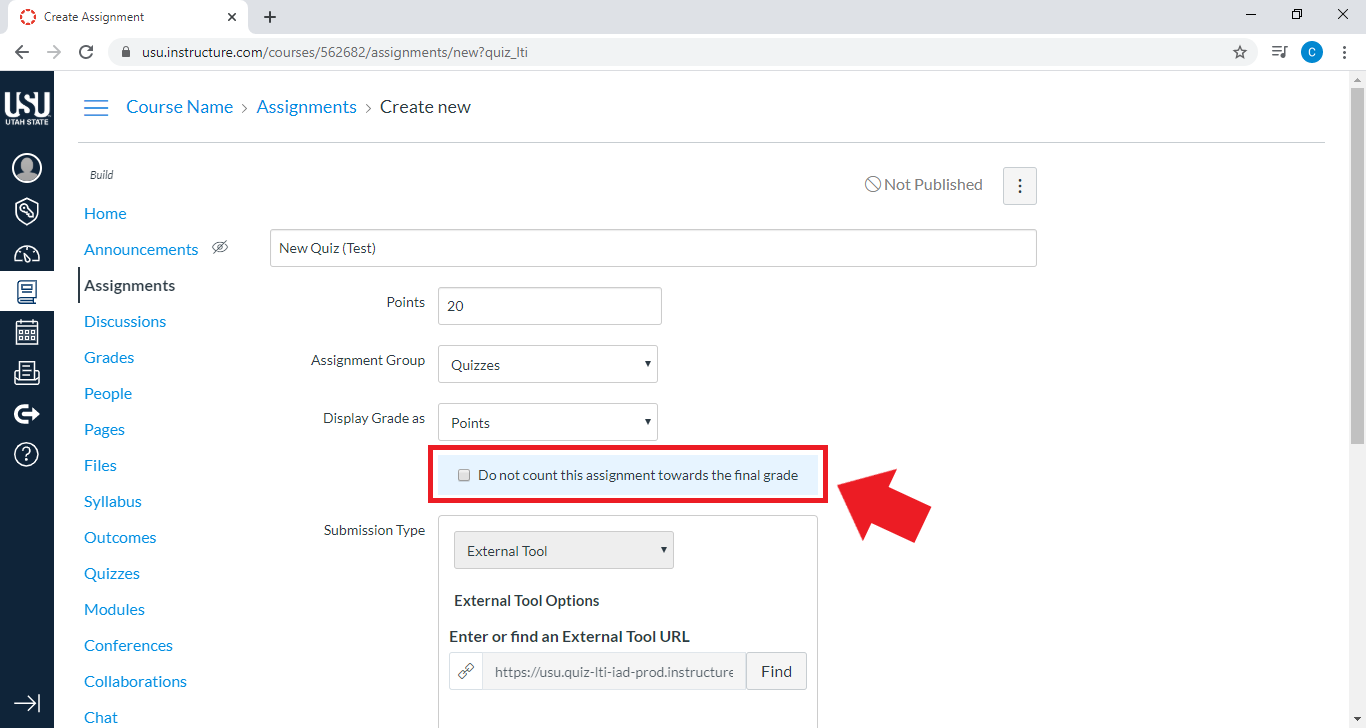
When building a New Quiz, there is the option “Do not count this assignment towards the final grade,” which replaces the Quiz Type drop-down.
Classic Quizzes - Quiz Type

New Quizzes - Do not count towards final grade
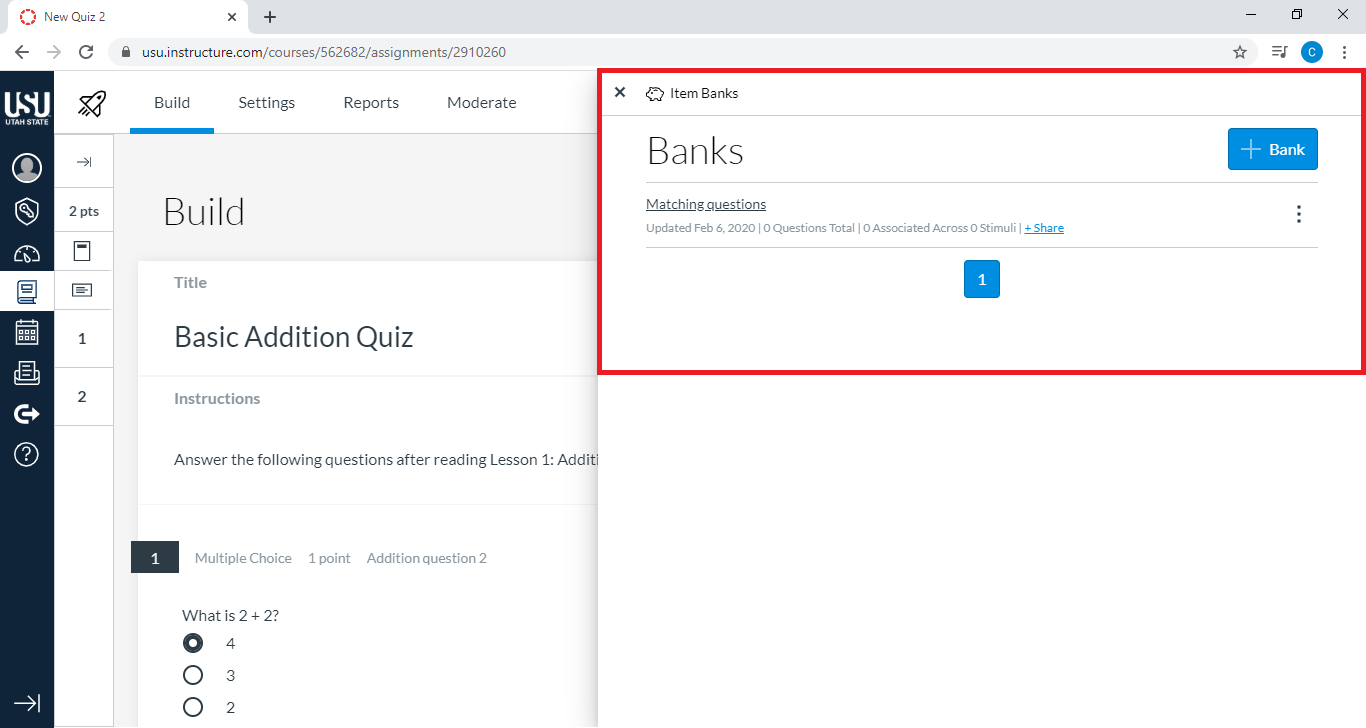
Question banks used for Classic quizzes are now “item banks.” For more information, see “Question Banks in New Quizzes.”
Note: The old question bank system does not interact with the new Banks system. If your course has many quizzes that pull from question banks, it may take a while to convert them to New Quizzes, as there is not a way to migrate question banks directly to New Quiz “Banks.”
Classic Quizzes - Question Banks

New Quizzes - Banks
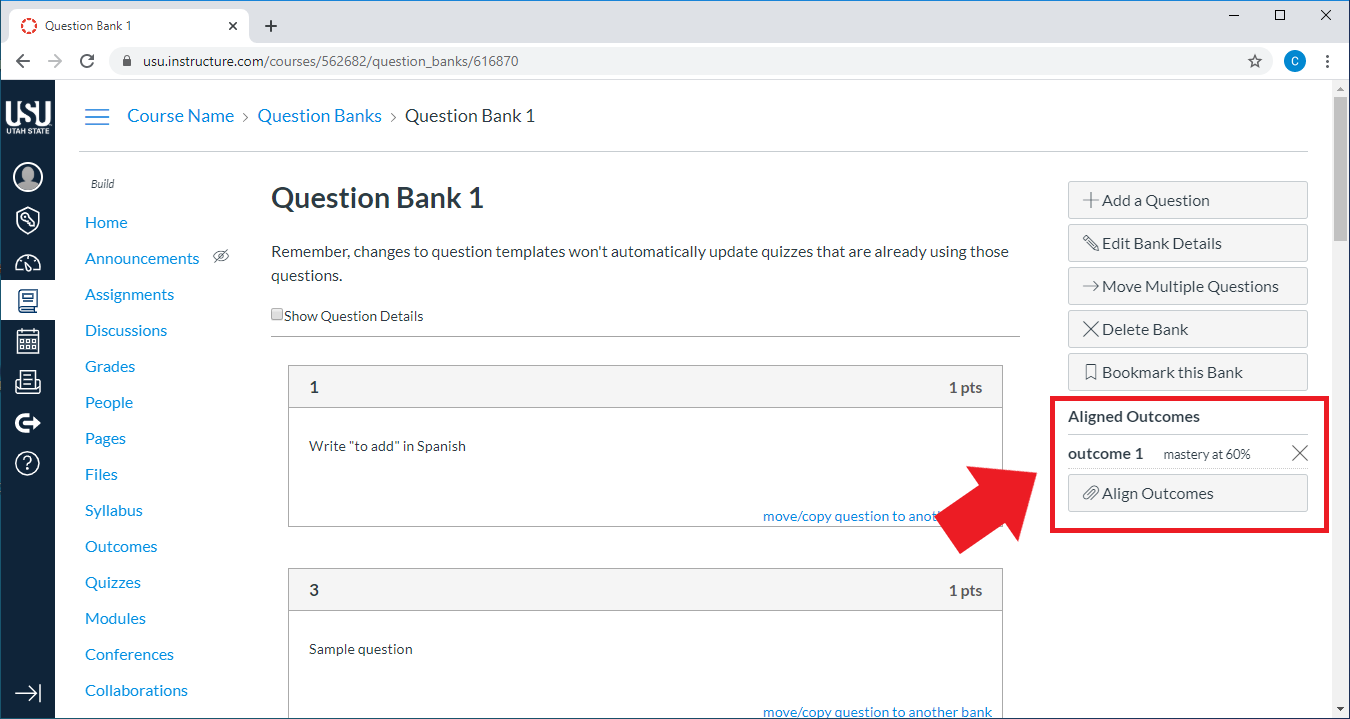
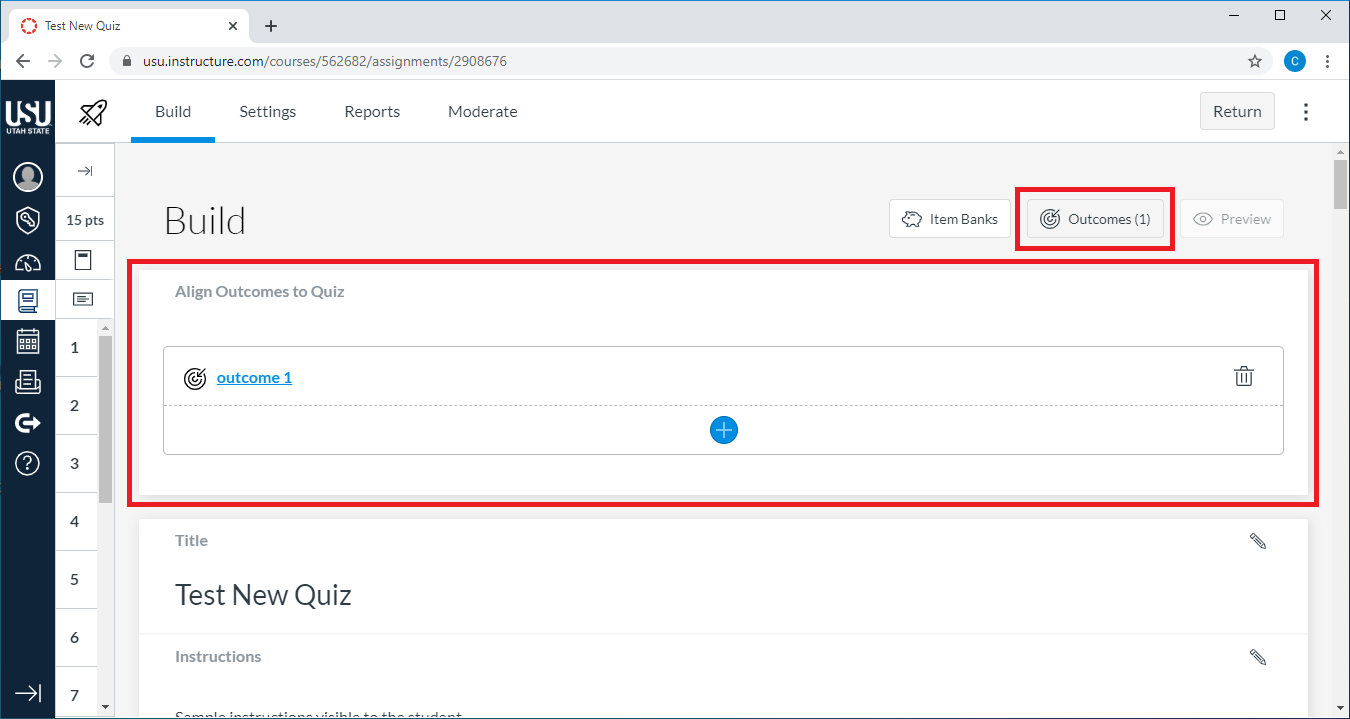
In classic quizzes, outcomes were associated to question banks with one or more questions. In New Quizzes, outcomes can be associated to the overall quiz and individual questions. For more information, see “Managing Outcomes in New Quizzes.”
Classic Quizzes - Connection with Outcomes
New Quizzes - Connection with Outcomes
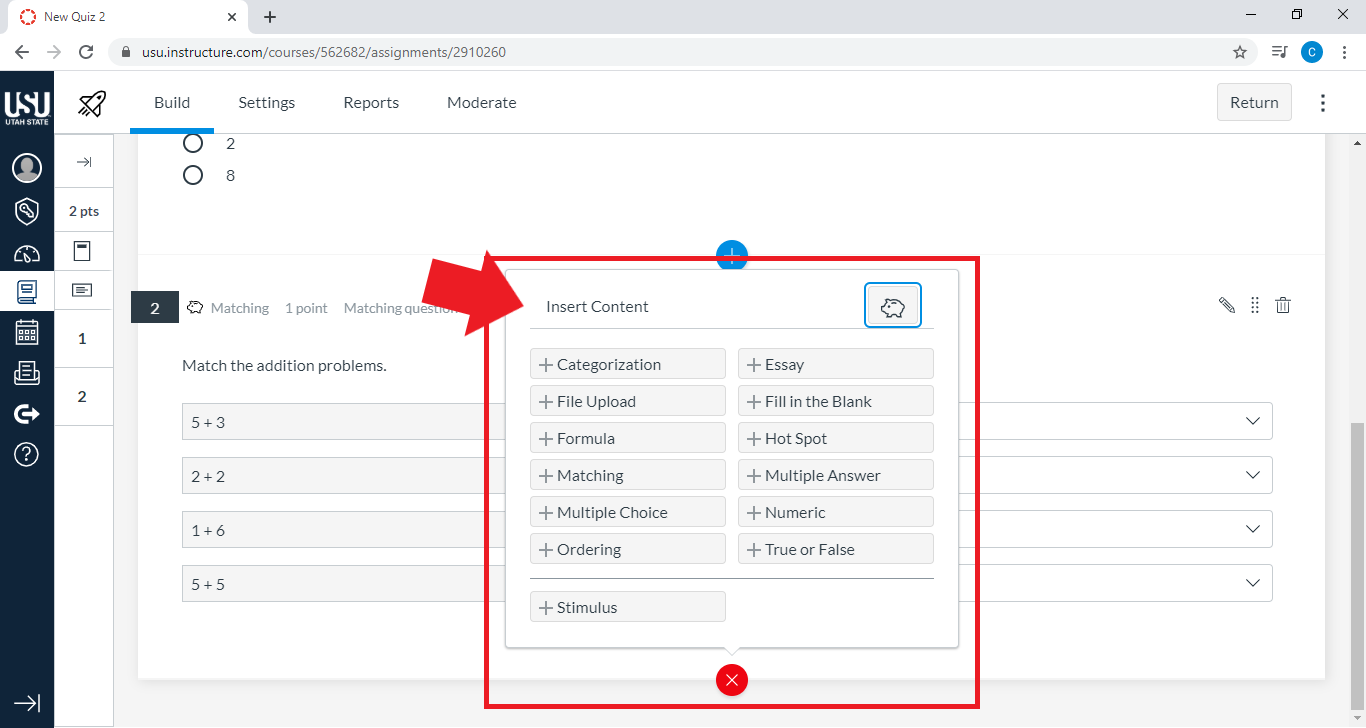
New question options include Categorization, Ordering, and Hot Spot. You can also link directly to an item bank in the quiz. Canvas guides include guides for each item type.
Classic Quizzes - Question Types

New Quizzes - Question Types
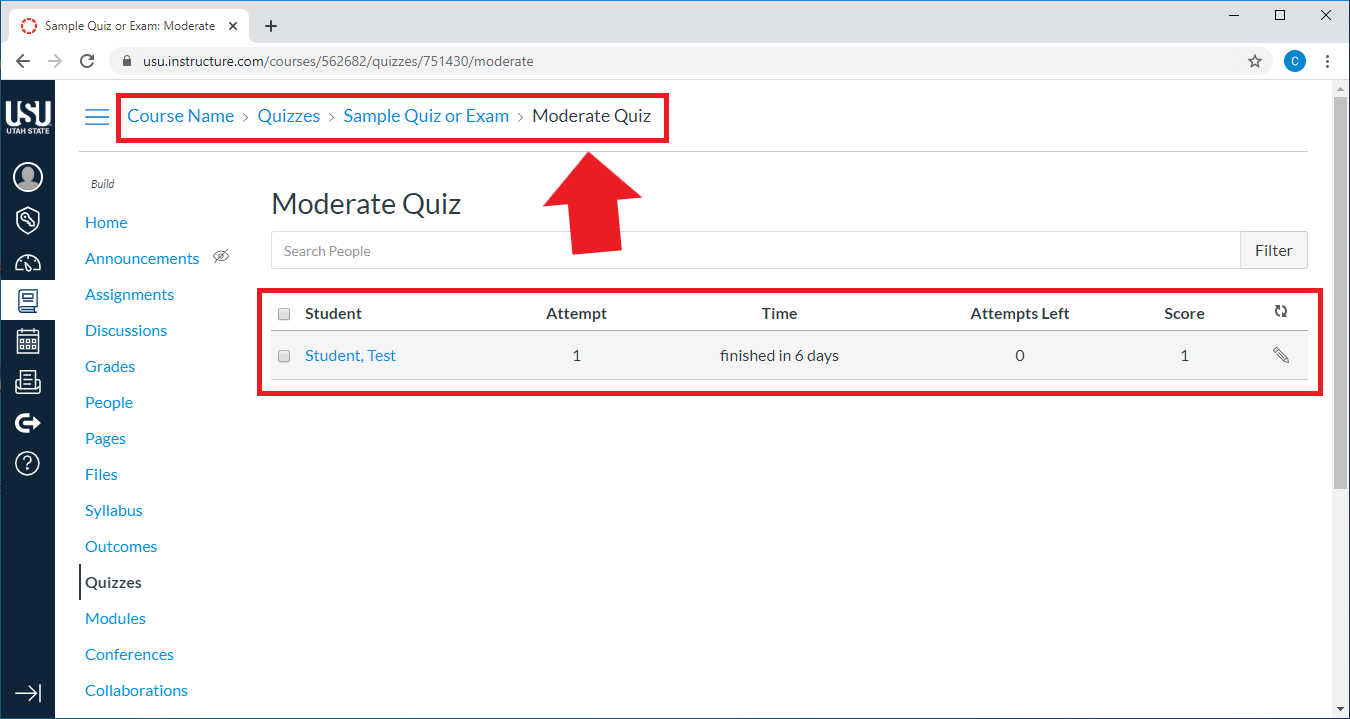
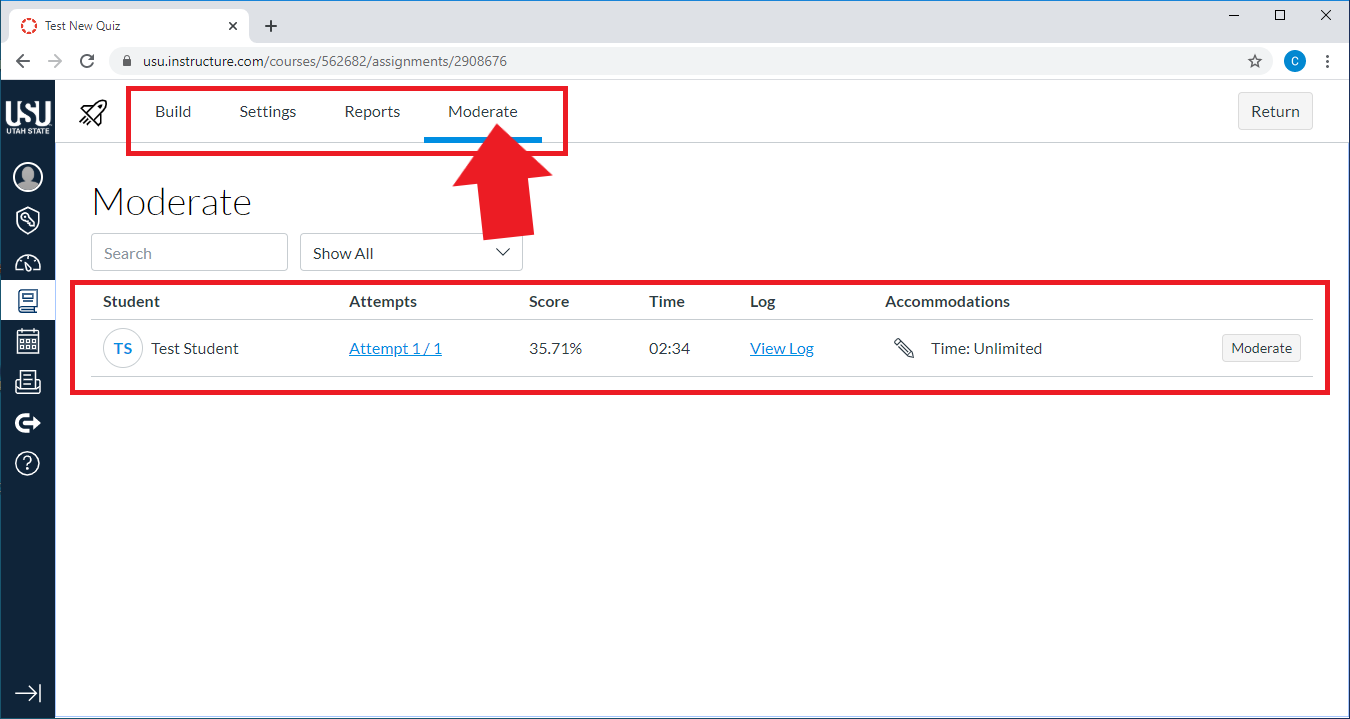
Moderation options, such as giving students extra time for a quiz, are now accessible from the Build page. For more information, see “Giving Students Time Extensions in New Quizzes.”
Classic Quizzes - Moderate this Quiz
New Quizzes - Moderate
New Quizzes also includes features such as a way to set a waiting period between multiple attempts on a quiz, an on-screen calculator option and answer shuffling within some question types, Quiz and Item Analysis and a new Outcomes Analysis dashboard.
Canvas Resources
- Read the Canvas Guide “What is New Quizzes?”
- Watch a three-minute New Quiz Overview for Students to see what a New Quiz will look like for your students.
- See a list of Canvas Guides for New Quizzes.
Footnote
- 2020.01.30 Chat Archive (30 January 2020). Canvas Community. Google Doc.