
Creating a Syllabus in Canvas
If you are creating your syllabus in Canvas, there are some resources available to make this task a little more manageable. To utilize these resources, navigate to the Syllabus link in your Canvas course.
Video
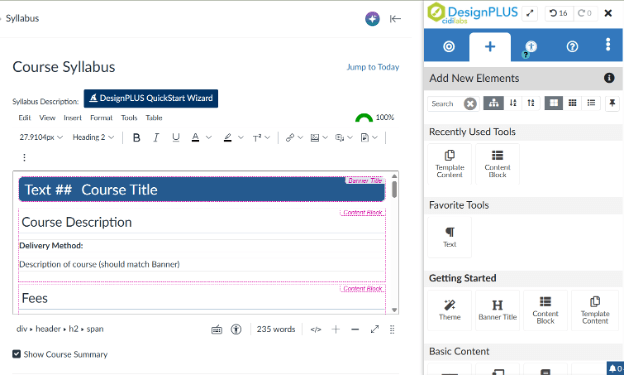
Go to the course’s Syllabus page, then click Edit.
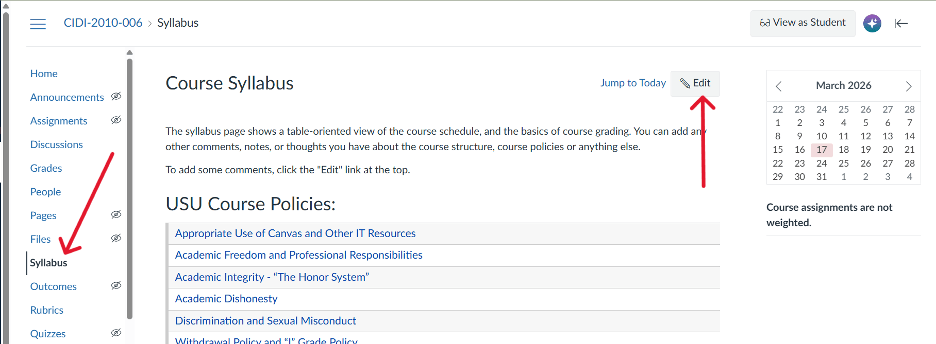
Click on the spaceship icon in the top, right-hand corner to launch the USU Design Tools.

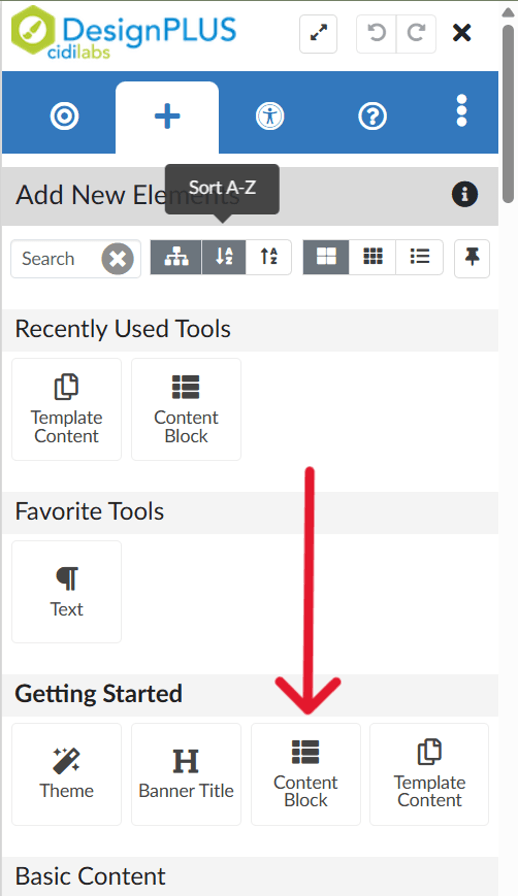
DesignPLUS will appear on the right. Go to Content Block
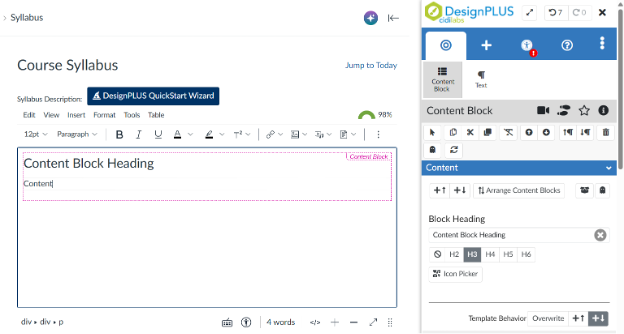
You’ll see a blank content block automatically added. You can edit this or delete if you want. Scroll down to see the syllabus content blocks.
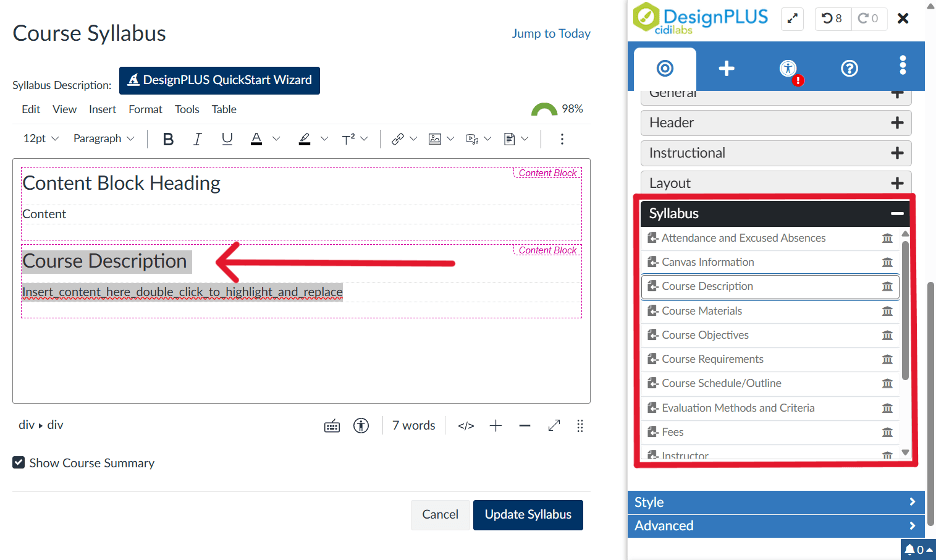
The Syllabus content blocks will appear on the right. Click and add the ones you want to use (e.g., the Course Description block). From here, you can edit the block as you please.
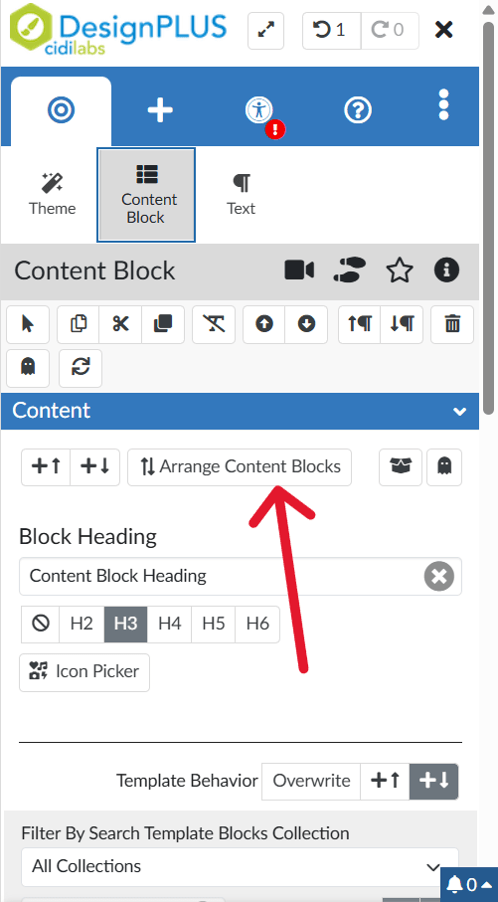
If you want to rearrange sections without copy- or cut-pasting them, you can scroll back up and click Arrange Content Blocks.
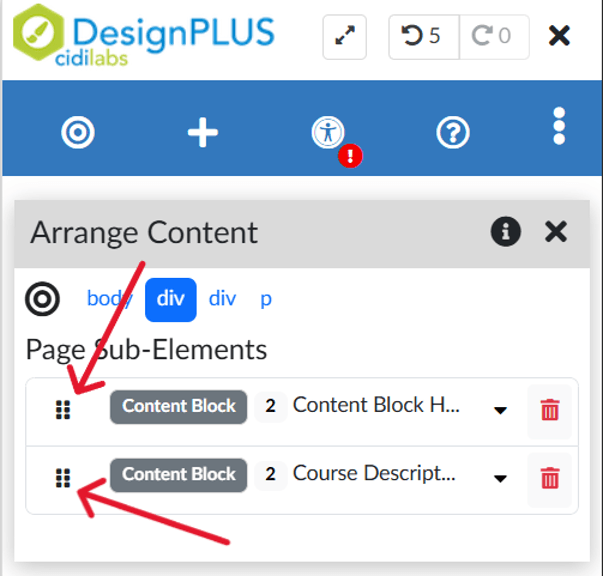
Click and drag the 6-block buttons on the left side to rearrange the content blocks.
8
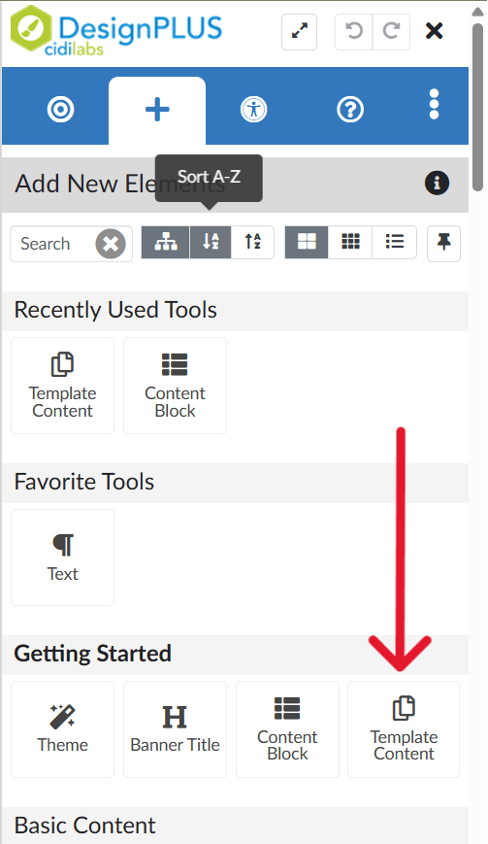
Instead of adding individual syllabus content blocks, you can add an entire syllabus template all at once. Go back to the Add New Element screen. This time, click Template Content.
At the bottom, you’ll see options for adding all syllabus content blocks.
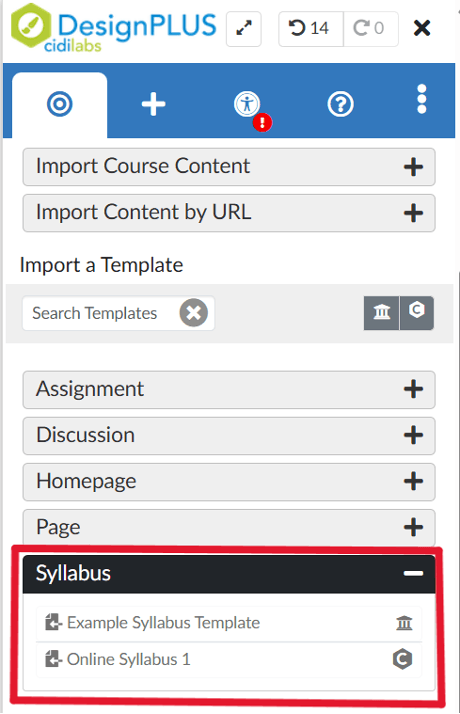
Hover over them to see the style. Click the one you want, then you’ll see it added.
Syllabus Guidelines
To learn more about what you should include in your syllabus and other helpful resources visit the Syllabus Development page:
Canvas - Get Started
The following list of pages will guide you through getting started with this tool. The current page is listed in bold.