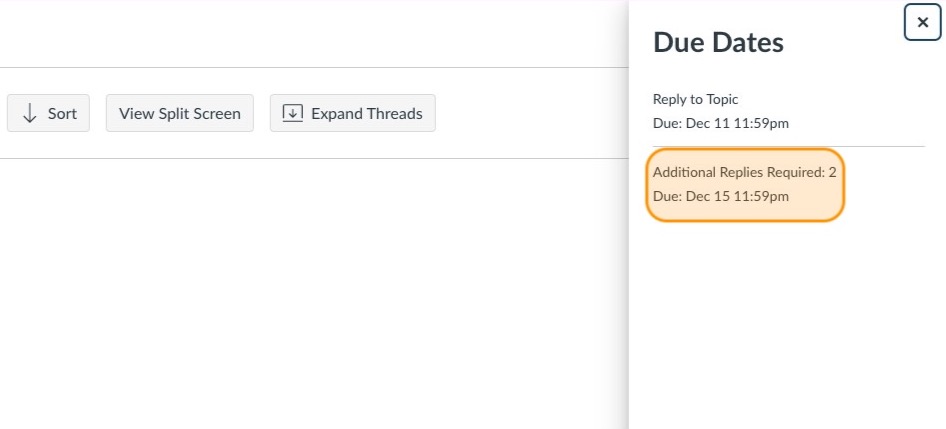
Discussion Checkpoints
Discussion Checkpoints is a new feature in Canvas that allows instructors to create a more intentional discussion environment. In addition to the initial reply to a discussion, you can now require additional replies to peers, attach grades, and utilize rubrics.
Start by opening your class on Canvas
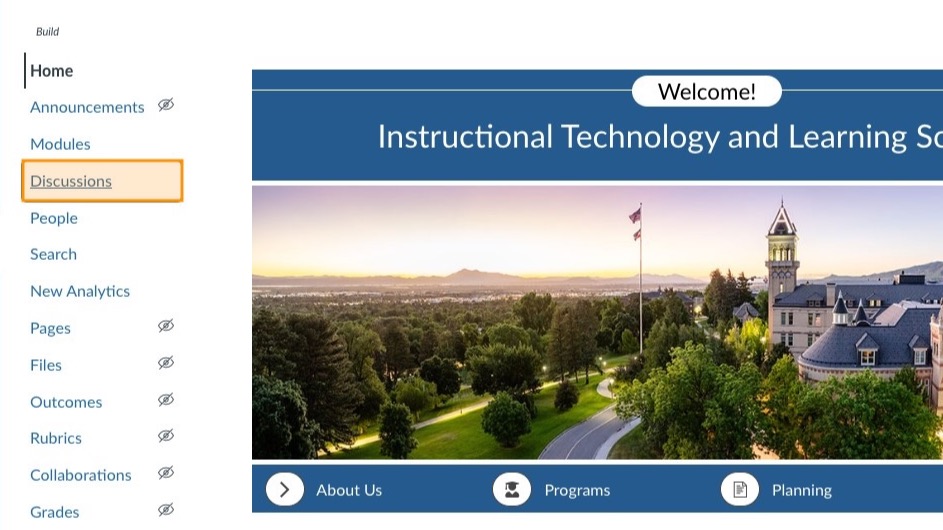
Click Discussions
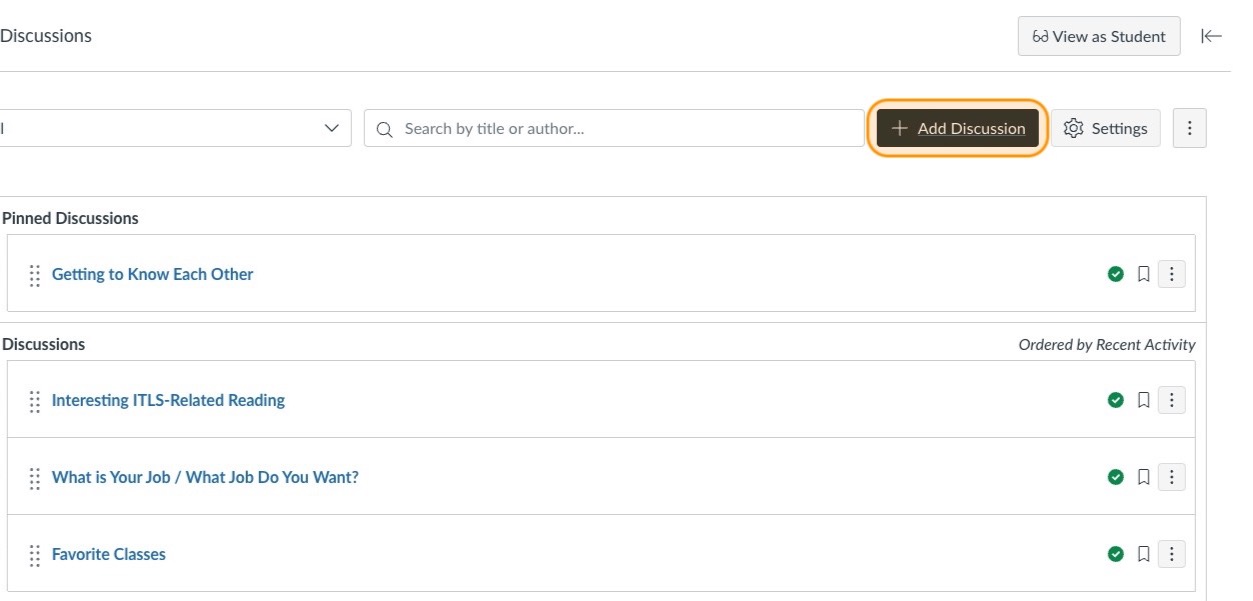
Click Add Discussion
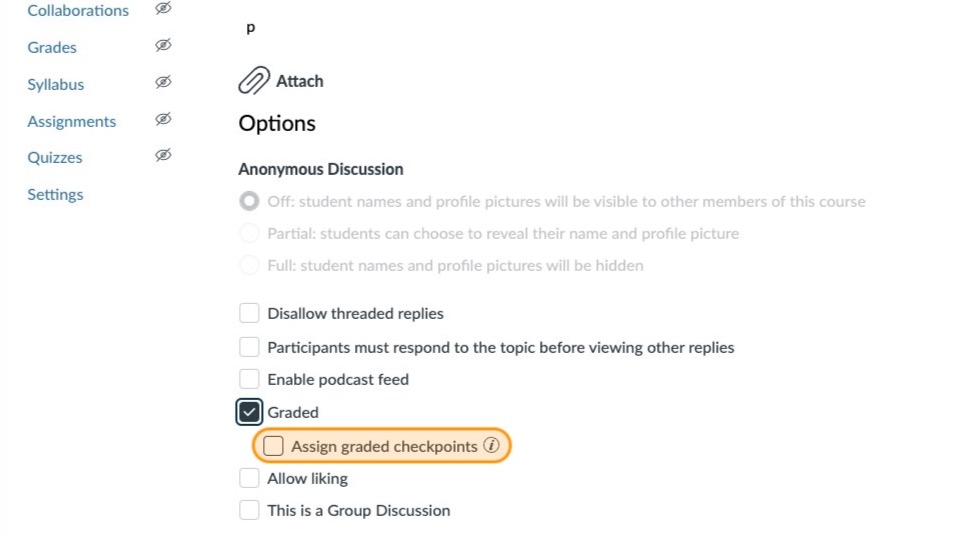
Scroll down to the options section and click the Graded box
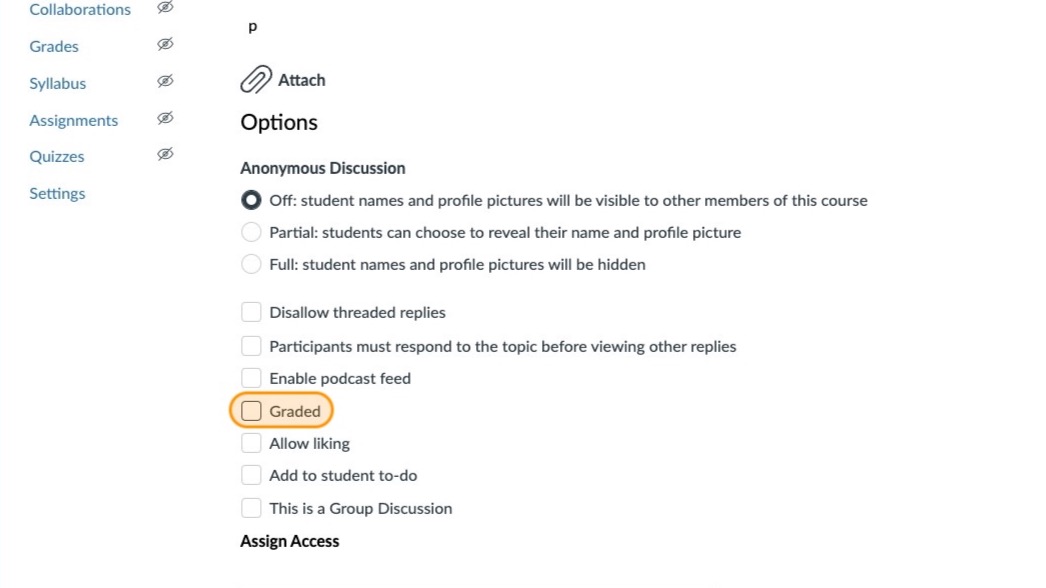
You will see a new check box allowing you to assign graded checkpoints
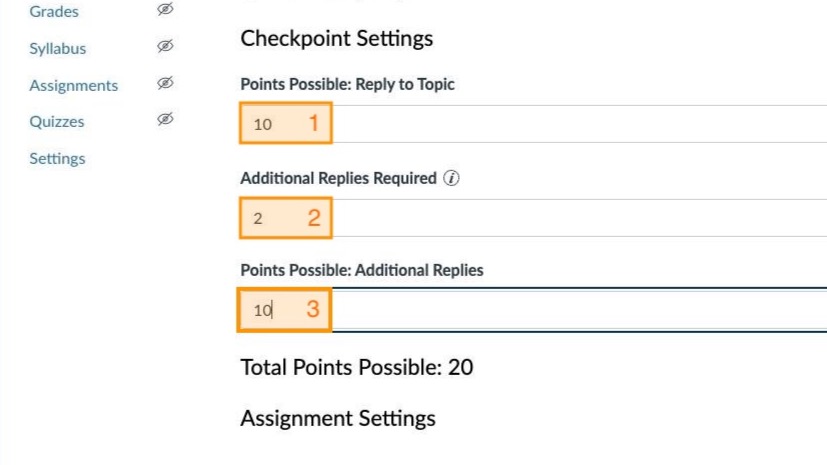
Checkpoint settings
You can 1) assign points possible for the initial reply, 2) specify the number of responses required, and 3) assign points possible for additional replies
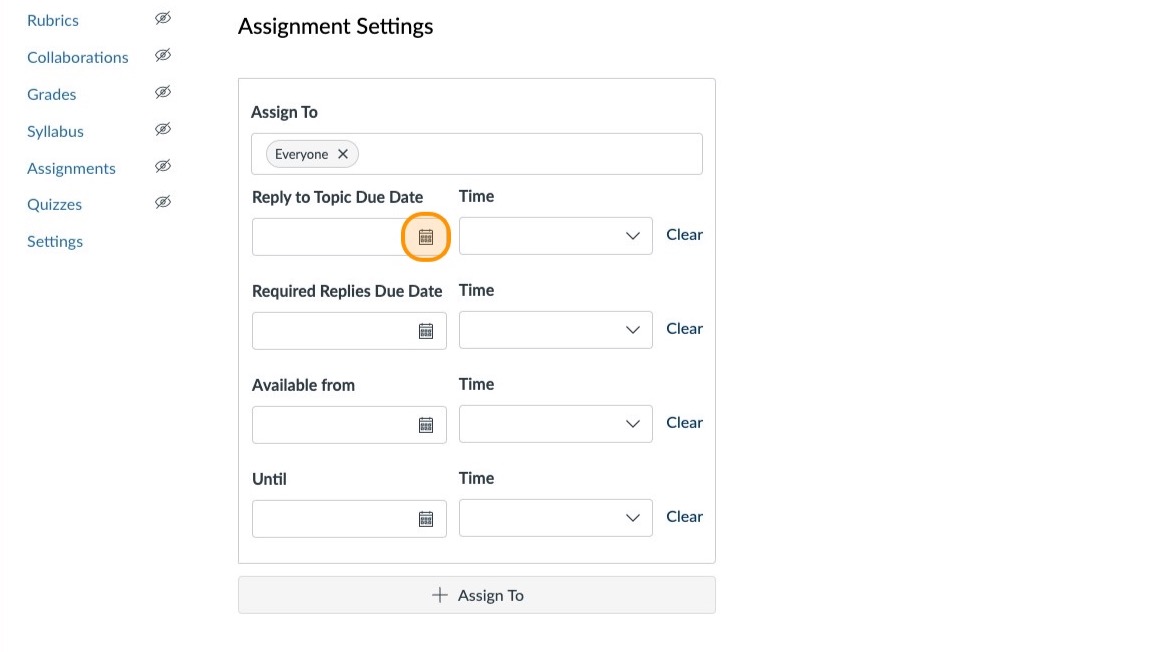
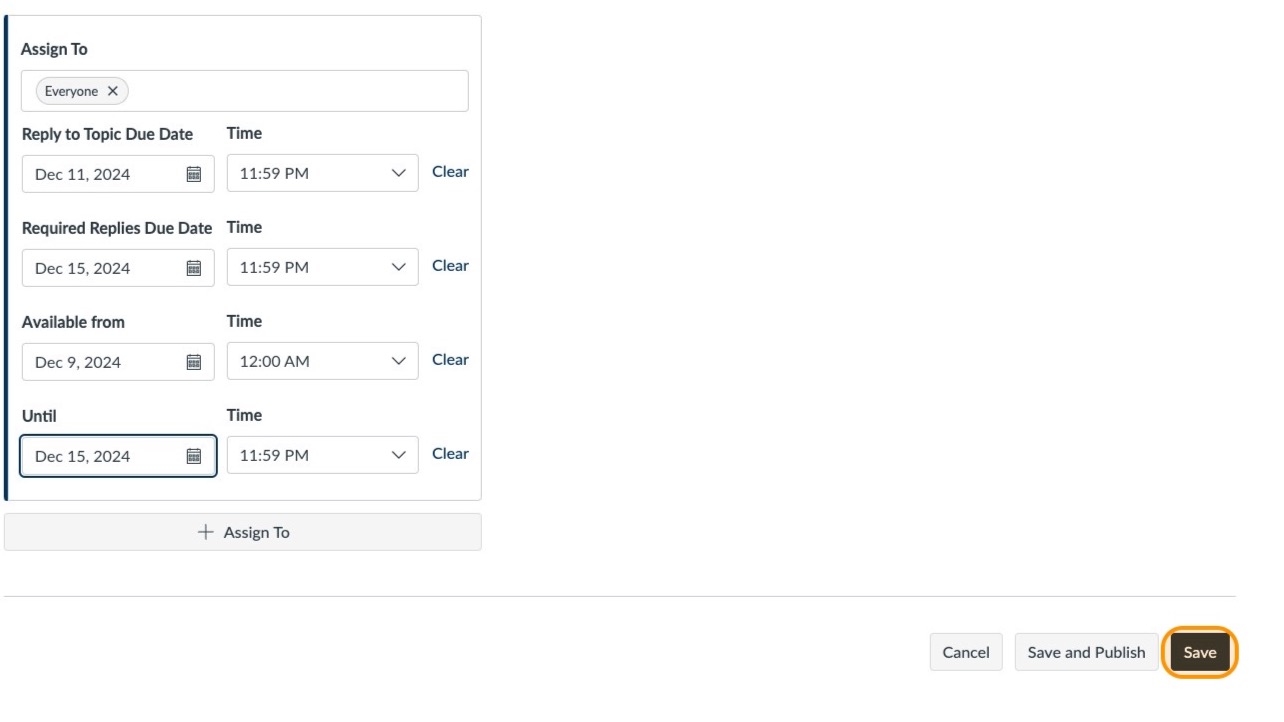
You now have the ability to assign separate deadlines for students initial responses and replies
8
Click Save
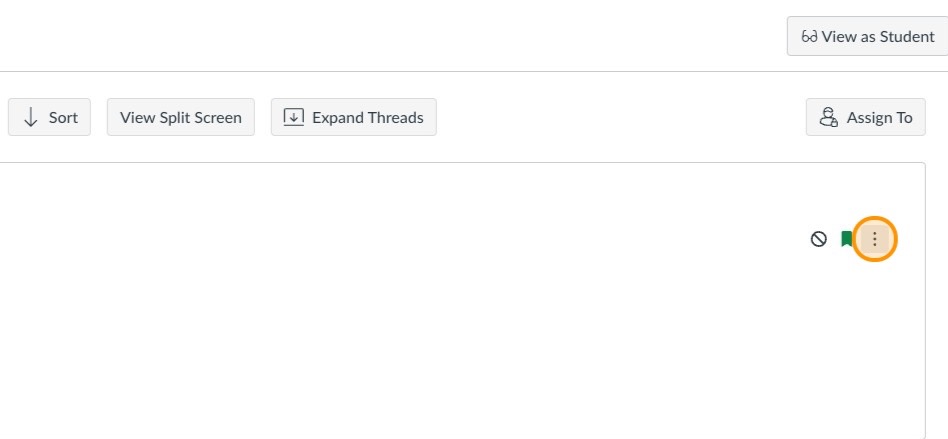
Click the breadcrumbs button in the top right corner to manage the discussion
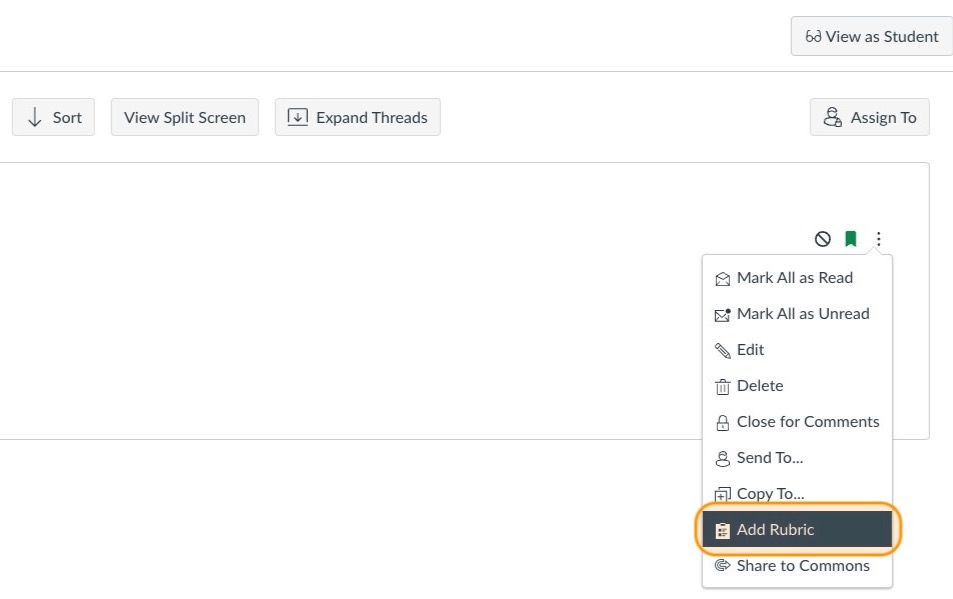
Click Add Rubric
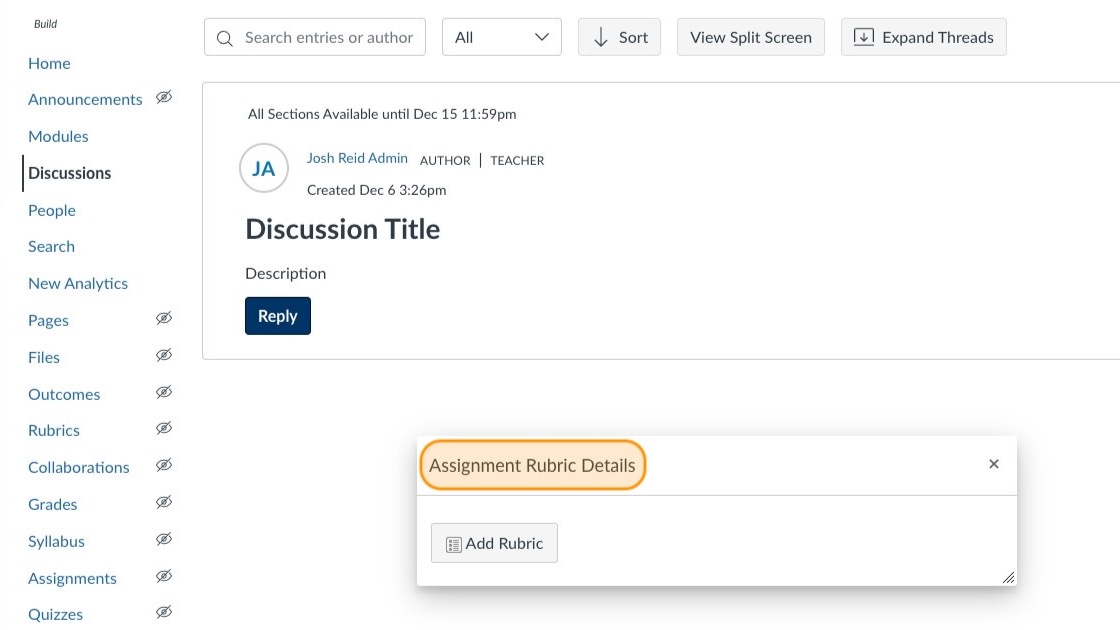
Click here
Click View Due Dates
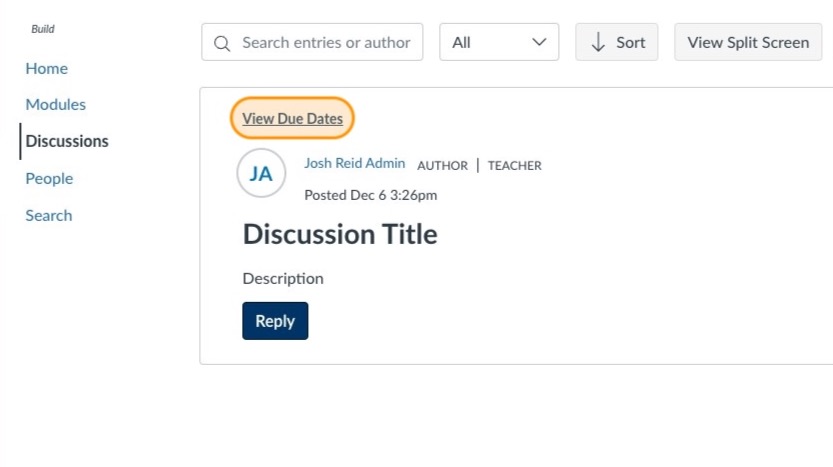
Click Additional Replies Required: [Due Date]