
Enable Grading Scale in Canvas: See Letter Grades in Gradebook
If you want to see a letter grade on the Grades page, or if you want to submit grades directly from Canvas to Banner you need to enable the course grading scheme.
Enable USU Standard Grading Scale
To use the USU Standard Grading Scheme in your class, follow the steps below.
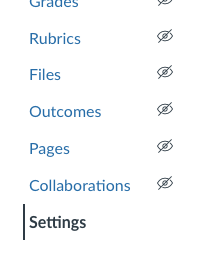
Navigate to the course Settings page
The Course Details tab should be selected (if not, click on it)

Check the box next to Enable course grading scheme

Select USU Standard from the dropdown

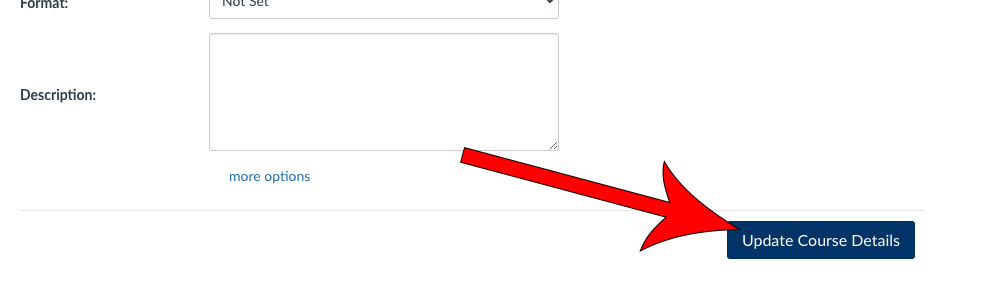
Click the Update Course Details button at the bottom of the page
You will now see letter grades in the gradebook
Create a Custom Grading Scale
To create your own grading scheme, follow the steps below.
Navigate to the course Settings page
The Course Details tab should be selected (if not, click on it)
Check the box next to Enable course grading scheme
Select Manage All Grading Schemes

Click the +Add grading scheme button

Add a Scheme Name then enter the appropriate lowest score to complete the range for each grade
When you are finished, click Save and then Close

Click the dropdown and select your custom grading scheme

Click the Update Course Details button at the bottom of the page
You will now see letter grades in the gradebook