Pay During FMLA Leave
FMLA-covered leave is unpaid unless you use one or more of your leave benefits while you are absent from work. Possible pay continuation options include:
- Sick leave
- Vacation leave
- Comp time
- Holiday
- Short-Term Disability
How to Enter Leave While on FMLA Leave
All employees need to enter leave in the appropriate system. For example, most employees use MyTime.usu.edu. Otherwise, if you work for Facilities in Logan use the AIM system.
All FMLA hours must be reported. The option you select is tied to which leave bucket you want to use while on leave. FMLA is job-protected/unpaid leave, and if you would like to be paid while on FMLA, simply select the type of accrued leave you want to use:
- FMLA Sick – hours will be taken from your sick leave accrual
- FMLA Vacation – hours will be taken from your vacation leave accrual
- FMLA Comp Time – hours will be taken from your comp time accrual
If you run out of accrued leave, select the FMLA leave without pay code.
If you are in an exempt position and have worked 4+ hours and only need to report used FMLA hours use the code FMLA Tracking Hours No Pay.
If you are in a non-benefited position and do not have accrued leave, contact HR for a tracking form.
MyTime Leave Instructions
Go to mytime.usu.edu

Select the type of FMLA leave


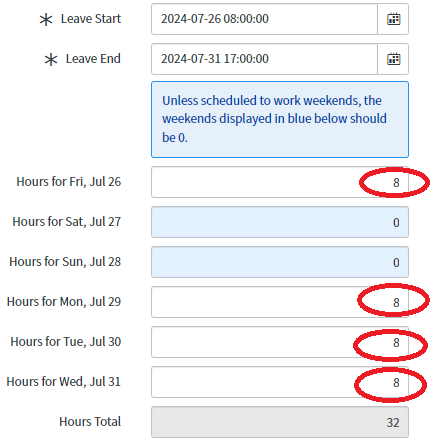
Enter leave start and end date

Enter the leave hours on each day
Click on the Submit button
AIM Leave Instructions
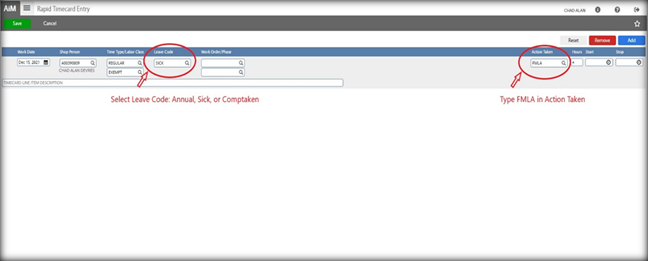
Begin a normal Rapid Timecard Entry in Aim with the date and your A#
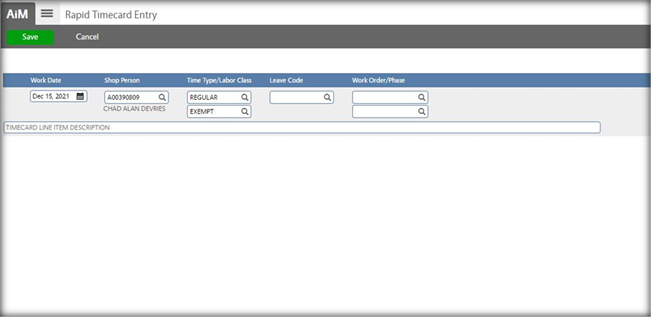
Select the Leave Code to be used (Annual, Sick, or Comptaken)
Type in FMLA in the Action Taken field
Enter the number of hours to be used, click Add then Save just like a regular timecard