
Kaltura Viewing Tips—New Player
Videos in your course can be found in Canvas either under the Media Gallery link or embedded within assignments, discussions, pages, or quizzes. The player will be similar for each instance.
General Features
The following content shows the available features that allow you to customize your watching experience. These include options to: change the video layout, download the video, adjust the playback speed, and accessing various accessibility features, like captions and a video transcript.
Change the Video Layout
Change the video layout according to your preferences.
Enlarge Video
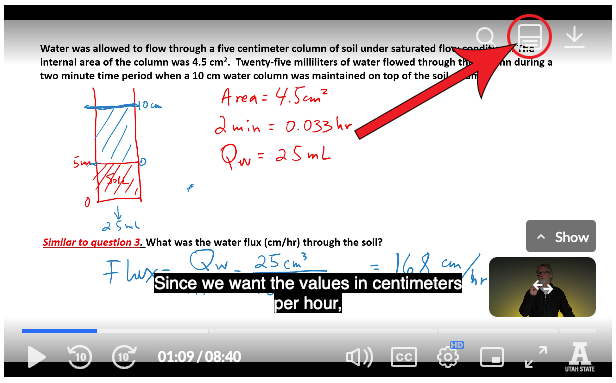
If your instructor recorded a dual stream video, meaning that they took a recording of the screen of their computer as well as a recording with their camera, the default view is to have them side-by-side. You can switch to a larger view of one or the other and switch which stream is the focus. While in picture-in-picture viewing mode, you can drag the smaller window around the screen to see anything that might be under it or position it more conveniently.


Swap Enlarged Video
After you have selected one of the videos to enlarge, you can swap which video is the 'primary' video by clicking on the left-and-right arrow icon found in the top-right corner of the secondary video.


Move the Video Position
If the secondary video is covering content of the primary video, you can click and drag video to a different corner of the screen.


Return to the Side-by-Side View
You can return the view to its default side-by-side setting by clicking on the expand icon in the secondary video.


Make Video Full Screen
You can make the video take up your entire screen by clicking on the full screen icon in the settings bar.

Hide Secondary Video
If you would like to hide the display of a video, first you will need to enlarge the desired video. Then, you will click on the Hide button found directly above the secondary video as shown in the image. To return the video back to its normal display, simply click Show found directly above the mini thumbnail.
This feature works best if the user makes the video full screen. If you are watching the video on a Canvas web page, the Hide/Show feature doesn't make much difference.


Pin the Player to Screen
This will put the video player on your screen, allowing you to navigate around while the video plays on the side. See the image below for an example (right).
When the video is pinned to your screen, you can move its position by clicking and dragging it to another location so that you can access whatever it may be covering.


Download Video
If your instructor enables the ability to download the video you will see the download icon on the viewer window.

Adjusting Playback Speed
To adjust the playback speed, click on the video settings, expand the Speed dropdown, and select between 0.5, Normal, 1.5, or 2.


Accessibility Features
In addition to the general features, the video player has accessibility features that can be helpful to use as a tool of understanding and even a tool for studying.
Closed Captions
If your instructor has had their videos captioned by the university's services, a CC button will appear at the bottom of the video player. By default, they will be turned off, but you can turn them on by clicking on that CC button.

Transcript
In the top right corner of the player, there is a “Transcript” button that you can click on to read along with a transcript while watching the video.
From the transcript view, you can easily scroll through the text or search for a specific word and click on a line to jump to that section of the video. This allows you to quickly jump to segments of course videos for review or easy returning to the middle of a lecture.
You can also click the three dots next to the search bar to download a text file (.txt) of the transcript.

View Kaltura Video on iPhone
iPhone users will need to use the Chrome browser with "Allow Cross-Website Tracking" turned on in the Settings to access the course to view video. Kaltura video will NOT work in the Canvas for Student app.
You will also need to click on the My Media link in the global navigation and then return to the page with the video.

Below demonstrate the necessary steps to authenticate Kaltura so you can watch the videos on your phone:
Log in to Canvas using the Chrome browser. Click on the global navigation button with the three horizontal lines.

Open the Account dropdown menu next to your user picture, then click on My Media from the menu

Your user account in Kaltura will now be authenticated so you can return to your course and view the videos; click on the global navigation button again

Click on the Courses menu item, then on the course where you need to watch your video.
