
Kaltura Classroom
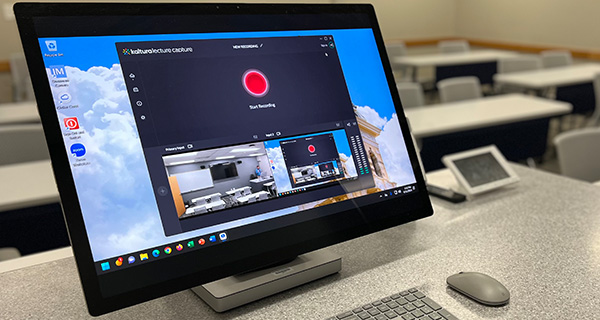
Kaltura Classroom is a computer application that allows you to record a lecture (lecture capture) in supported classrooms. Lectures are uploaded to My Media and can be published to one or more courses for students to view later.
On this page:

Warning
If you will be using Zoom to teach a class and want that session recorded, the recording will need to be done through Zoom. Kaltura and Zoom cannot run at the same time.
Info
- Check out our Frequently Asked Questions on microphones.
- Contact us External Link or schedule a training External Link .
How to Use Kaltura Classroom
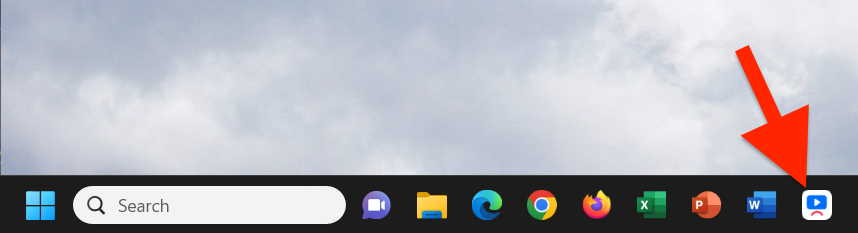
Open Kaltura Classroom
Select video and audio sources
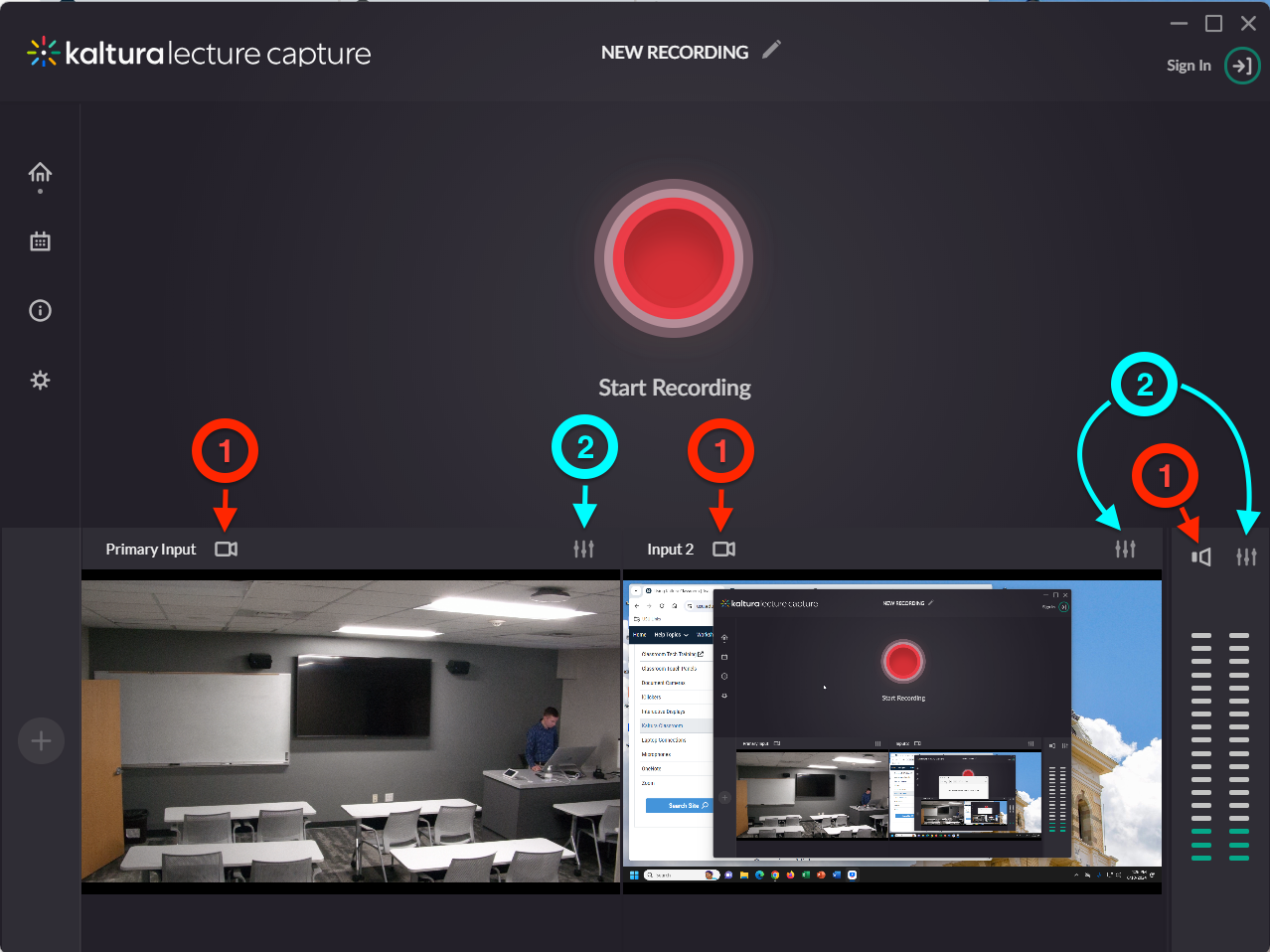
1 = Mute/unmute video and audio sources. A muted source will not be captures in the recording.
2 = Source configuration. Change video and audio inputs by pressing this icon.
Press the red, Start Recording button and sign in

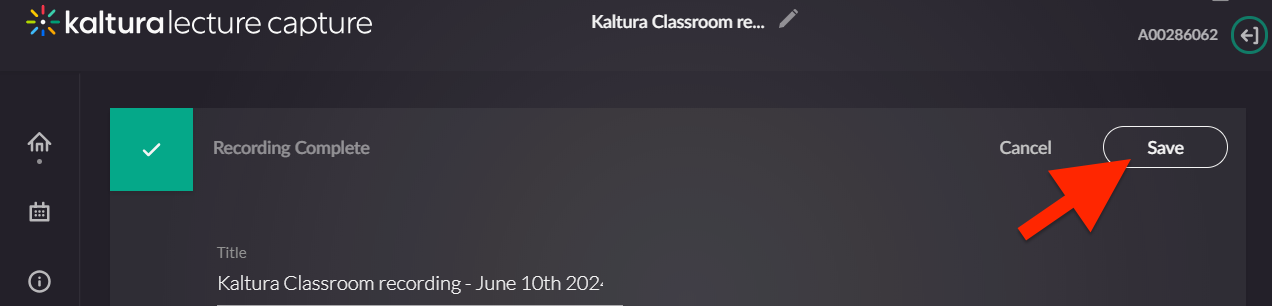
Stop and save

Frequently Asked Questions
Do all classrooms support Kaltura Classrom (Lecture Capture)?
No, not all classrooms support Kaltura Classroom (Lecture Capture). To find classrooms that support lecture capture, visit the Classroom Information page.
Can Kaltura Classroom be scheduled to record a class?
Yes! Simply fill out the Kaltura Scheduling Request form by clicking the "Kaltura Scheduling Request" button above.
Does Kaltura Classroom record the document camera?
USB Doc Cams: Yes! Because USB document cameras run through the classroom PC, simply ensure Kaltura is set to record the PC screen and it will record the document camera as well.
Ceiling Doc Cams: It depends on the room. Most broadcast classrooms support this. Call or chat with us and we'll help, or you can request training and we'll schedule a time to look at this together.