
Accessing AI Detection Feature in Copyleaks
Copyleaks' AI Detection feature is not calculated within the similarity score that you see in your SpeedGrader or in the gradebook. If you suspect a student of cheating through the use of an AI generator, you can review the copyleaks report alerts for further examination.
Before taking any action related to the results of the alert, it is important to note that AI detection is imperfect and false positives are possible, and more likely with students for whom English is a second language. Additionally, AI detectors can help identify instances where AI-generated text may be part of the content, but it does not tell the whole story of how AI may have played a part. The student may have received AI revision assistance on their original work or started with AI and then added significant revisions. Consider the Copyleaks AI detection as a data point and a conversation starter rather than proof the student cheated.
Accessing AI Detection Report
Navigate to the completed assignment
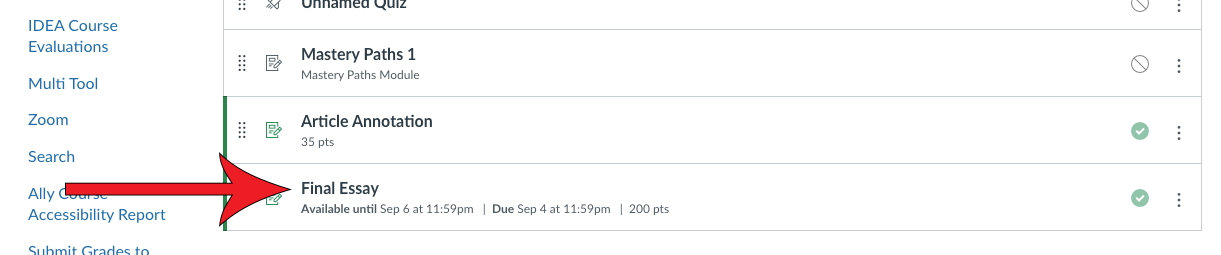
Click SpeedGrader

Click on the colored bubble that contains a percentage
The percentage represents the proportion of the submission that matches files in the Copyleaks database.

Click the AI Content tab

Review the highlighted content
Highlighted content represents text that is suspected to be written by an AI generator. Though suspected, this is not concrete evidence that it was written by an AI generator. Learn more about how to respond to inappropriate AI use.

Enable / Disable the AI Detection Tool
The AI Detection feature is enabled by default. You can access this setting at any time to adjust it as necessary.
Navigate to the assignment
If you haven't created an assignment, create an assignment with Copyleaks.
Click Edit

Click Edit scan settings in the Plagiarism Review section
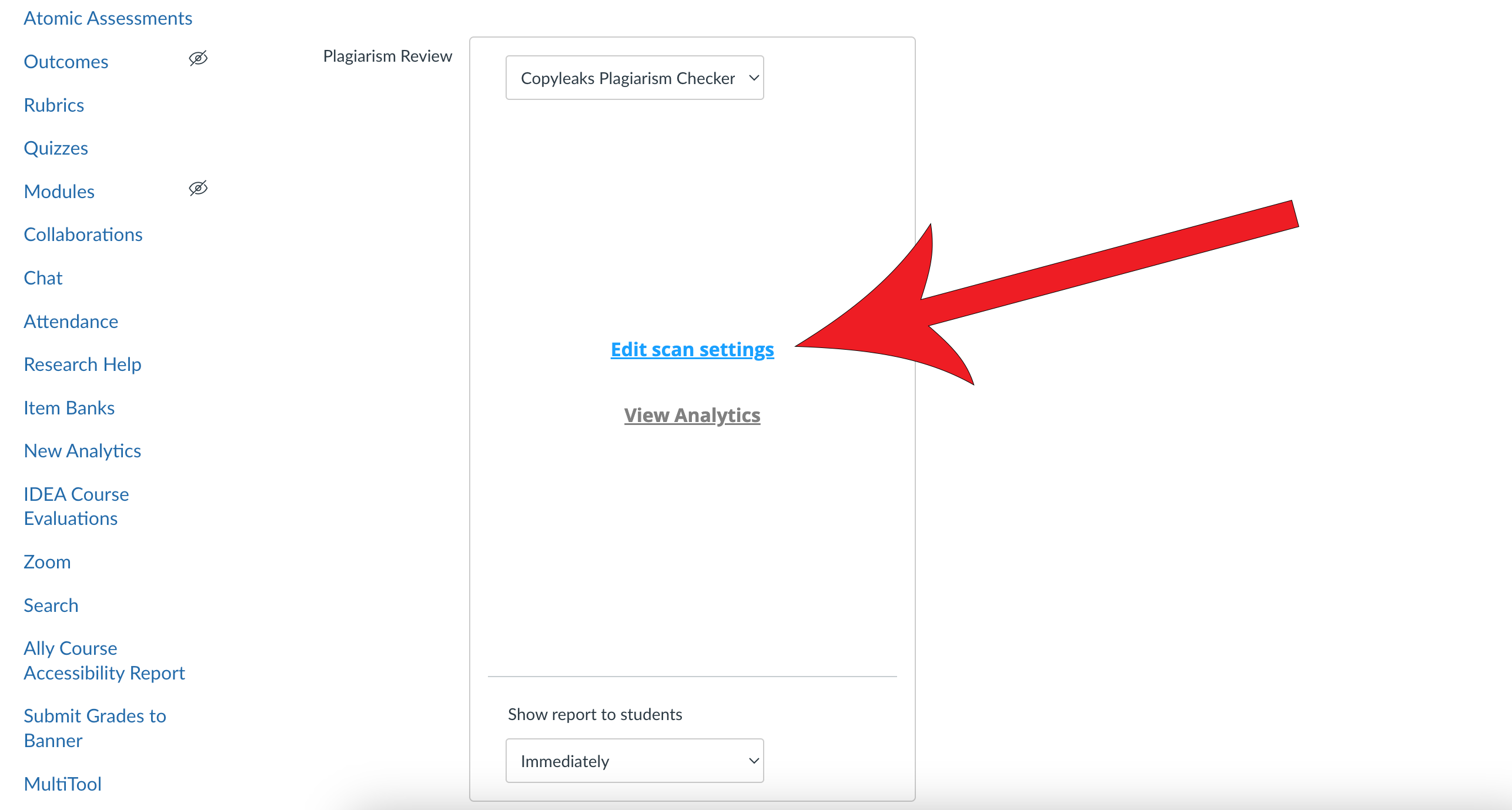
Adjust the AI Content Detection setting as necessary

Click Save Settings
