
Plagiarism Detection in Canvas Assignments with Copyleaks
Copyleaks is a software program that helps instructors detect plagiarism by comparing text from student assignments to a database of outside sources. Copyleaks can be enabled in a Canvas assignment to produce an originality report for each student submission.
Enabling Copyleaks in an Assignment
Copyleaks can easily be enabled in your Canvas assignment. One thing to note is that this feature is only available with Online Submissions where one of the following Online Entry Options are selected: Text Entry and File Uploads. Below are the steps on how to activate this tool into your assignment.
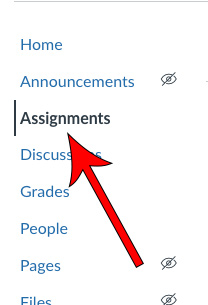
Navigate to Assignments
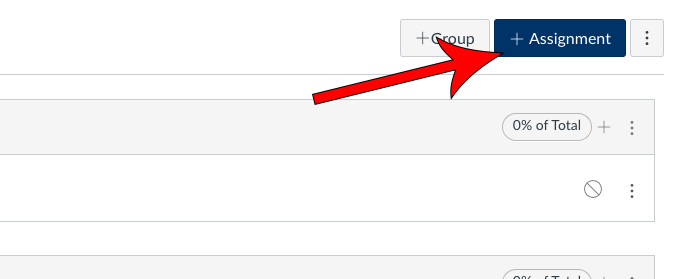
Click + Assignments
If you already have an assignment created, locate and select it and proceed to Step 4.
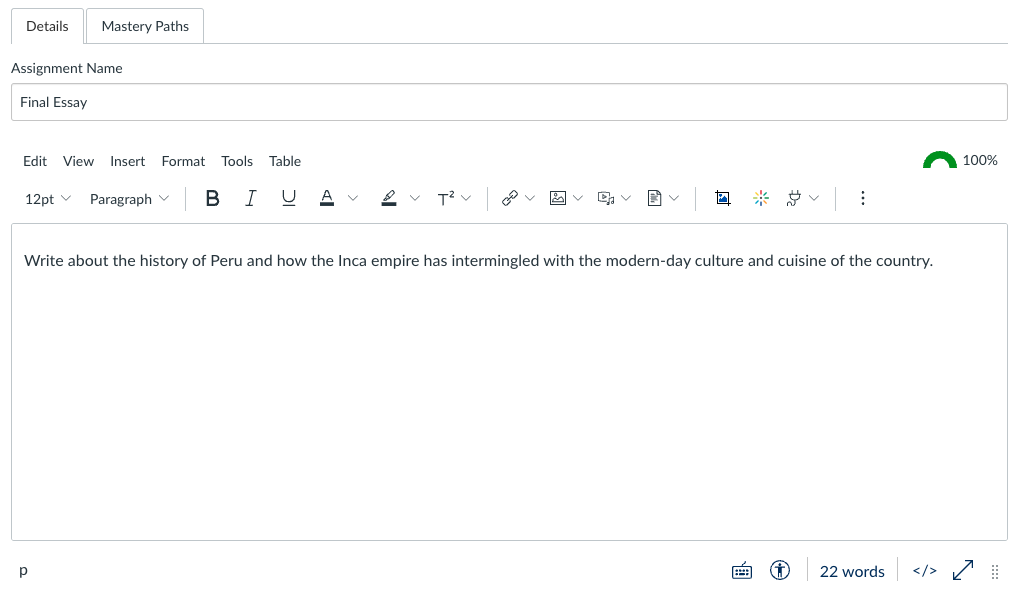
Fill in the necessary details
Select Online as the Submission Type

Choose the Online Entry Options
The Copyleaks settings will only appear if you have either the Text Entry or File Uploads options selected.

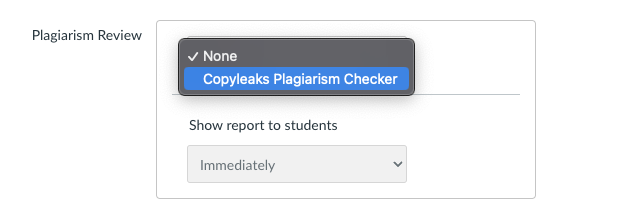
Expand the Plagiarism Review dropdown and select Copyleaks Plagiarism Checker
Click Edit scan settings
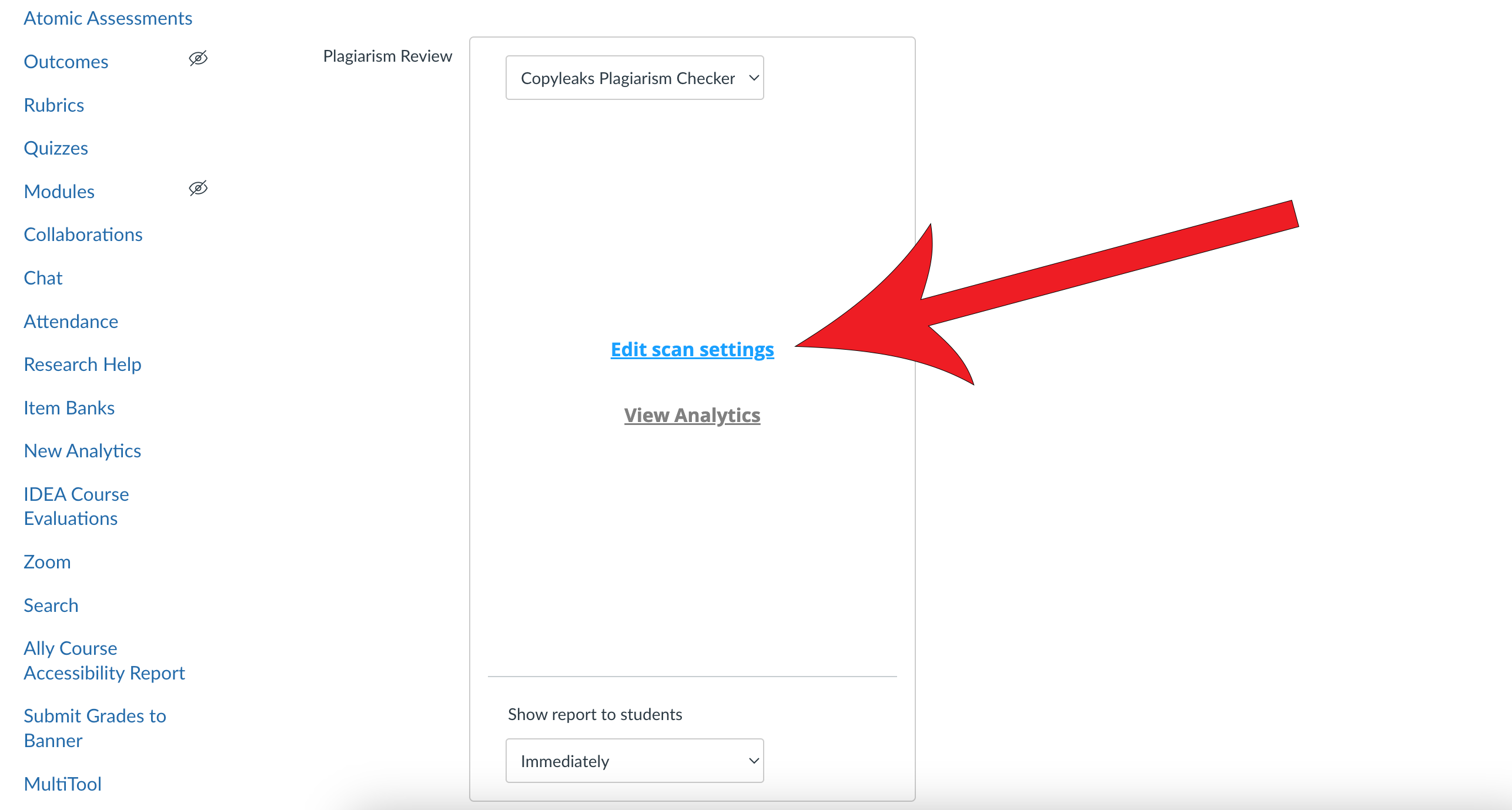
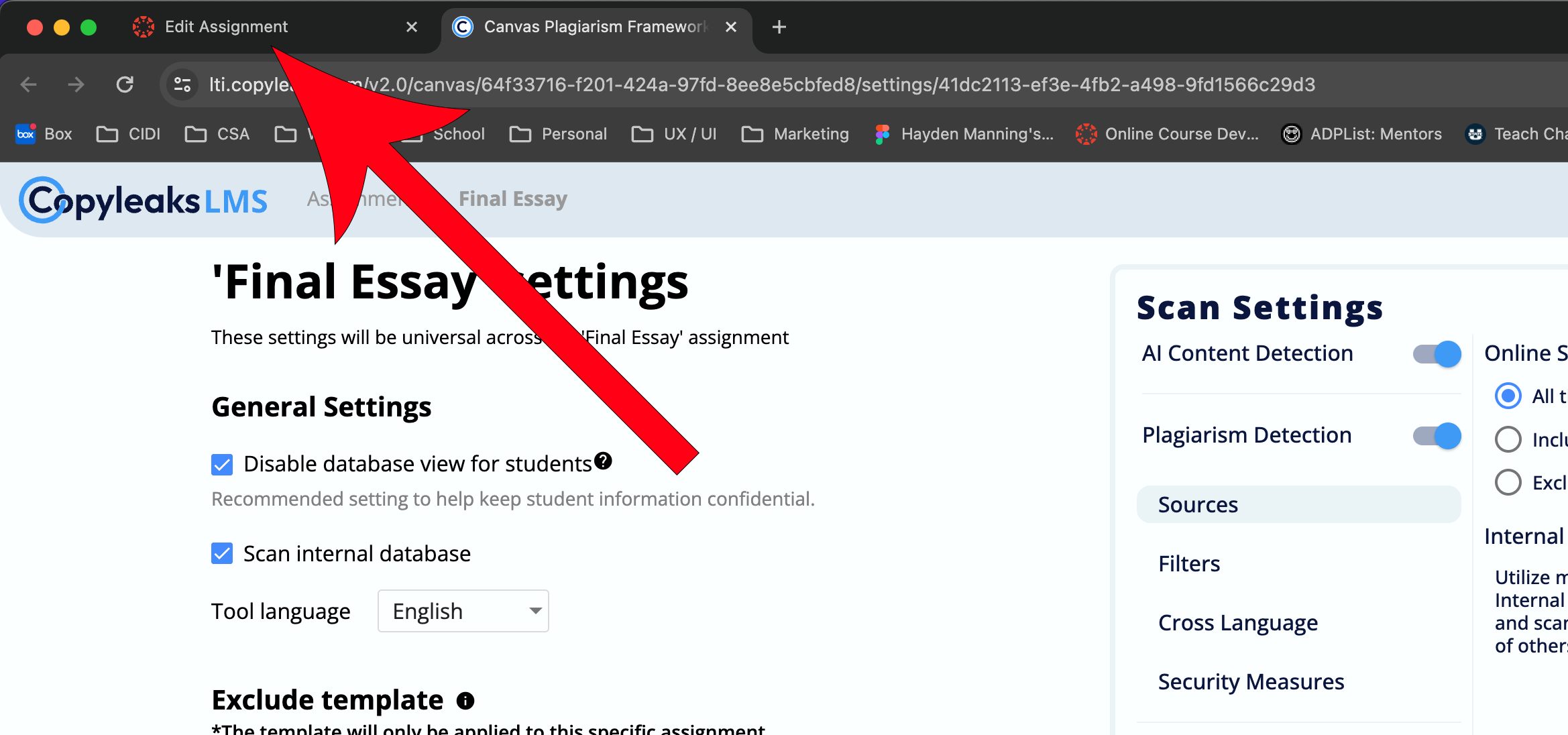
Review the different settings and adjust them as necessary

Click Save Settings

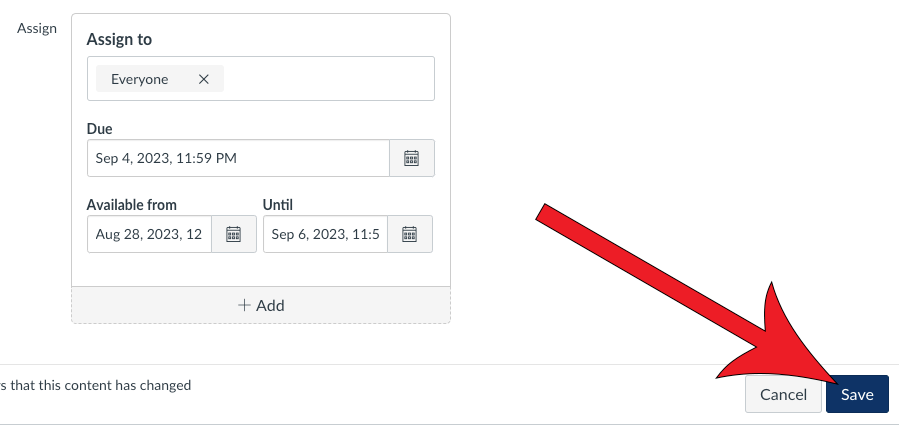
Navigate back to the Canvas window
Fill in the rest of the course settings, then click Save
How Copyleaks Reports Appear / Interpretting Results
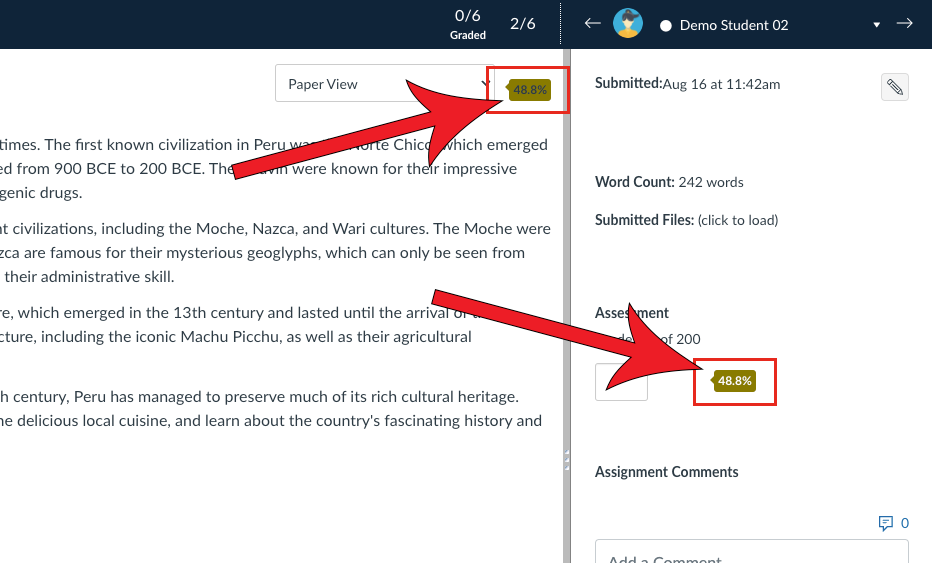
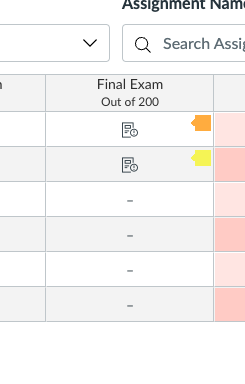
With Copyleaks enabled, you will see a colored originality score indicator in the SpeedGrader for each student's submission. You can click on the indicator icon to view a full Copyleaks report. Indicators also appear in the Canvas gradebook, but you can only access the originality score through the SpeedGrader.
No matching text
1-24%
25-49%
50-74%
75-100%
The above ranges represent the percentage of text found within the submitted assignment that matches text found in any of the resources in Copyleaks' database.
What Students See When They Submit
With Copyleaks enabled for plagiarism review, students will be asked to check a box certifying that their submission is their own work at the point of assignment submission.

Once the assignment is submitted, if you have enabled the students to have access to their reports in the Copyleaks settings, they will be able to view the same report that you can see by going into their submission and clicking on the colored icon with the similarity score.