
View Copyleaks Results in Canvas as an Instructor
When students submit a Copyleaks assignment in Canvas, Copyleaks generates an originality report and similarity index that lets the instructor know how much of the assignment is original. Whether the results appear to students depends on the settings selected when setting up the Copyleaks assignment.
Note: The originality report for an initial assignment submission may take up to ten minutes to generate.
View Report from the SpeedGrader
To view the Copyleaks report from the assignment SpeedGrader, follow the steps below.
Navigate to the completed assignment
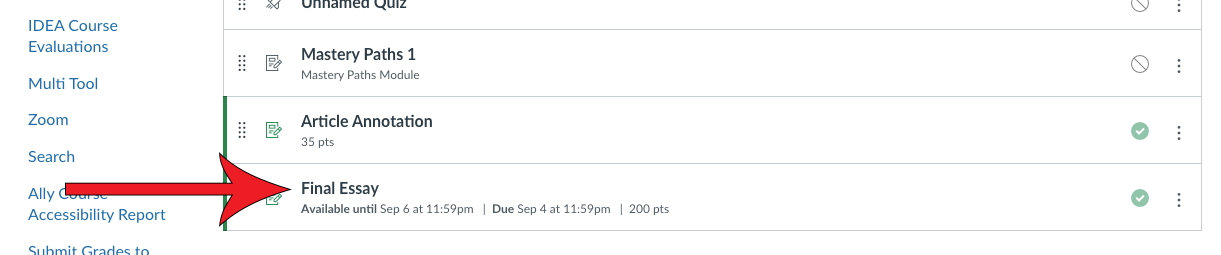
Click SpeedGrader

Click on the colored bubble that contains a percentage
The percentage represents the proportion of the submission that matches files in the Copyleaks database.
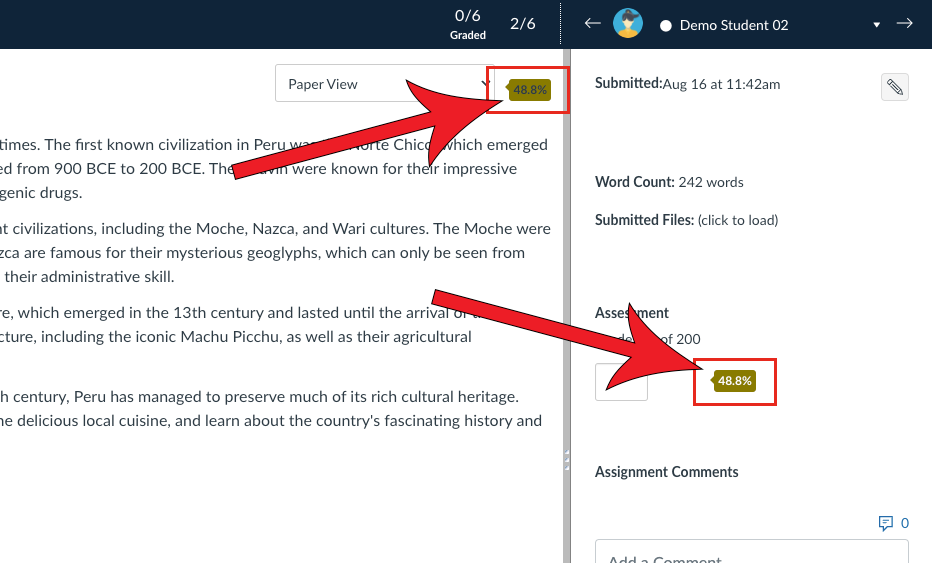
Review the report
View Report from the Gradebook
Viewing the Copyleaks report from the Gradebook is very similar to viewing it through the completed assignment. Because this tool is integrated into the SpeedGrader of Canvas, you will have to navigate there to be able to see the report for each student.
Navigate to Grades

Locate the column of the completed assignment
You will see that the submissions will be accompanied with a colored bubble, which indicates that the Copyleaks report is available for the assignment.
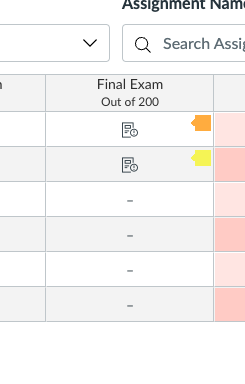
Click on the colored icon in the cell
The colors represent a range of percentages for the originality report.
No matching text
1-24%
25-49%
50-74%
75-100%

Click the arrow that appears

Select SpeedGrader

Click on the colored bubble that contains a percentage
Viewing Matching Sources in the Copyleaks Report
The student's submission appears in the Copyleaks report with highlights on the text that matches items in Copyleaks' database. To view the list of matching sources, see the Results panel to the right. To see which source a text matches, click the highlighted text, and the sources will automatically filter.
